How to Manage Multiple Rooms for an Event
IMPORTANT: Access to the Calendar module is restricted to users with Admin, SRP, or SRP (full control) privileges.
A user with either privilege can schedule new events. However, any booking created by a user with SRP privilege has to be approved by a user with Admin or SRP (full control) privilege. Also, editing the room or repetition settings by users with SRP privilege requires repeated approval.
Any event has the following data set about the event itself:
title of event
starting and ending date and time
repetition settings
Activity within which the event takes place
notes (if any)
The Case assigned, the participants, and the resources are set about the Room where the event occurs.
In case of multiple rooms, each room must be assigned a Case, participants, and resources on its separate tab.
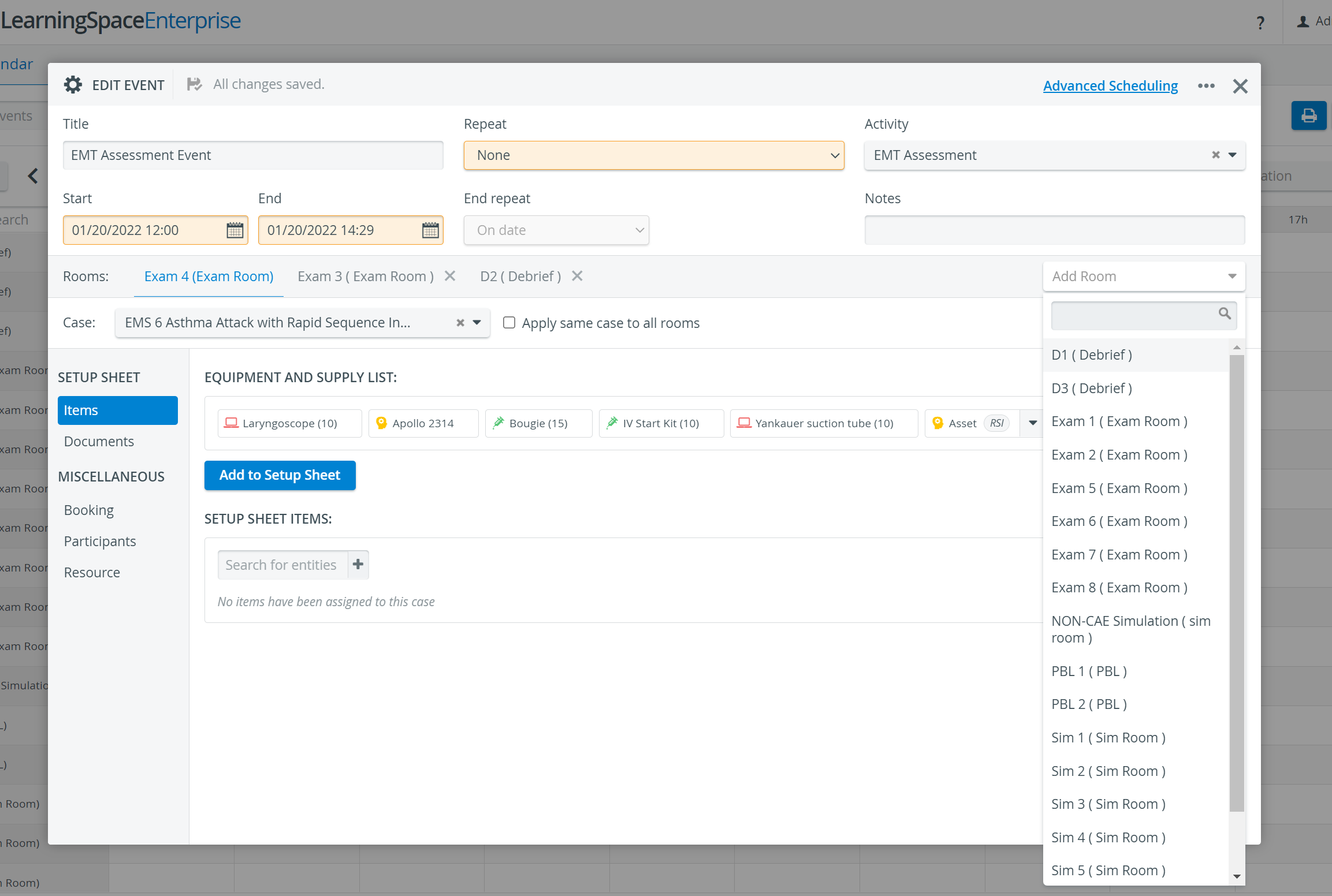
If more than one room is assigned to an event, each room has its own tab in the Edit Event pop-up window.
As desired, fill out the Case, Participants, and Resources panels on the active tab.
Switch to the next room settings by clicking its tab.
Close the window when all tabs are filled out, as all changes are saved automatically.
For further information, visit our Calendar Module and Calendar - How-to pages, or watch our Calendar Module Training Videos.