How to Manage Cameras and Speakers
Important Note for Enterprise Lite Users
This feature is for use with in-campus audiovisual (AV) inputs. Hence, it is not available for LearningSpace Enterprise Lite, which is used for web-conferencing-based virtual simulation encounters only. To unlock this feature, please upgrade to the LearningSpace Enterprise solution.
The Cameras tab lists available cameras, DCUs, and DAKs (Digital Audio Kits/speakers).
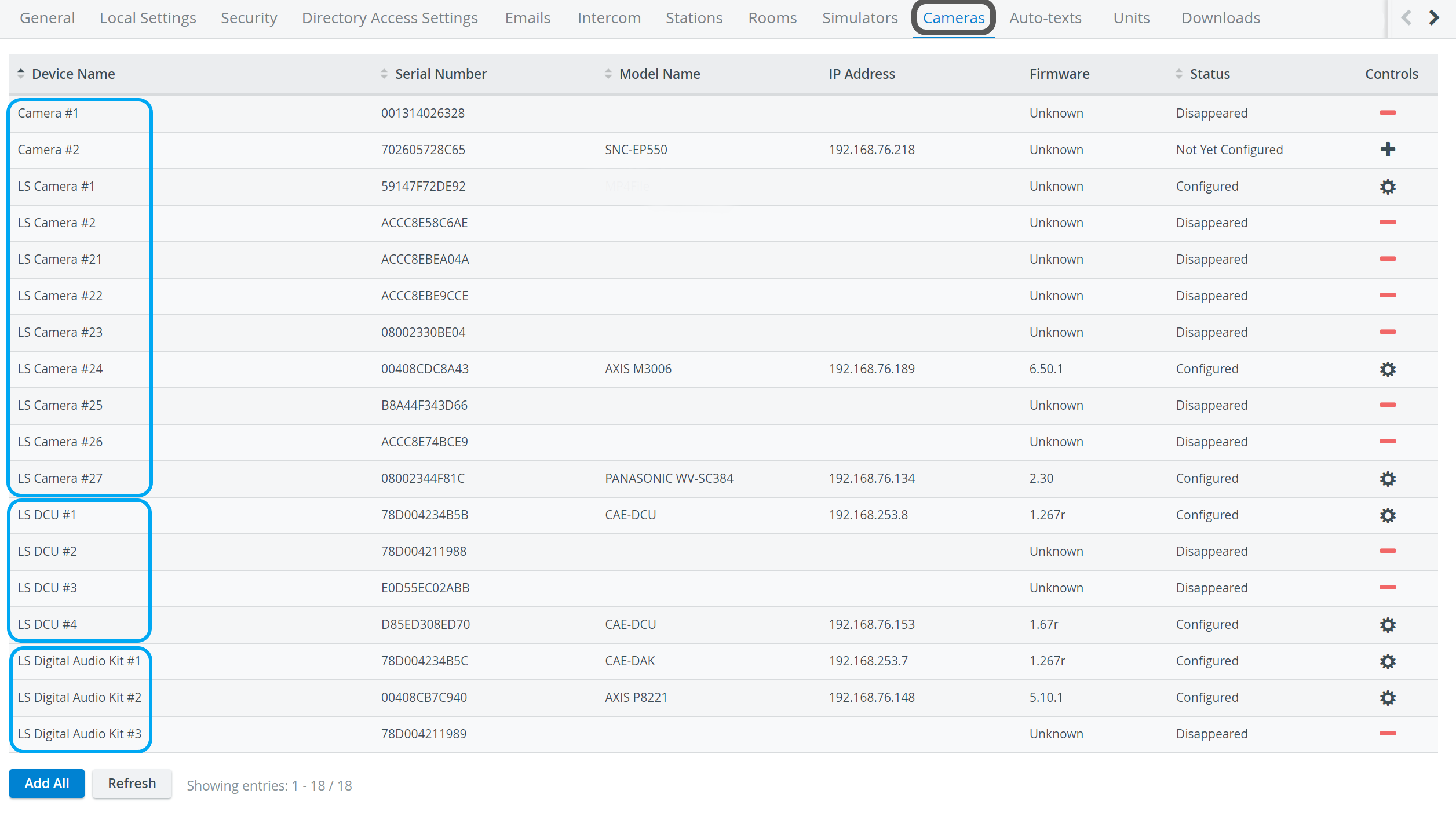
For more details, see How to Connect Cameras.
Camera Settings 
The cogwheel in each row of a configured camera prompts the Camera Settings window to open, where the following settings can be specified:
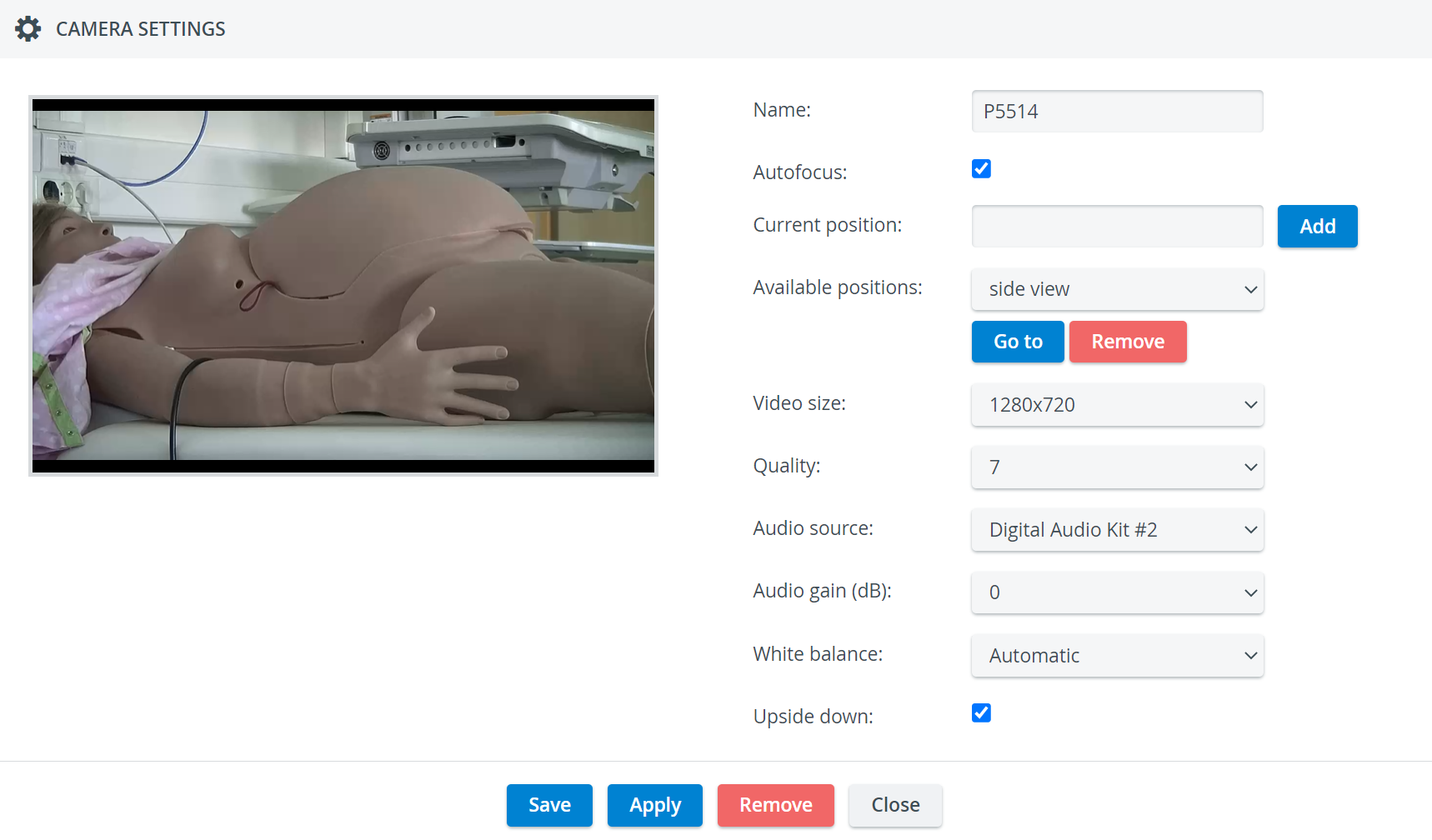
Name - camera name for distinction
Autofocus - only for PTZ cameras: when checked, the focus is set automatically when using pant-tilt-zoom
Current position - only for PTZ cameras: a preset position that can be saved by typing in a title and then clicking the Add button
Once a new position is added, the 'Available positions' drop-down appears with a Go to and a Remove button, which activates or deletes the selected position, respectively.
Video size - resolution of the camera feed (See additional note on video size - aspect ratio - for LearningSpace NextGen Room View here.)
Quality - the quality of the camera image on a 10 scale (the lower, the worse the camera image, but the smaller the recording size accordingly as well)
Audio source - the source of audio for the camera feed (if the camera does not have a built-in microphone)
Audio gain (dB) - volume setting for the audio source (built-in mic or selected source)
White balance - adjustment of the intensity of white color in the camera feed
Normally, the 'Automatic' setting is optimal; it should only be changed under special circumstances.
Upside down - for ceiling-mounted PTZ camera types, checking this setting allows for switching the original (ceiling) perspective.
Speaker Settings
The cogwheel in each row of a configured speaker (Digital Audio Kit, DAK) prompts the Camera Settings window to open, where the following settings can be specified:
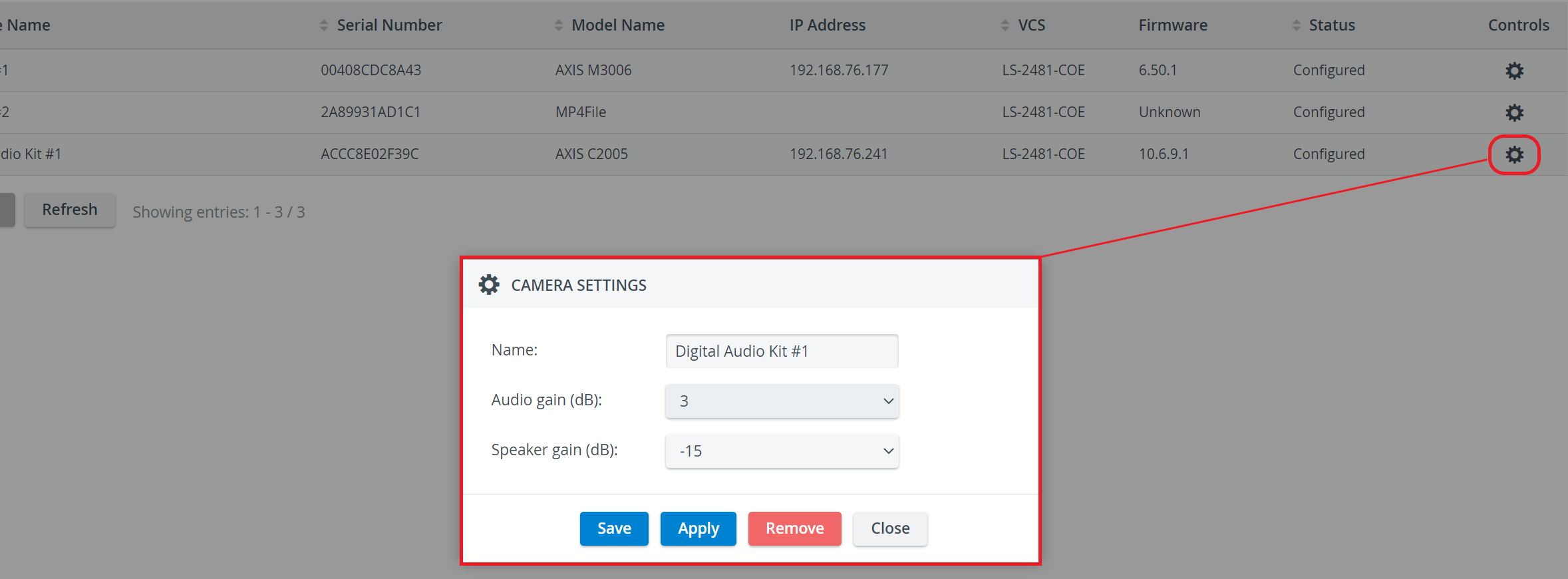
Name - Speaker name for distinction
Audio gain (dB) - controls the sensibility of the integrated microphone of the speaker
Speaker gain (dB) - controls the speaker output volume
Related pages
For further information, visit our System Manager and System - How to pages.