How to Interpret Raw Data Export data
This page explains how to interpret the information included in the Raw Data Export file downloaded from LearningSpace (See How to Access Data Export).
The below example contains the following information:
There is one Case: Meredith Sinclair
This Case contains data from all parts:
Pre-encounter contains 3 items (the first item is a Note, so there is no data)
SP part contains 6 items
Post-encounter is a SOAP Note: 4 Text items (open-ended questions), two of which are scored using the Special Section
FON contains 23 items
Case Evaluation contains 6 items
Self Evaluation contains 3 items
Peer Evaluation contains 3 items
Your data export may differ depending on the Case(s) and Case parts used.
How the Data is Organized
The Raw Data Export (RDE) displays point values (raw data) for all items (questions) in the Case, including items from hidden sections. Therefore, it is helpful to know how the Case is built.
Data in the RDE is organized by part, in this order:
Pre-Encounter Learner Part items
SP Part items
Post-Encounter Learner Part items
Special Section items
FON Part items
Case Evaluation Part items
Self Evaluation Part items
Peer Evaluation Part items
If needed, data from SP observation (and SP performance assessment) can also be included (see below).
By default, no learner names are displayed, only SP names (if any). However, it is possible to display learner and FON names.
See How to add Names to an RDE Section further below.
The RDE can be reviewed with the Codebook.
See the How to Use the Codebook Section below.
What is displayed in each row?
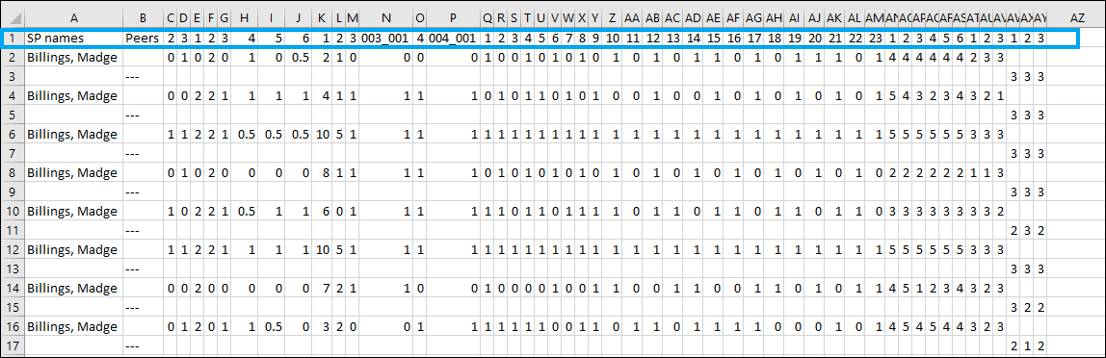
Row 1 identifies what is in each column (SP names, Peer Reviewer names, Item numbers by section).
The remaining rows display learner data.
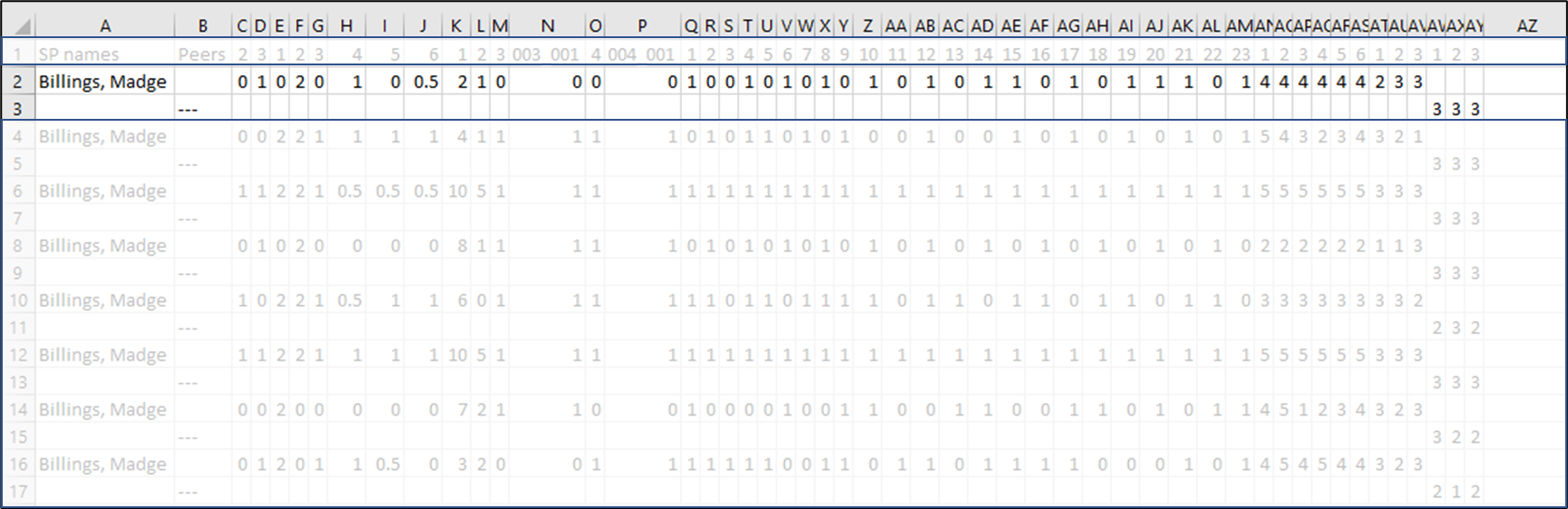
Rows 2, 4, 6, and so on display the name of the SP (if any) who submitted data and the data for all Items in all Parts - except Peer Review.

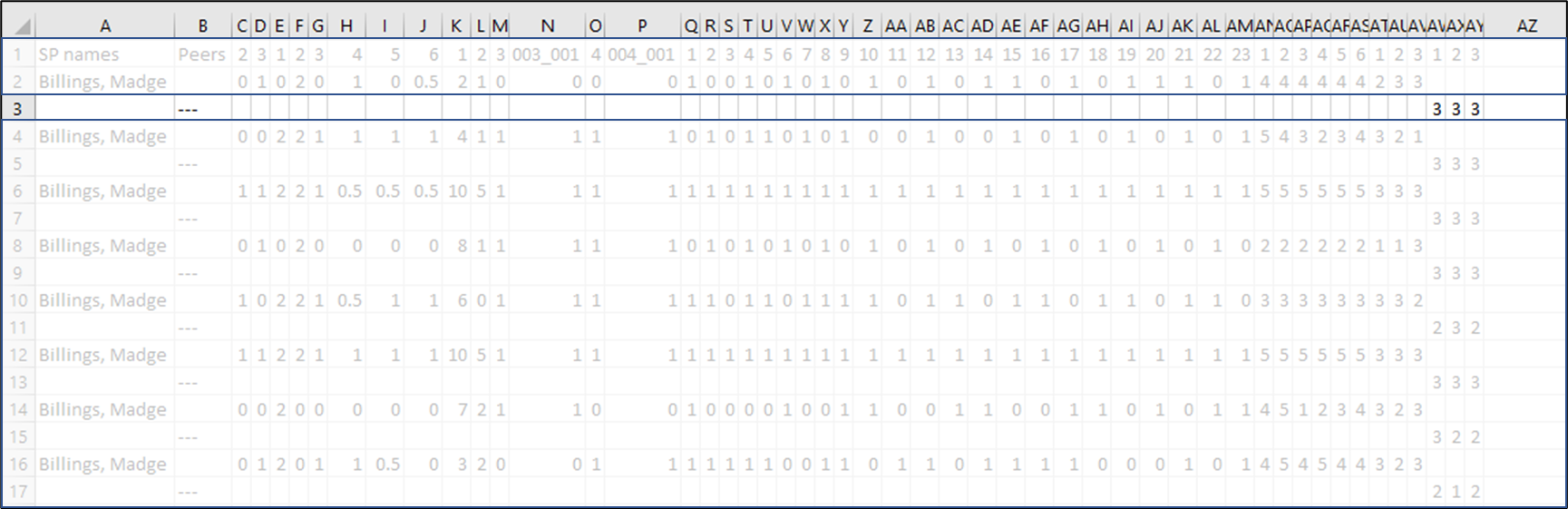
Rows 3, 5, and so on display the Peer Reviewer's name and Peer Review data. There will be no second row if there is no Peer Review data.
Learner names are not displayed by default, so the Peer Reviewer name is replaced by dashes (- - -).
What is displayed in each column?
Column A displays the names of the SPs who submitted the data. (In this example, there is only one SP, Madge Billings.)

Column B displays the names of peer reviewer users who submitted the data.
Learner names are not displayed by default, so Column B displays dashes (---) instead of names.

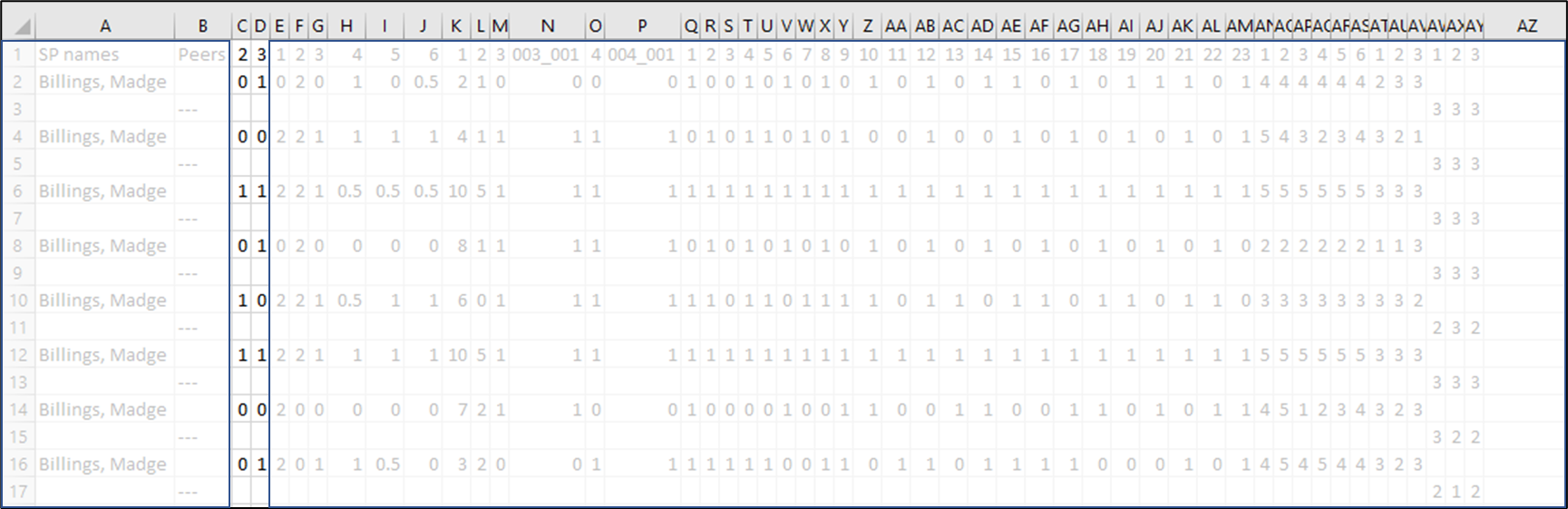
Columns C & D display data from the Pre-Encounter Part.
Remember that Row 1 identifies the Item numbers.
Columns E through J display data from the SP Part.
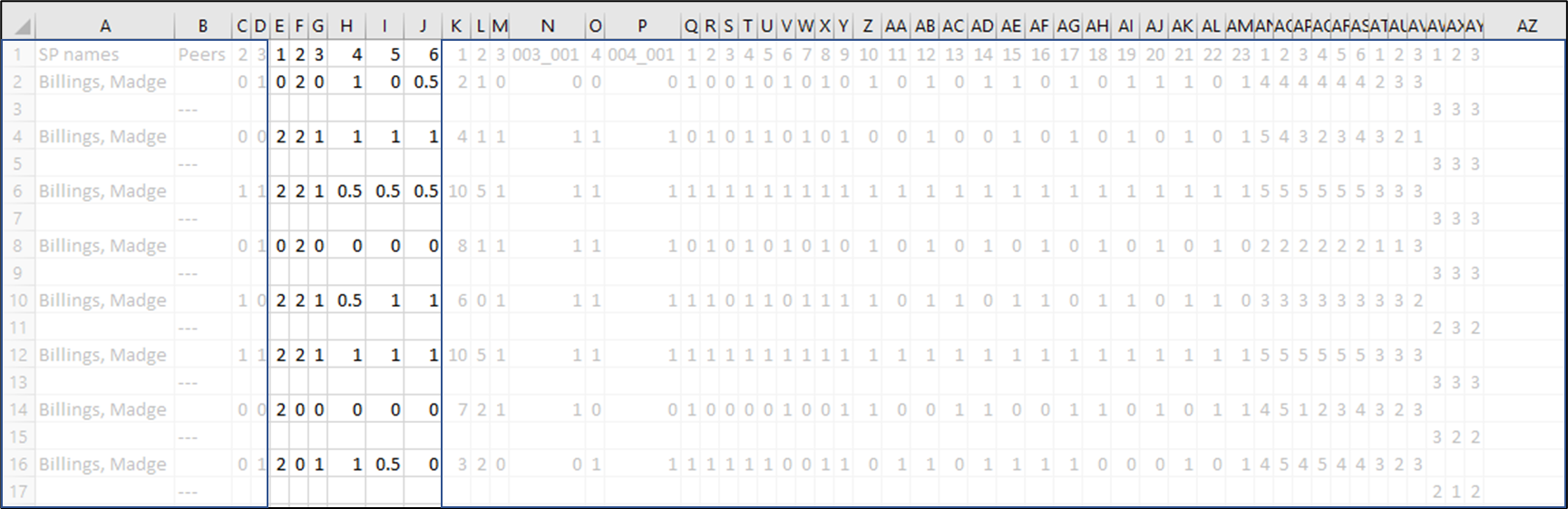
Columns K through P display data from the Post-Encounter Learner Part.
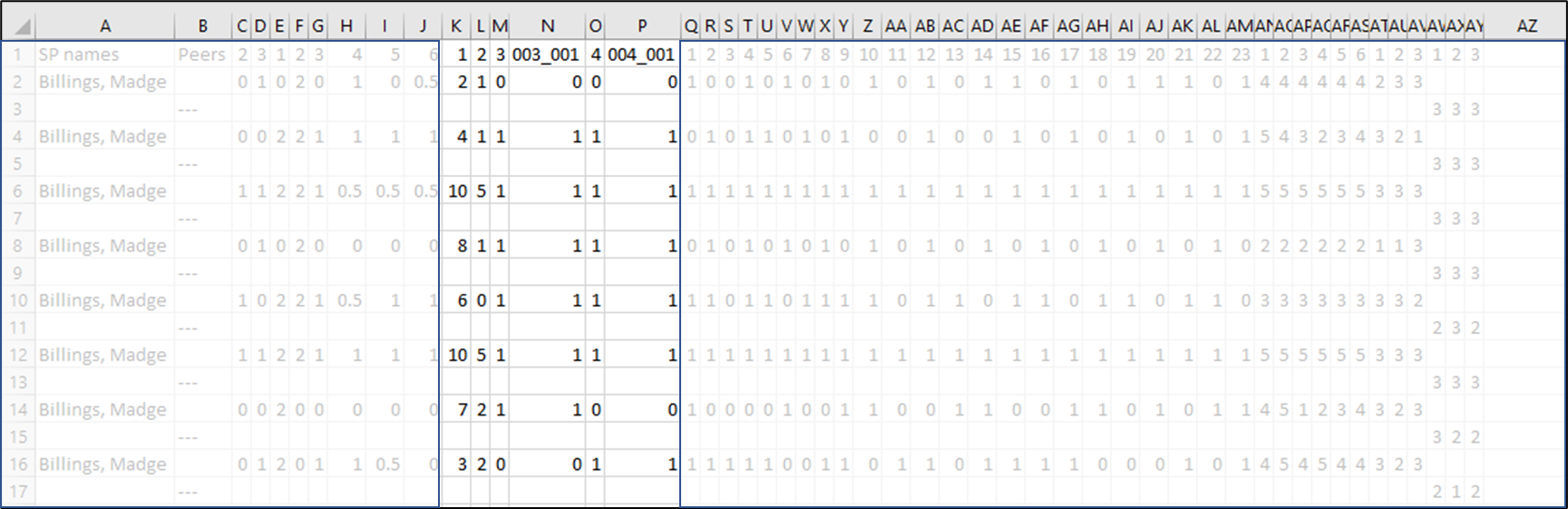
Columns Q through AM display data from the FON Part.

Columns AN through AS display data from the Case Evaluation Part.
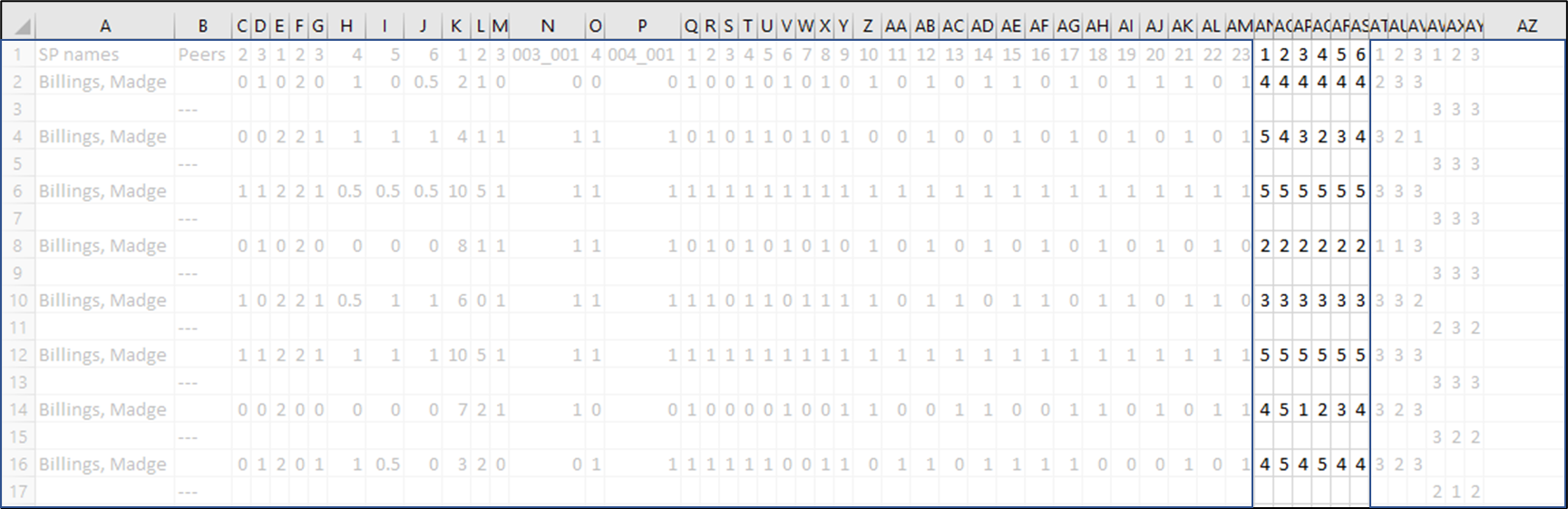
Columns AT through AV display data from the Self-Evaluation Part.
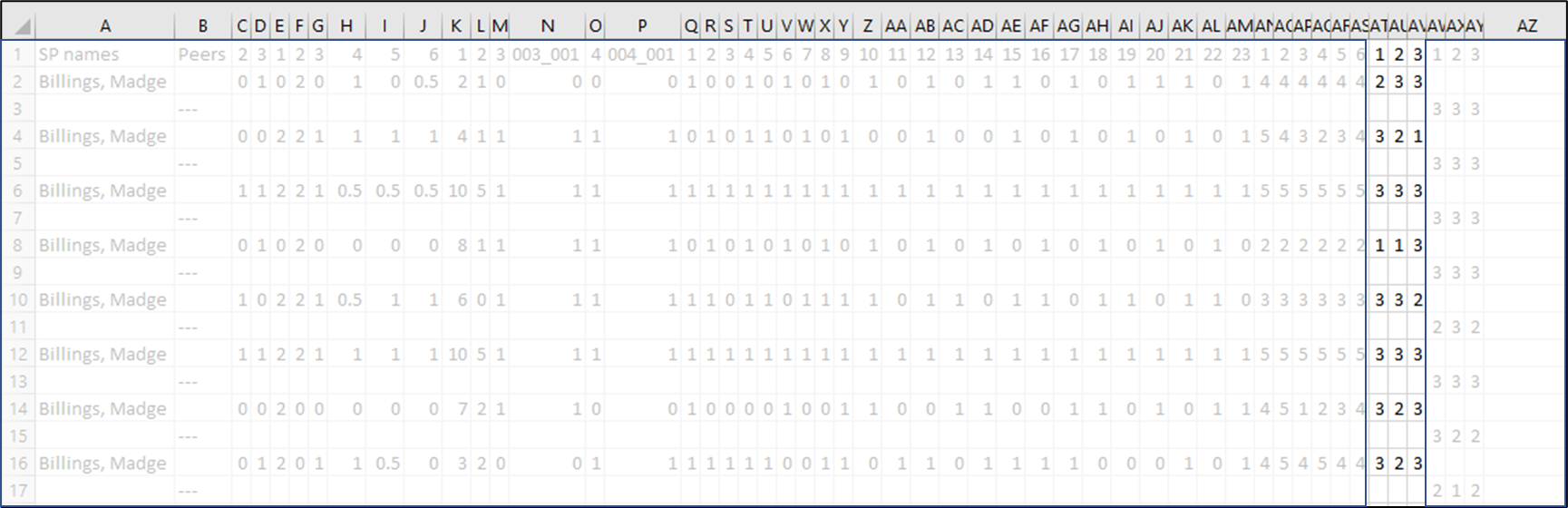
Columns AW through AY display data from the Peer Evaluation Part.
How to Make Exported Data Easier to Identify?
Your Case contains features that can help you easily identify the exported raw data.
Case short name
Section abbreviation
Identify Exported Data by Case Name
The Short ID field of the Case can be used to identify the Case when you export raw data.
The Short ID can be as long or as short as you like. Shorter IDs may be easier to read in Excel when data is exported.

Identify Exported Data by Section Abbreviation
The Section abbreviation can also be used to identify data.


To avoid repetition, data from virtual sections (tagged items) is not included in the raw data export, only the data from the original section items. However, virtual section data is included in the Raw Score Export.
How to Add Names to an RDE?
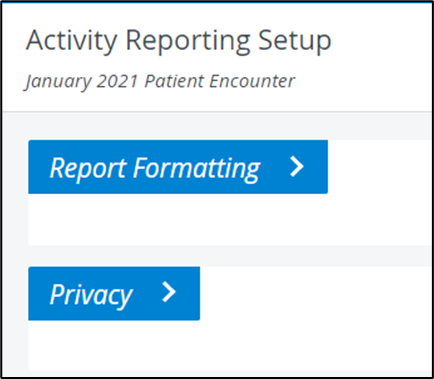
Go to the Activity Reporting Setup.
In Activity Reporting Setup, open the Privacy panel.
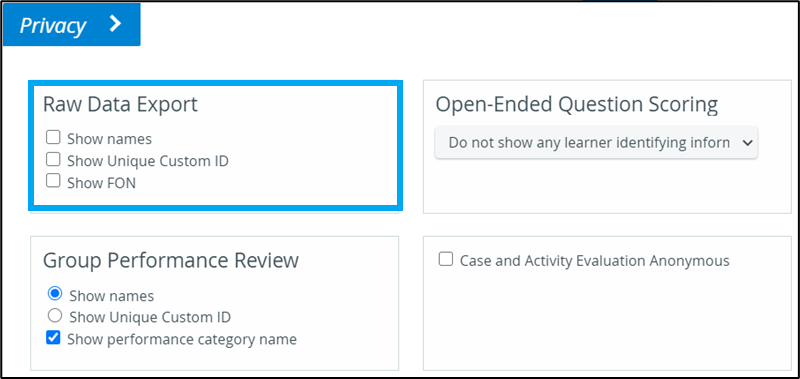
Under Raw Data Export:
Select Show names to display Learner names in RDE.
Select Show FON to display the FON evaluator’s name in RDE.
Select Show Unique Custom ID to display the Learner’s UCID (from the User Module).
Click Save at the bottom of the screen.
Multiple SP & FON Submissions Allowed
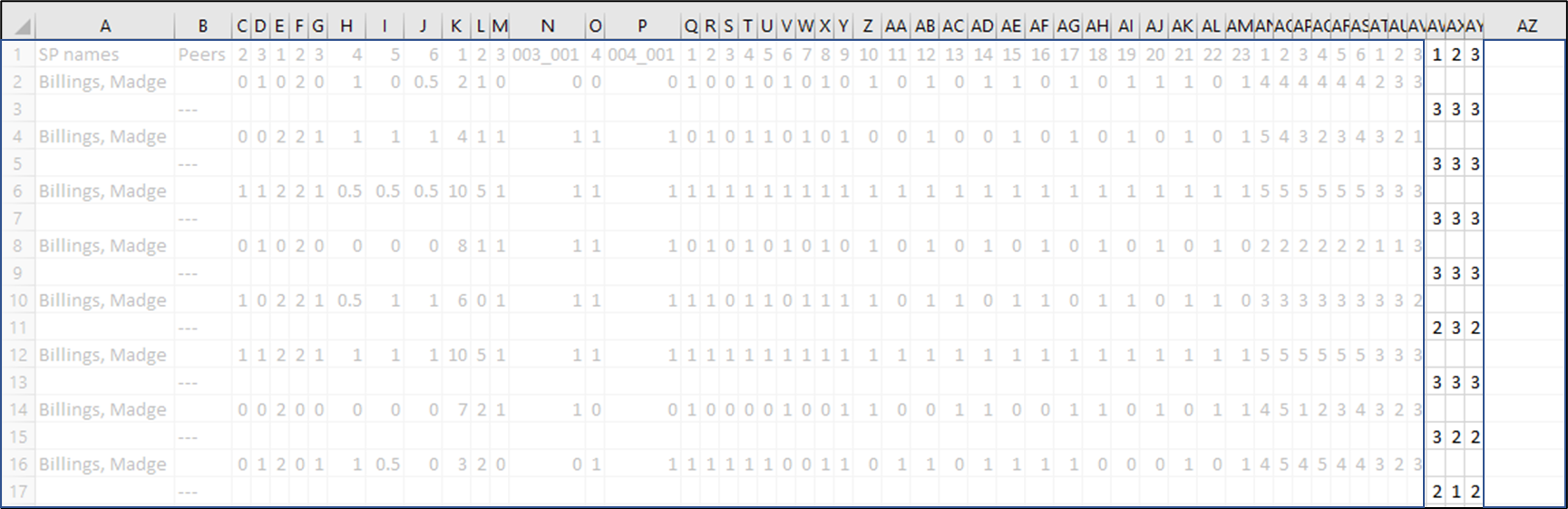
When the option Multiple Independent SP & FON submissions allowed has been selected, the raw data export changes slightly.
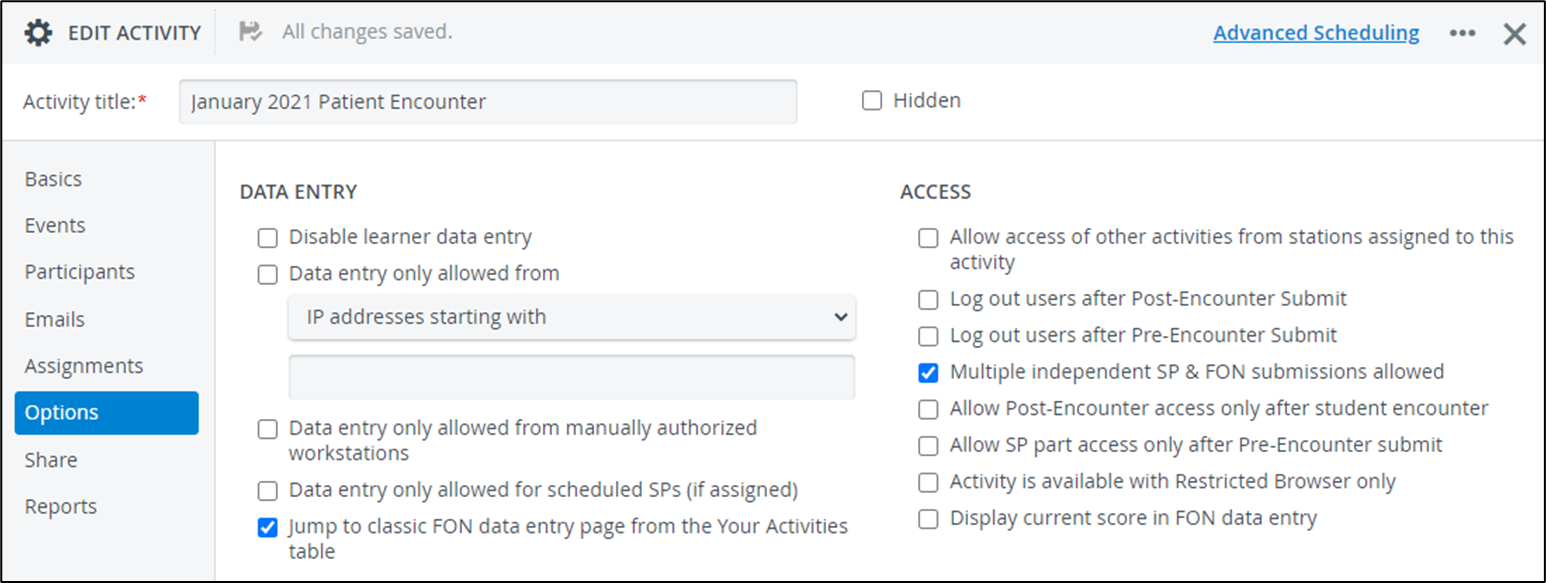
Column B displays the names of the SPs who submitted the data:

When there are multiple FON submissions for the same student, the RDE will resemble the following:
Column C displays the names of the FON users who submitted data.
Row 2 displays the name of the last FON user to submit data for easy identification.
Rows 5 & 6 display the name of the FON users and their data (most recent in row 5, older submission in row 6.

Raw Data Export Options
Use Answer Description
When this option is selected, the RDE displays the selected response for each item instead of the point value.
Include Observation Data
SP observation data is exported by selecting the option Include Observation Data. The example below shows SP observation data in rows 4, 7, & 10.

The option Include Qualitative Data does not export response text for observation data. Only numeric SP observation data is exported.
Transpose Output: Default Export
When Transpose Output is selected:
Columns become rows.
Rows become columns.
Default export displays only SP names.
Data is displayed in the order we saw earlier:
Pre-Encounter Part
SP Part
Post-Encounter Part
Special Section (if any)
FON
Case Evaluation
Self Evaluation
Peer Evaluation

Transpose Output: Display Names
Transposed Output looks like this when Learner and FON names are displayed:
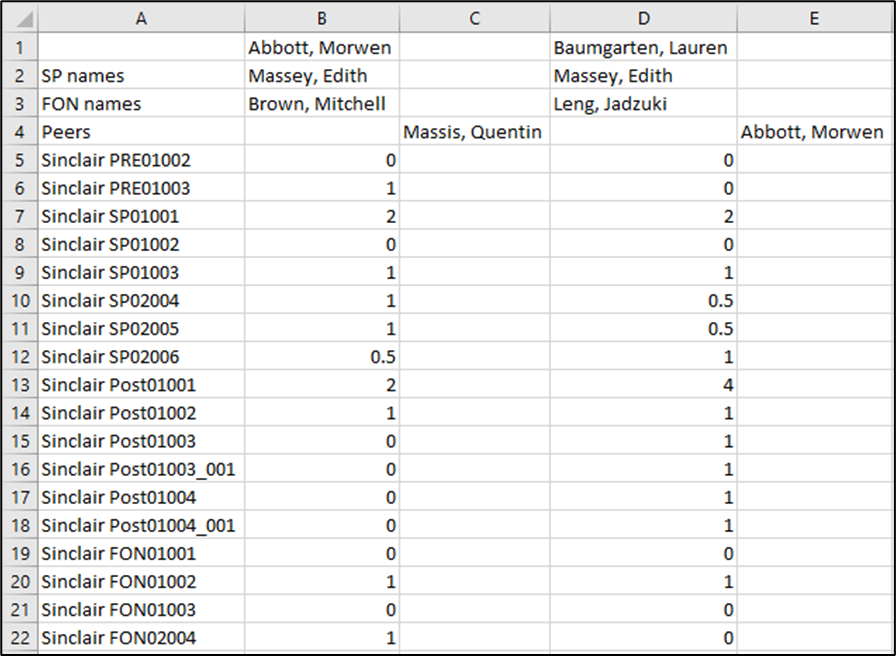
Transpose Output – Multiple SP & FON
Transposed Output looks as follows when the activity option, Multiple Independent SP & FON Submissions Allowed, has been selected:
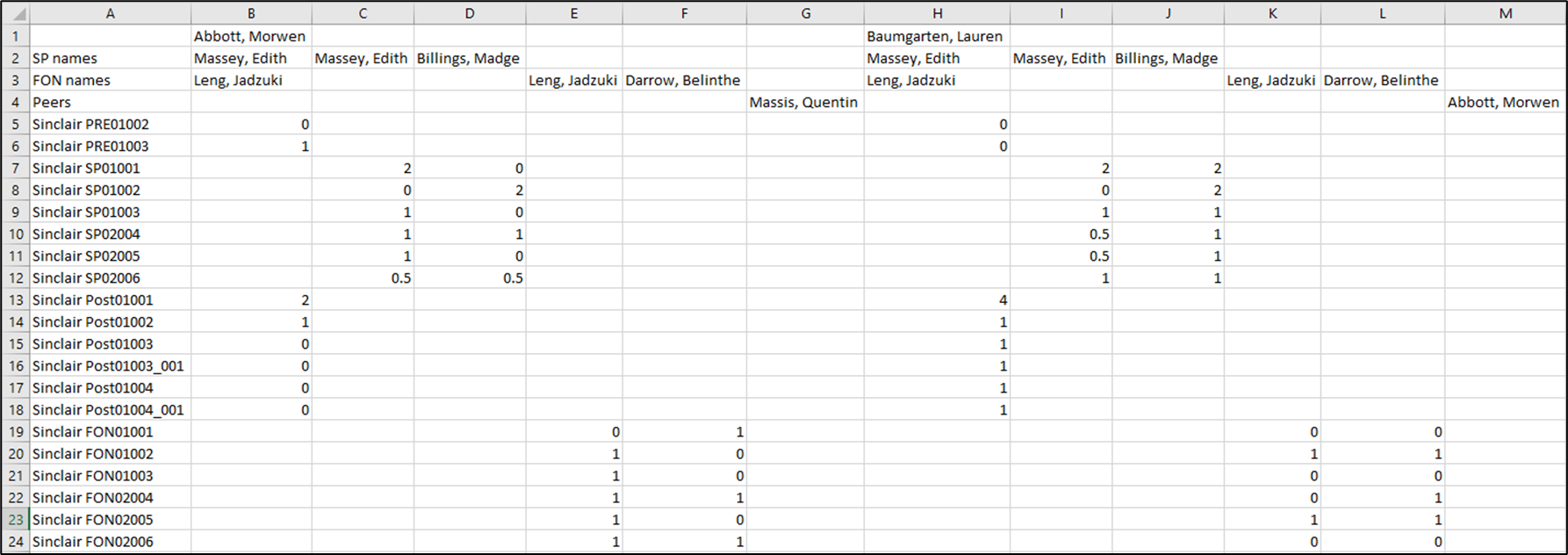
How to Use the Codebook
The Codebook identifies each item in the Raw Data Export file by displaying:
Item (question) text
Response value and corresponding text
As in the Raw Data Export file, data in the Codebook is organized first by Case, then by part, in this order:
Pre-Encounter Learner Part items
SP Part items
Post-Encounter Learner Part items
Special Section items
FON Part items
Case Evaluation Part items
Self Evaluation Part items
Peer Evaluation Part items
SP Performance Part items (optional)
Exported Codebook
Column A corresponds to the item number in the transposed Raw Data Export.
Column B displays the item number for each section
In this example, Item 1 in the Pre-Encounter part is a Note item – no points are associated with it. That is why the first item is 2.
Column C displays the item (question) text.
The remaining columns display the responses and their point values for the item.
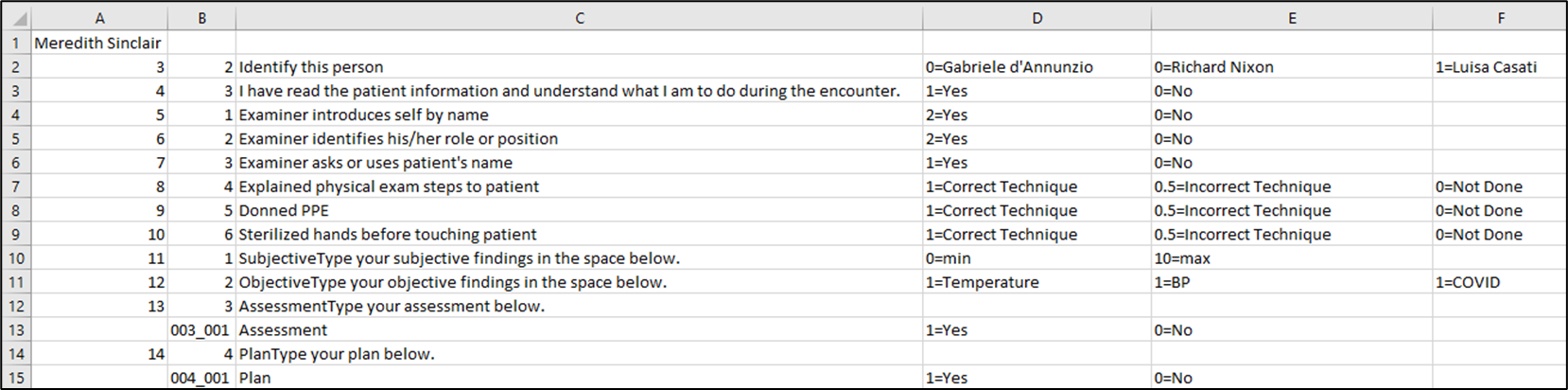
Row 10 is a Text item scored using the Direct Scoring option.
The minimum score is displayed in Column D
The maximum score is displayed in Column E
Row 11 is a Text item scored with Keywords. The Keywords are displayed in Columns D, E, F . . .
Rows 12 & 14 are Text items scored with Special Sections, so they display only the item (question) text.
The Special Section data is displayed in rows 13 & 15.
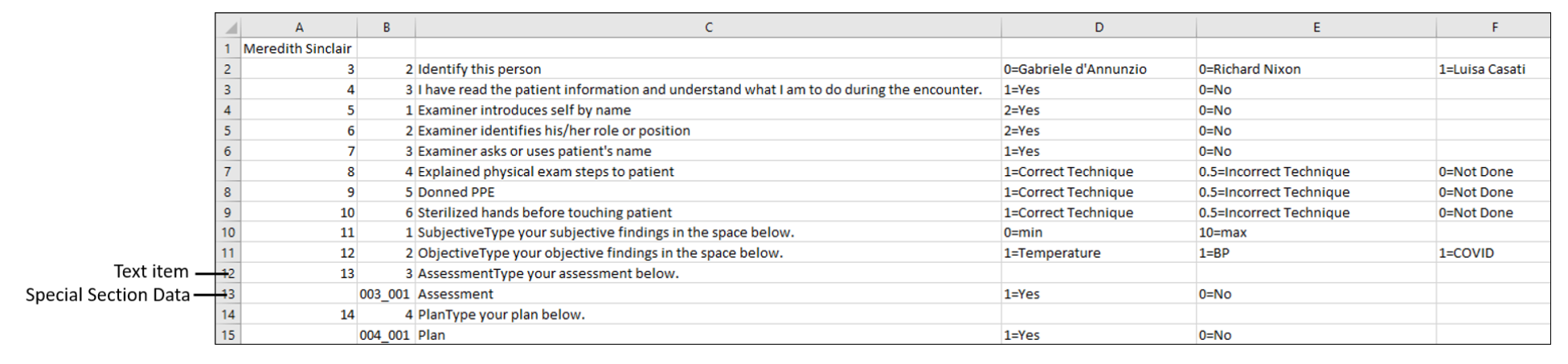
In the latest versions of LearningSpace, the “Comments” section from the OEQS Scoring interface is also included in the Raw Data Export. This feature allows users to export their comments along with other data.
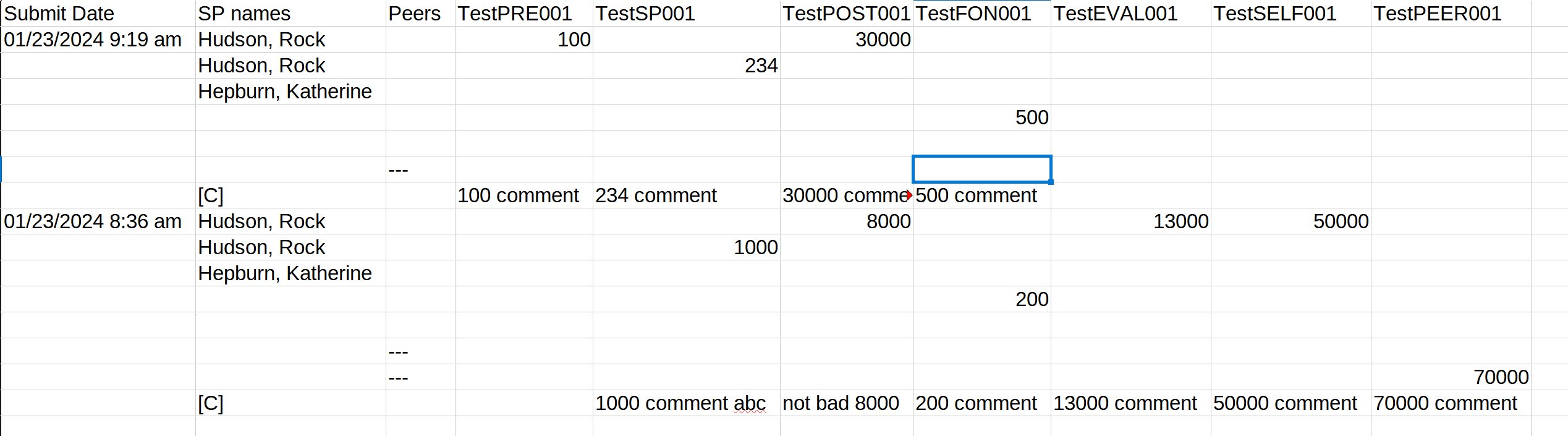
In the latest versions of LearningSpace, certain Preset reports can be exported into an Excel (xls) file for more convenient management and an essentially easier utilization of the exported data in applications like Microsoft Excel or Google Sheets.

For more information, see 2023 August New Features - Release Notes.
For further information, visit our Reports Module and Reports - How to pages and view the Reports Module Training Videos.