How to Import a Case
IMPORTANT: Cases can only be imported to LearningSpace in .cas file format.
Click the Cases module on the Dashboard.
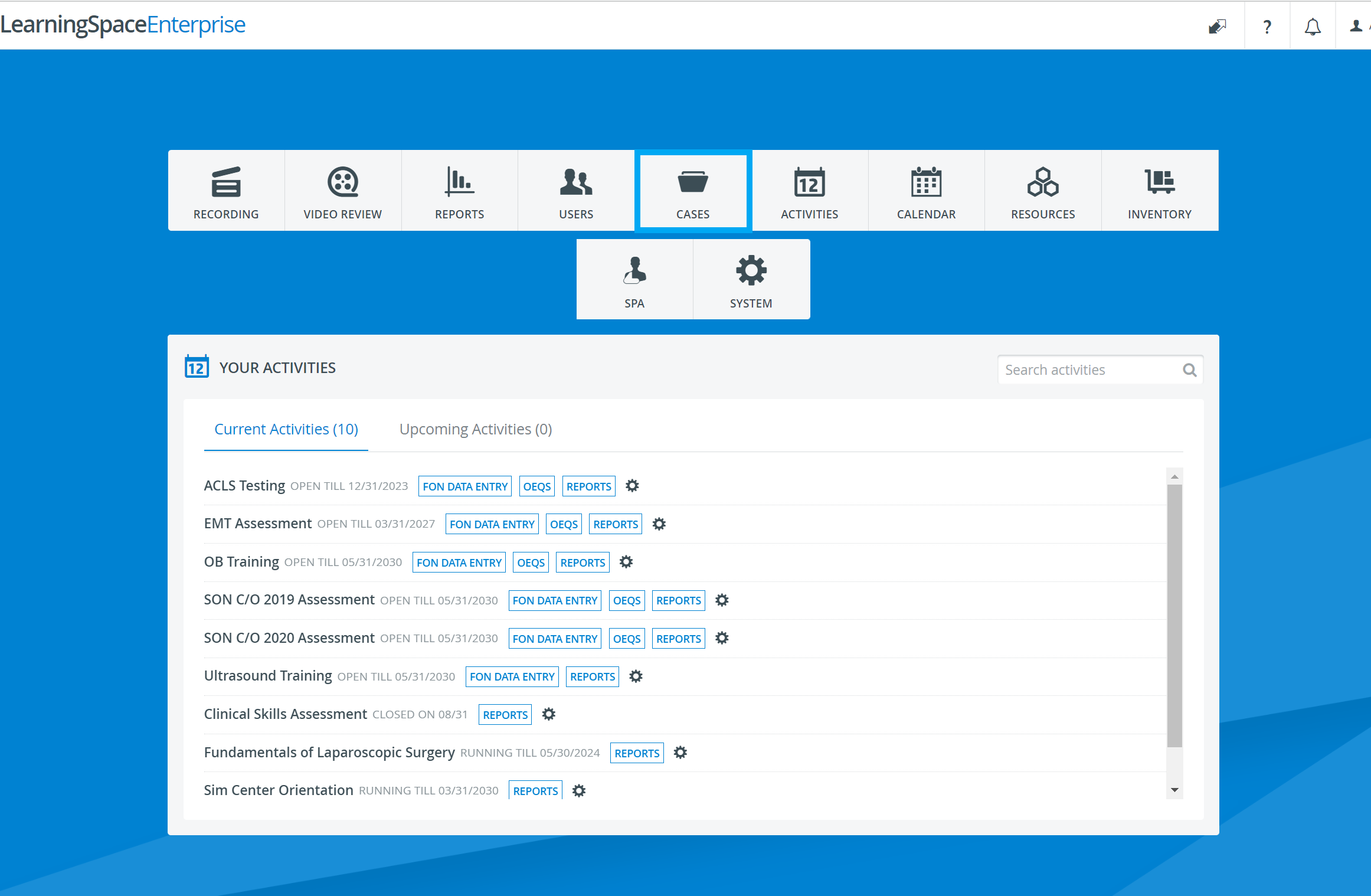
The Case Manager screen appears with the Cabinets and Cases panels.
Click the Import button to search and select the file to be imported.

The file upload window appears.
Select (highlight) the desired .cas file.

The Edit Case pop-up window opens with all the data of the imported Case.
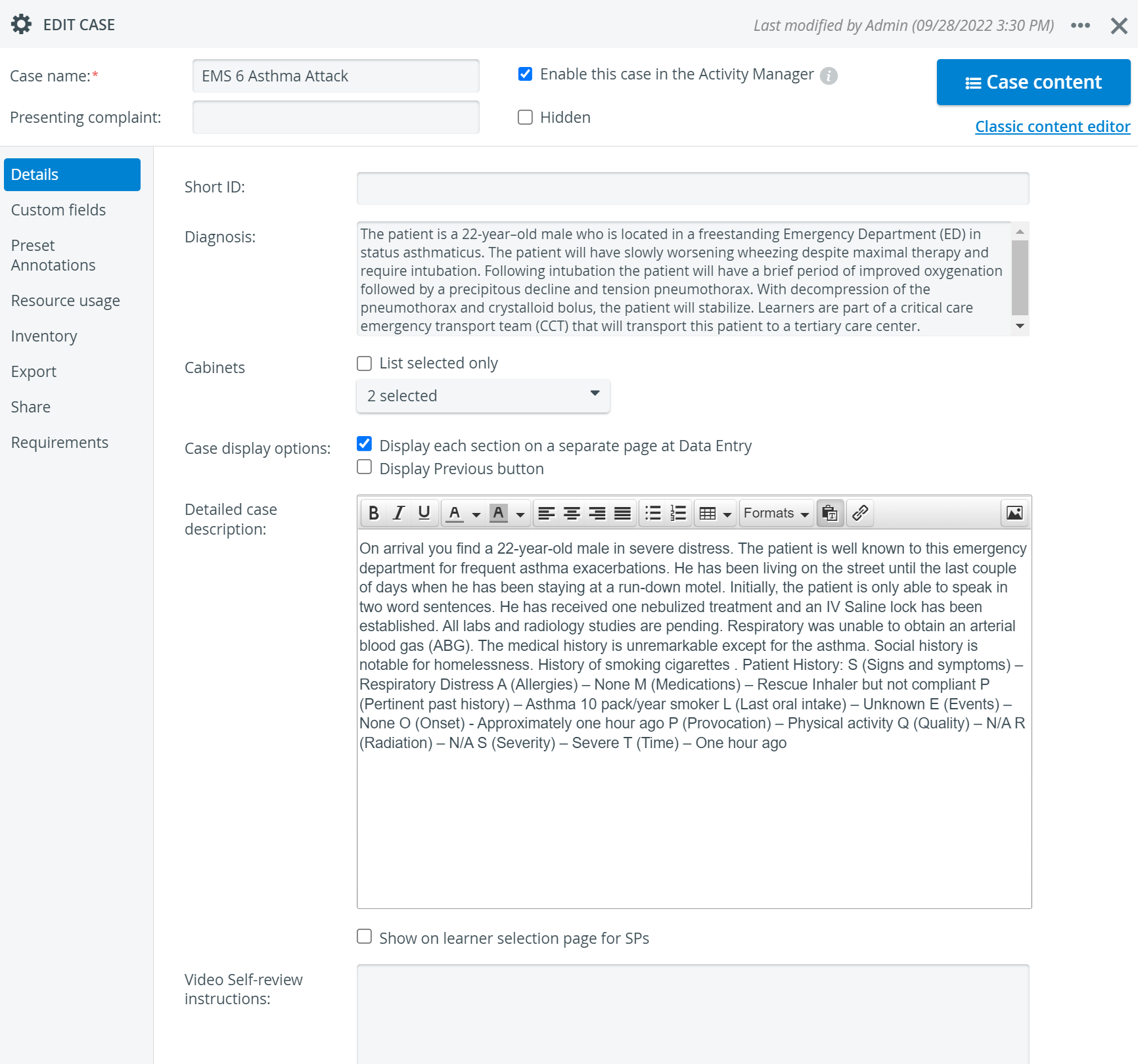
Make modifications if desired. See How to Modify a Case.
IMPORTANT: Do not transfer a Case's share settings —i.e., which users/ groups have access to it and to what extent.
It must be set up separately for the imported Case. (See more on the Share tab of the Edit Case page.)
5. Close the window; all changes are automatically saved.
For further information, visit our Case Manager and Cases - How to pages or watch our Case Manager Training Videos.