How to Generate a Skill Development Report
The Skill Development Report is only available via the Classic View of the software, which can be accessed by clicking the diagonal arrows button at the right end of the header (next to the user profile).
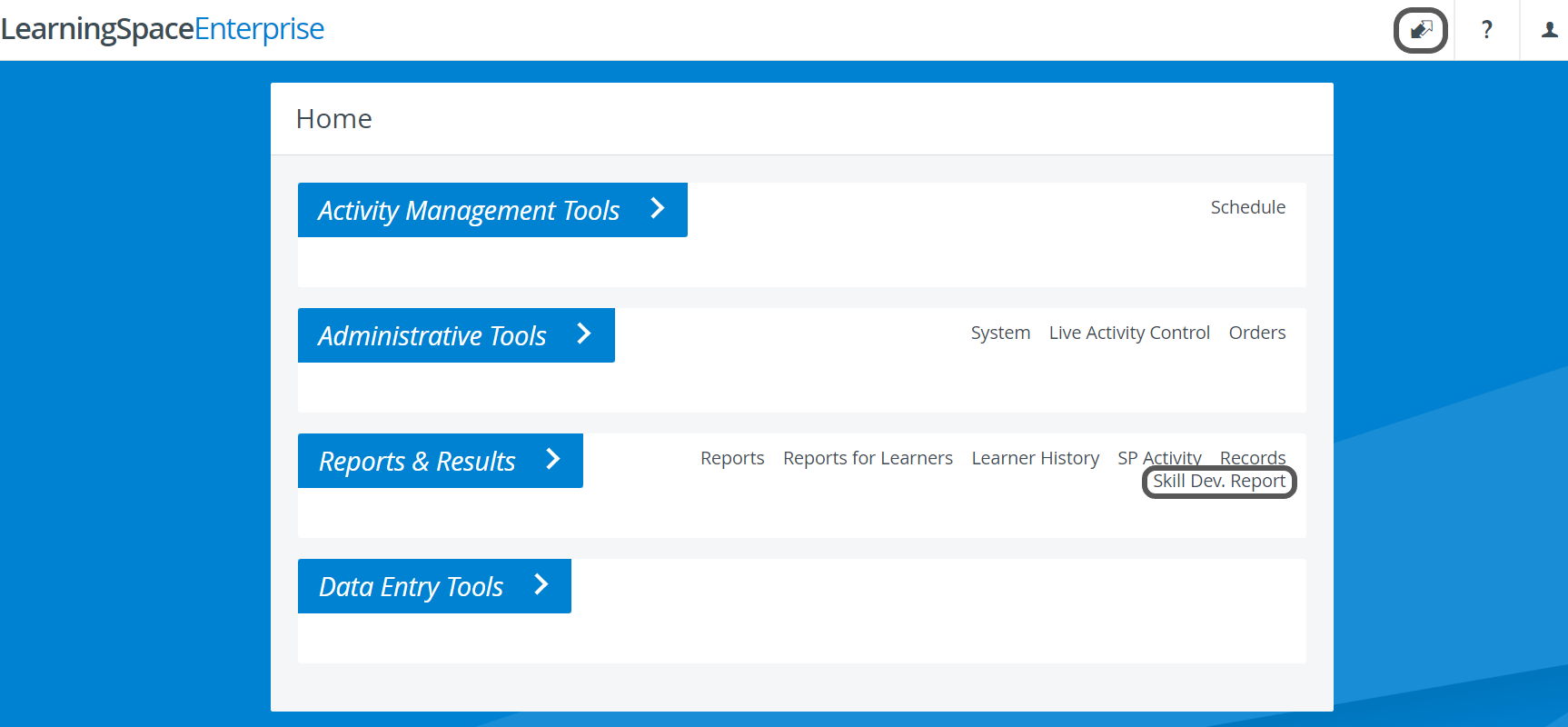
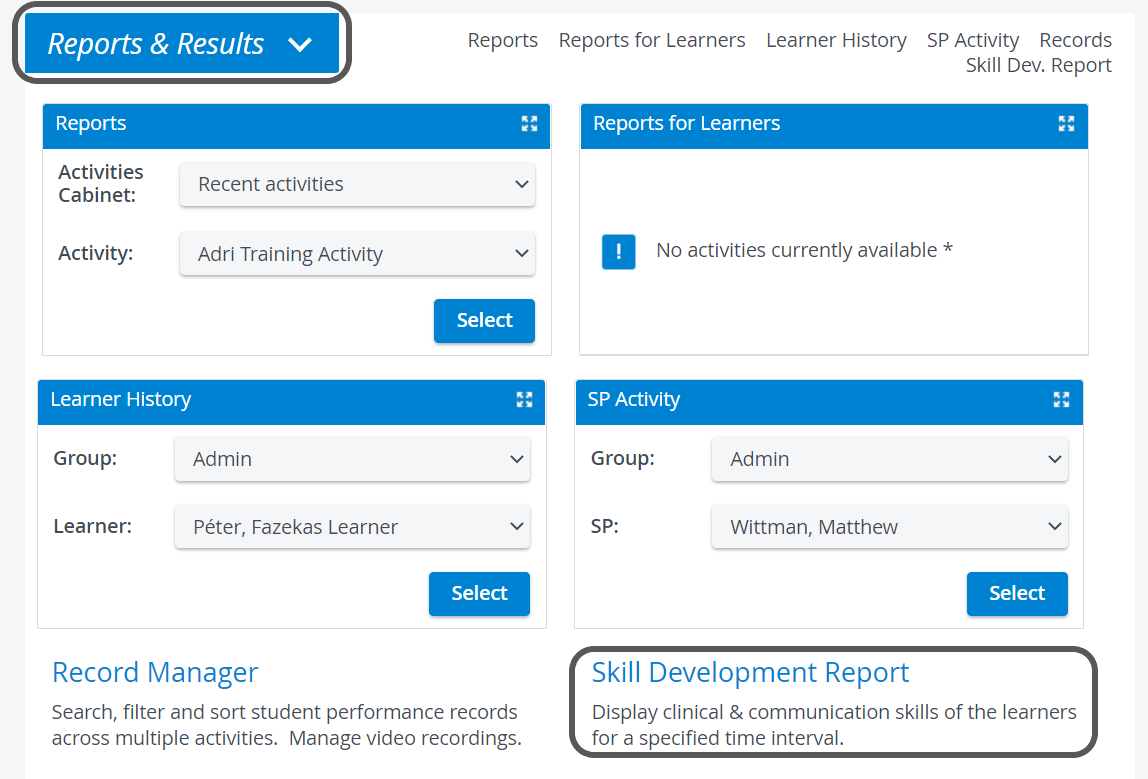
On the Classic View Home page, by expanding the Reports & Results tab, the Skill Development Report link is displayed at the bottom of the tab that leads to the corresponding page.
On the Skill Development Report page, the sections intended to be included in the report can be selected from the Section drop-downs, and the time interval can be determined via the Start and End date menus.
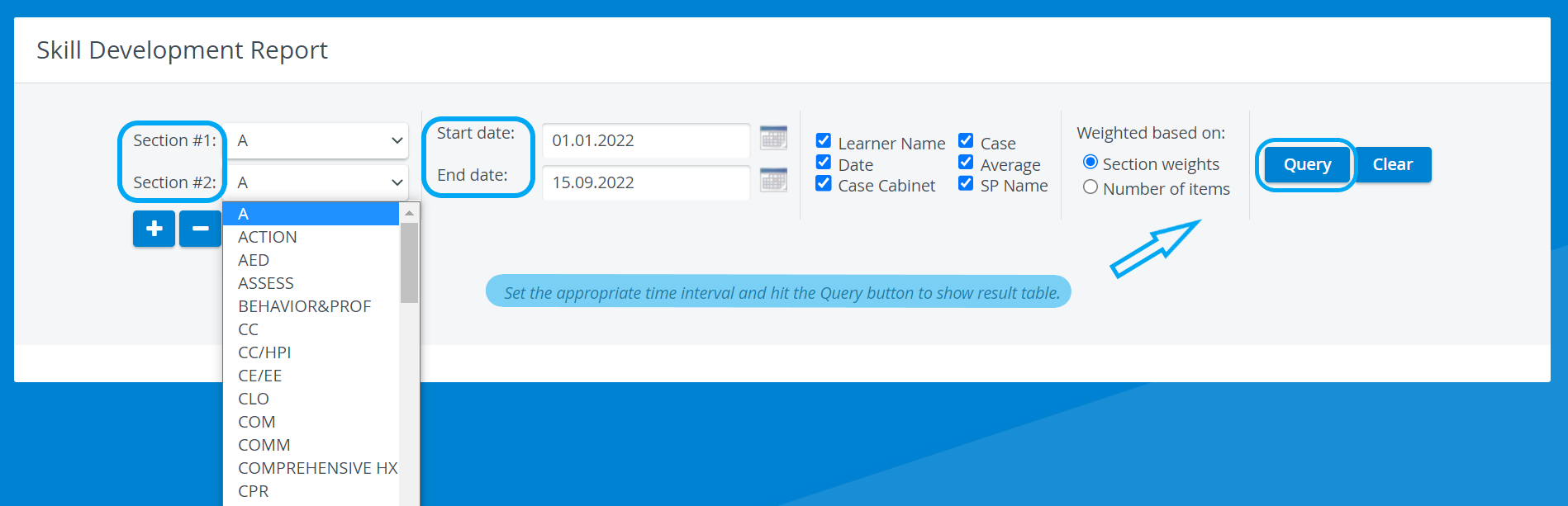
There are two drop-down menus by default. Sections can be added or removed by clicking the plus or minus buttons below the section drop-down menus.
The extent of data within the report can be customized by the checkboxes Learner Name, Date, Case Cabinet, Case, Average, and SP Name, while the weighing option can be set by the radio buttons below Weighted based on.
By default, all boxes are checked, that is, all data are included; and the weighing is set to Section weights.
Once the Query button is clicked, the Skill Development Report is displayed below the settings. Clicking Clear creates a new report.
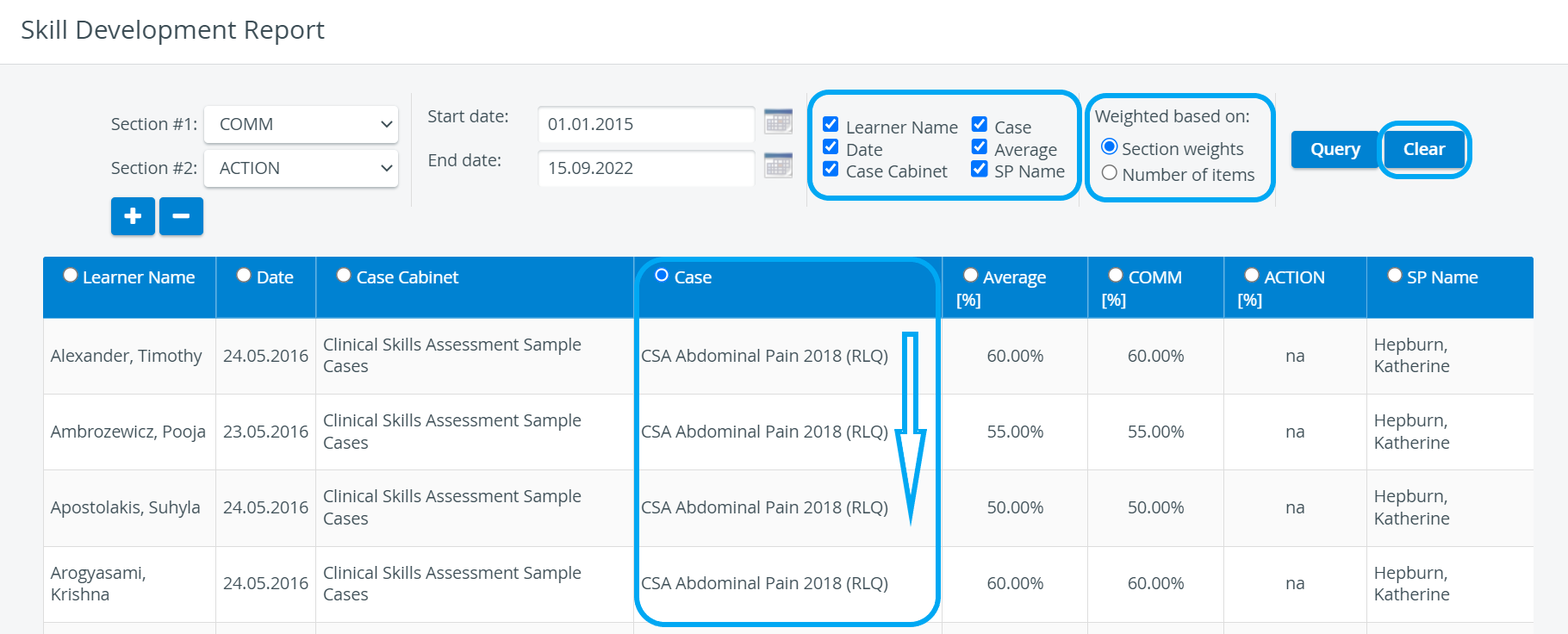
Modify how data is listed using the radio buttons in the column headers.
For more information, visit our Reports Module pages and watch the Reports Module Training Videos.