How to Generate a Data API key
The API Key functionality is available on the Security tab in the System Manager for Admin and System Manager-privileged users.

Step-by-step Data API - How-to Guide
Generating the API key
Click the Generate API Key button.
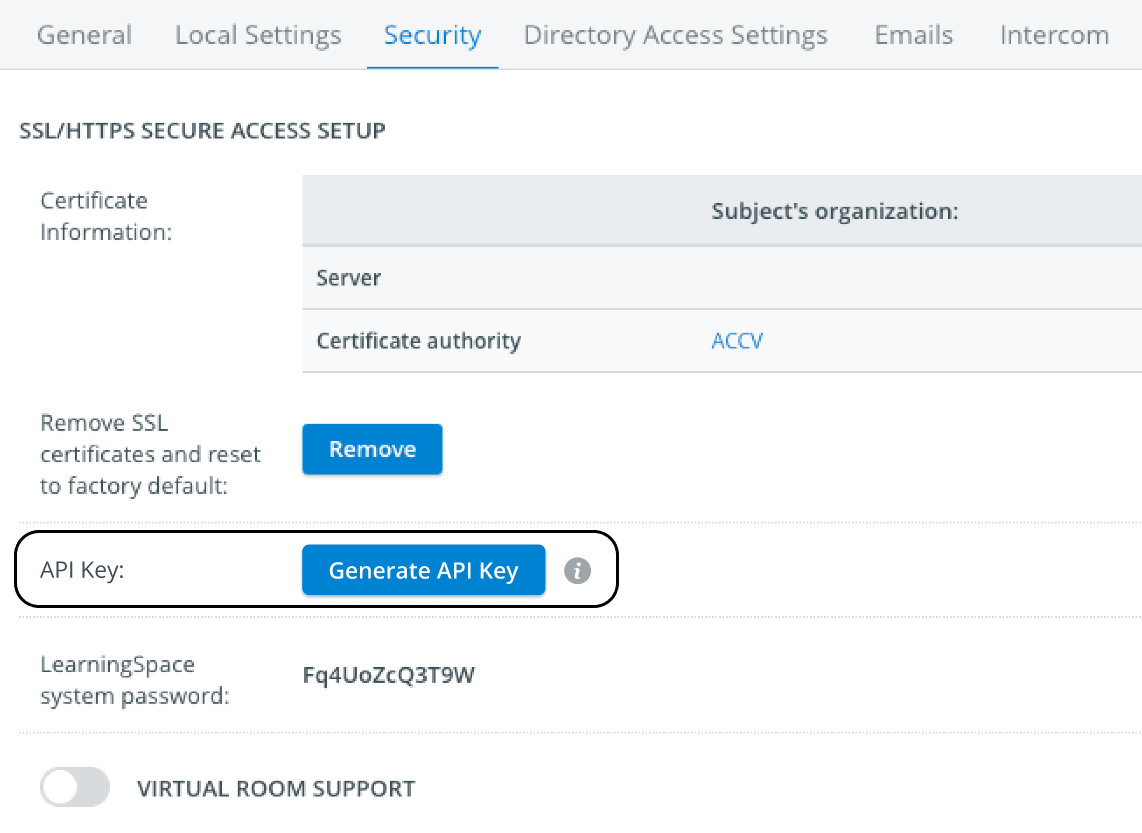
The system will create the API Key.


Click the Copy to clipboard button to copy the API key.
WARNING! Make sure you copy the key (token) immediately. The system does not store it, so you won't be able to view it later.
Only one active API key can exist at any given time per system. Each newly created API Key will eliminate the currently existing one.
Click Close.
Active status, Creation date, and Created by will be displayed in the API Key section of the Security tab.

Use the 'Revoke' option under Action if needed.
Proceed with using the generated API Key secret as described here: APIs in LearningSpace
Revoking the API key
The API key does not expire unless it is manually revoked.
Press Revoke under Action in the API Key section of the Security tab.

A confirmation pop-up will appear. Press 'Revoke' (or 'Cancel' to quit the process).
Warning: This action will deactivate the system-wide API key.


Utilizing the API key
The API key can be used to access the Data API.
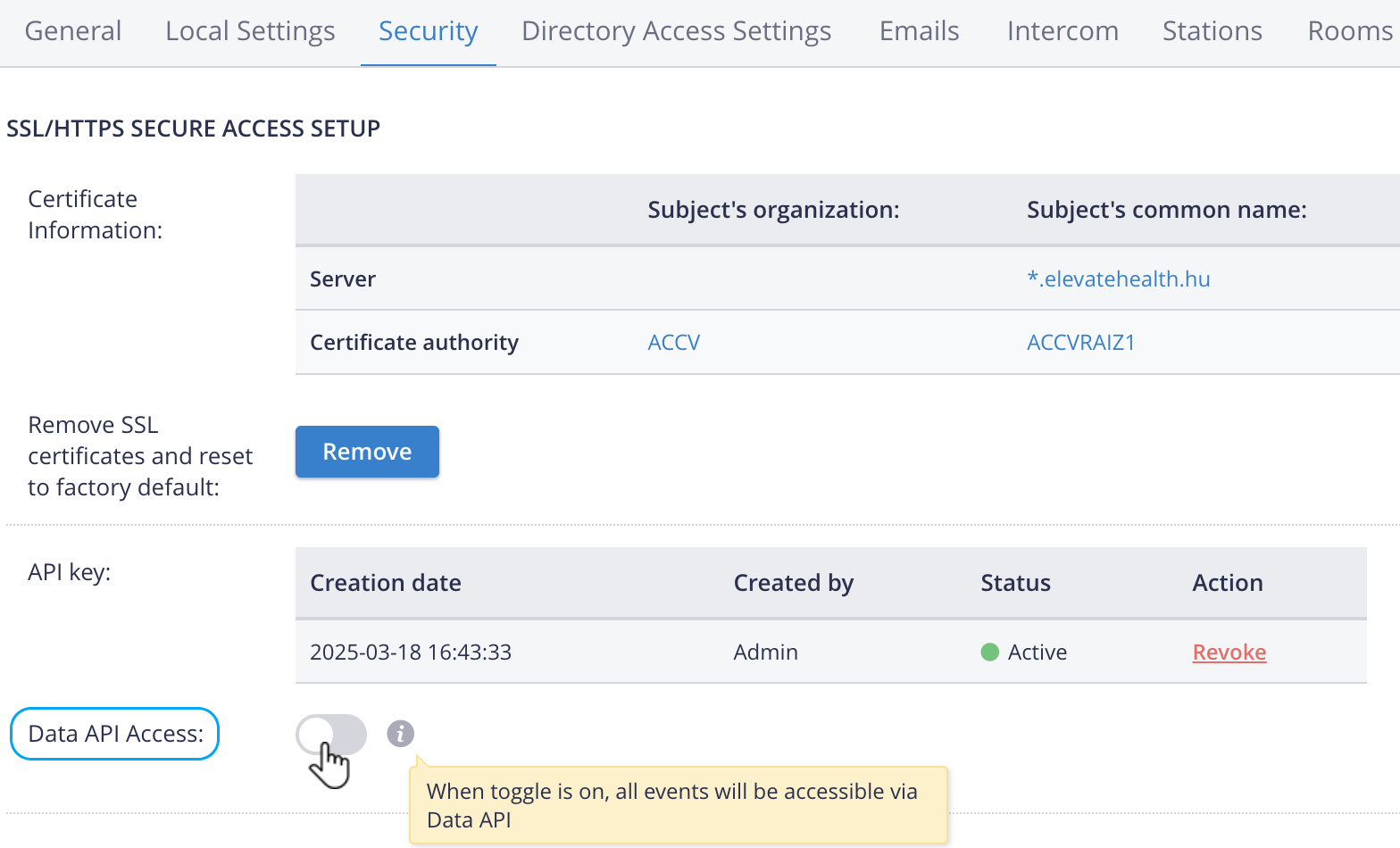
Enabling Data API Access
For more information, see APIs in LearningSpace