How to Export a Case
NOTE: Exporting a Case creates a .cas file that contains the entire Case, including all properties, parts, sections and items.
The .cas file can be saved to a computer or external media and imported into a different LearningSpace system. (See How to Import a Case)
Within the Case Manager, find a specific Case
through opening the containing Cabinet and selecting it,
or using the scroll bar on the Cases panel,
or with the help of the search bar on the Case Manager screen.
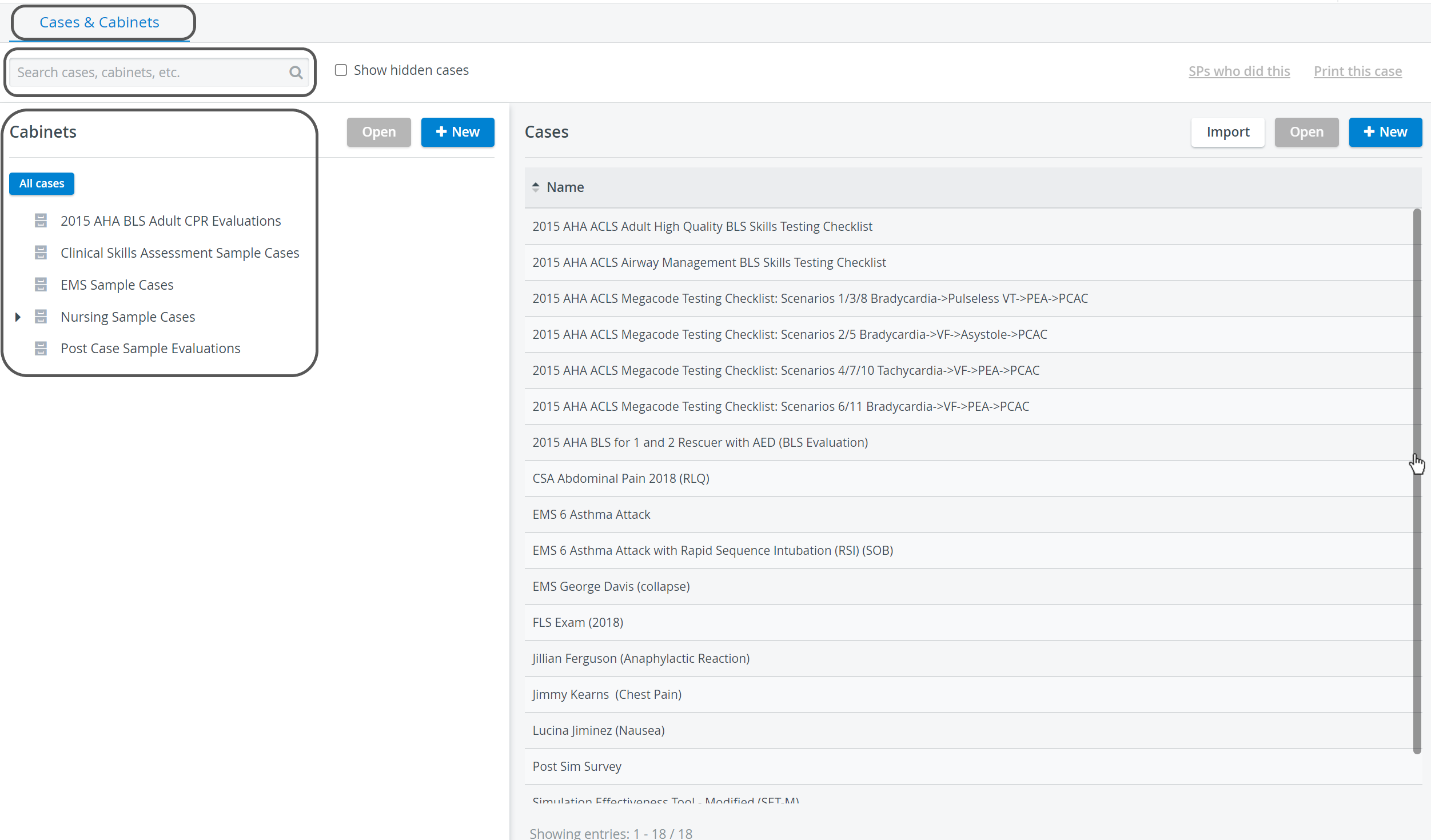
The Edit Case pop-up window automatically opens when selecting from the drop-down of possible hits.
When selecting the Case from the list, double-click the Case title or highlight it, then click the Open button in the Cases panel.The Edit Case pop-up window for the Case opens.
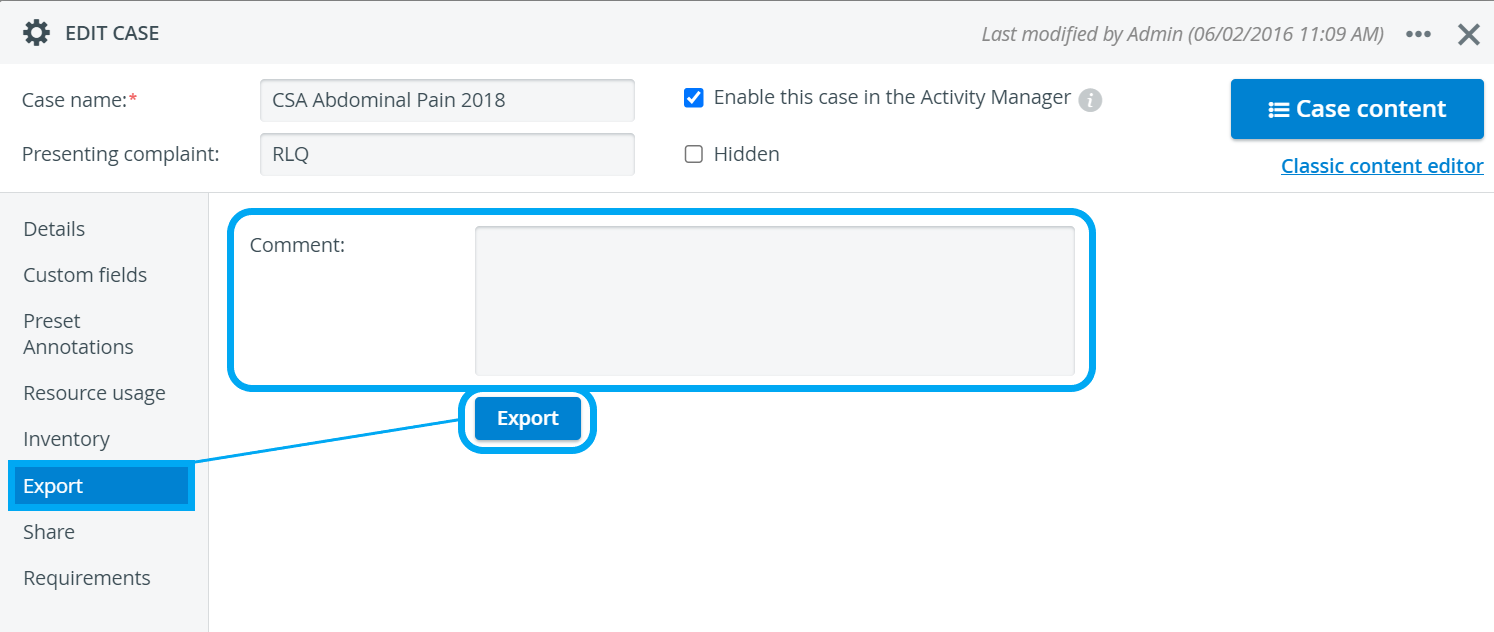
Switch to the Export tab, add Comments if desired, and click the Export button.
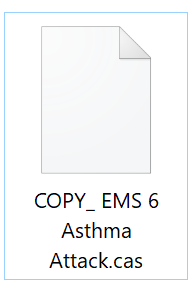
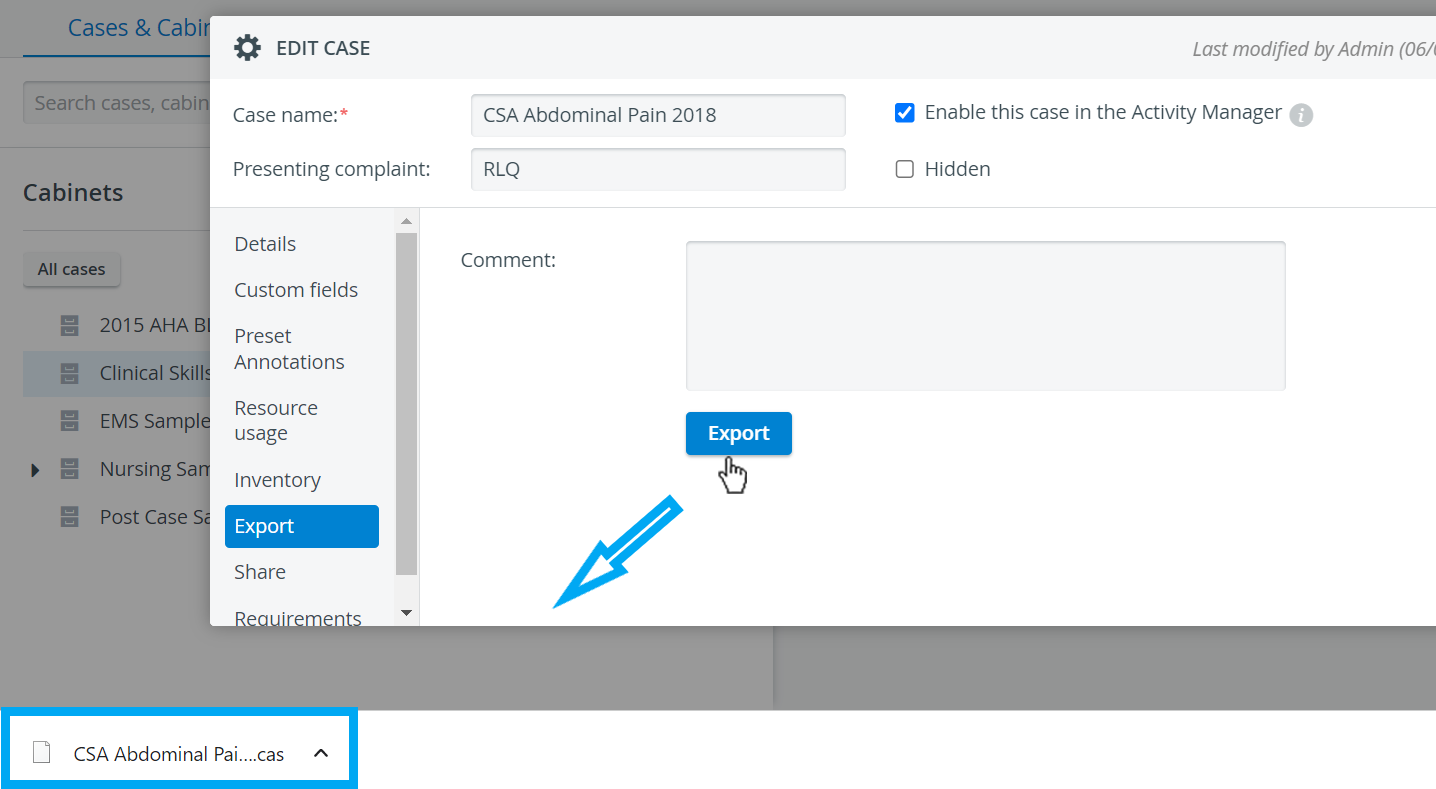
The .cas file will be saved to your computer, depending on the browser.
For further information, visit our Case Manager and Cases - How to pages or watch our Case Manager Training Videos.