How to Establish Peer Evaluation
Requirements for using the Learner Peer Evaluation (or 'Peer feedback') part:
existing Peer Evaluation checklist in at least one of the Cases of the Activity,
the Activity being running,
the learner having access to at least one video recording associated with the Case in which the Peer Evaluation part is set up,
the learner is assigned to the learner or group of learners for whom the Peer Evaluation checklist needs to be completed.
Creating a Peer Evaluation Checklist
In the Cases module, open the Edit Case window for the Case intended to be used.
Create a checklist on the Peer Evaluation tab of the Case Content page as described in How to Create a Section and How to Create Items.
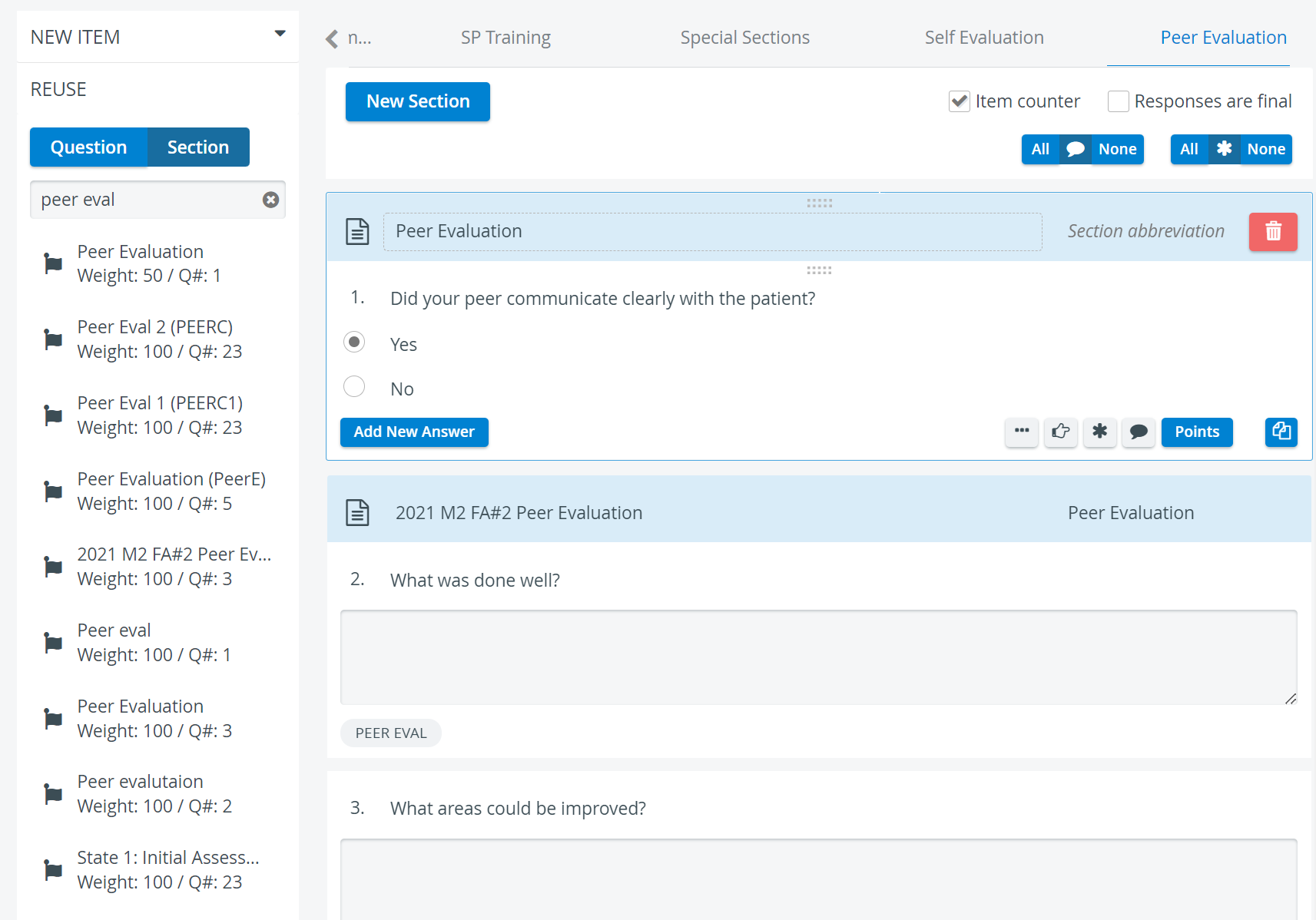
See also How to Set Up Peer Evaluation.
Click the arrow on the right end of the tabs to have the Peer-Evaluation tab displayed.
Setting Up Access
Access the Activities module to enable your learners to see their peers' video recordings and thus complete the Peer Evaluation checklist.
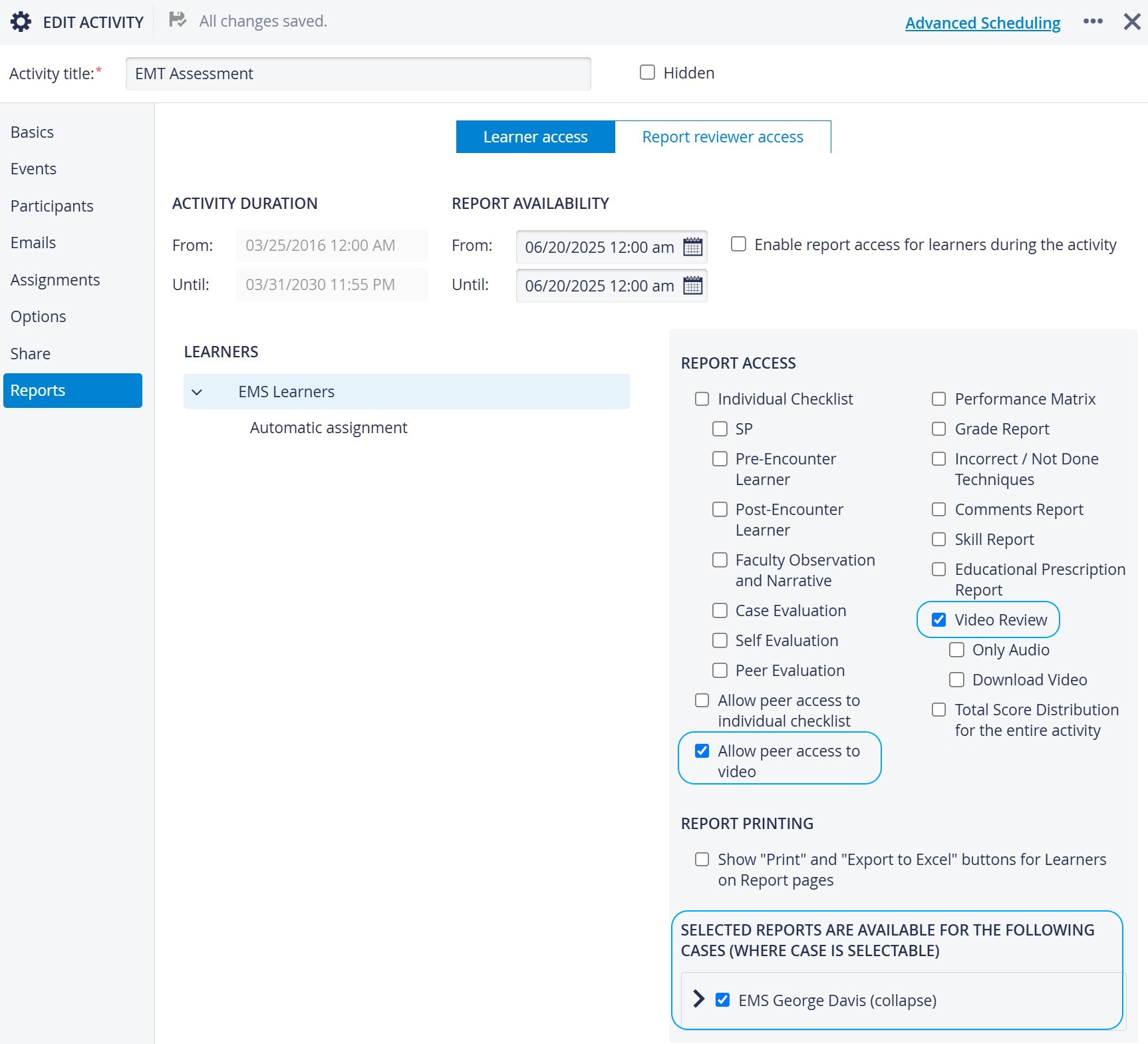
Open the Reports tab of the Edit Activity window for the relevant Activity.
In Learner Access Settings, within the Report Access panel, check the boxes next to "Allow peer access to video" and "Allow peer access to Video Review."
In the Selected reports are available for the following Cases panel, check the box next to the Case containing the Peer Evaluation part.
Setting Up Assignment
Access the Assignments tab of the Edit Activity window for the relevant Activity.
Switch to Learner - Learner relation and add as many Evaluator-Evaluee assignment groups as desired.
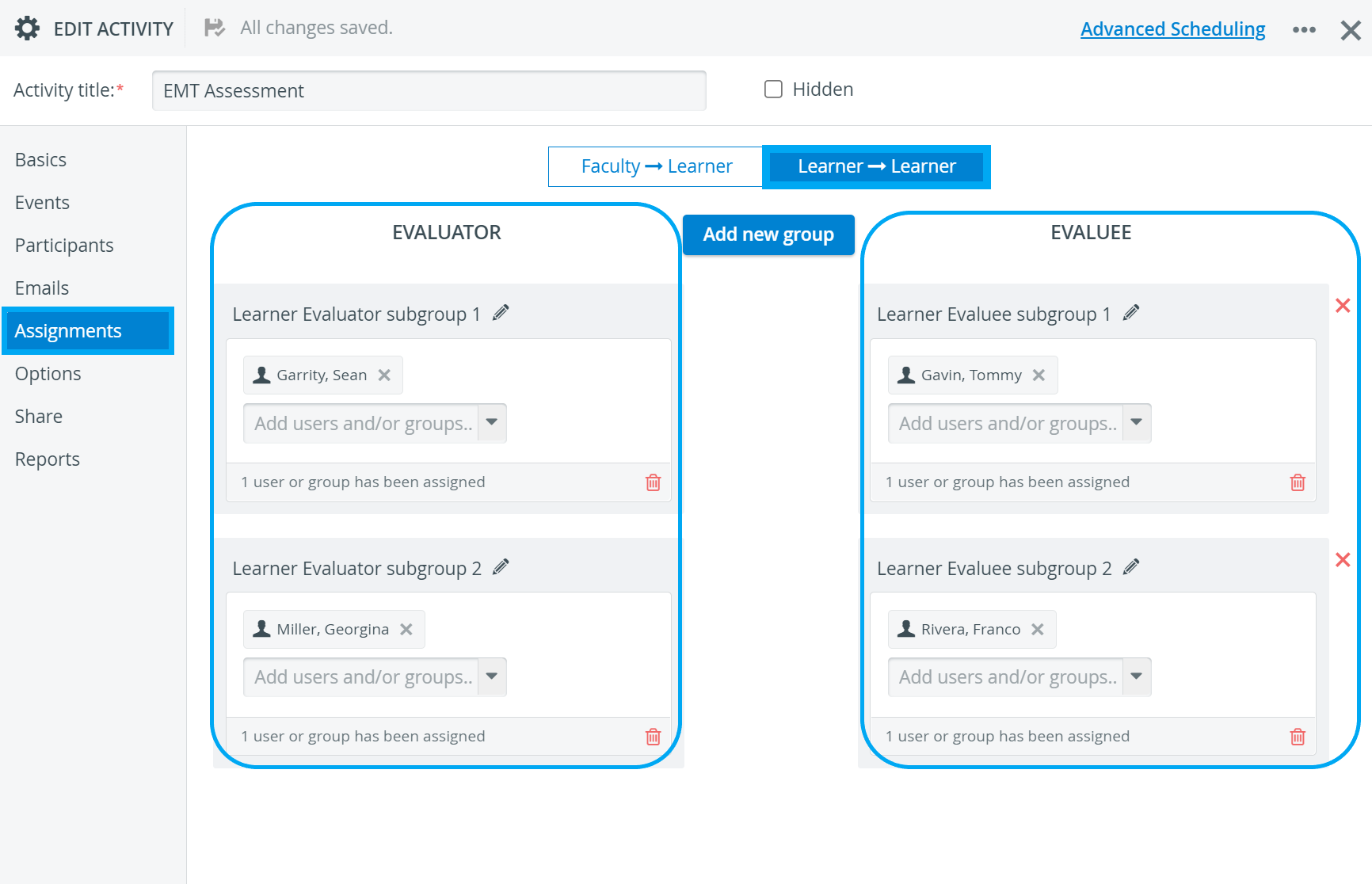
NOTE: Subgroups do not automatically result in mutuality. In case you wish that two learners mutually evaluate each other, each learner needs to be set up as an evaluator and an evaluee with regards of the other learner (peer).
Once the above-listed requirements are fulfilled, the Your Activities panel on the learners' Dashboard will contain a Peer Evaluation button next to the respective Activity. When clicking the button, the learners will be taken to the Video Review page, where they can enter data for their peers.
IMPORTANT: When setting up an Activity and defining its end date, consider that after their event, learners will need time to complete the Peer Evaluation part as well (e.g., one more week).
The Data entry available for manually authorized workstations only setting on the Options tab of the Edit Activity pop-up window does not affect Peer Evaluation data entry. Suppose an Activity is set up to be available from manually authorized stations only. In that case, learners must do their normal data entry at the authorized stations but can do Peer Evaluations from any other station.
For further information, visit our Case Manager and Cases - How to pages or watch our Case Manager Training Videos.