How to Email a Calendar View
Open the desired view of the calendar (month, week, or day view).
Click the email icon in the top-right corner of the screen.

The Send Email pop-up window appears.
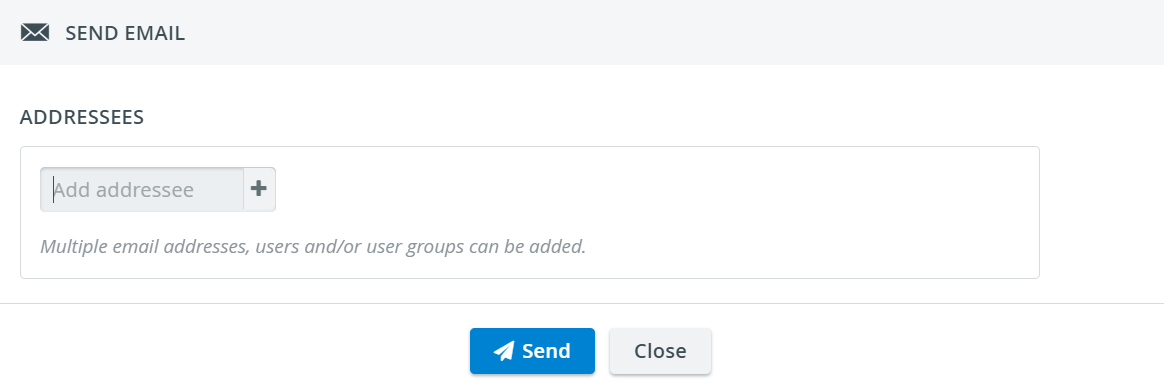
Start typing the addressees using the corresponding field.
Both individual users and groups created within the LearningSpace system can be added as addressees.
The system recognizes and offers in a drop-down all search results that match the character combination typed in the Add addressee field.Individual users can be added by name or email address.
Non-user email addresses can also be added, provided the full email address is correctly typed.
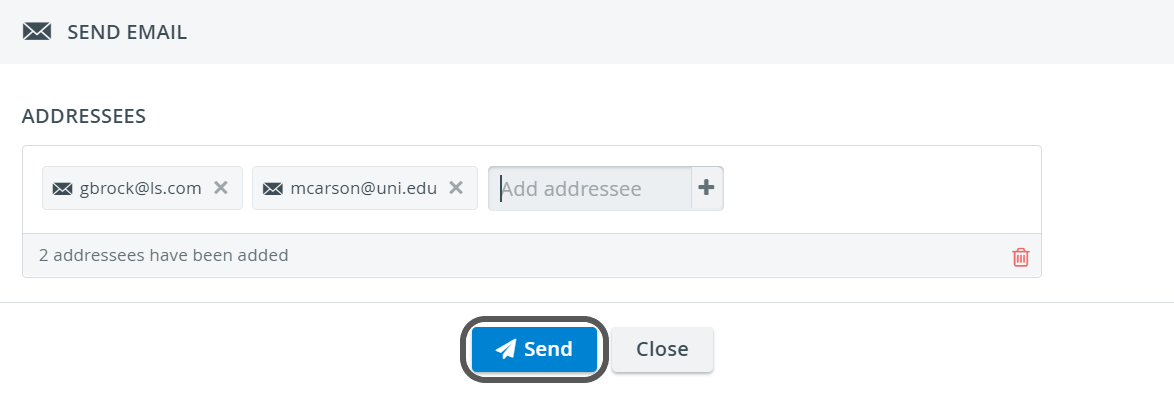
To remove a single addressee (whether an individual or a group), click the X in its name field.

To remove all addressees, click the trash icon in the bottom right corner of the Addressees panel.

When done, click Send.
For further information, visit our Calendar Module pages and watch our Calendar Module Training Videos.