How to Edit Your Profile
After a successful Enrollment, you can return to editing your personal details any time you need to.

Editing Your Profile
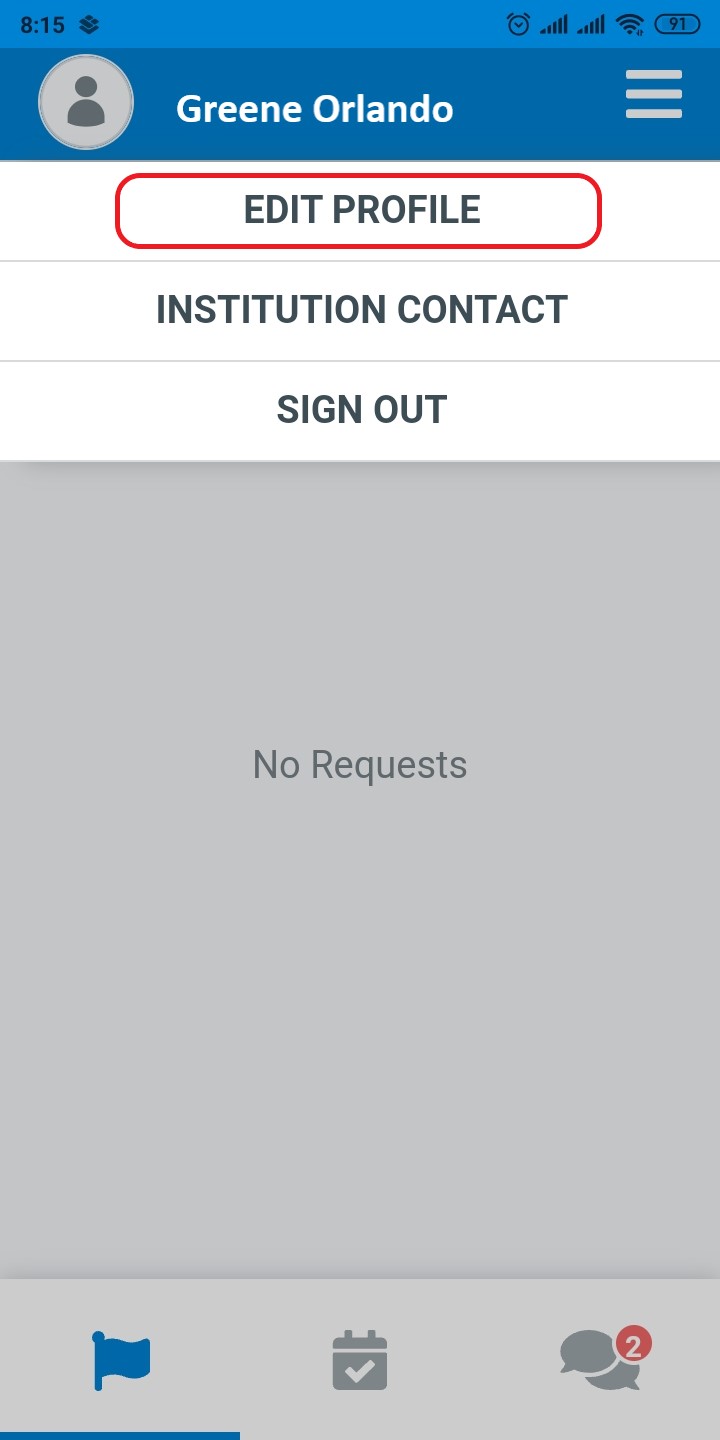
Tap Edit Profile in the More options menu:
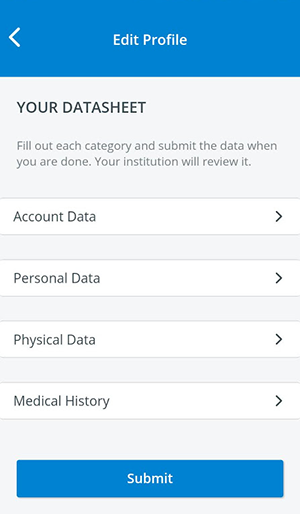
You will land on the main page of your profile editor:
Review and modify your details by category. At all times, use the back arrow to return to the main page of your enrollment datasheet.
Account Data
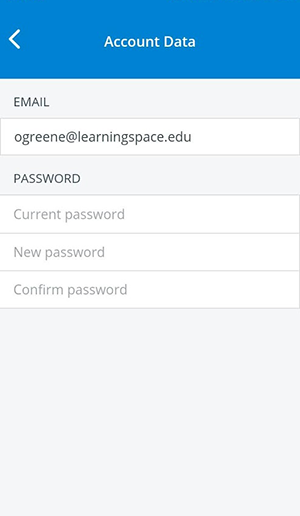
Tap on Account Data to review your sign-in credentials.
Personal Data
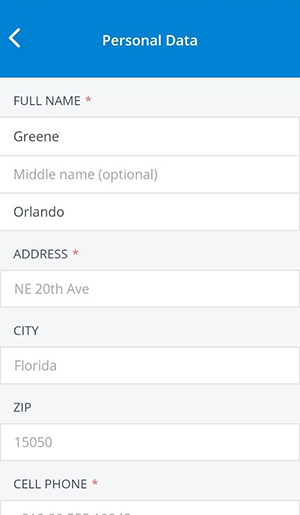
Tap Personal Data to fill in or modify your personal details.
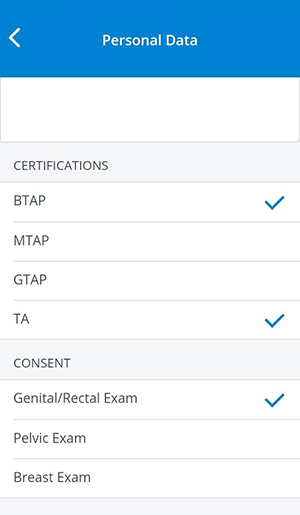
Certifications & Consent
Scroll down to select your certifications and/or consent to participate in sensitive examinations. By entering information about your certificates and/or consent, you can increase your chance of being selected for patient scenarios.
Physical Data
Return to the Edit Profile page and tap Physical Data to provide your physiological details.
Providing as many details as possible will help you appear more often in search results when SP coordinators are recruiting for scenarios.
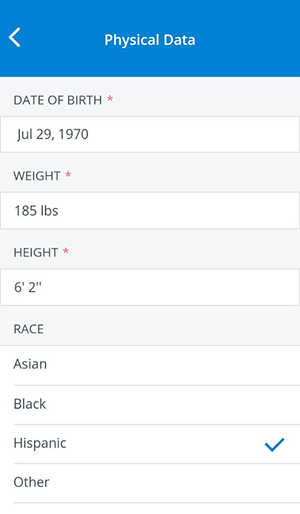
When submitting their Enrollment, SPs are warned in case they missed any mandatory fields.
SPs registered through LearningSpace can complete their profile—in case any data is missing—through the Fill required fields page after logging into the SPA Mobile app.
Medical History
Return to the Edit Profile page and tap Medical History to enter any medical conditions affecting your work as an SP.
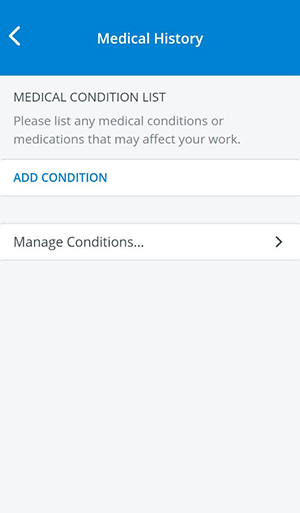
Add Your Medical Conditions
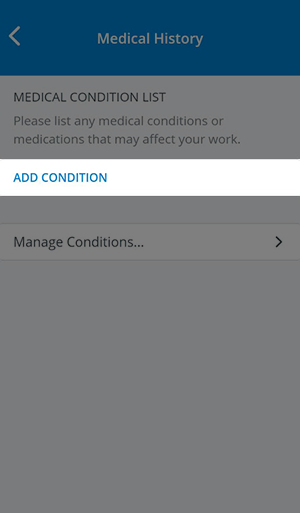
Tap Add Conditions to continue to the global medical condition list.
Every medical condition listed here that has been added to any SP's profile in the Physical & Medical History tab in Users or the SPA Mobile application (see also Create New Medical Conditions)
Tap on a medical condition to select it.
You can select more medical conditions at a time.
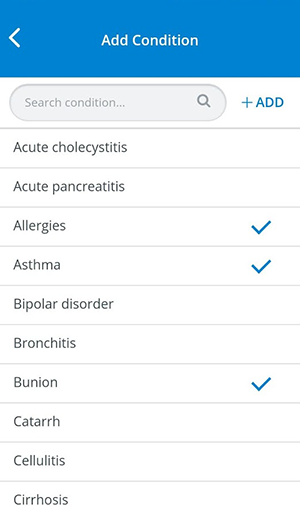
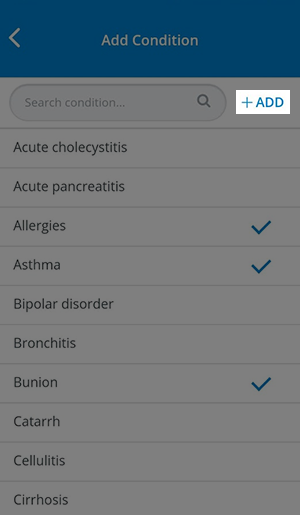
Tap on +Add to finalize your medical condition list.
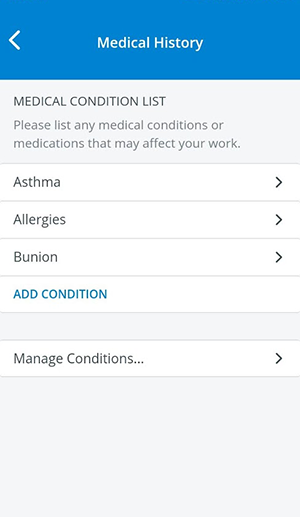
Return to the Medical History page, where you can view your list of medical conditions saved to your profile:
Create New Medical Conditions
Add new conditions to the global medical conditions list. Use the back arrow to return to the Medical History page.
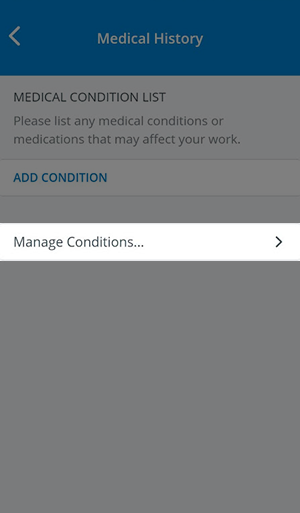
Tap Manage Conditions to add a new condition.
Tap +New next to the search field.
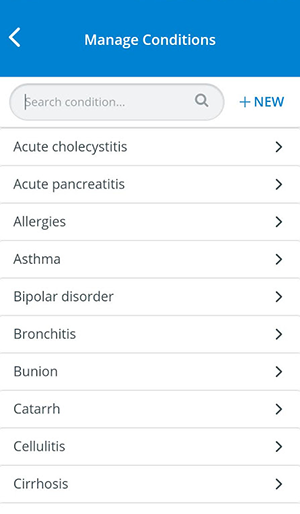
On the next page, enter the name of your new condition under Condition Name.
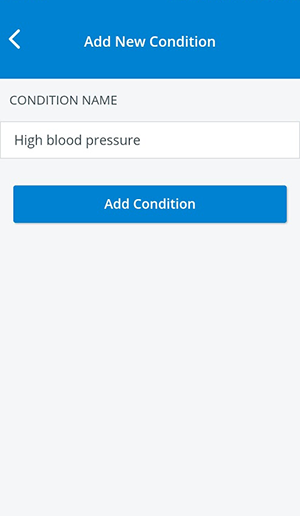
Tap Add Condition to save your new entry.
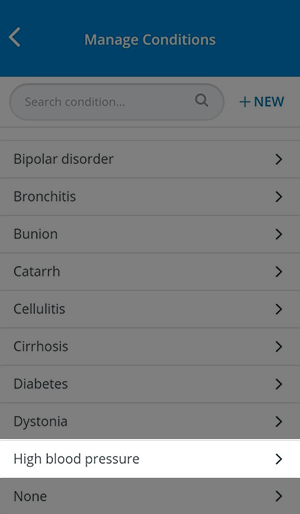
You will be redirected to the Manage Conditions page.
Scroll to view your new entry.
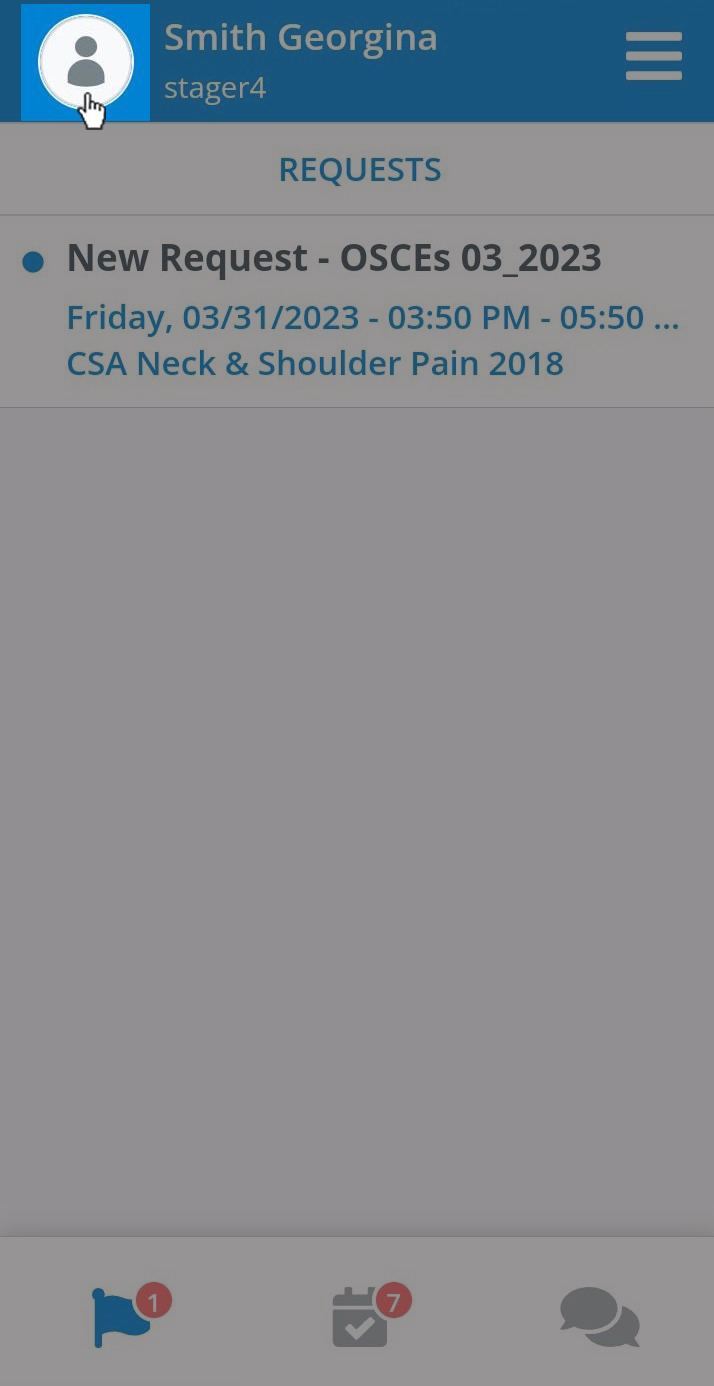
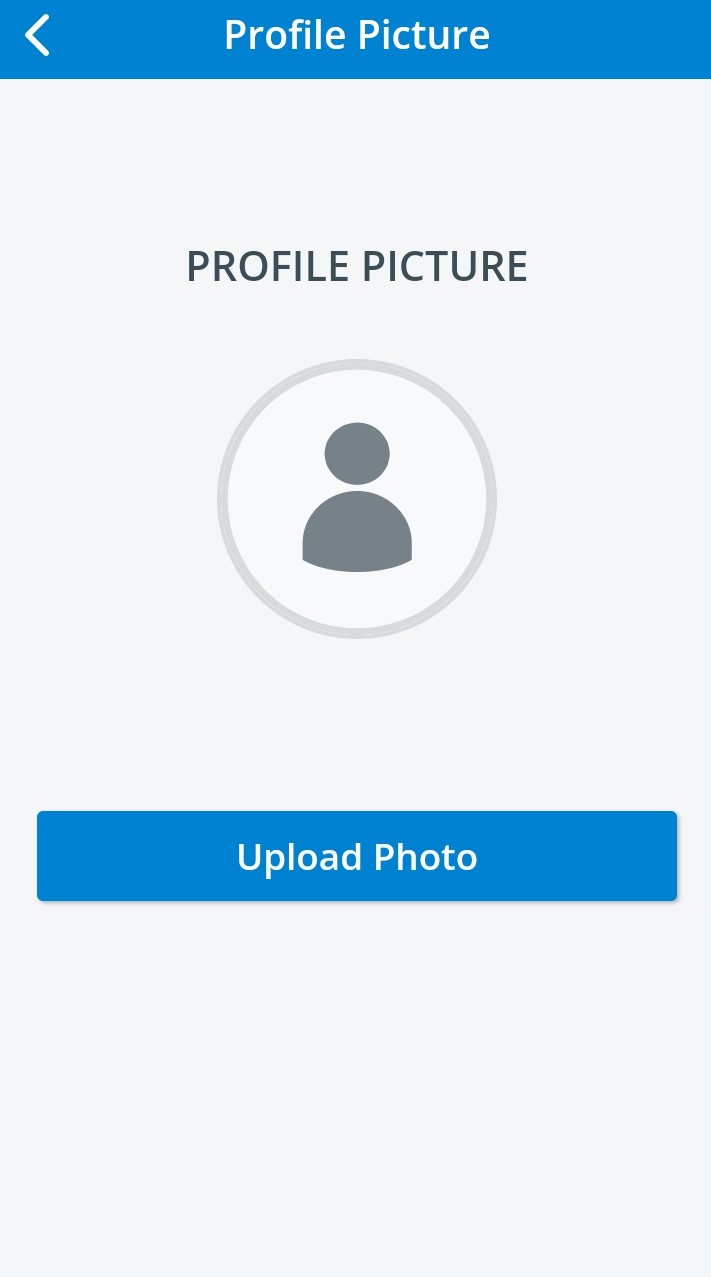
Profile picture
Profile pictures can be added and edited by clicking on the profile picture image and then using the Upload Photo option.

For further information, visit our Standardized Patient Administration and Standardized Patient Administration - How to pages.