How to Edit Resource Register Entries
In the Resource Manager, open the Resource Register tab.
Limit your search via the drop-down menus as desired, then click the Information icon of the desired resource in the Controls column.

Click the Edit icon for the selected usage of the resource.

An editable new line appears, and the original, which is to be edited, is highlighted in yellow.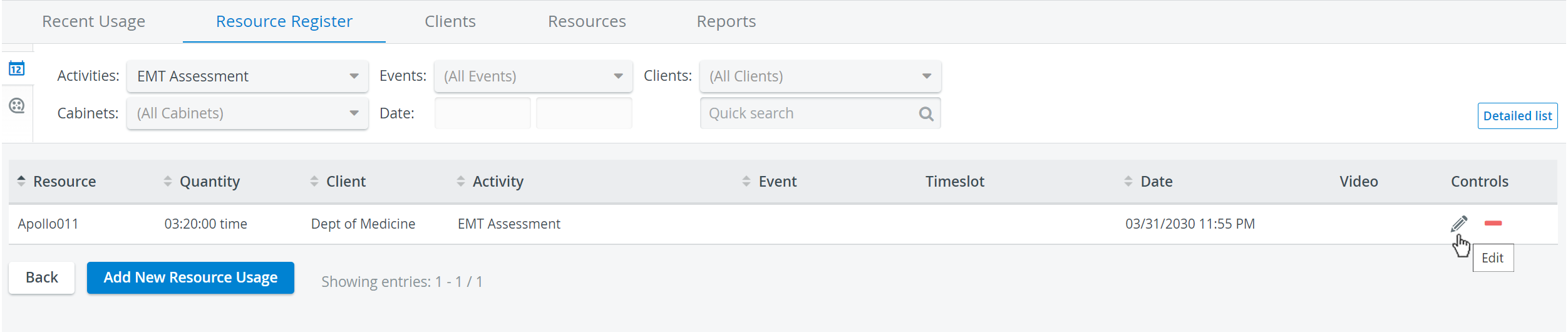
Change the resource as desired.
The Quantity, Activity, Event, and Timeslot columns are all editable.Click the checkmark (save icon) to implement the update to the entry or the mark (cancel icon) to retract it.


When a resource Activity is added or changed, its clients automatically change. For changes assigned to a video recording, the system automatically registers that usage.
The duration of the video is used to compile resource usage data.
For more information, visit our Resource Manager and Resources - How to pages.