How to Edit Individual User Settings
Edit User Pop-up
On the Groups & Users tab, select the user you want to edit by clicking anywhere on the row of their name.
The box will be checked, and the row will be highlighted.
For easier finding, use the smart search bar in the top-left corner of the tab, or narrow your search by highlighting a group, which will list its members on the right side of the tab.
2. Click the Open button to open the Edit User pop-up window.
3. All required data can be modified by clicking the different settings surfaces on the left side of the window.
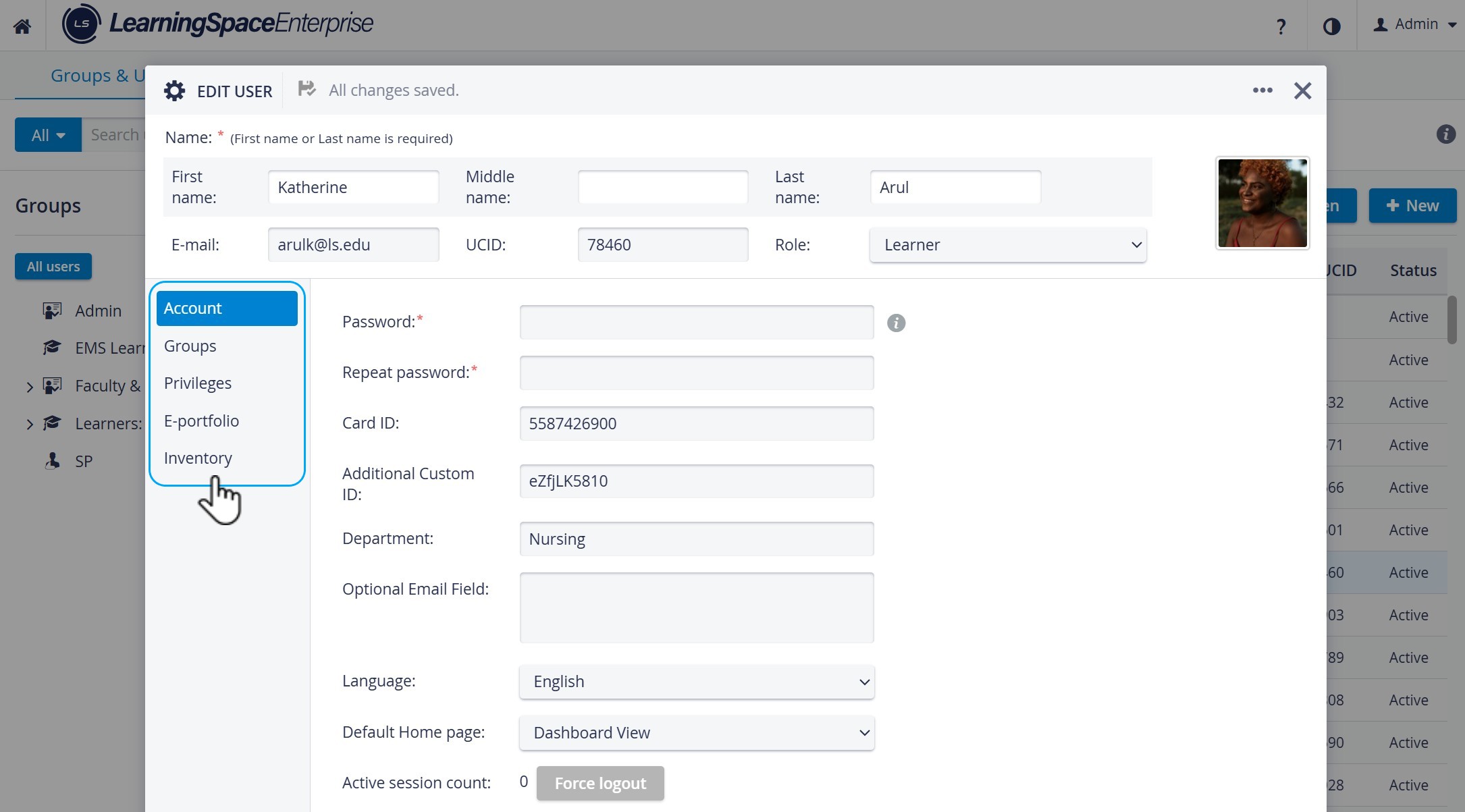
IMPORTANT: If a user has a predefined role, the Privileges settings will display only the privileges associated with that role. If editing requires additional roles, the Custom role must be selected from the Role drop-down menu.
Additional Custom ID
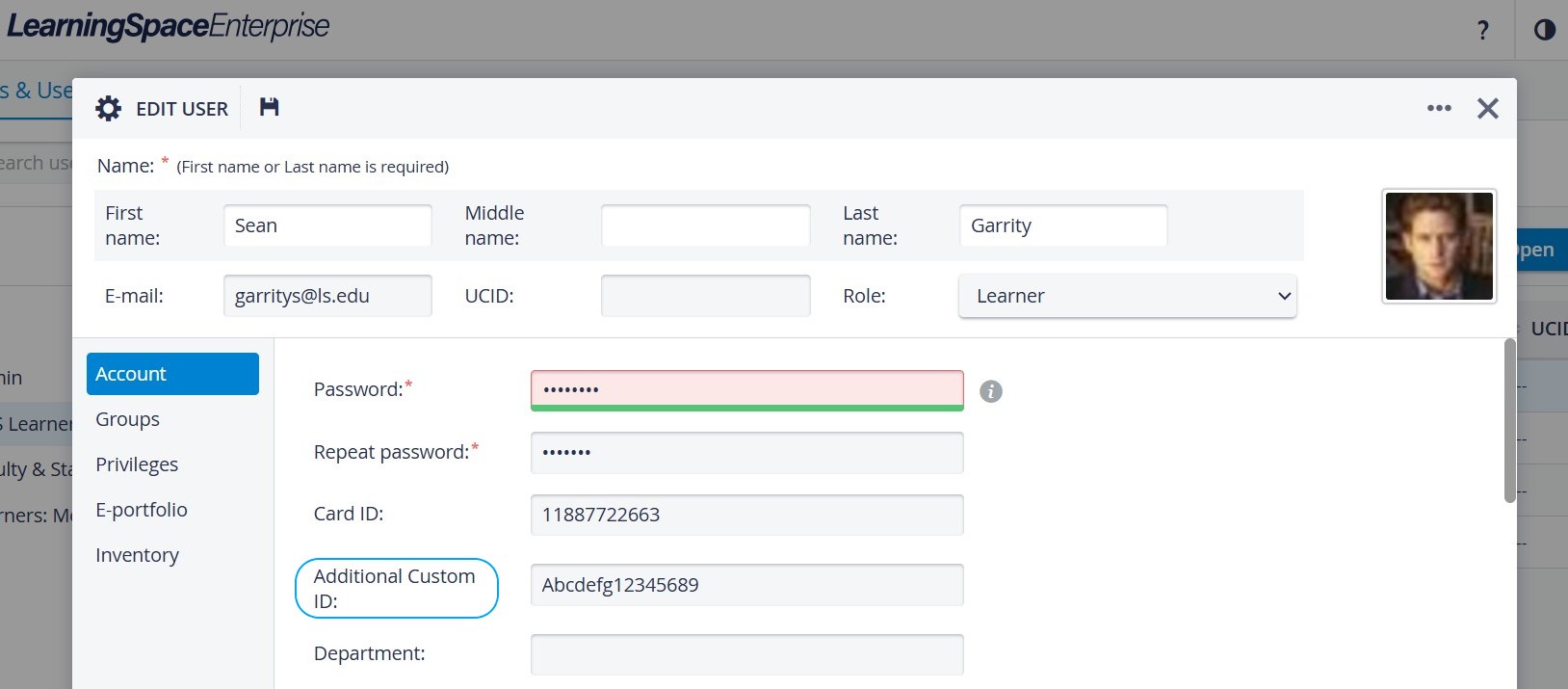
“Additional Custom ID” Field in User Profile
The user's "Additional Custom ID" provides a consistent and anonymized identifier that can be managed institutionally without exposing personal information (e.g., email addresses or names).
Unlike UCIDs (which may contain identifying data), ‘ACIDs’ are
consistent across all Activity/Case/Part views,
persistent across page refreshes or revisit scenarios,
non-identifiable, and only shows the exact value stored in the “Additional Custom ID” field of the user profile.
When this option is selected in the Reporting Setup, the ordered number list in the Learners column on the OEQS Scoring page is replaced with the learner's Additional Custom ID.
Editing SP Users
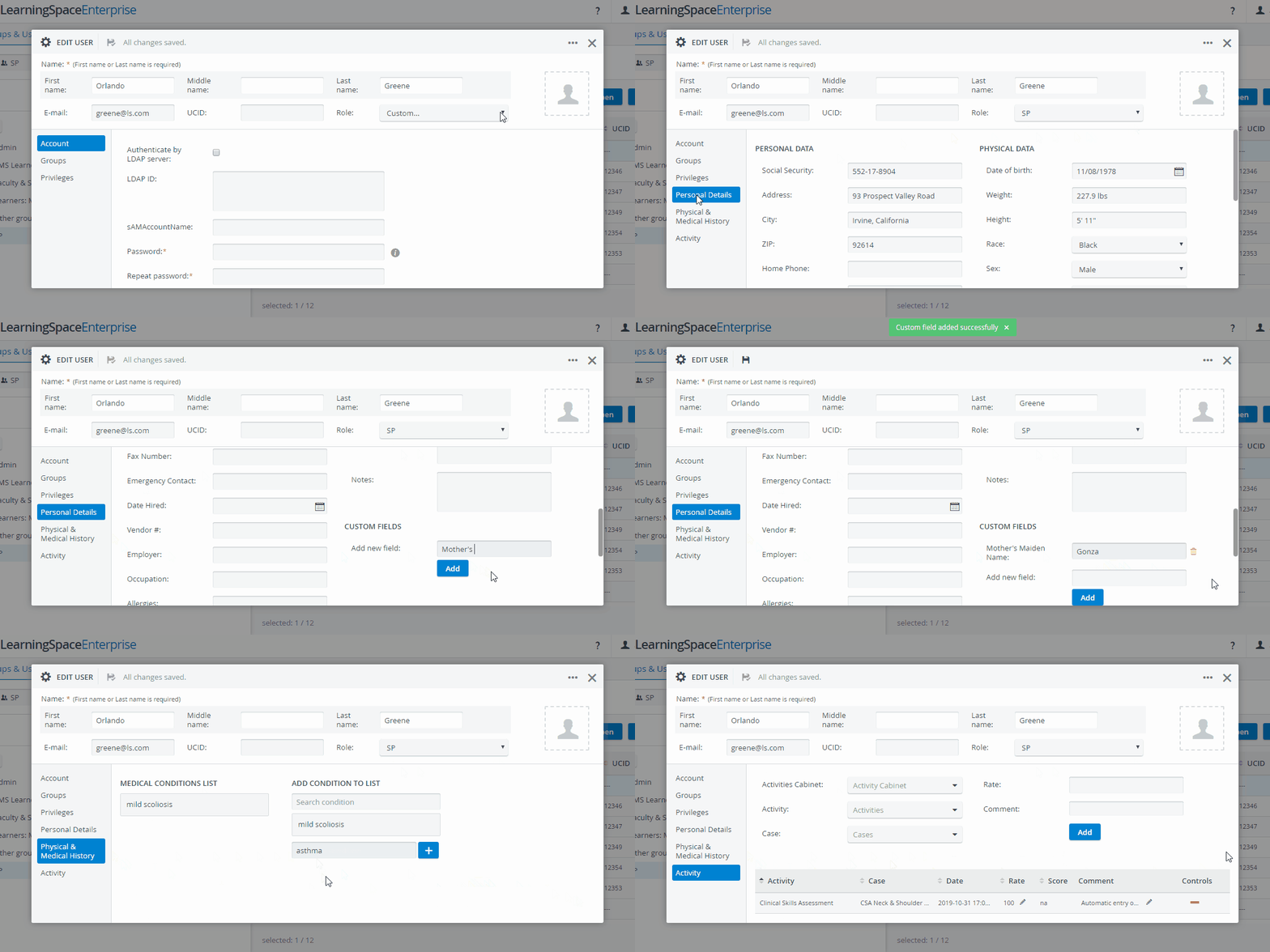
4. When editing an SP, three additional settings surfaces become available:
Personal Data settings: for entering customized data specific to and necessary for managing SP users.
For additional information on the Custom Fields, proceed here.Physical & Medical History settings: for registering the medical history and conditions of the SP user.
Activity settings: for recording activities (with specific details) that the SP user has participated in.
After editing, the pop-up window can be closed, as any changes are saved automatically.
For further information, visit our User Manager pages.