How to Edit Events via the Events Tab
Events can only be scheduled via the Advanced Scheduling, but all already scheduled events are listed and can be edited on the Events tab.
Access the Edit Activity pop-up window for the desired Activity.
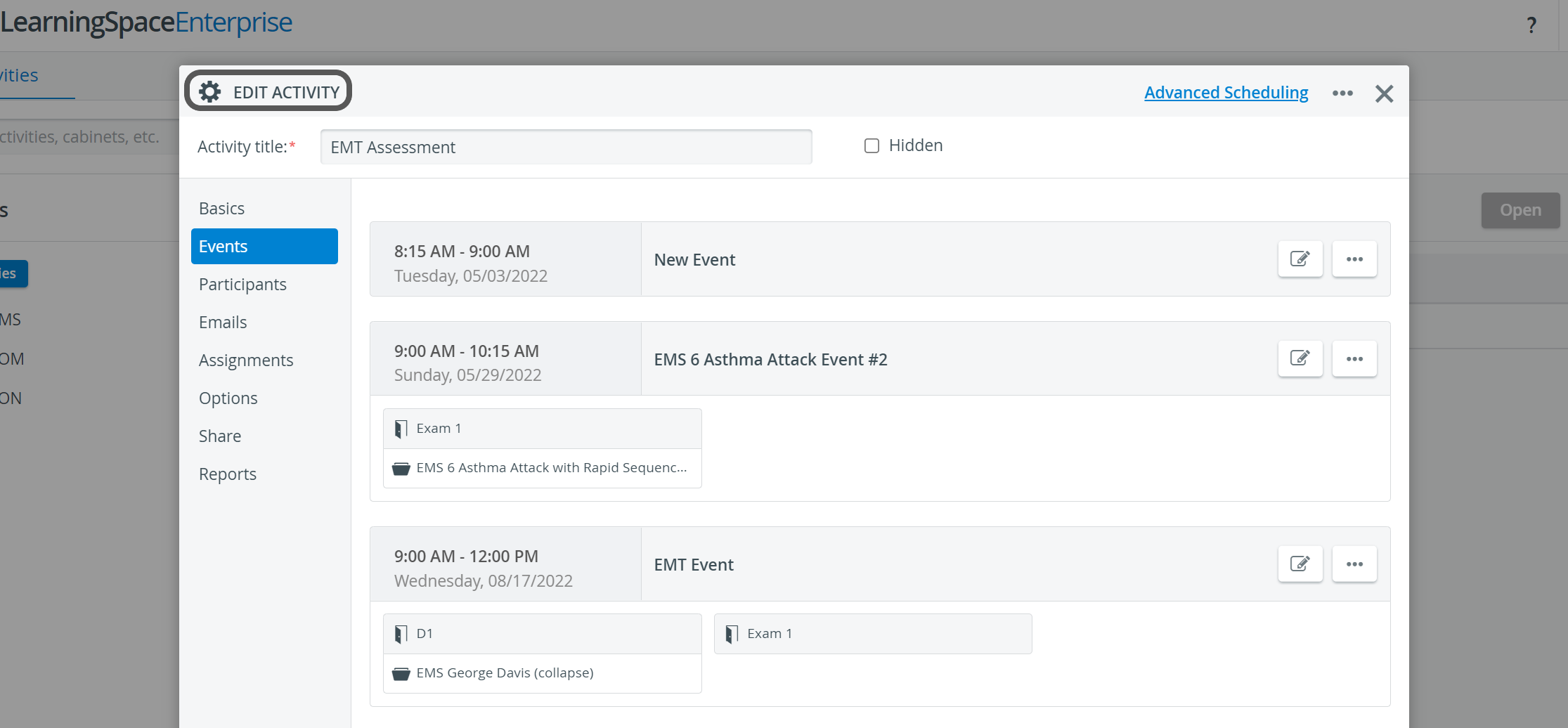
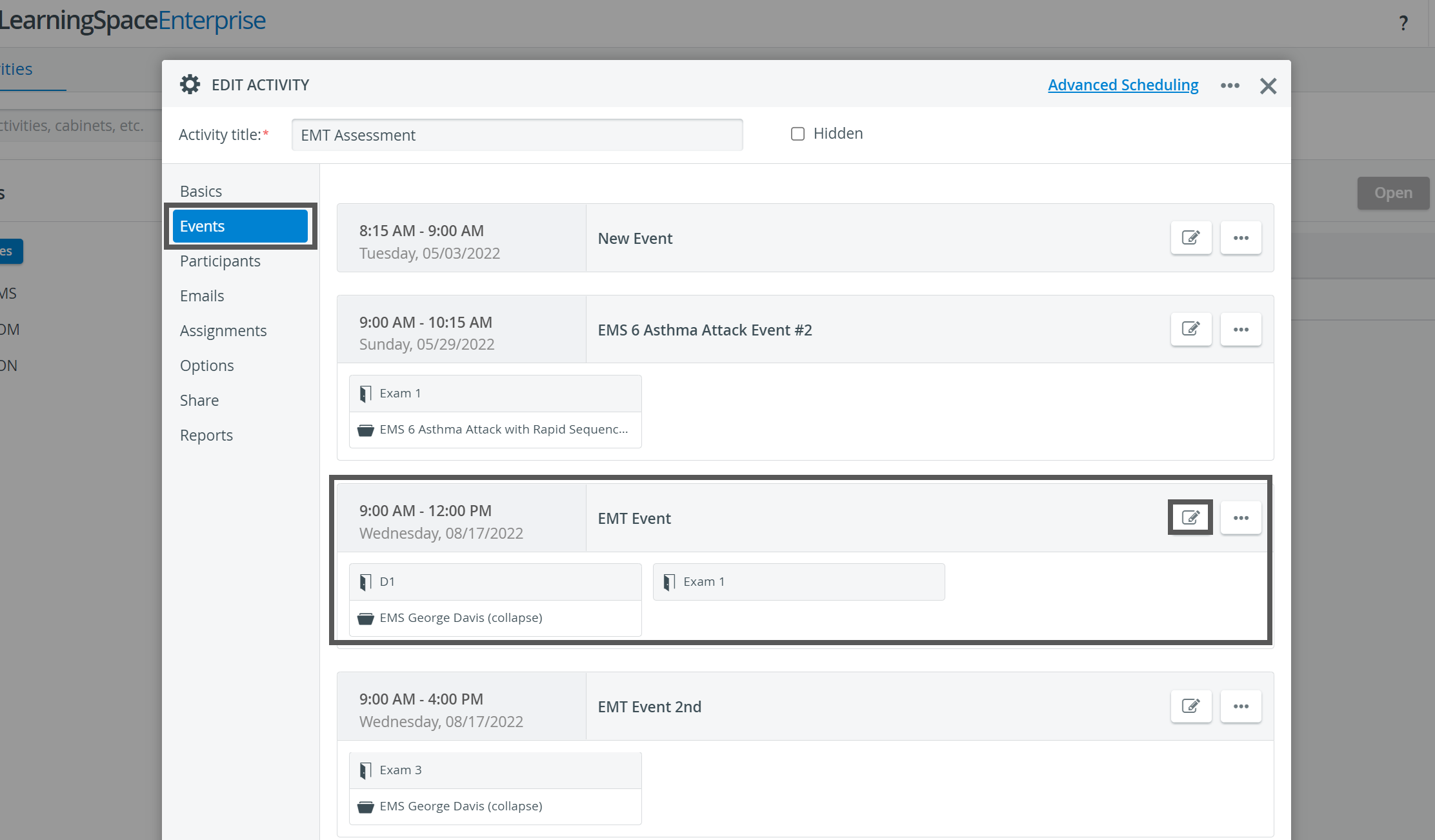
On the Events tab, click the Edit icon on the panel of the event you want to modify.
The system navigates to the Calendar module with the Edit Event pop-up window open for the selected event.
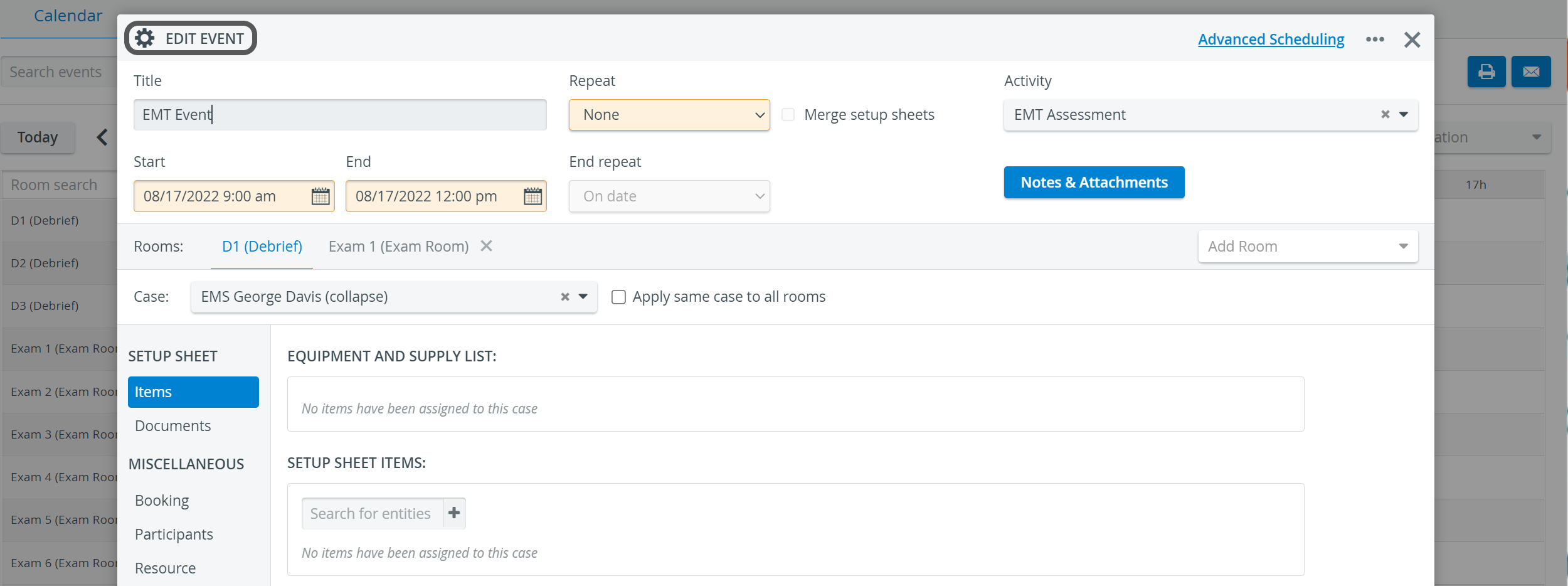
When done with the intended modifications, close the pop-up window.
Any change will be automatically saved.
IMPORTANT: Access to the Calendar module is restricted to users with Admin, SRP, or SRP (full control) privileges.
Events can be edited by a user with either privilege. However, in the case of users with SRP privilege, any modification made with respect to either time, repetition, activity, or room settings has to be (re-)approved by a user with Admin or SRP (full control) privilege.
Clicking the backward arrow in the top left corner of the screen will re-navigate to the initial Edit Activity pop-up window.
Deleting an Event
Click the options icon ('three dots') on the panel of the Event you want to delete, then click the prompted Delete button.

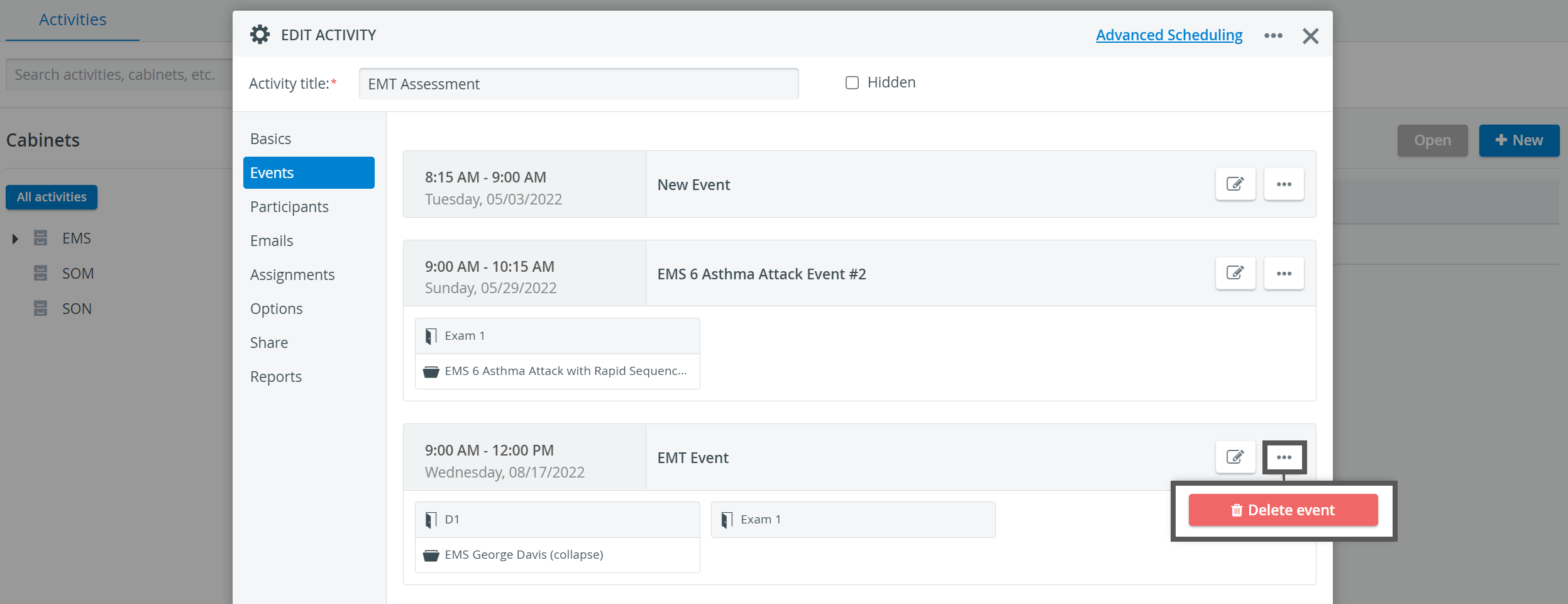
Deleting an event removes it from Scheduling and Calendar as well.
For further information, visit our Activity Manager pages and view our Activity Manager Training Videos.
Learn more on our Calendar Module and Calendar—How to pages or by watching the Calendar Module Training Videos.