How to Display Histogram on the Responses Tab
On the Responses tab, set the Show bar graphs to switch to active position (switch is blue).
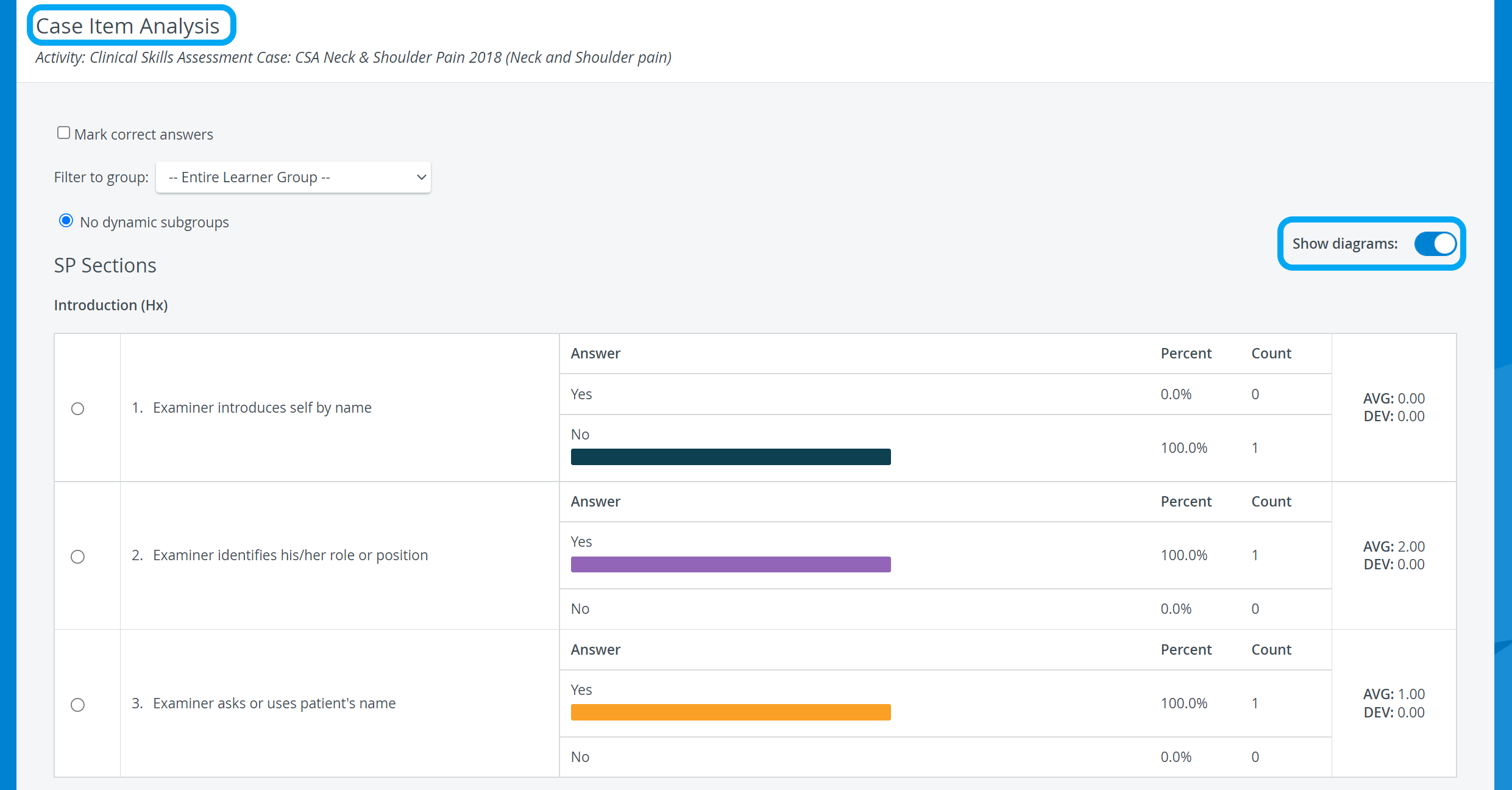
NOTE: By default, the Show bar graphs switch is disabled, and then either setting is saved by the individual account.
2. If needed, specify groups of users and/ or de-select learners in the list on the left side.
IMPORTANT: The histogram is displayed only when more than one learner is selected, as it is for comparative purposes.
If an answer has not been selected by anyone, no bar is displayed (as opposed to displaying anything grayed).
3. Select the radio button of a specific answer to filter for responses provided by those giving the answer selected via the radio button.
Without filtering, the bar graphs display the ratio of all answers given to each item. When filtered for, the bar graphs show the ratio of answers that were given by only those users who selected the radio-buttoned answer.
When a specific answer has been filtered for, the item where the radio button has been selected will only have one bar displayed: the bar for the selected answer, which will show 100% representing only those who chose that answer. The bars at the other items will show the ratio of the users included in that 100%.
Learn more on our Reports Module pages, and watch the Reports Module Training Videos.