How to Create Items
Navigate to the Case Content screen by clicking the Case Content button in the top right corner of the Edit Case pop-up window.
Click the tab corresponding to the part/checklist desired to be created/ edited.
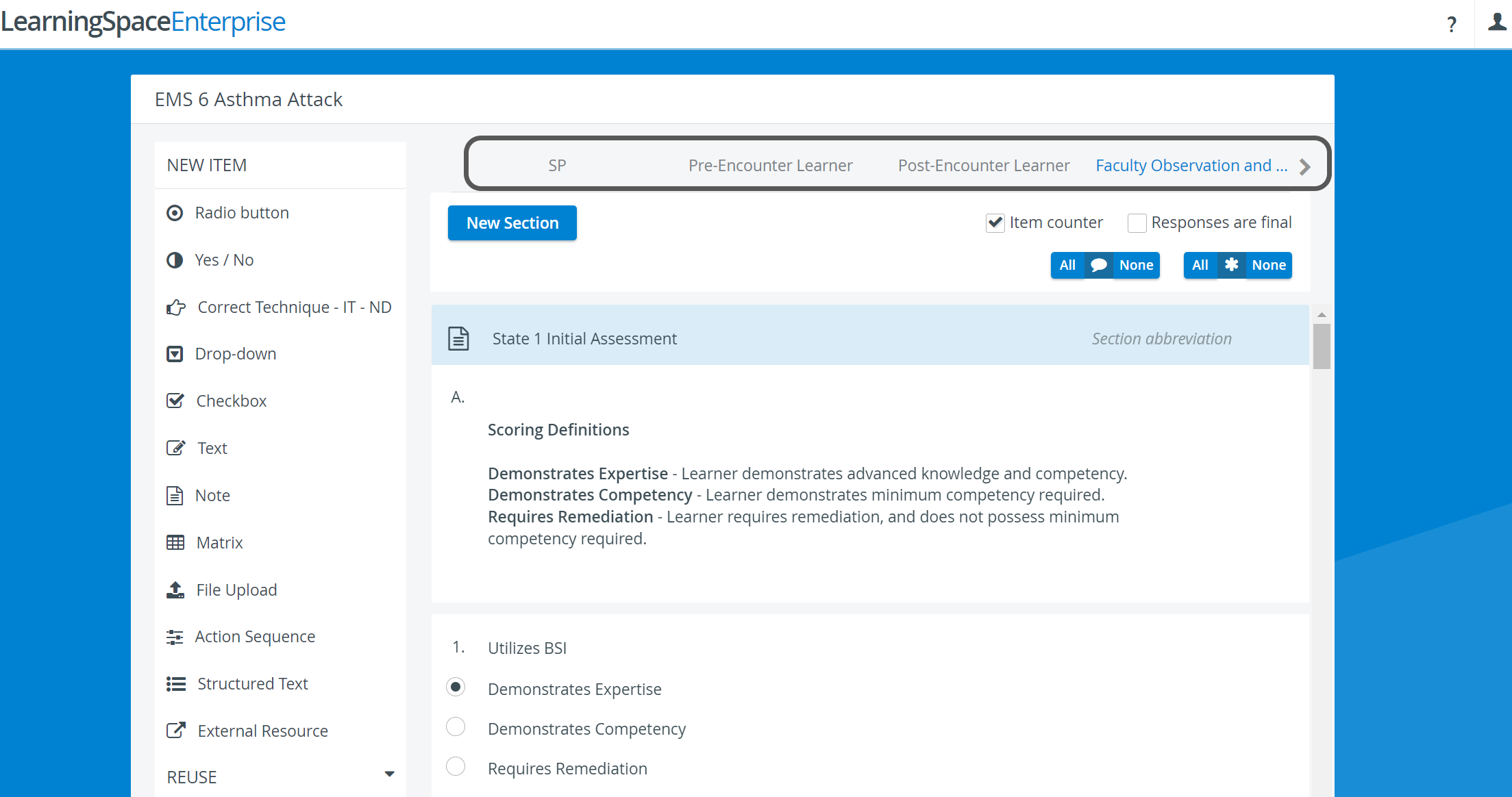
Click the New Section button in the top left corner of the tab.
An editable New Section panel appears.
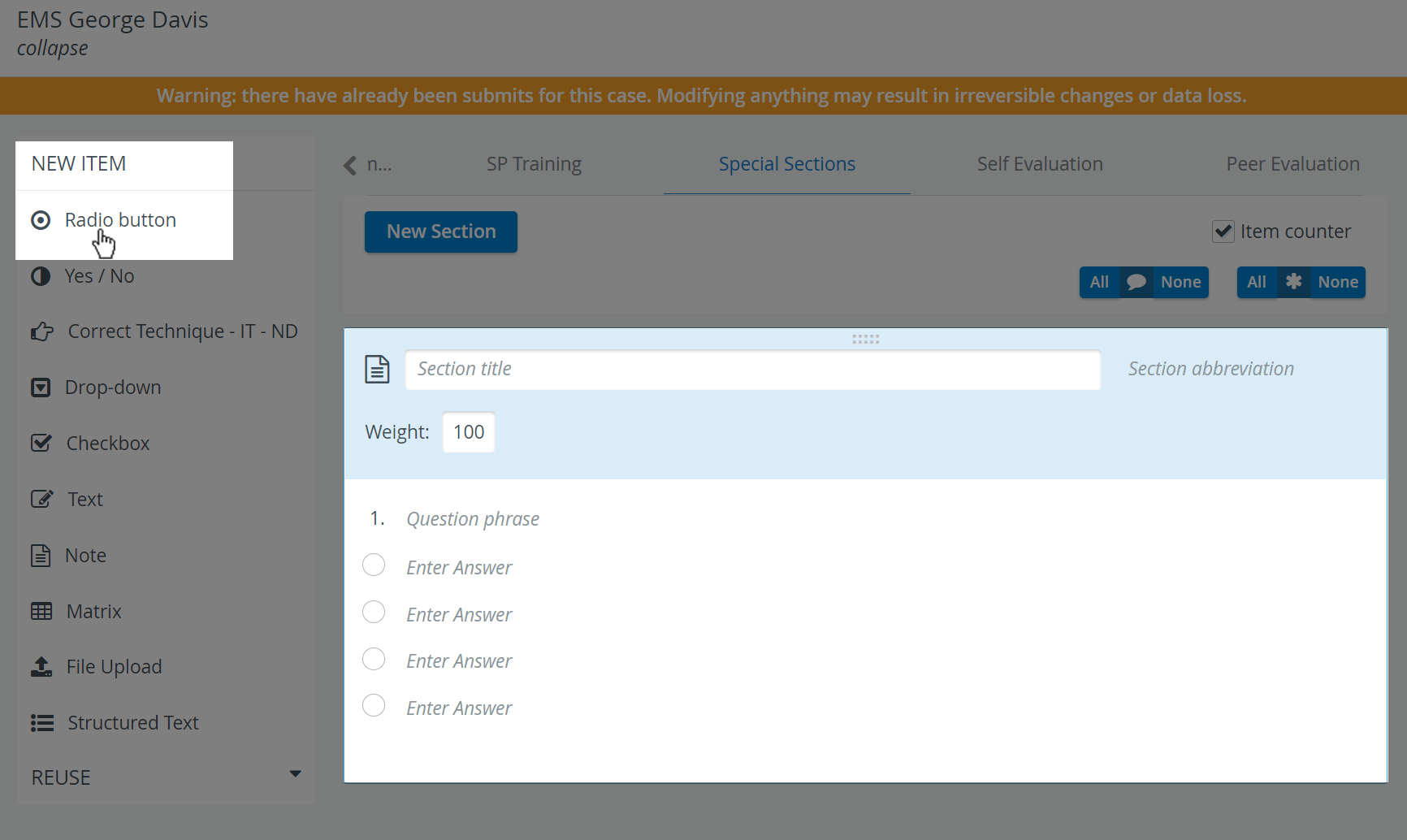
After completing all required Section data, click the desired item type in the NEW ITEMS panel.

For a detailed explanation of the different item types, see the Items part.
The Item panel appears within the lower part of the Section panel with editable question and answer fields.
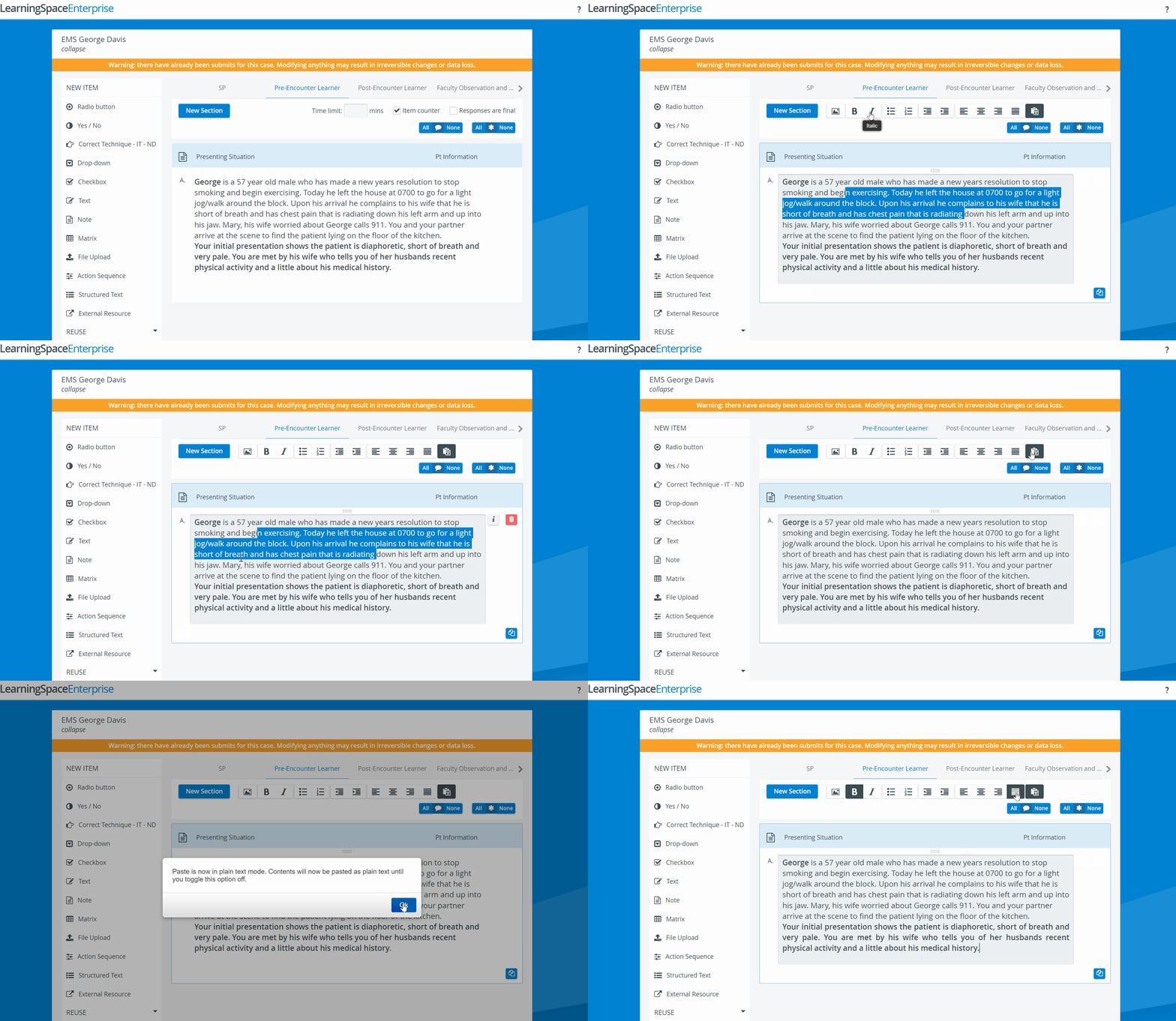
The text entered in any of the text fields can be formatted via the formatting toolbar that toggles from the New Section button when clicked in any of the text fields.
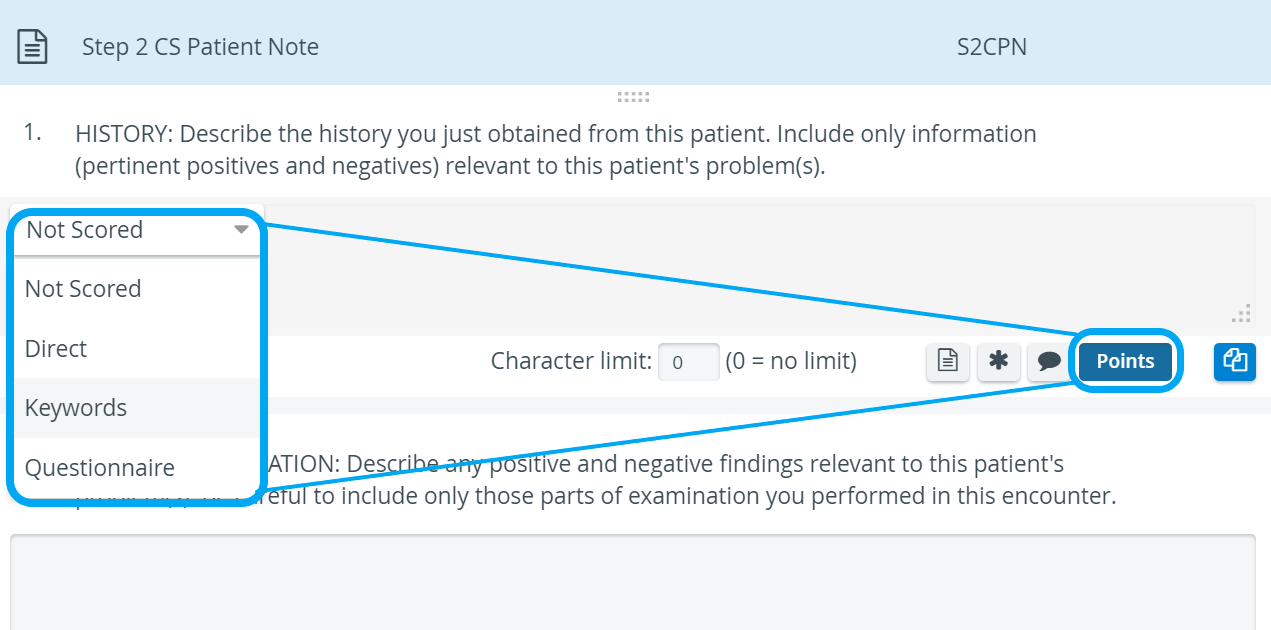
Determine the score via the Points or the Set Answer button, depending on the selected item type.
IMPORTANT: When on the tab of the desired part, without any Section added, clicking an item in the New Item panel will automatically create a Section that can contain the added item.
In such a case, the Section data will have to be filled out, along with phrasing the questions and answers of the added item.
By the drag-and-drop method, you can rearrange
answer options within an item,
items within a Section
and/or Sections within a checklist
To drag an entity, hover over its top line until the four-headed arrow cursor appears. Then click and hold until dragged to the desired place, then release where it is intended to be dropped.

NOTE: The Insert Media option is available for every type of item; thus, videos and pictures can be attached to any item added to a Section.
For a more detailed instruction, see How to Upload a Media Item.

For further information, visit our Case Manager and Cases - How to pages or watch our Case Manager Training Videos.