How to Create Cast Sheets
The page explains to SP coordinators how to create a new Cast sheet from scratch in the Standardized Patient Administration module of LearningSpace.
Creating Cast Sheets
Cast sheets are designed to encase simulated patient scenario Sessions that are part of your long-term medical training programs.
Important: Cast Sheets Are Not Equivalent to Activities
Your Cast sheet can correspond to the Activities created in your LearningSpace system by choice. However, cast sheets function independently of activities: the two components are not interchangeable and cannot be tied together in any way.
Enter the SPA module from your Dashboard. You will land on the Casting tab of the SPA module.
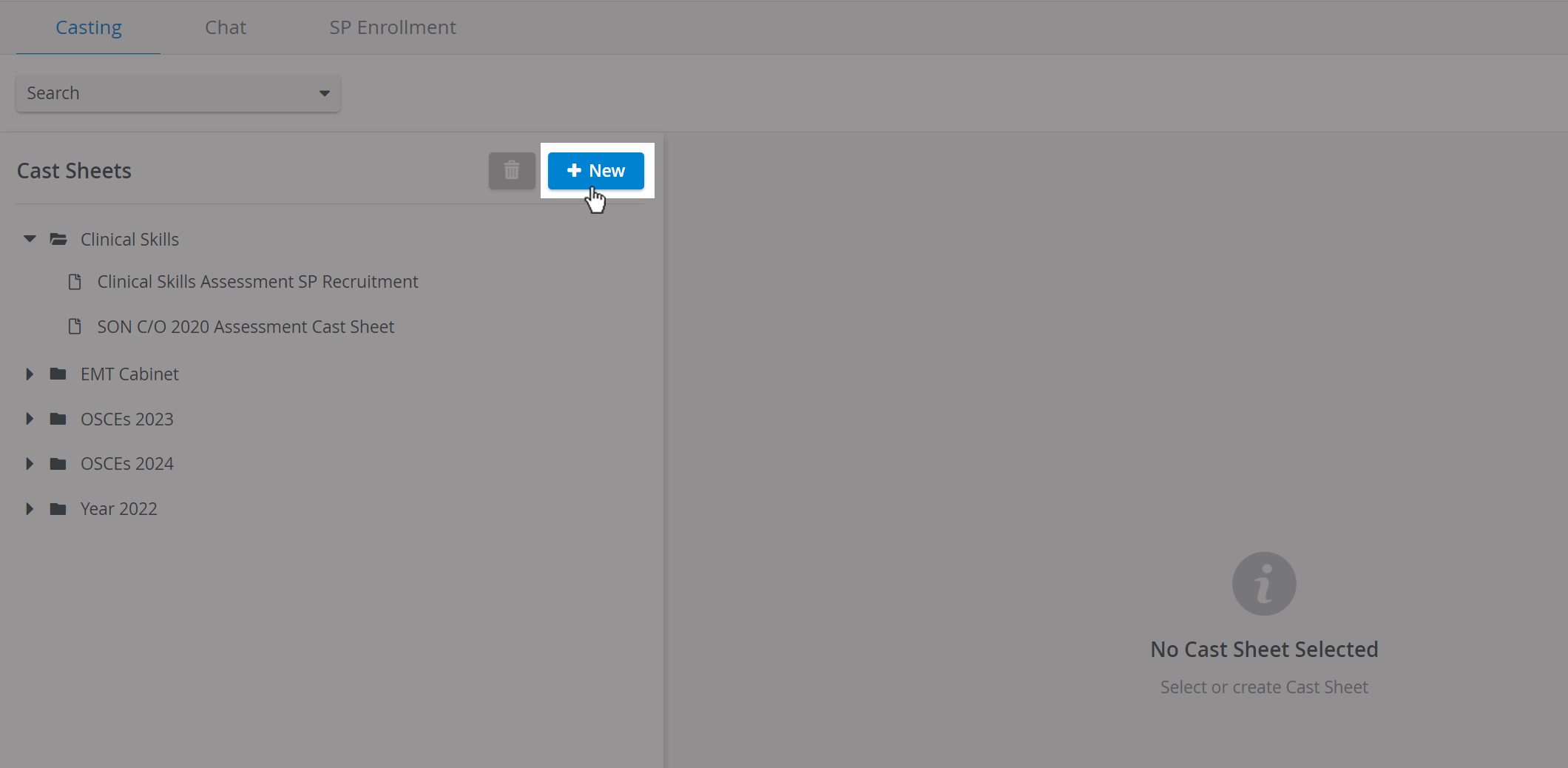
Stay on the tab, and click New.
A pop-up opens where you can enter the name of your new cast sheet.
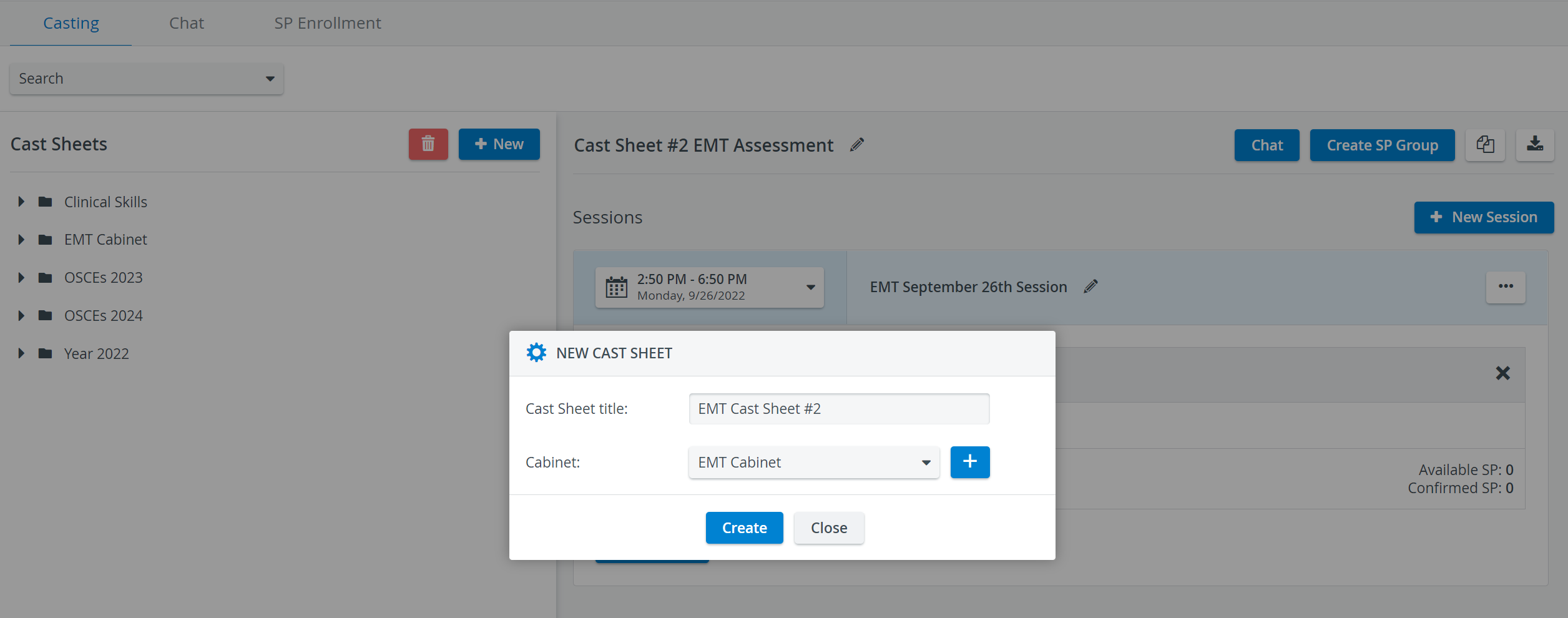
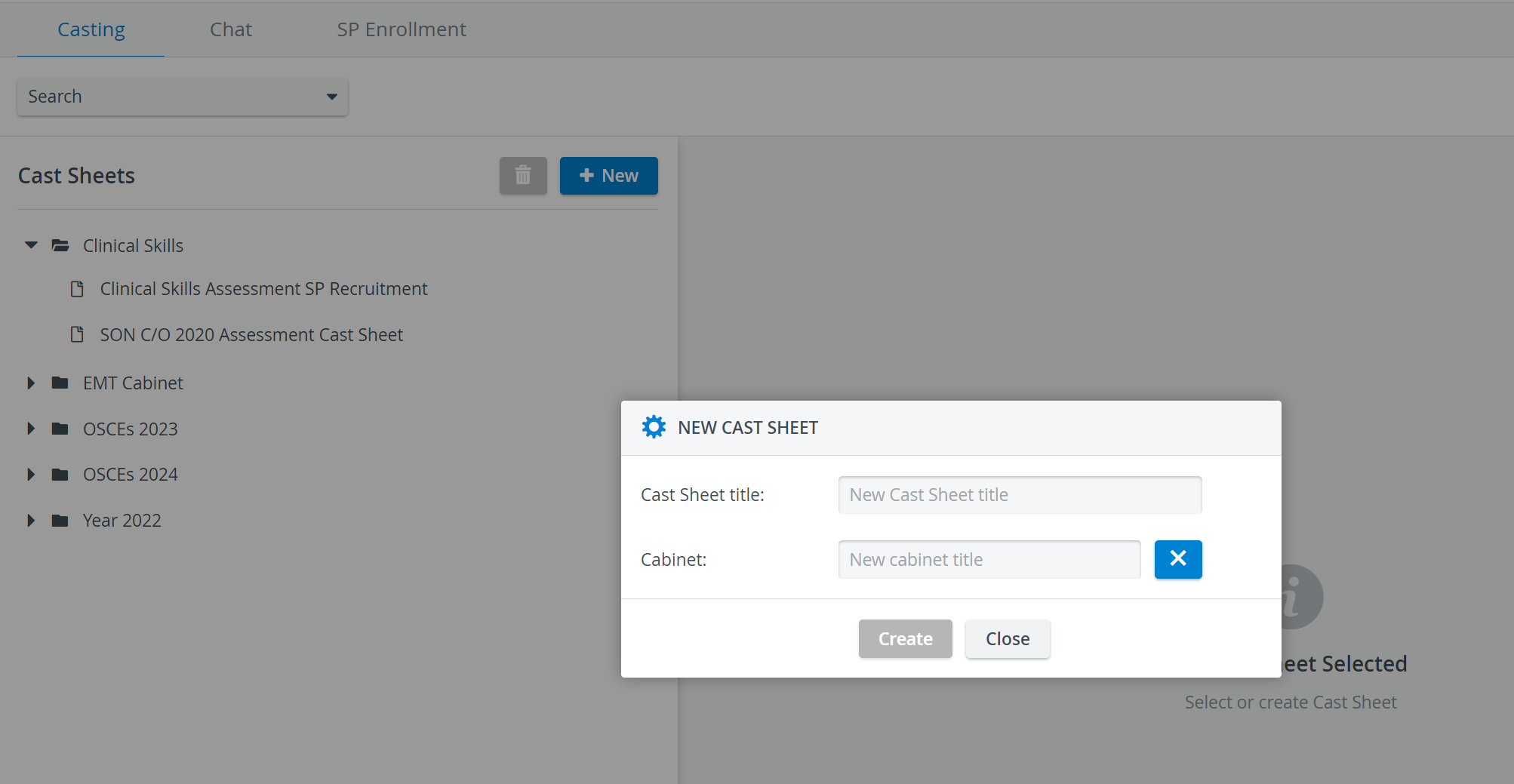
Add your Cast sheet to an existing Cabinet or click the + sign next to the Cabinet drop-down to create a new one.You can only save a new Cast sheet if you add it to a Cabinet.
See also: How to Delete Cabinets
Click Create once you have named your Cast sheet.

Once your cast sheet is ready, you can start adding Sessions:

You will be notified about having successfully added a new Session:

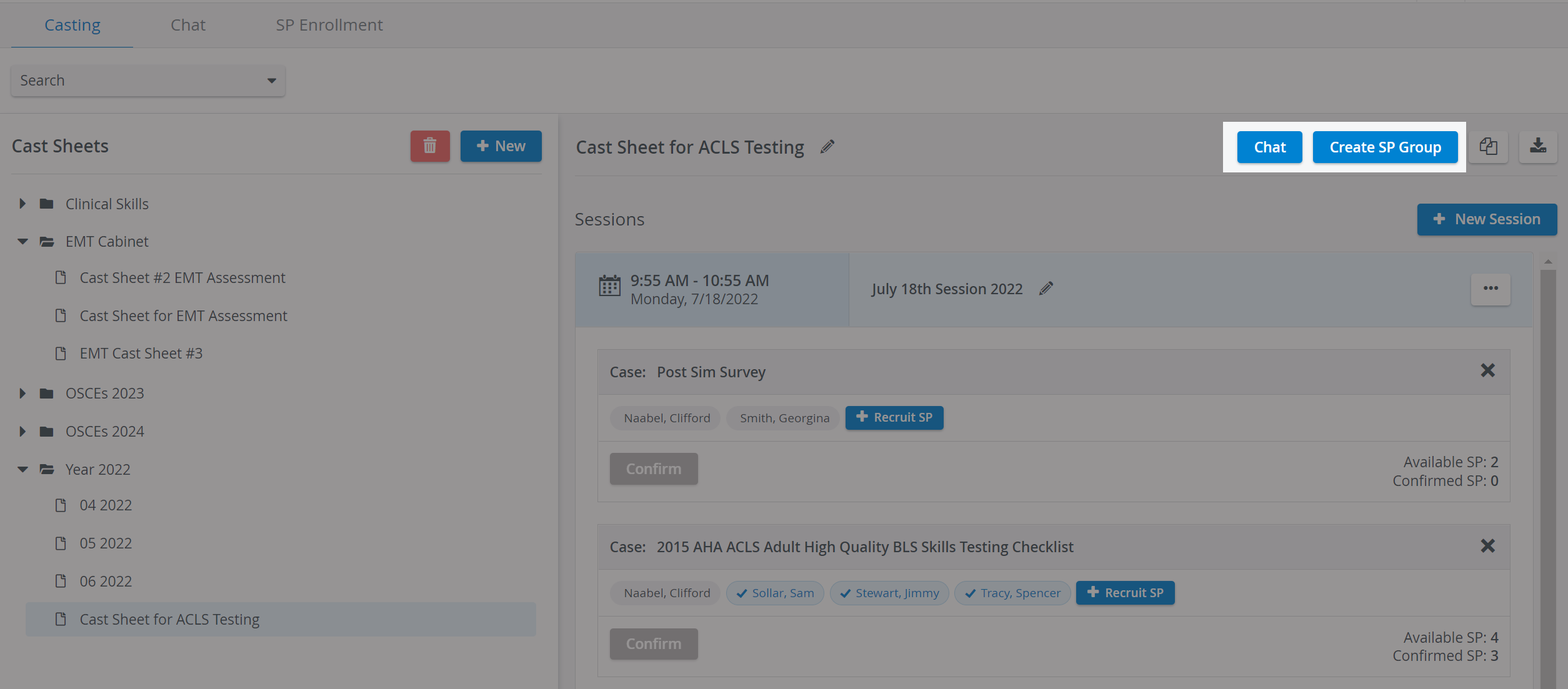
To create a Group chat for all confirmed SPs within a Cast sheet, use the Chat icon on the right in the Cast sheet's header.
You can also use the Create SP Group option to create a specific SP group for all confirmed SPs within a Cast sheet. The group will be listed and managed in the User Manager under Groups.
Copying Cast Sheets
Cast sheets can be copied by clicking the Copy icon in the upper right corner of the Casting page.

The copied Cast sheet will have the original Cast sheet's title followed by '(copy)'.
Session name and Cases of the original Cast sheet will be copied over
Date and the SPs will not be copied to the new Cast sheet.

Cast Sheet title and Cabinet can also be changed for the copied Cast sheet.
Exporting Cast Sheets
The data from the Sessions included in the Cast sheets can be exported into XLSX or PDF files using the Export Cast Sheet option, located in the upper right corner of the Casting page.

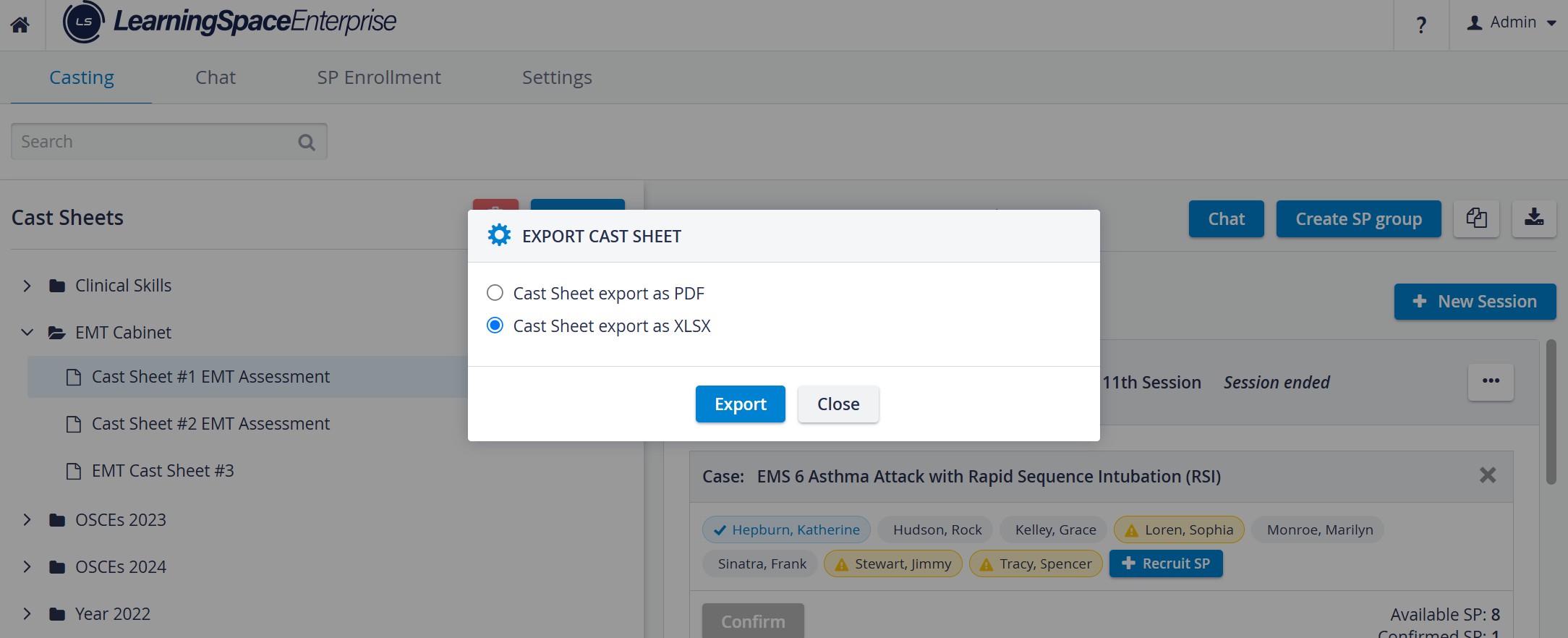
See also Exporting Cast Sheets.
For further information, visit our Standardized Patient Administration and Standardized Patient Administration - How to pages.