How to Create an SP User
Create an SP User
Creating an SP user starts with creating a new user:
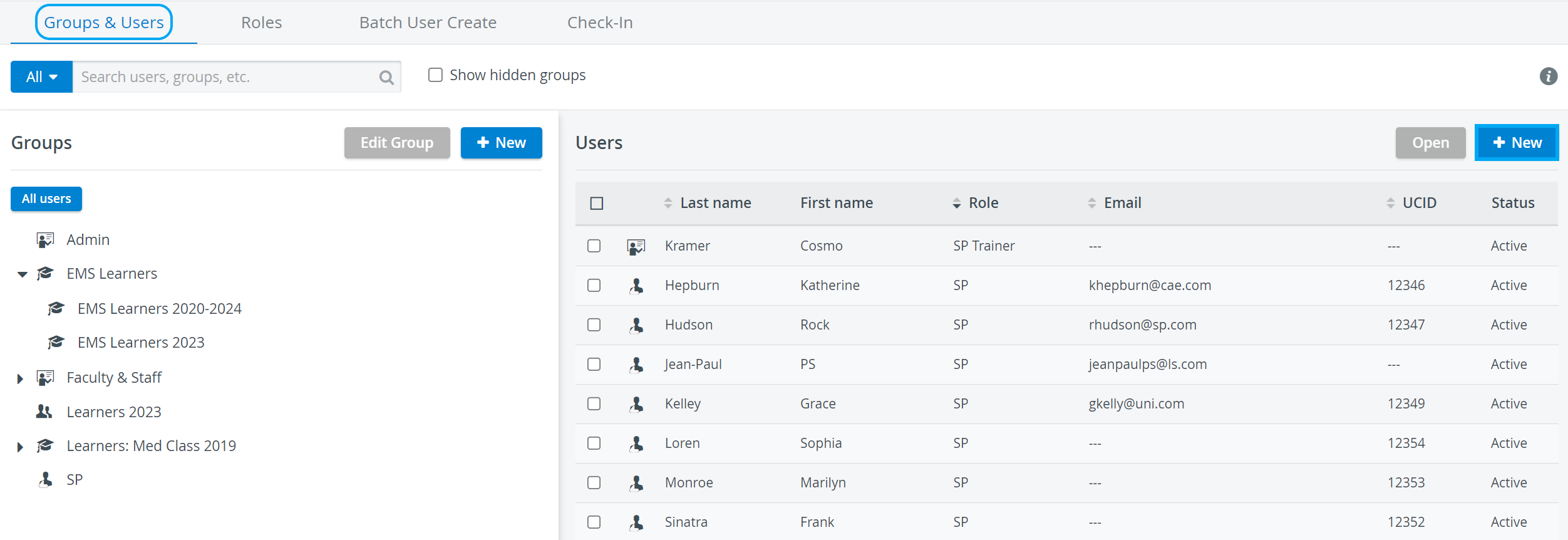
Click + New to create a new user account on the right under Users.
2. Before any other setting, enter the
First or last name (at least one of the two)
email address
and password
These details are mandatory to continue editing a new user account.
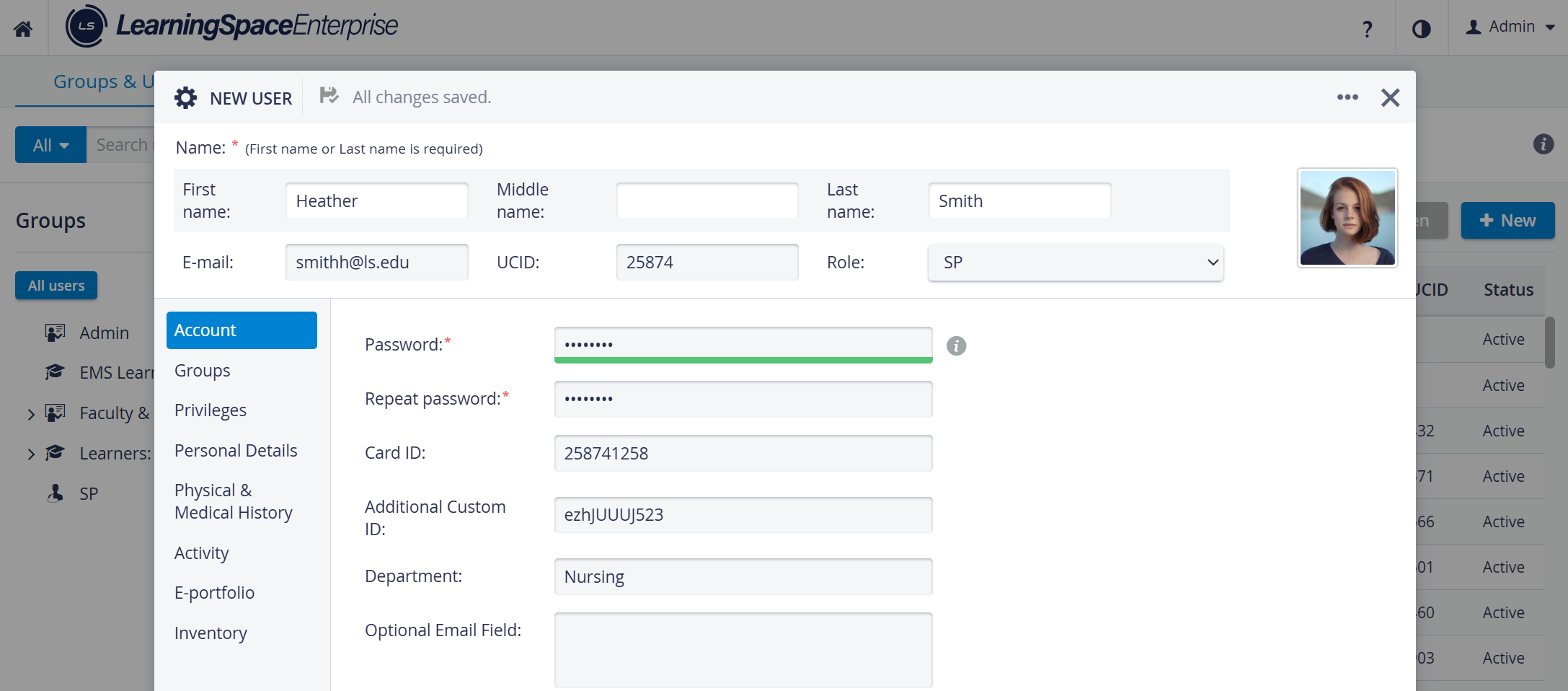
Once all the mandatory details are filled in, faded areas become editable.
Assigning users a UCID for easy identification is recommended, but not required.
3. Use the Role drop-down to assign the default SP role to the user.
Roles can also be assigned later on: see more about role assignment here.
4. Put the user in a group.
User group membership can be managed in Groups; find more information here.
See also How to Create a New User
Additional Tabs
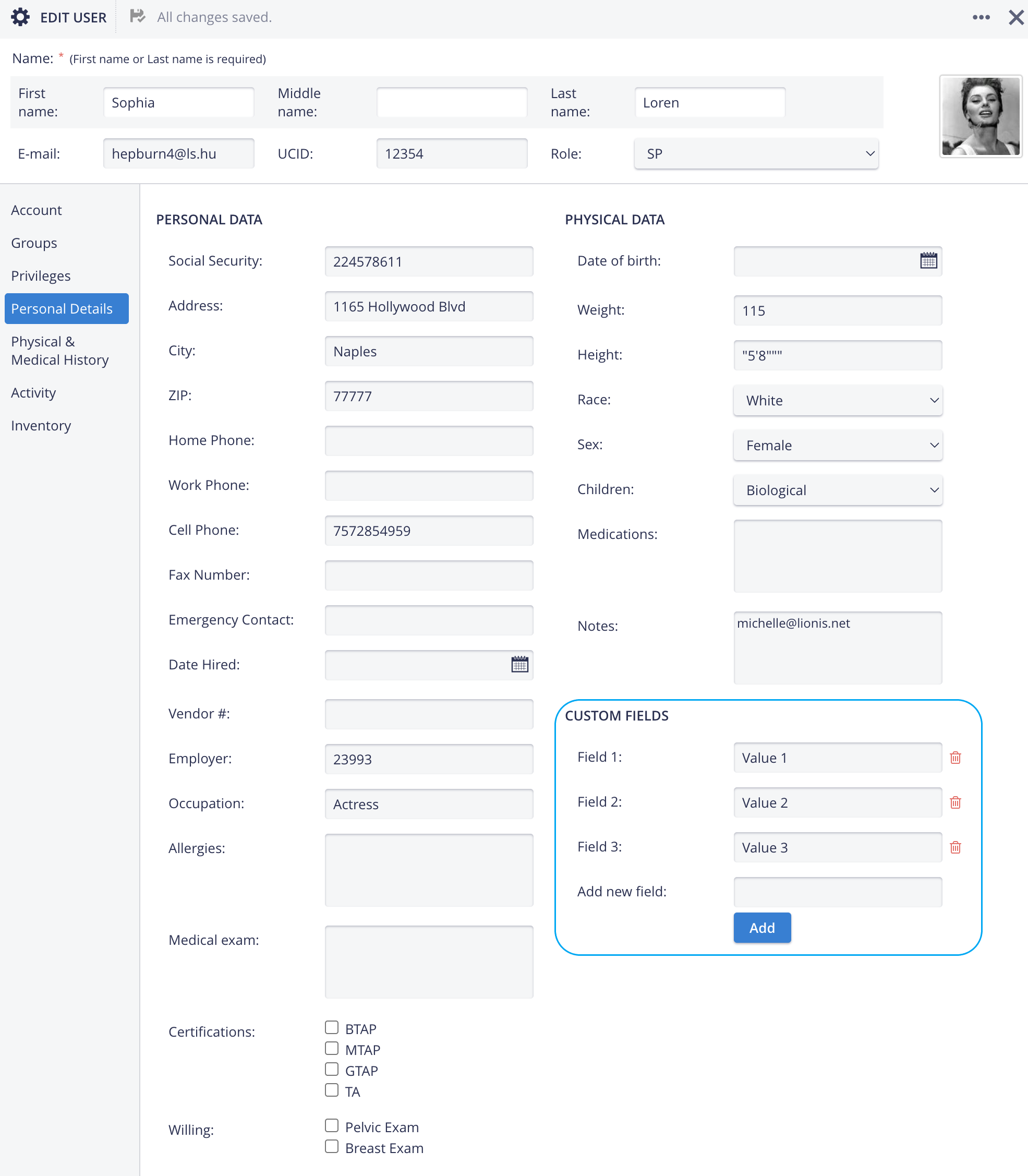
When creating an SP user, three additional tabs are added to the New/ Edit User window.
Personal Details
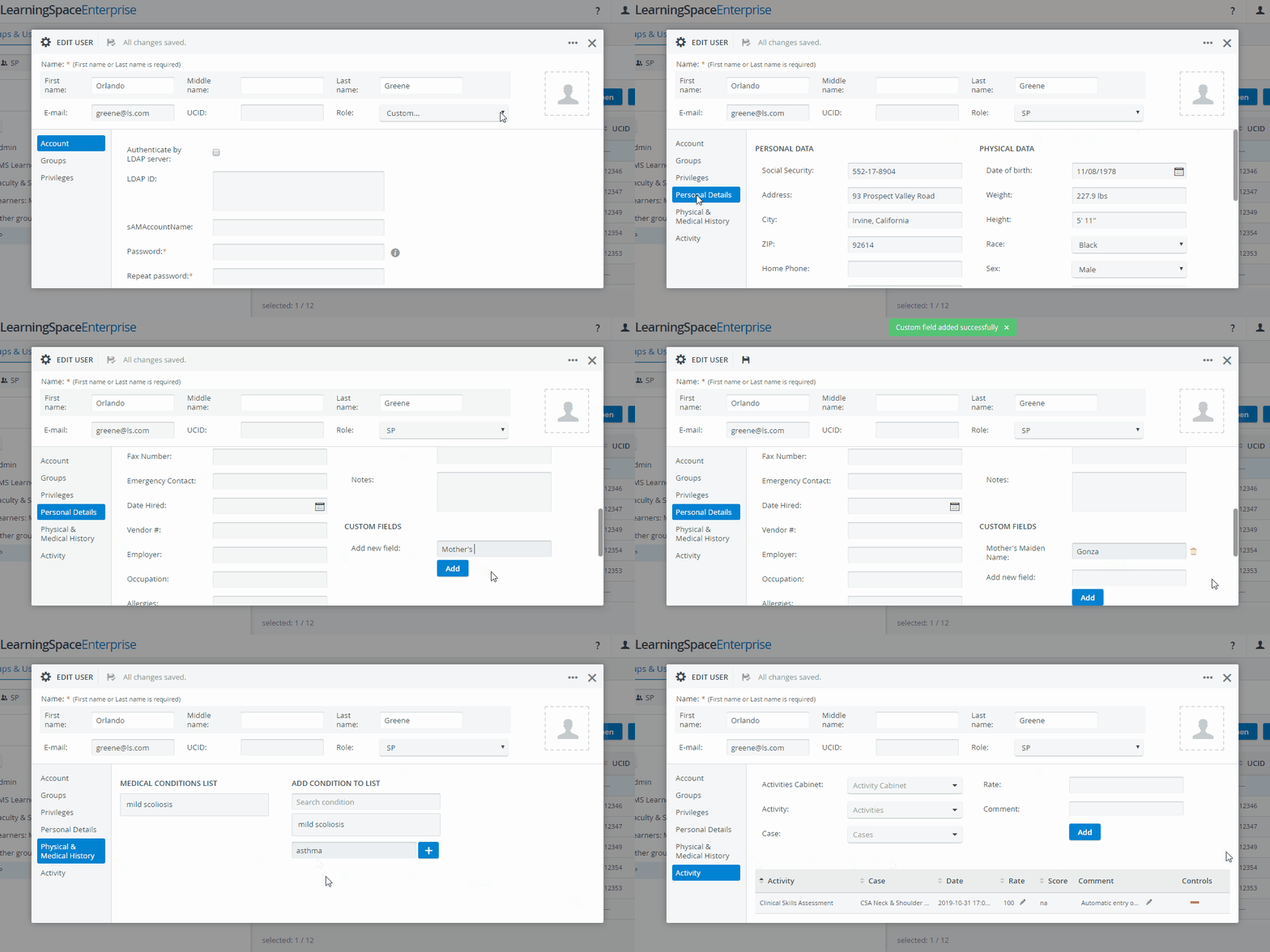
The SP's basic information can be registered in the Personal Details section.
Custom Fields
Custom fields for further personal details can also be added here.
Note About Custom Fields
Each new custom field added to an SP user will appear on every other SP profile in Personal Details.
⚠️ If a custom field is deleted at an SP, the field and its contents will be removed from all other SP profiles as well and cannot be restored.
The exported Batch User Create (BUC) Excel files display the content of the Custom fields, allowing users to search/filter SPs based on the values of the Custom fields. The associated values are displayed in one cell, separated by a comma, for each SP.
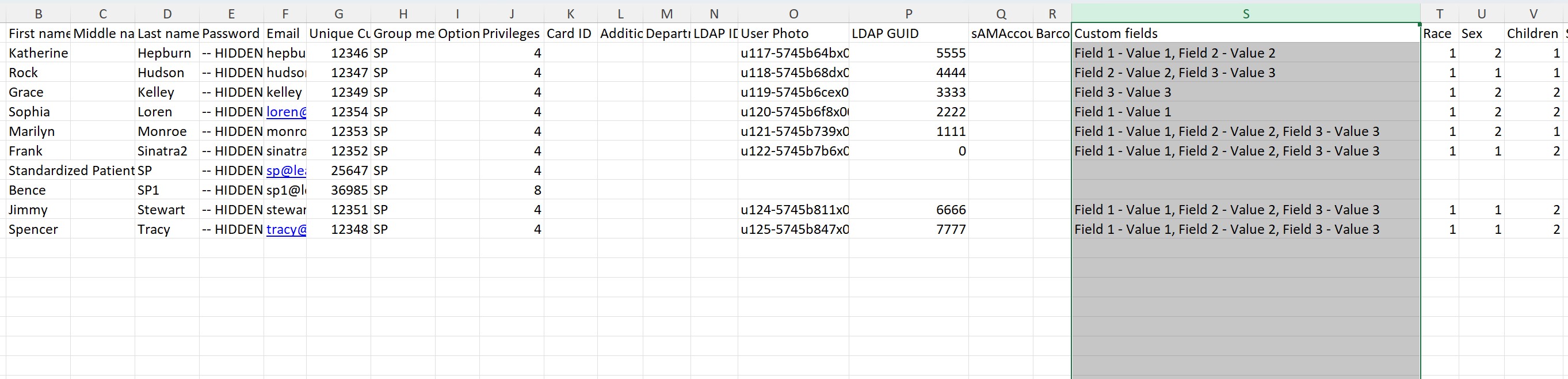
NOTE: Updating custom fields and their values through Batch user upload is not available
Physical & Medical History
Physical & Medical History is for entering keywords for the medical conditions the SP can portray.
Search SPs by Medical Condition
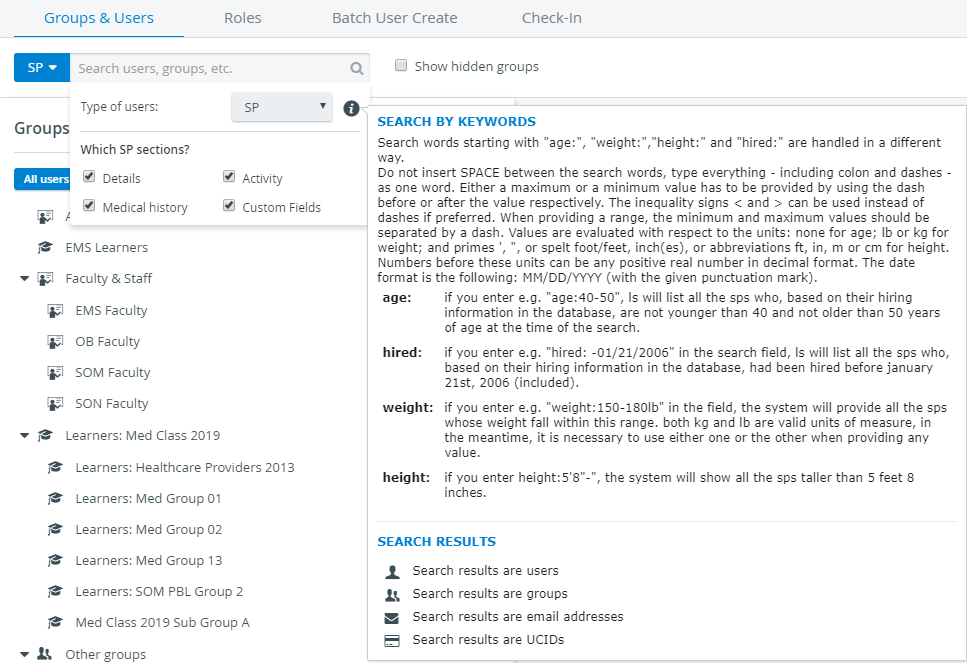
Use the Smart Search Bar in Users to find SPs by the particular conditions they can portray:
Select "SP" as the type of user.
Additional checkboxes appear.Select the Medical History checkbox to search for the medical conditions of SPs.
Enter your keyword in the search bar.
The system will list every SP with the condition registered at Physical & Medical History in their profile.
Activity
Activity logs the latest SP data entry instances and sorts them by Cases and Activities.
Any other action performed by the SP can also be registered manually.
Logs can also be deleted with the red minus sign.
For further information, please visit our User Manager pages.