How to Create an Activity Snapshot
In the current version of LearningSpace, the easiest way to resume data and checklist results and print Reports is to use the Activity Snapshot tool, which can be reached under Classic Reports.
From the Dashboard, switch to Classic View by clicking the diagonal arrow button on the right end of the header (next to the User profile).
From the Classic View Home, click the Reports link of the Reports & Results tab. The Reports box expands.
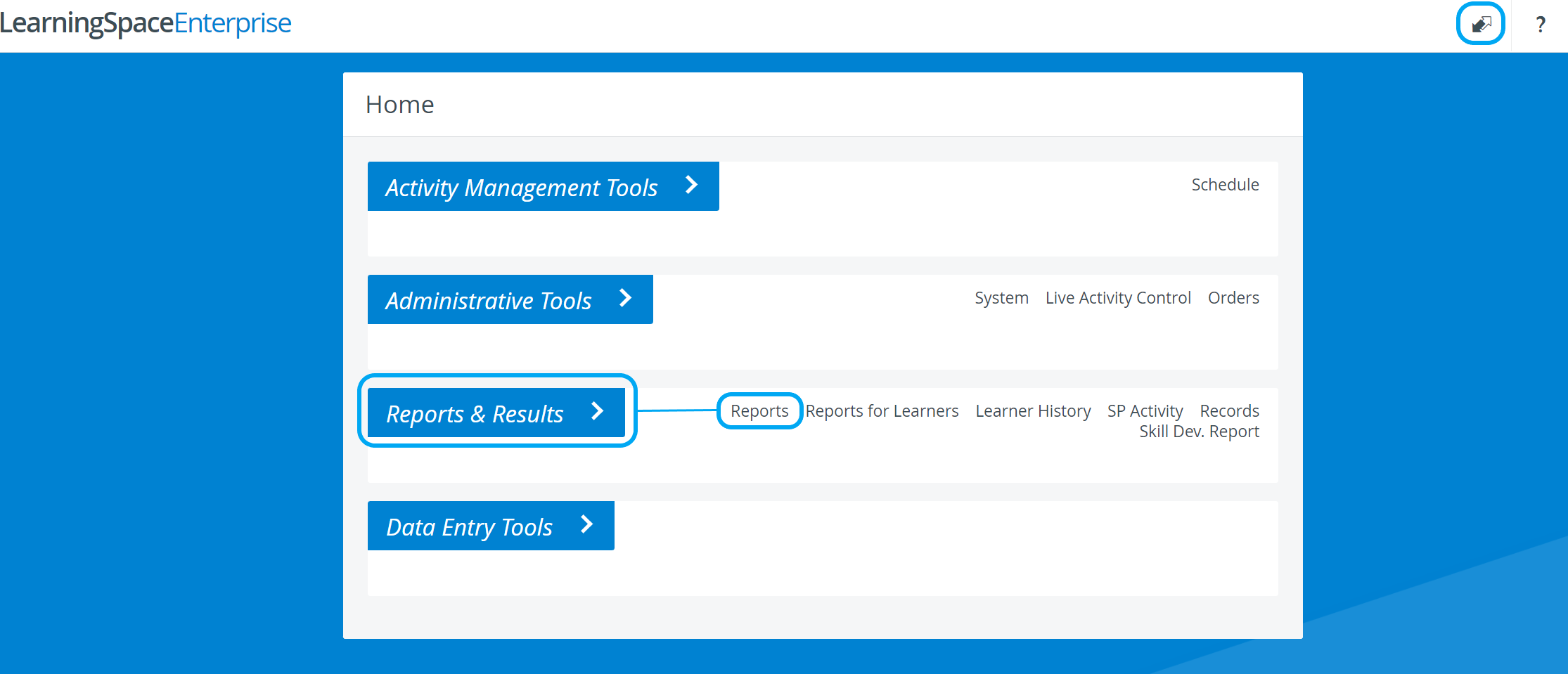
Select the desired Activity from the drop-down then click Select. The Reports page for the selected Activity appears.
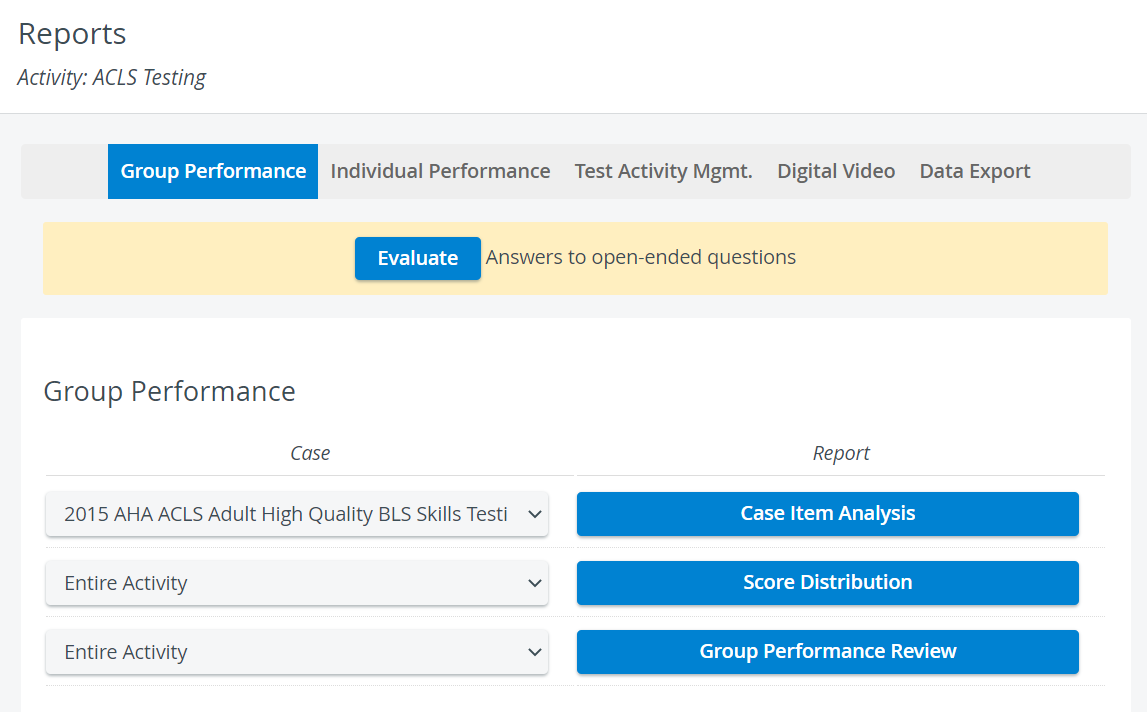
Switch to the Test Activity Mgmt tab.
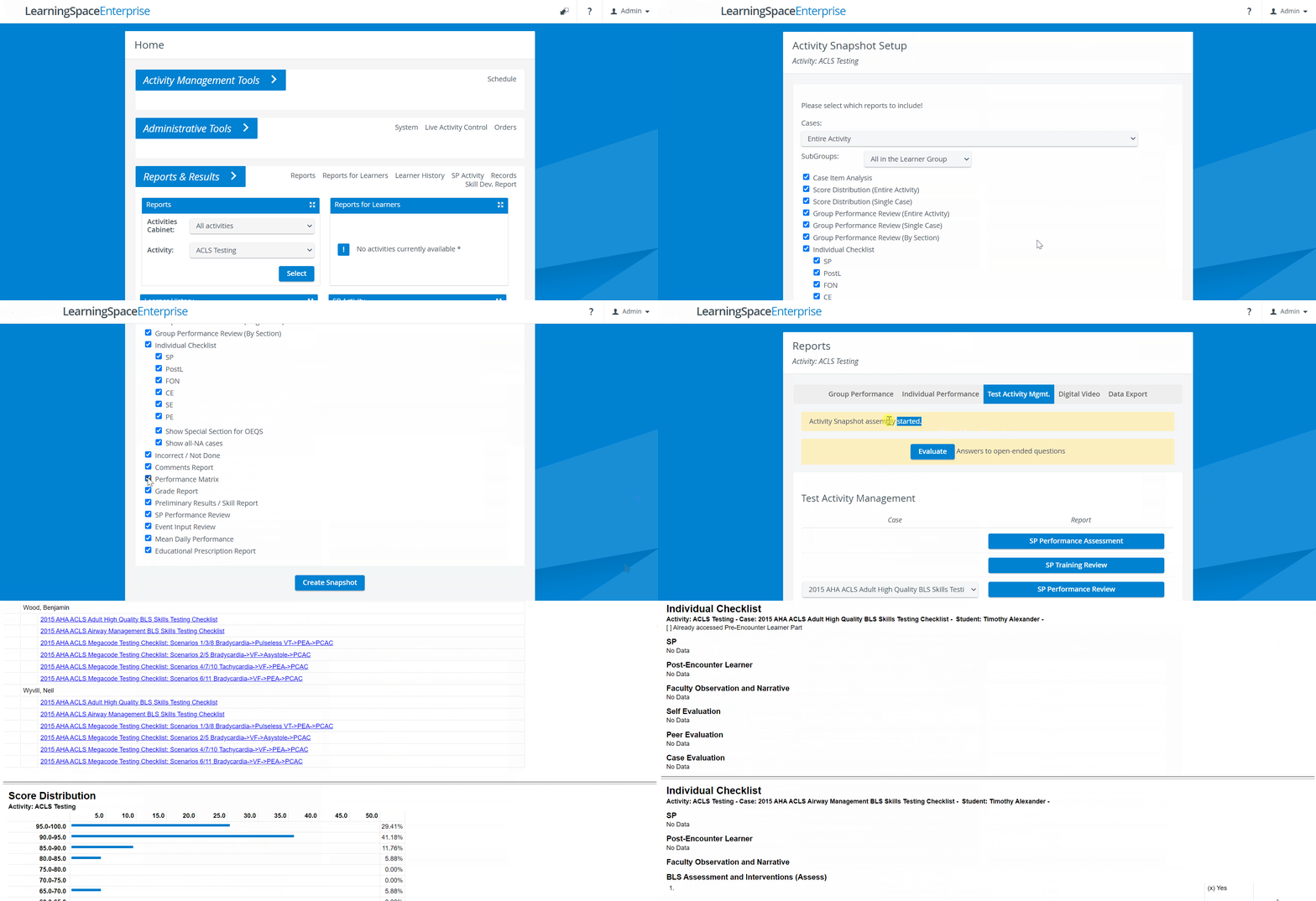
Click the Activity Snapshot button in the Reports column. The Activity Snapshot Setup page appears.
To narrow the scope of reports, use the Case and/or the Subgroup drop-down and/or uncheck any of the boxes you wish not to include.
By default, all Cases, i.e., the entire Activity and all learners, are included, and all the boxes are checked.
7. When done, click the Create Snapshot button.
The system returns to the Test Activity Mgmt. tab with messages informing about the compilation of the snapshot being in progress.
8. When ready, an HTML link appears next to the Activity Snapshot button, with information about the exact date and time the snapshot was created.
9. Click the link to access the snapshot.
10. Print the snapshot if you wish or use it in its digital form.
For more information, visit our Reports Module pages and watch the Reports Module Training Videos.