How to Create an Activity
Available to users with Activity Manager privilege or Admins.
Go to Activities.
On the right, click the +New button at the top of the Activities pane.
The Edit Activity window pops up. → By default, you are brought to the Basics tab of the new Activity.
Continue with setting up the basic properties of the Activity.
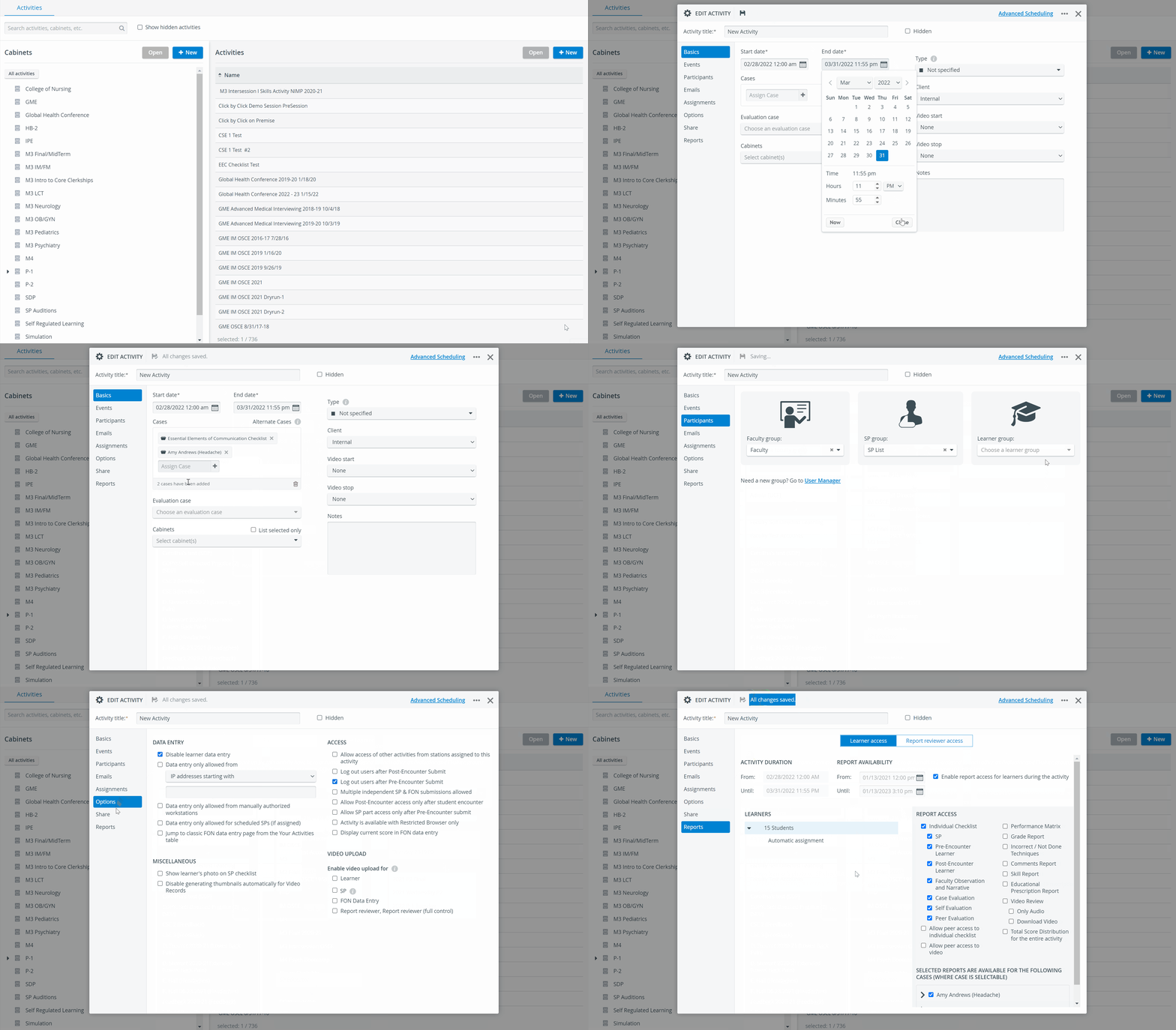
Manage the basic settings of your Activity
Name the Activity (Basics tab)
Enter the name of the new Activity in the Activity title field.
You are not able to switch between the tabs of the Edit Activity pop-up until you name your new Activity.
Once the name of the Activity is saved, a link leading to Advanced Scheduling appears in the top right corner of the editing window.
NOTE: Users with only Activity Manager privilege cannot perform any actions in Advanced Scheduling.
Proceed with the following steps to complete the Activity setup:
Action | Tab | Related Help site pages |
|---|---|---|
Define the Start and End dates | ||
Add Cases | ||
Add Participants | ||
Make sure the Activity has its own Activity Manager(s) | How to Share Activities with Activity Managers and SRP Users | |
Set up Report accessibility for Learners or Report Reviewers |
💡 Make good use of other Activity features as well
Action | Tab | Related Help site pages |
|---|---|---|
Select video start and stop conditions | ||
Create and send Emails to the participants of the Activity | ||
Assign an Evaluation Case to the Activity to collect feedback from learners | Basics tab | |
Use the Evaluation email option to send out the evaluation checklist to learners | Emails tab | |
Manage Cabinets: move your Activity from one cabinet to another or add it to multiple cabinets. | Activities module, Cabinets panel | |
Select the type of the Activity from the Type drop-down or create a new type. | Basics tab | How to Specify Type of Activity Activity types are automatically color-coded by the system. The color of an Activity will mark every related event blocked off in the Calendar. |
Manage which Faculty member or Learner evaluates which learner(s) | Assignments tab | |
Restrict data entry or Activity-access options | Options tab |
For further information, visit our Activity Manager, Activity - How to pages, and view our Activity Manager Training Videos.