How to Create a Setup Sheet
A Setup Sheet is an event-related list containing the final selection of Equipment and supplies and their fixed quantities needed to conduct a scenario.
A Setup Sheet can be created by finalizing an existing Equipment and Supply List while editing an event in the Calendar module.
The list of required items can be assigned to every non-recurring event with the help of the Setup Sheet feature.
The contents of the event-related Setup Sheet can then be checked out altogether from your Inventory. In the Setup Sheets tab, you can look up the precise supply and equipment needs of events.
Request items using Setup sheets
Calendar Event
This workflow shows you how to add a Setup Sheet to a non-scheduled event.
Create a new event in the Calendar module.
Give a title to the event:

Select an Activity.
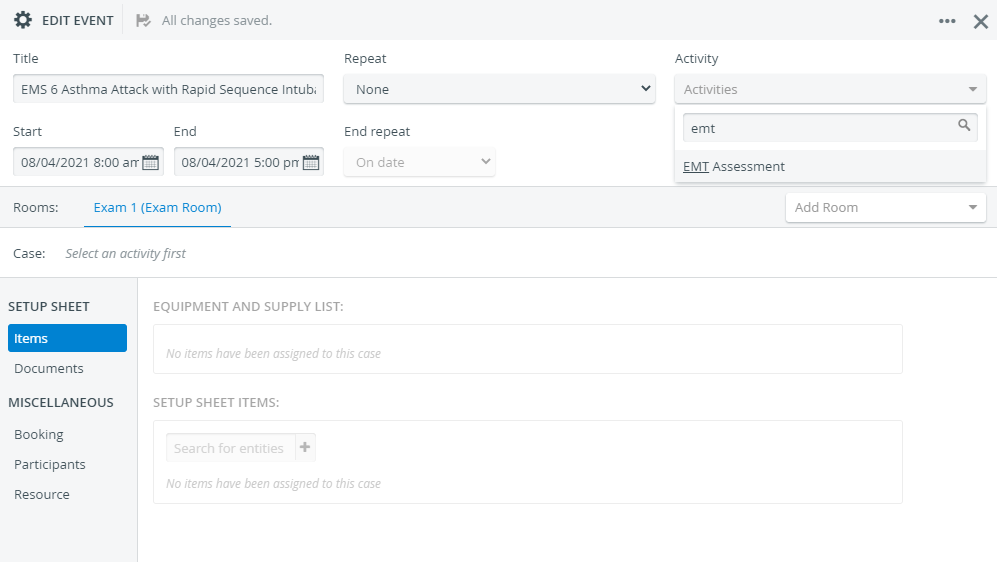
Adjust the Start and End dates if needed.
Make sure the event does NOT repeat.
The Setup Sheet feature is not available for recurring events.
Select a Case.
Make sure you have previously added an Equipment and Supply list to the selected case.

The contents of the Equipment and Supply List assigned to the case will load automatically when the case is added.
The Add to Setup Sheet option will also be active under the Equipment and Supply List: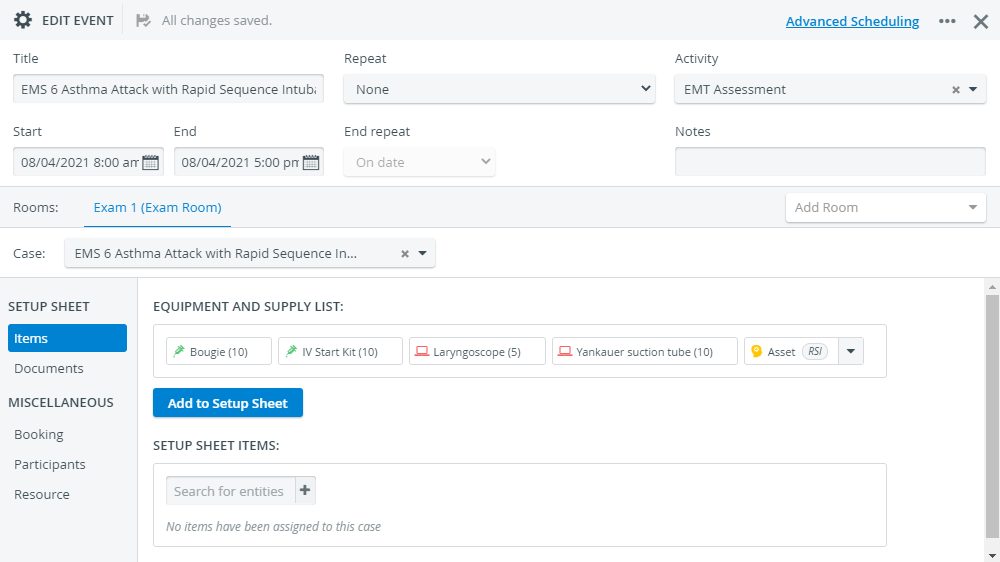
Before creating a Setup Sheet, check for any undefined Asset tags in the Equipment and Supply List.
If you leave an asset tag undefined, your contents will be copied without any asset to your new Setup Sheet, and the tag will warn you to select an asset:

Open the drop-down of the tag to select the asset you want to use for the scenario:

Click Add to Setup Sheet. The quantities of the items become editable:
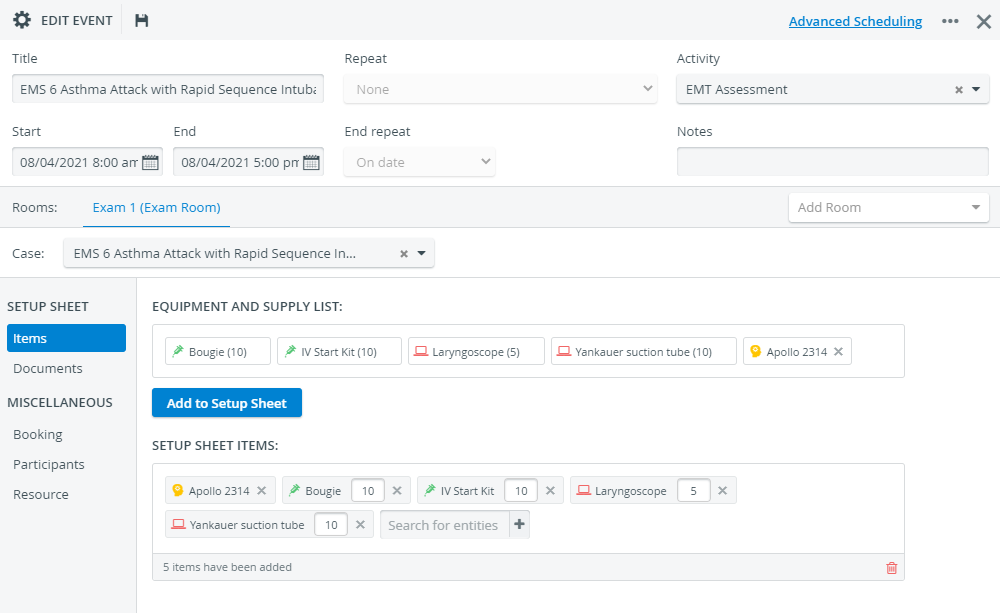
When setting up your events and creating Setup Sheets, the system will let you know if you have any overbooked Assets for events.
The Setup Sheet inside each event will warn you that there is a booking conflict and will inform you about the asset's current status:

Advanced Scheduling Event
This workflow shows you how to add a Setup Sheet to a scheduled event.
Follow this method if your event
was created with Advanced Scheduling
or the calendar event was modified with Advanced Scheduling
Click on the event to display the available settings.
Select Edit Setup Sheet.
This option is available for every event, even those with a transparent color.

The event editor will open.
The related Equipment and Supply List will load by default because the case is already selected.
In this case, event settings are not available in calendar mode. Still, for scheduled events to appear in the Calendar module, their activity and case must be defined beforehand in Advanced Scheduling.
Before creating a Setup Sheet, check for undefined tags in the Equipment and Supply List. For more on Asset Tagging, see here.
If you leave an asset tag undefined, your contents will be copied without any asset to your new Setup Sheet, and the tag will warn you to select an asset:
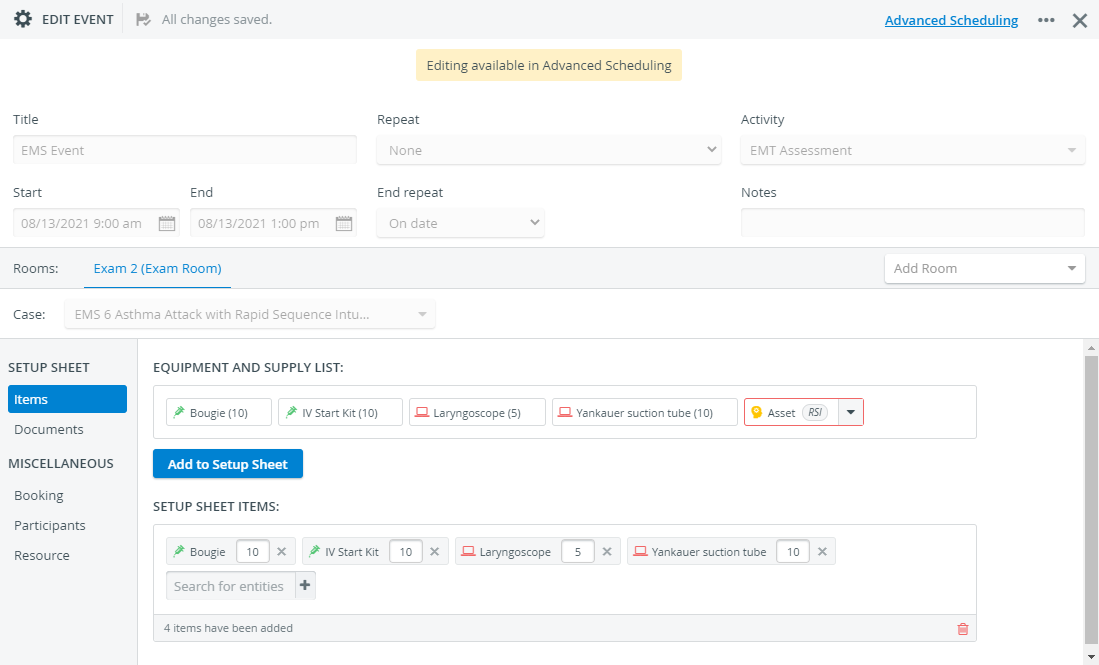
Open the drop-down of the tag to select the asset you want to use for the scenario:
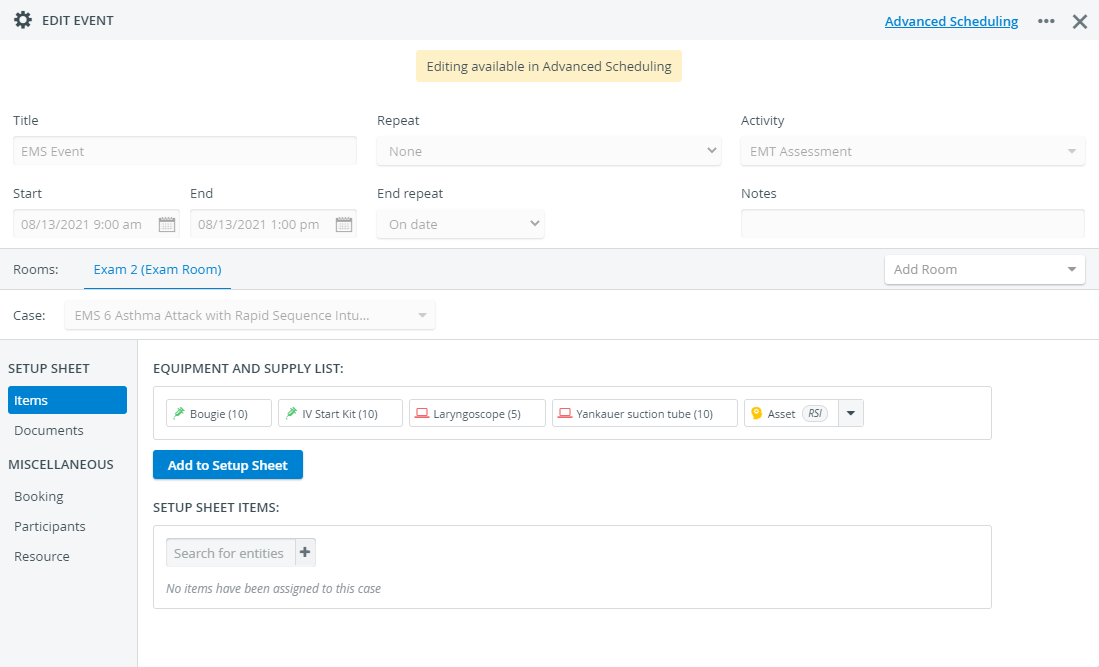
Click Add to Setup Sheet. The quantities of the items become editable:
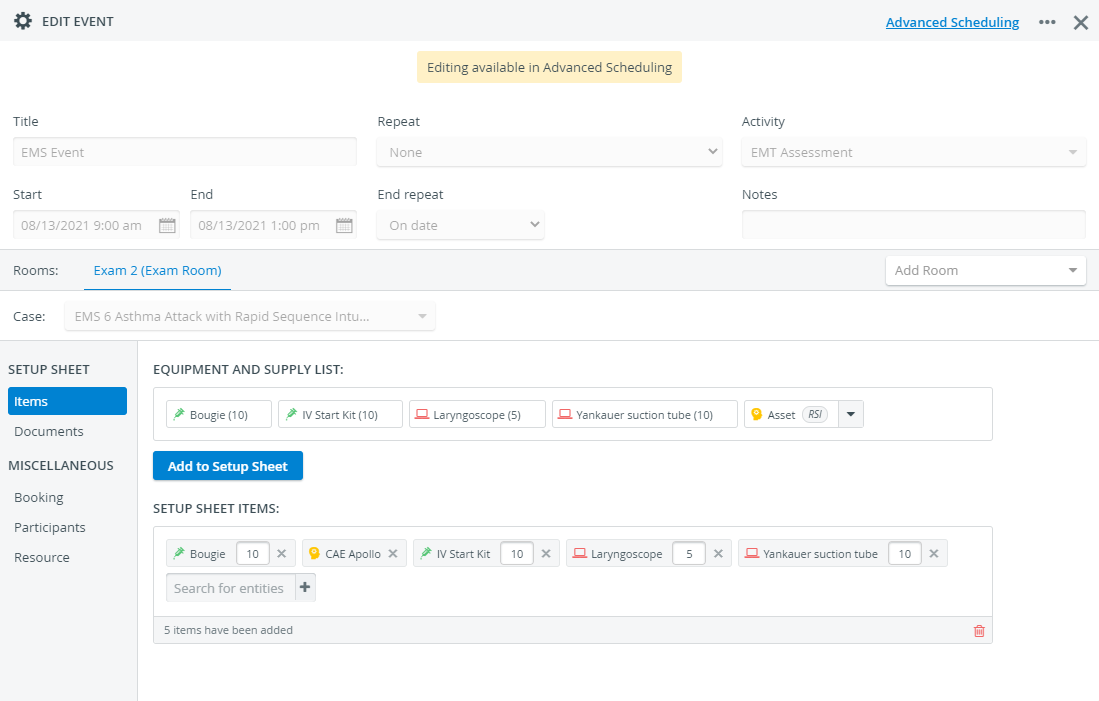
After Adding a Setup Sheet to an Event
When adding the setup sheet items, the event's Setup Sheet is also created in the Inventory module: you will find it by the date and name of the event.

Setup Sheets cannot be edited in the Inventory module. You can return to the event at any time to adjust the quantities or to add or remove items. Any changes you make here will make it to the event's Setup Sheet in the Inventory module until you start checking it out.
Inventory managers can modify the contents of any Setup Sheet on the spot: they can make new additions to a Setup Sheet with the Add items option without going to the Calendar module to edit the related event.
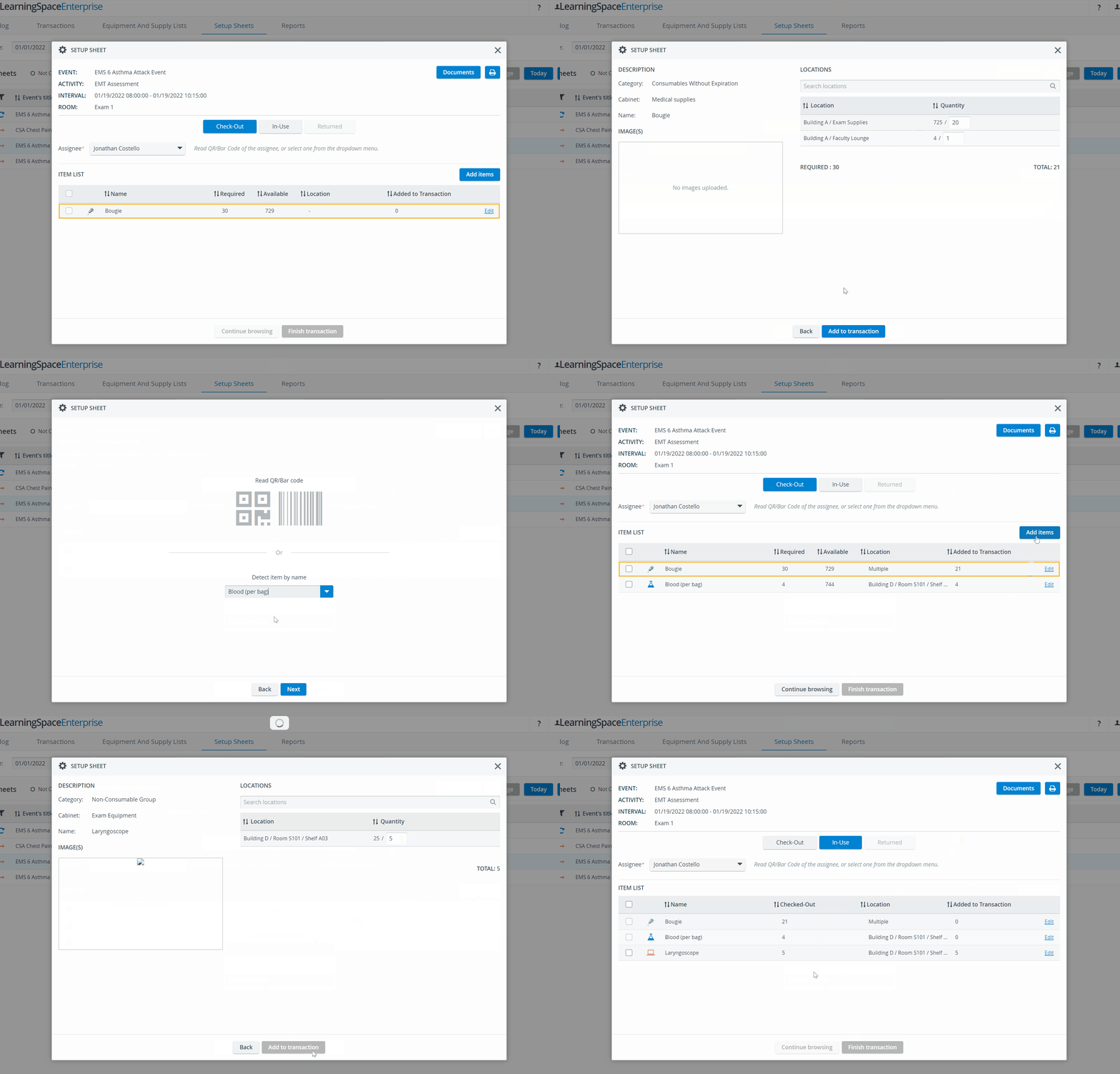
Partial check-out is also supported, allowing inventory managers to check out a Setup Sheet in several stages.
The users can return later to complete check-out once the remaining items are restocked or returned from loan:

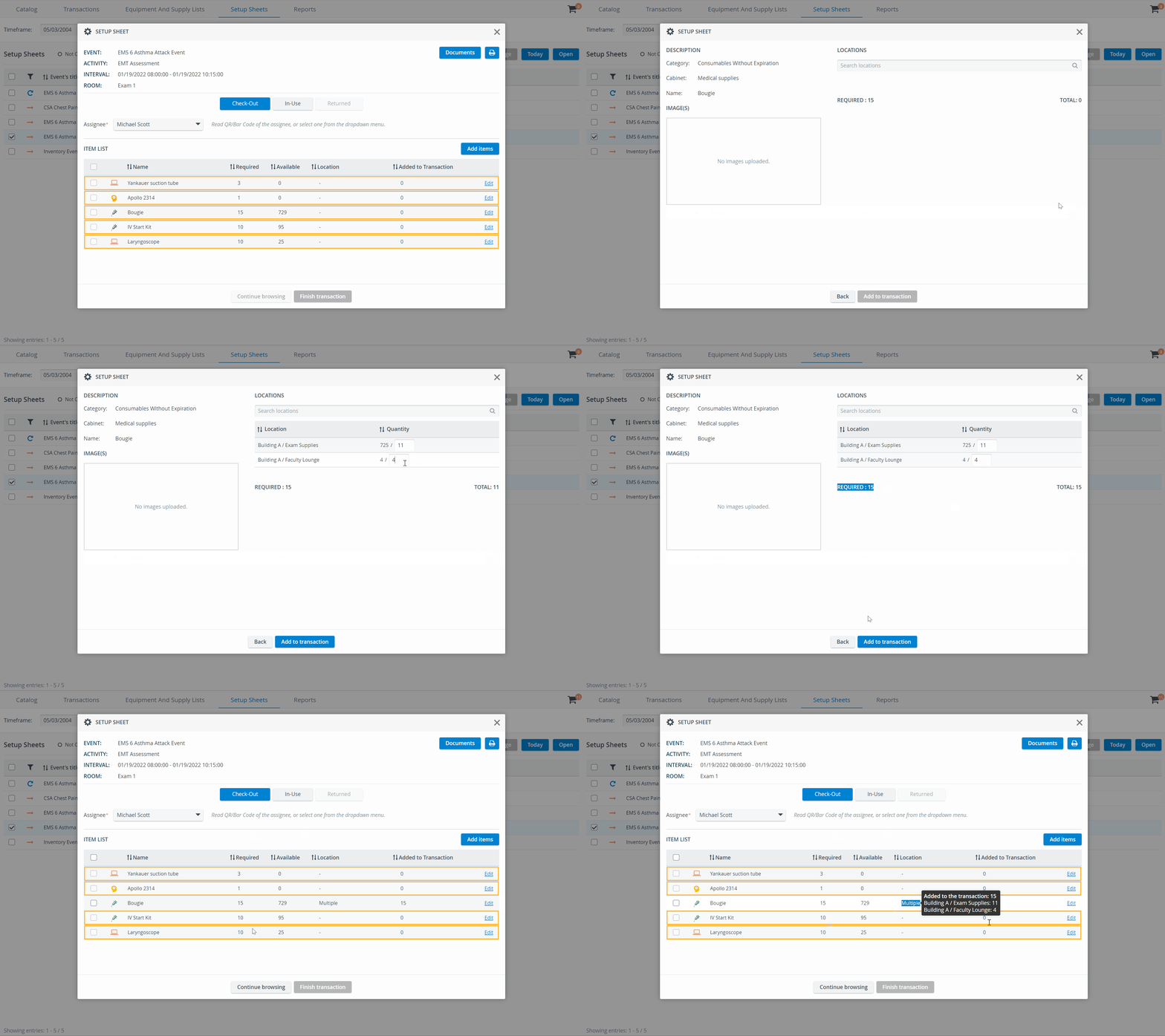
Since location selection is no longer a prerequisite in the improved transaction workflow, inventory managers do not have to check if every item featured on a Setup Sheet is stored in one location.
Inventory managers can check out the required items on the same Setup Sheet from multiple locations:
For more information, see the Setup Sheets page.
Learn more about the Inventory Manager on our Inventory - How to pages, and watch the Inventory Manager Training Videos.