How to Create a Section
Refer to Sections for a detailed explanation of what it means.
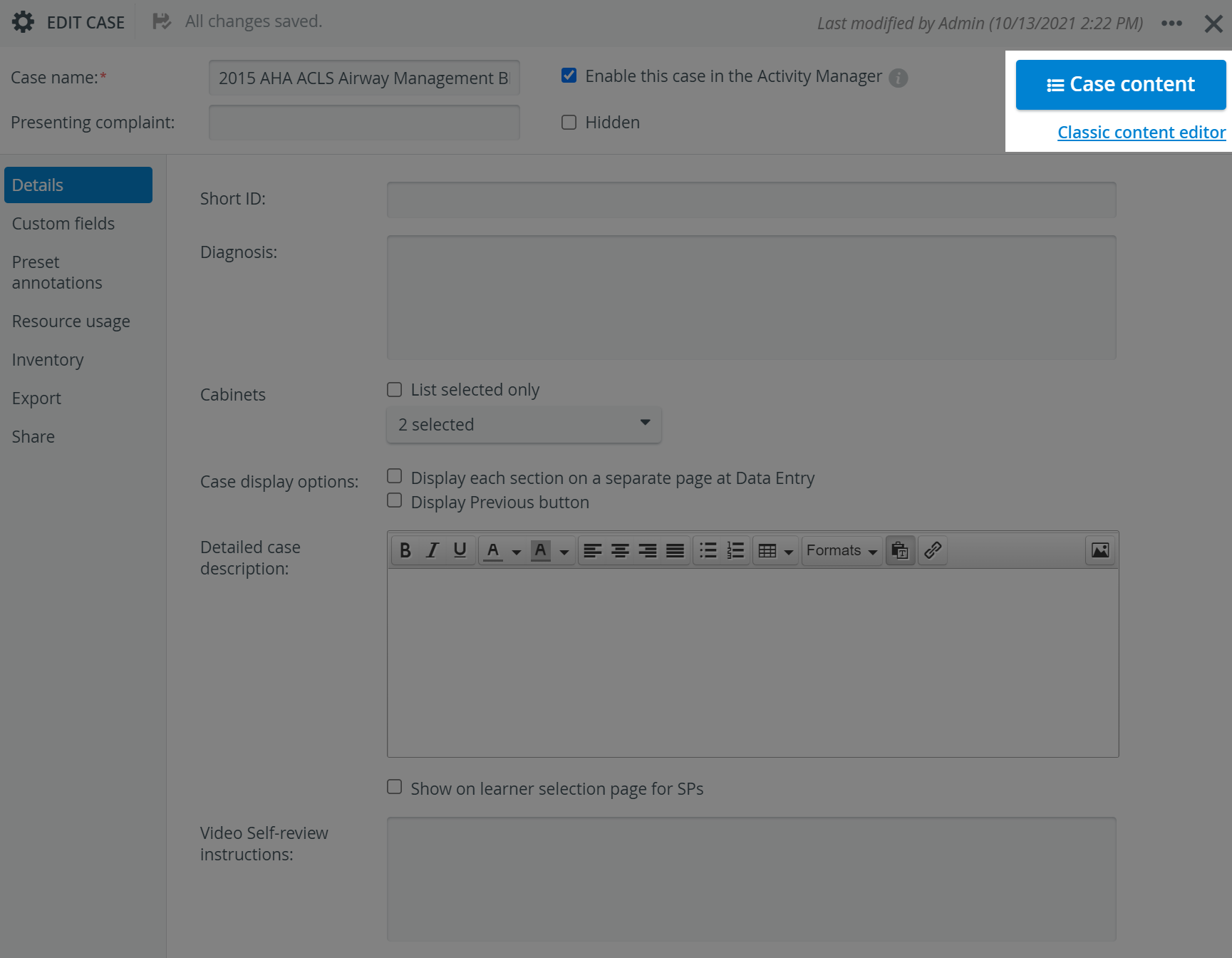
Navigate to the Case Content screen by clicking the Case Content button in the top right corner of the Edit Case pop-up window.
Click the tab corresponding to the part/ checklist desired to be created/ edited.
Click the New Section button in the top left corner of the tab. An editable New Section panel appears.
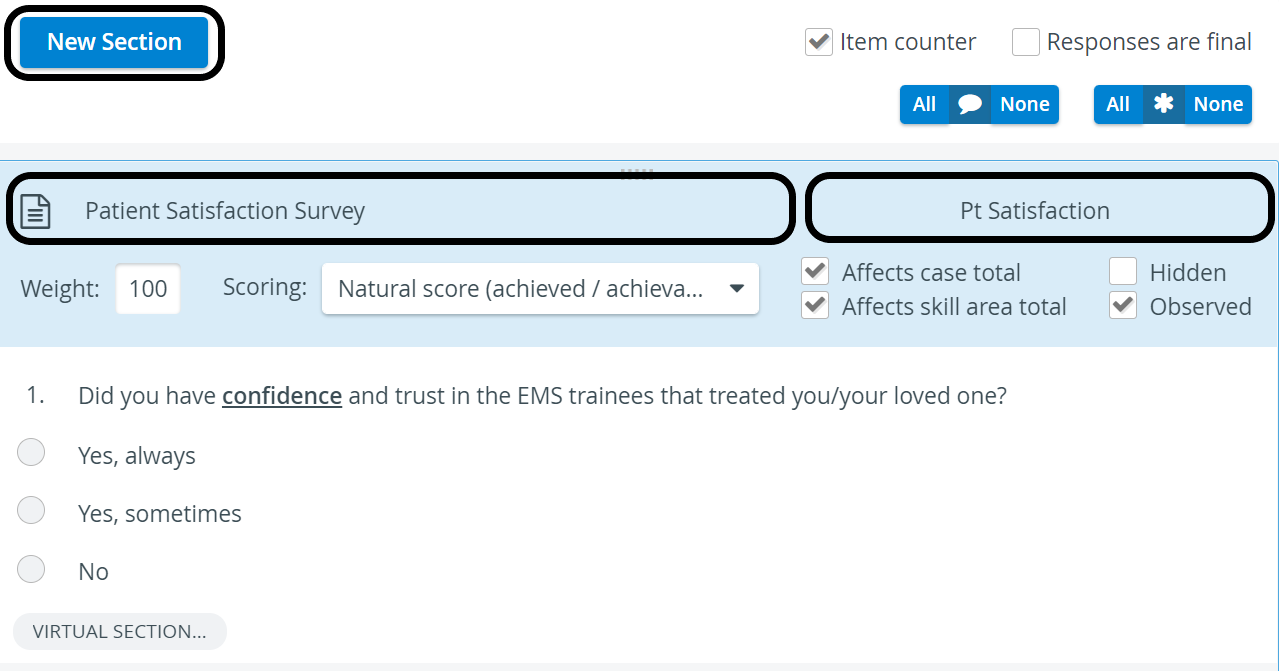
4. Enter the title of the Section. Add Section abbreviation if desired.
5. Determine the importance of the Section in the entire scoring by typing the desired aspect ratio in the Weight field.
6. Check the boxes of the desired options.
NOTE: When on the tab of the desired part, without any Section added, clicking an item in the New Item panel will automatically create a Section that, in turn, can contain the added item.
In such a case, the Section data must be filled out, along with phrasing the questions and answers for the added item.
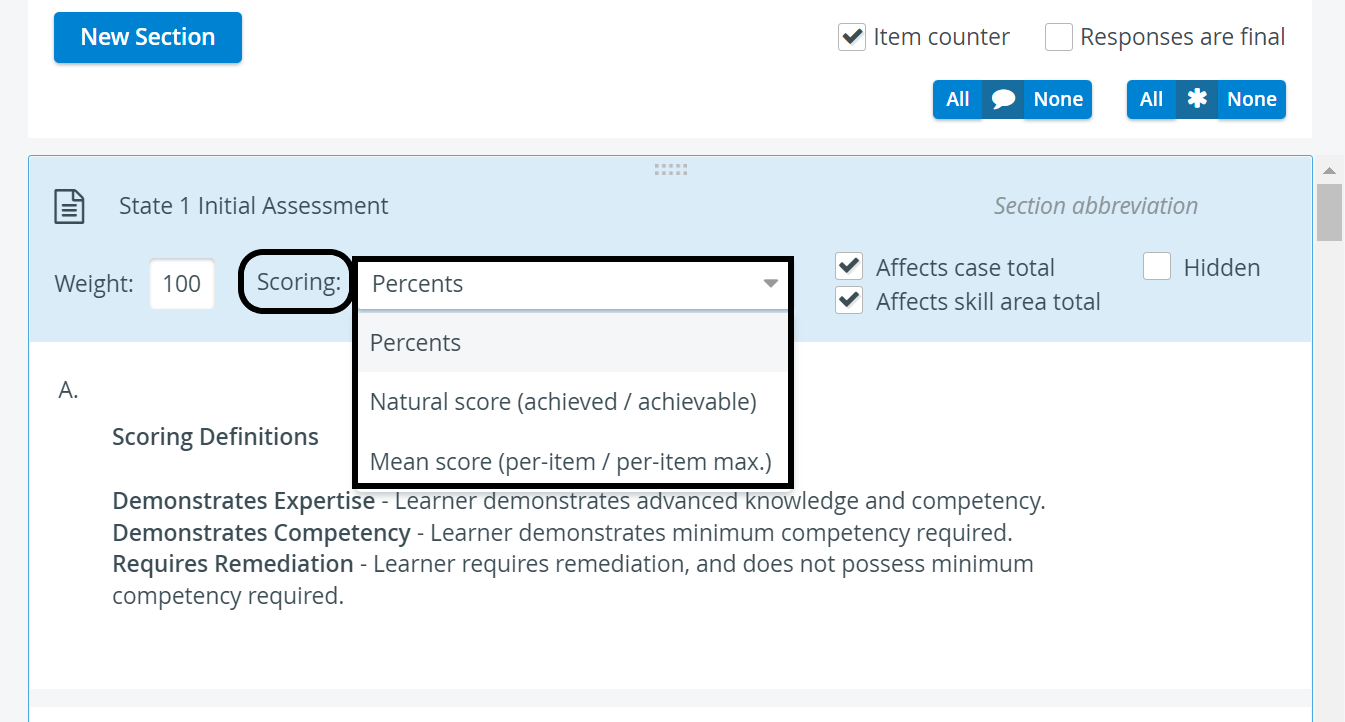
7. Use the Scoring drop-down to set the type of scoring.
8. Add a new item(s) as desired according to the detailed description under How to Create Items.
9. Repeat the above steps on all tabs corresponding to the parts desired to be created for the Case.
For further information, visit our Case Manager and Cases - How to pages or watch our Case Manager Training Videos.