How to Create a New User
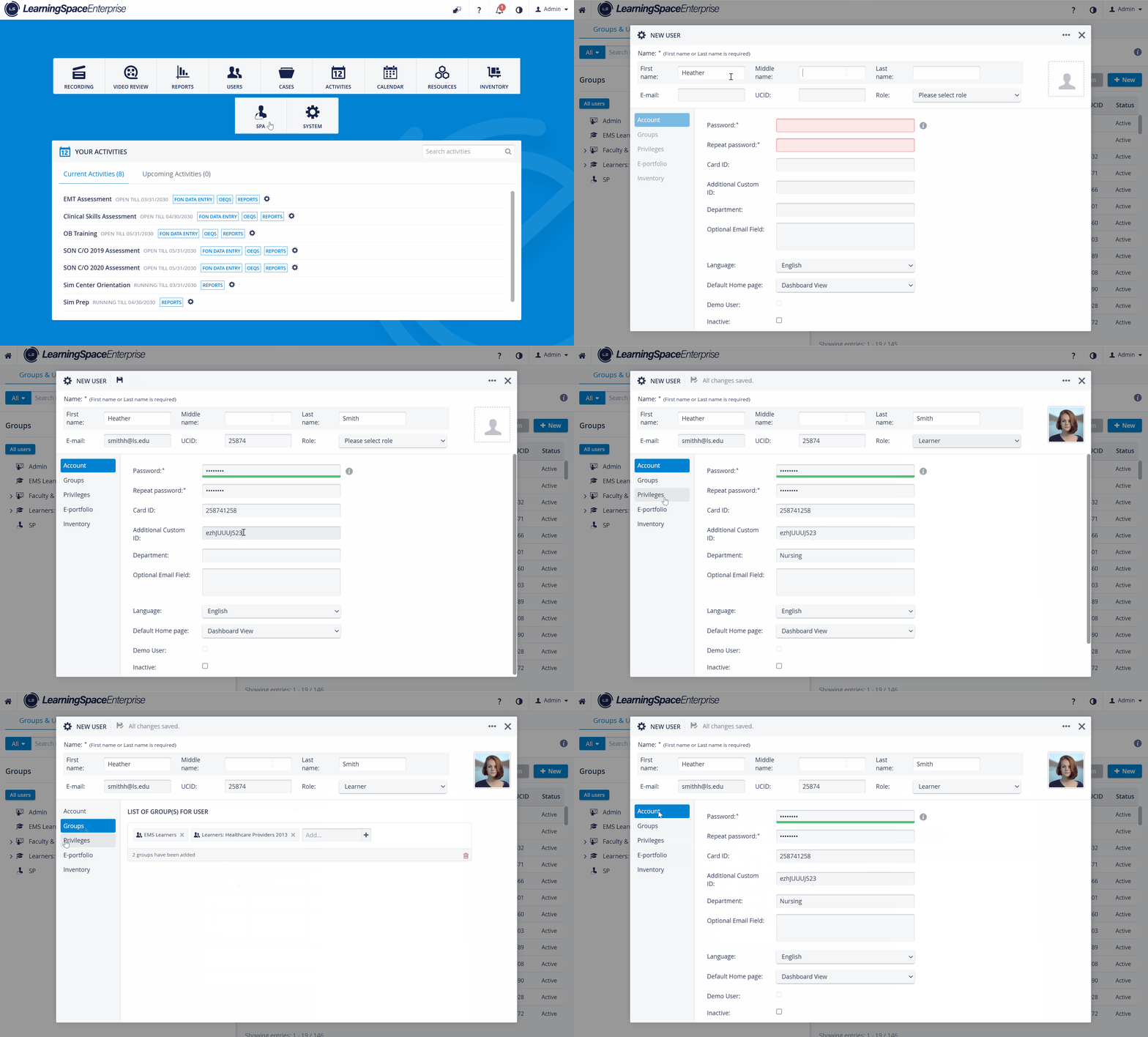
Open the Groups & Users tab (default) of the User Manager module.

Click the New User button. The New User pop-up window will appear.
The pop-up window features a header displaying the primary settings (name, email address, UCID, and role), along with three basic settings surfaces: Account, Groups, and Privileges. By default, the Account settings appear.
Account settings: personal data, including the status setting.
Groups settings: the user's group membership. A new user can be added to or removed from any existing group by clicking the X sign (which becomes red when hovering over a given group).
If the New User button is clicked when a group is highlighted on the left column of the Groups & Users tab, that group will be automatically added to the list of groups the new user becomes a member of.
Privileges settings: personalized privilege(s), possibly set up independently of role.
The given role can be customized on the Settings surface by checking boxes for further privileges.
IMPORTANT: The customized set of privileges specified within these settings will not be saved as a customized role.
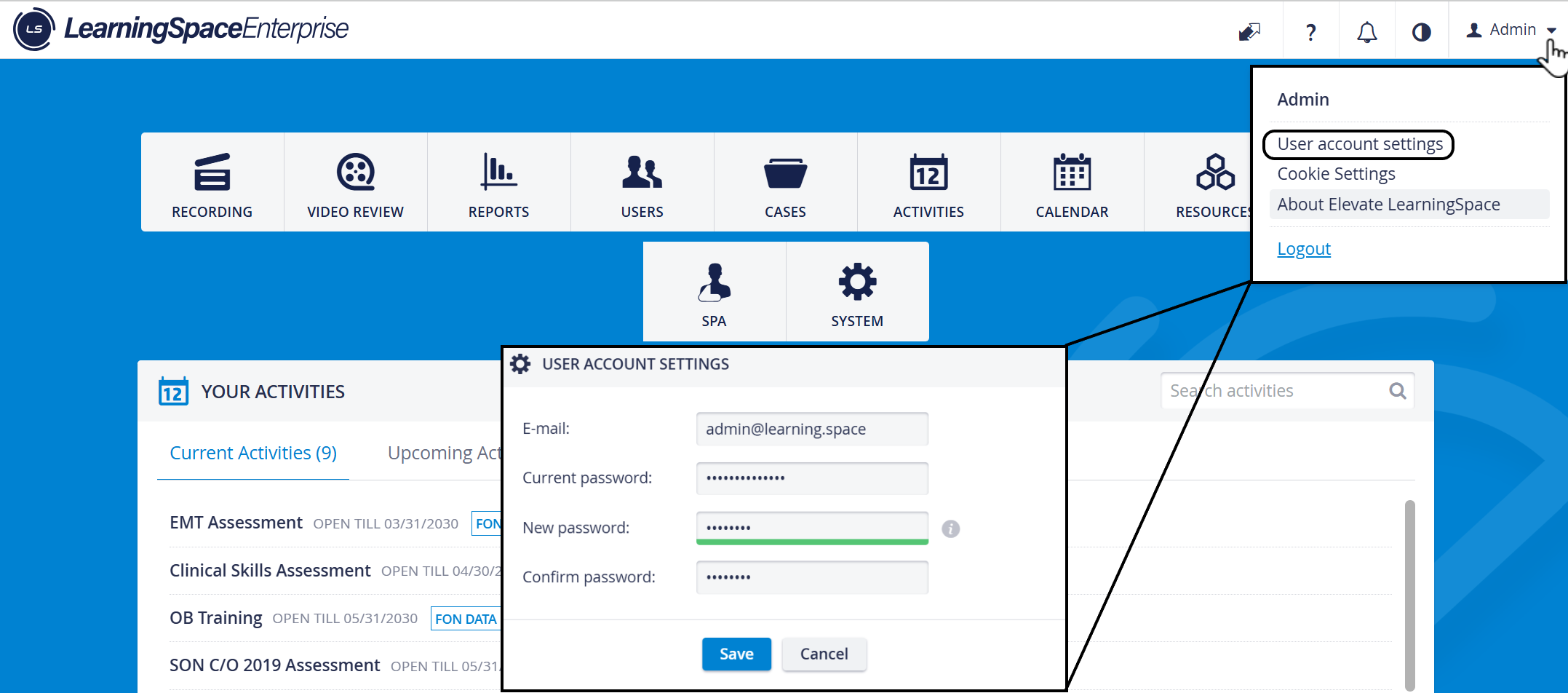
Once newly created users have successfully logged in with a password created by the Admin or User manager during User account setup, they can change their passwords upon first login by going to User Account Settings.
SPs’ Special settings
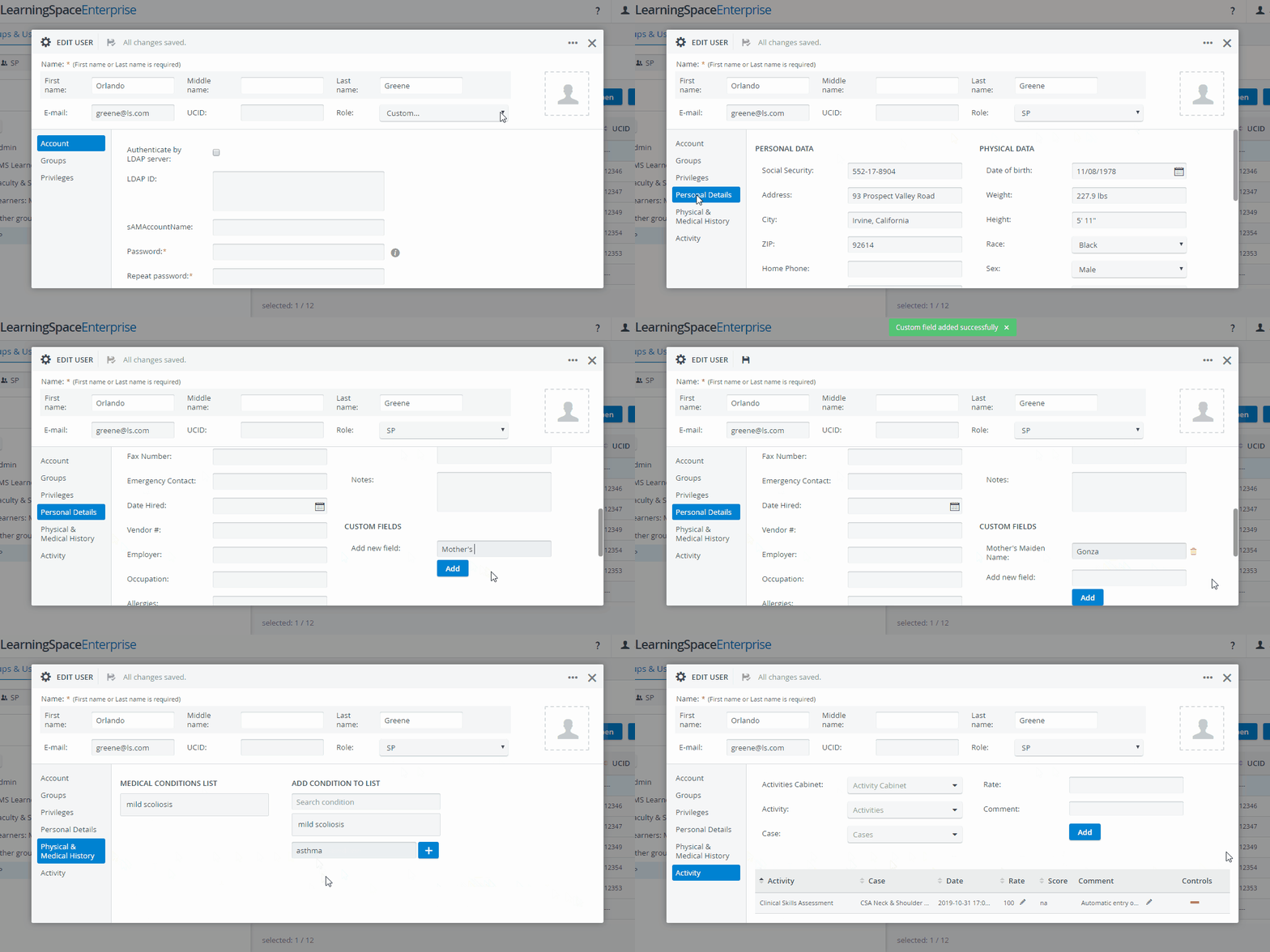
When the role is set to SP or the privileges include SP, three additional settings surfaces are displayed:
Personal Data settings: for entering customized data specific to and necessary for managing SP users.
Physical & Medical History settings: for registering the SP user's medical history and conditions.
Activity settings: for recording activities (with specific details) that the SP user has participated in.
After all mandatory and optional fields are filled, the pop-up window can be closed, as any change is saved automatically.
User Managers cannot create Admin, System Manager, Room Manager, and Learner History/SP Activity privilege users.
For further information, visit our User Manager pages.