How to Create a New Role
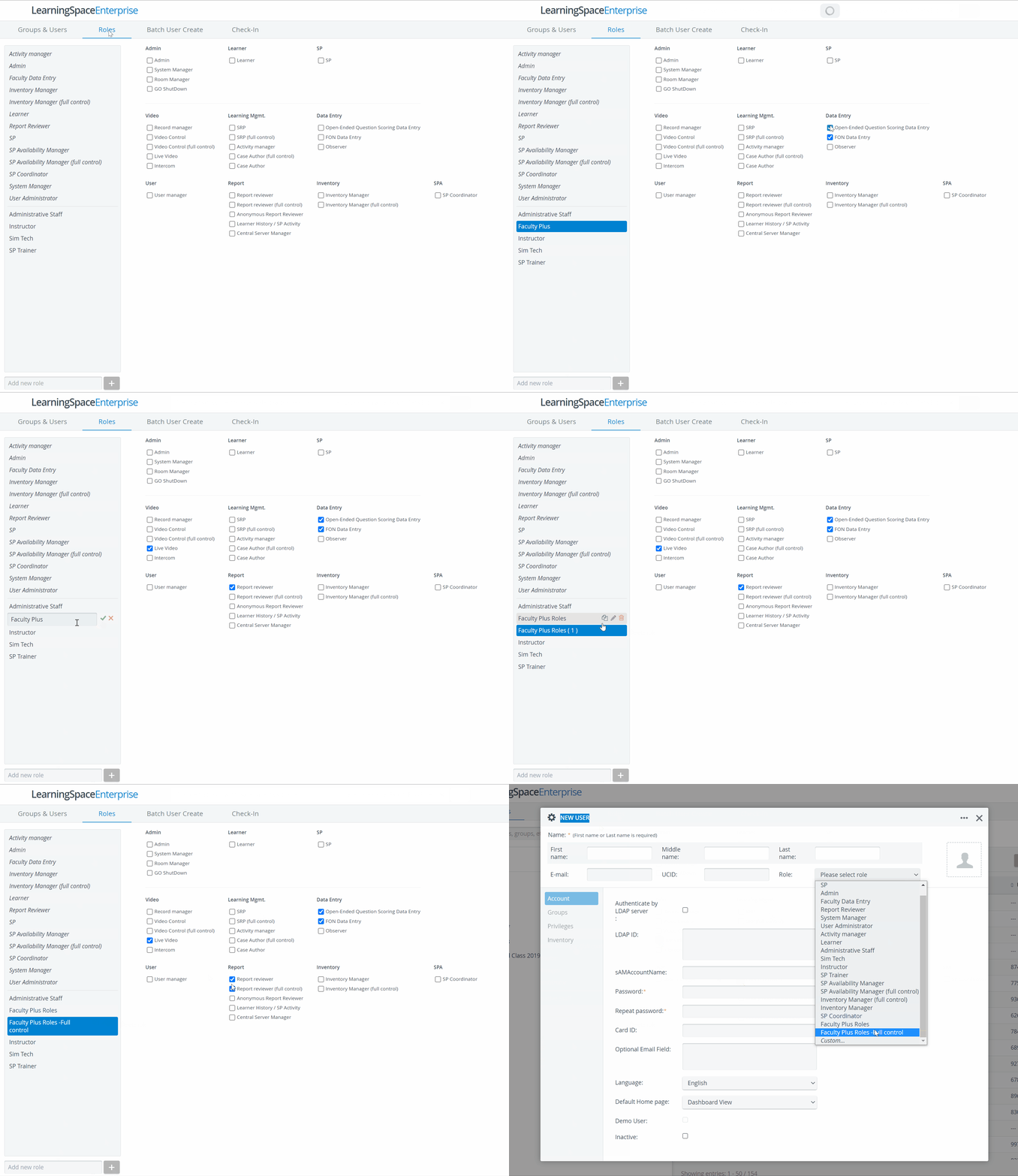
On the Roles tab of the User Manager module, type the name of the new role you wish to create in the Add new role bar below the list of roles.
Click the plus sign next to the name of the new role.

The plus sign activates when the first character is typed in the name bar.
Check the box(es) of the privilege(s) assigned to the new user.
Changes are saved automatically.
You can copy/edit/delete a role using the respective icons.
When editing, changes are saved by using the green checkmark:

The newly created role(s) will immediately be available in the Role dropdown of the Edit user window.
If a selected privilege or combination of privileges already exists or is predefined, a message will appear informing the user about the identical role.

See also How to Create a Customized Role.
For further information, visit our User Manager pages.