How to Create a New Group
Within a parent group:
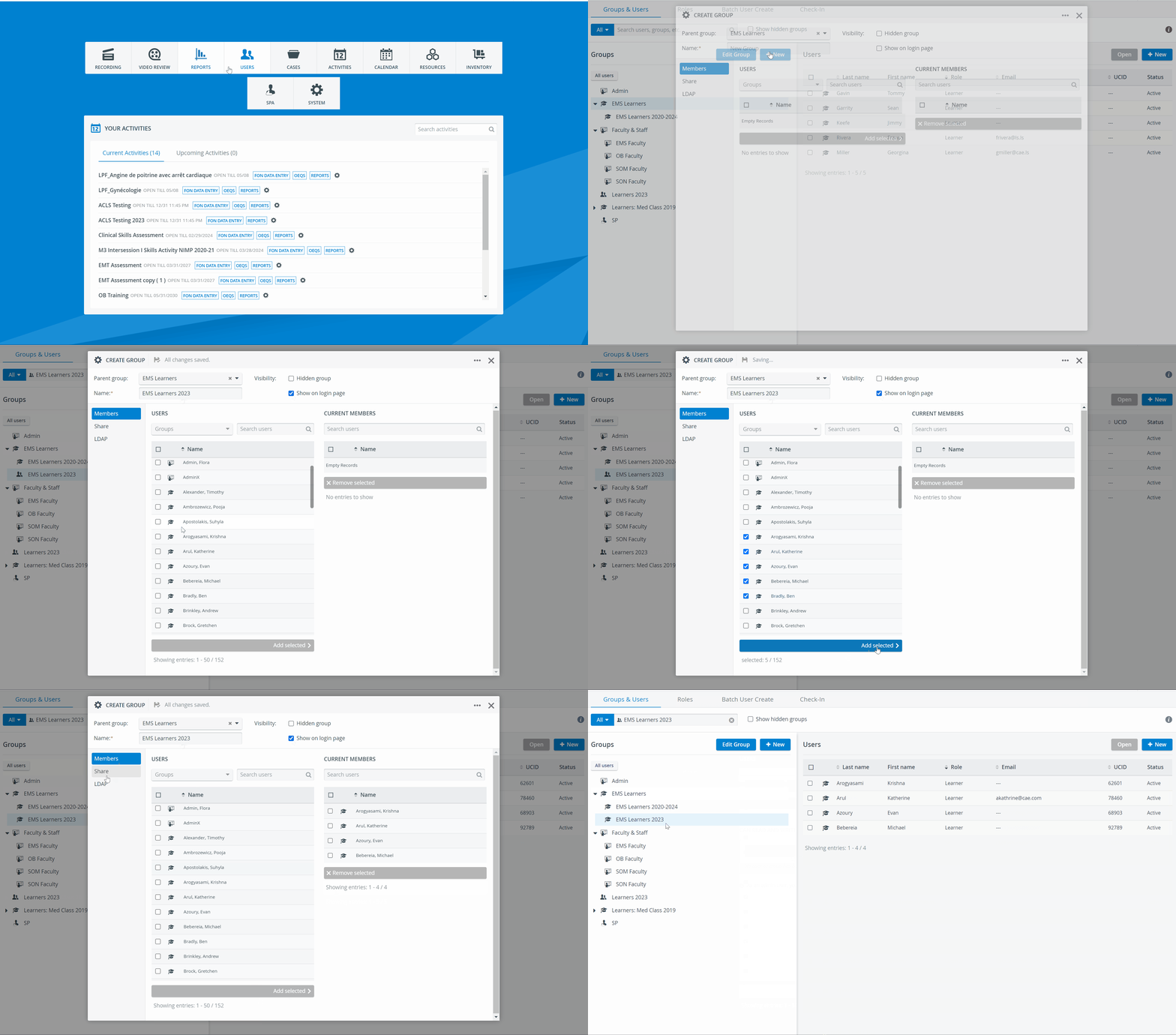
Open the Groups & Users tab (default) of the User Manager module.
Highlight (by a single click) the parent group within which you want to create the new group.
The highlight prompts the list of members to appear on the right side of the tab. The Edit Group button will also be activated.
3. Click the +New button at the top of the list of groups.
The Create Group pop-up window will appear.
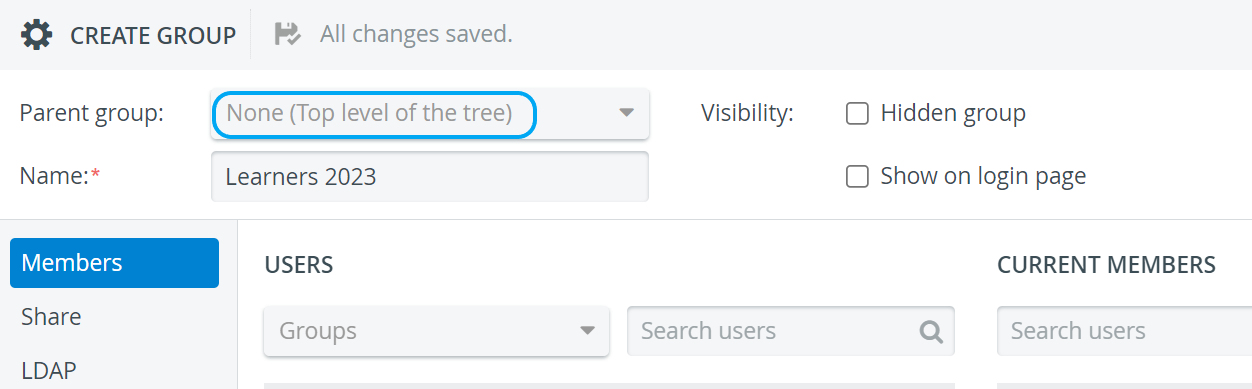
4. The parent group can be removed or modified by clicking on the X or on the drop-down bar, respectively.
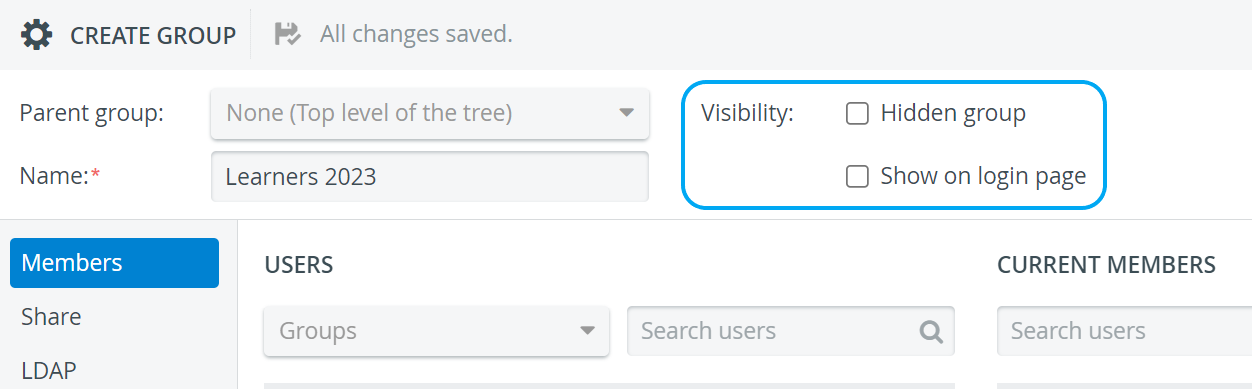
IMPORTANT: The group's name must be filled out; otherwise, the group will not be saved.
Visibility settings are optional to provide.
5. Users can be added to the Current members by checking the box before them and clicking Add selected.
Users can be removed by checking the box before their name and clicking Remove selected.
6. Switching to the Share settings allows the user to assign already existing user(s) and group(s) read-only or read-and-write access to the new group. Browsing requires at least one character to be typed in the Add... field.
IMPORTANT: By default, 'Everyone' (i.e., all users) is granted read-only access to a newly created group, while the creator is automatically added to the Can read and write panel.
To withdraw access, click the red X sign next to the name of the added user or group.
7. The window can be closed when finished, as any change is saved automatically.
Independently:
On the Groups & Users tab, highlight 'All users' (root of the tree structure).
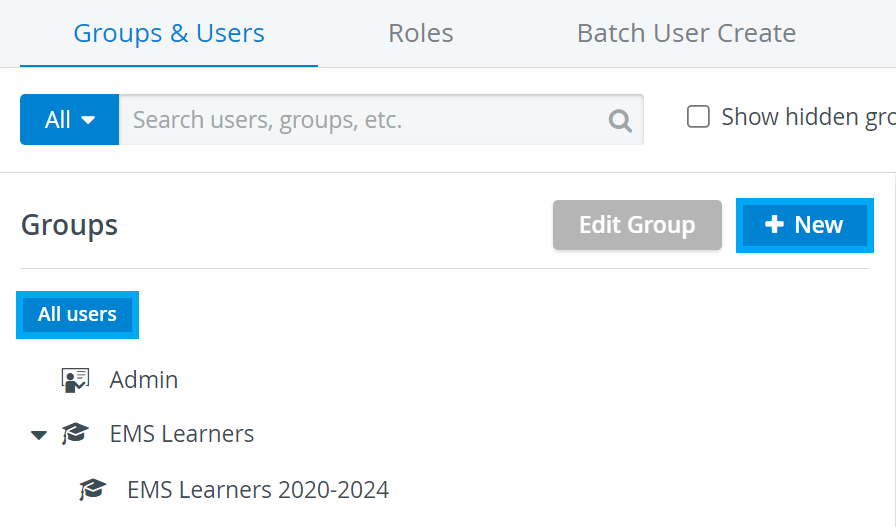
Click New Group, then follow steps 4-7 described above.
For further information visit our User Manager pages.