How to Create a Customized Role
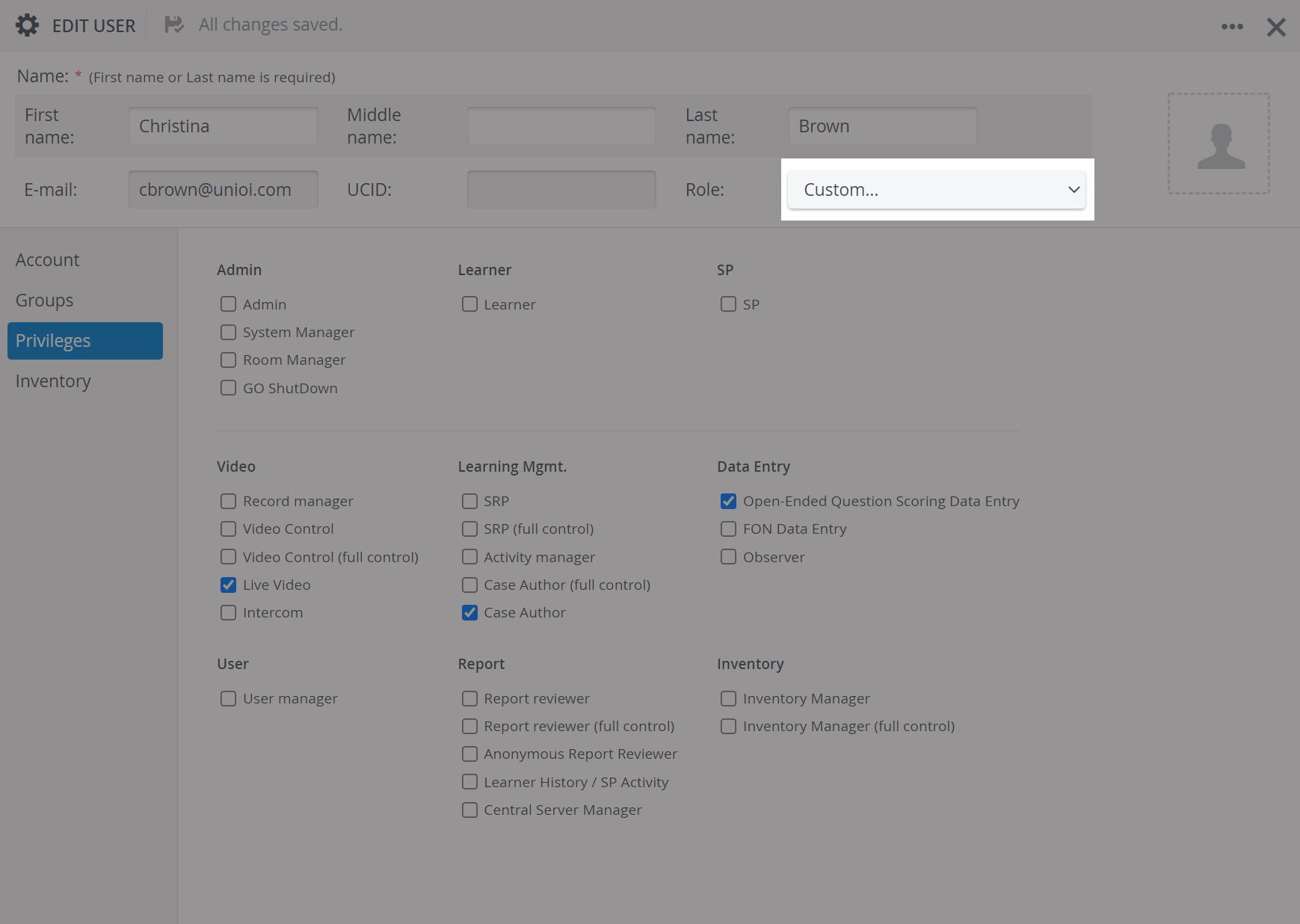
There are two kinds of roles:
predefined - already in the system, cannot be edited, only copied (distinguished by italicized font, listed at the top)
customized - freely created, edited, copied (listed under the predefined roles)
Via copying a predefined role:
Go to the Roles tab of the User Management module.
Roles are listed on the left side of the tab, while privileges are grouped on the right side of the tab according to the types of access they grant.To copy a role, click on the copy icon when hovering over the role's name.
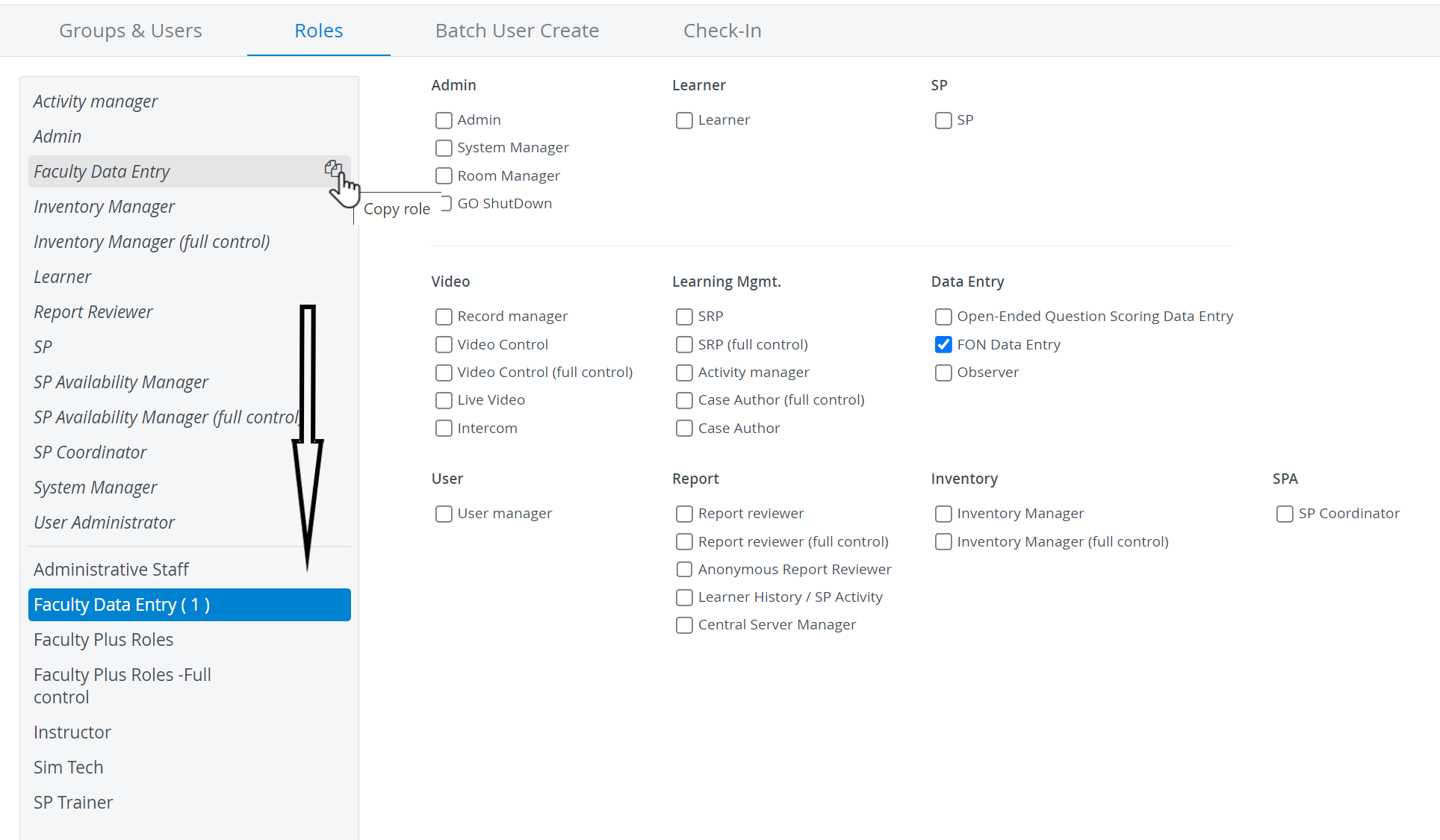
NOTE: The copy of both a predefined and an independently created role will be added to the customized roles list by the same name numbered in brackets for distinction.
3. The copy will function as a customized role; thus, it can be renamed by clicking the pencil icon when hovering over the role title.

4. Adding and/or removing privileges can be done by highlighting the role to be modified and using the checkbox system.
If a selected privilege or combination of privileges is an already existing or predefined one, a message will appear informing the user about the identical role.

Via adding a new role:
To create a new role, type its name in the Add new role bar below the list of roles.
Click the plus sign next to the name of the new role.
Check the box(es) of the privilege(s) assigned to the new user.
NOTE: The plus sign activates when the first character is typed in the bar.
See also How to Create a New Role.
For further information visit our User Manager pages.