How to Create a Custom-Designed Report
Users with Report Reviewer (full control), Report Reviewer, or Anonymous Report Reviewer privilege have access to the Scores tab.
Privileges
For each privilege, users can only access the scores of the activities they are assigned to as faculty members. Basic Report Reviewers or Anonymous Report Reviewers may have limited access to activities via the Reports tab of the Edit Activity pop-up.
Click the Reports module on the Dashboard. By default, the Responses tab opens.
Switch to the Scores tab.
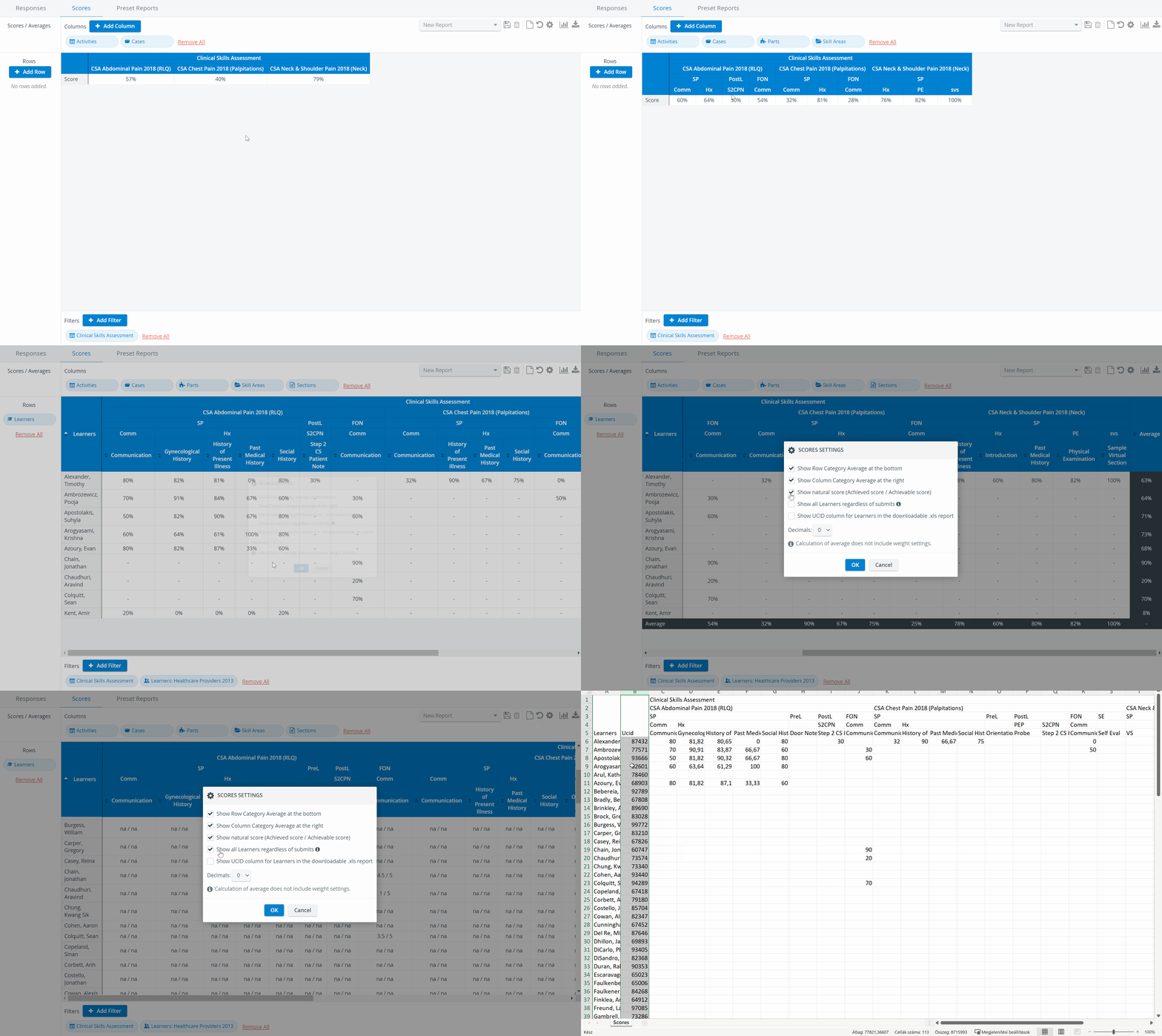
The Scores tab is empty by default. Click the +Add Column button to select the category in which you want the columns to appear.
Multiple categories can be added to the columns, providing a more detailed display of scores.Click the +Add Row button to decide what category you want the rows to show.
The scores will be displayed concerning the selected column and row categories.
While selecting column or row categories is interchangeable, the selected categories are mutually exclusive. Any category already added as a column category will not be available as a row category.
5. Click +Add Filter in the bottom panel to further specify scores intended to be displayed.
When a filter category is added, a drop-down menu appears where the actual filter can be selected.
Multiple filters of multiple categories can be added.
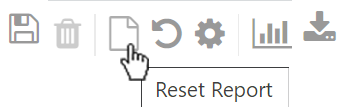
Click the Undo icon to reverse the last change, or click the Reset icon to start over the formatting.

The Groups filter lists only the participant group assigned to the Activity (Learner group) it does not include Learner or Evaluee subgroups.
6. Use the icons in the top right corner of the tab to apply further options.


Drag and drop selected categories to switch between column and row parameters.

Decimals and Natural Score Display
As the decimals refer to the scores in percentage, they are not displayed if the natural score option is selected.
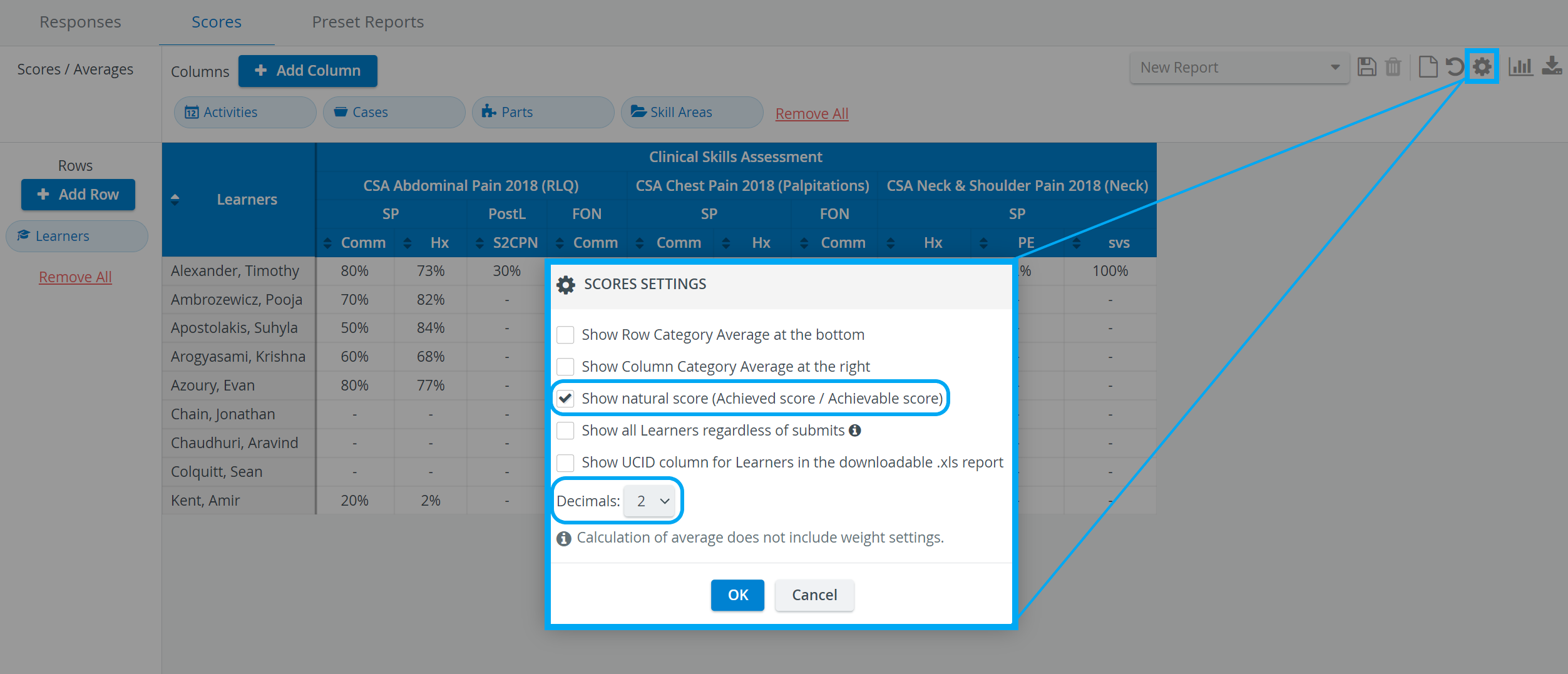
Once a customized report has been created, click the cogwheel icon in the top right corner of the tab. In the Scores Settings pop-up, the two options can be activated as follows:
Decimal place: click the drop-down at Decimals and select the required value
Natural scores: tick the checkbox next to Show natural score (Achieved score / Achievable score)
To confirm, click OK at the bottom of the pop-up.
See details on the further options available in the Scores Settings pop-up here.
Learn more on the Reports Module pages and from our Reports Module Training Videos.