How to Copy a Case
Once created, a Case can be modified or copied:
Modify a Case - when it needs to be permanently changed.
Copy a Case - when a new Case needs to be used in a different event, possibly slightly or considerably altered.
Find the desired Case
through opening the containing Cabinet and selecting it,
or using the scroll bar on the Cases panel,
or using the search bar on the Case Manager screen.
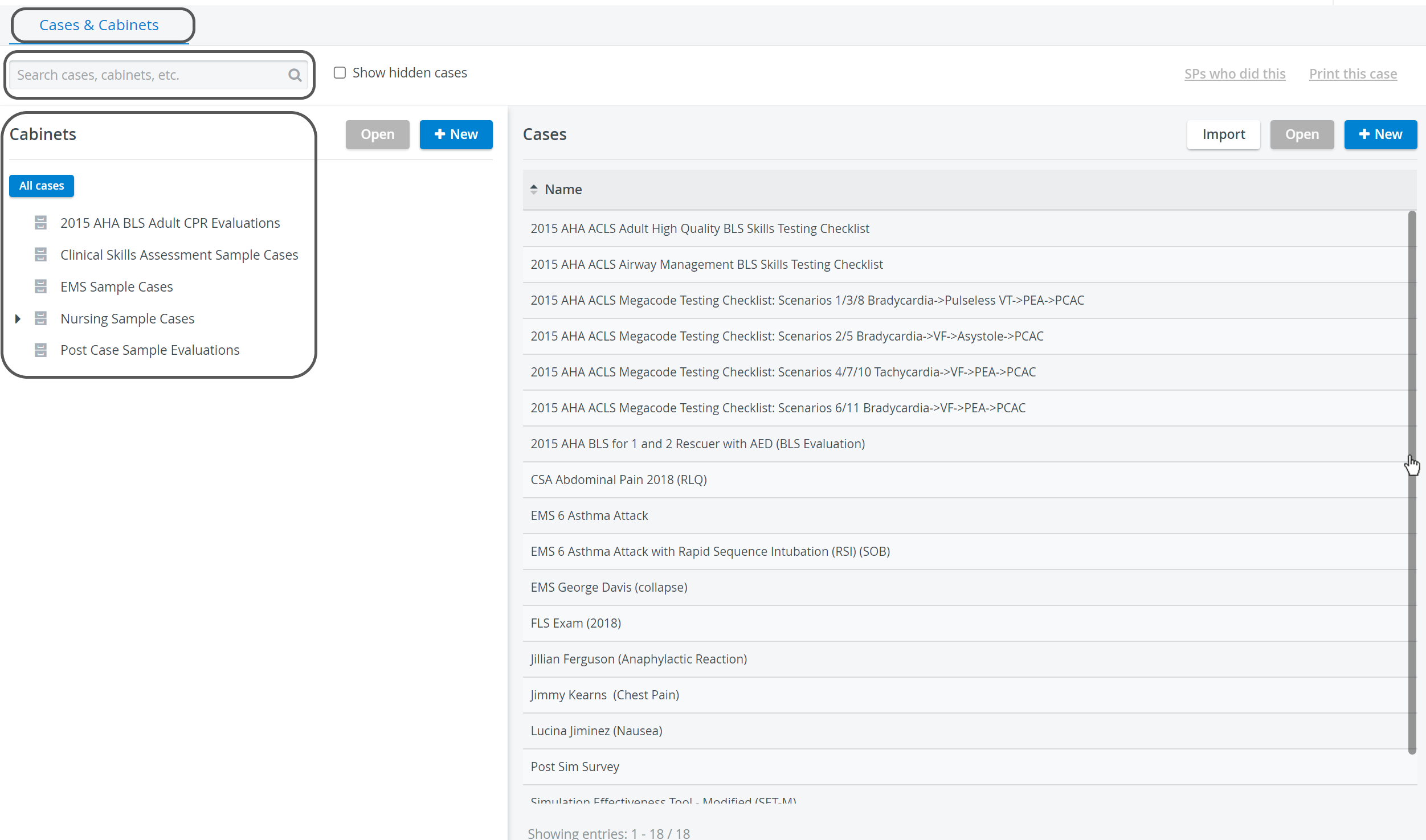
The Edit Case pop-up window automatically opens when selecting from the drop-down of possible hits.
When selecting the Case from the list, double-click the Case title or highlight it, then click the Open button in the Cases panel.The Edit Case pop-up window opens.
Click the 'three-dot' (options) icon in the top right corner of the pop-up window and select Copy.

A message appears at the top of the screen describing the creation of a copy, and the Edit Case pop-up window switches to the copy, allowing immediate modifications.
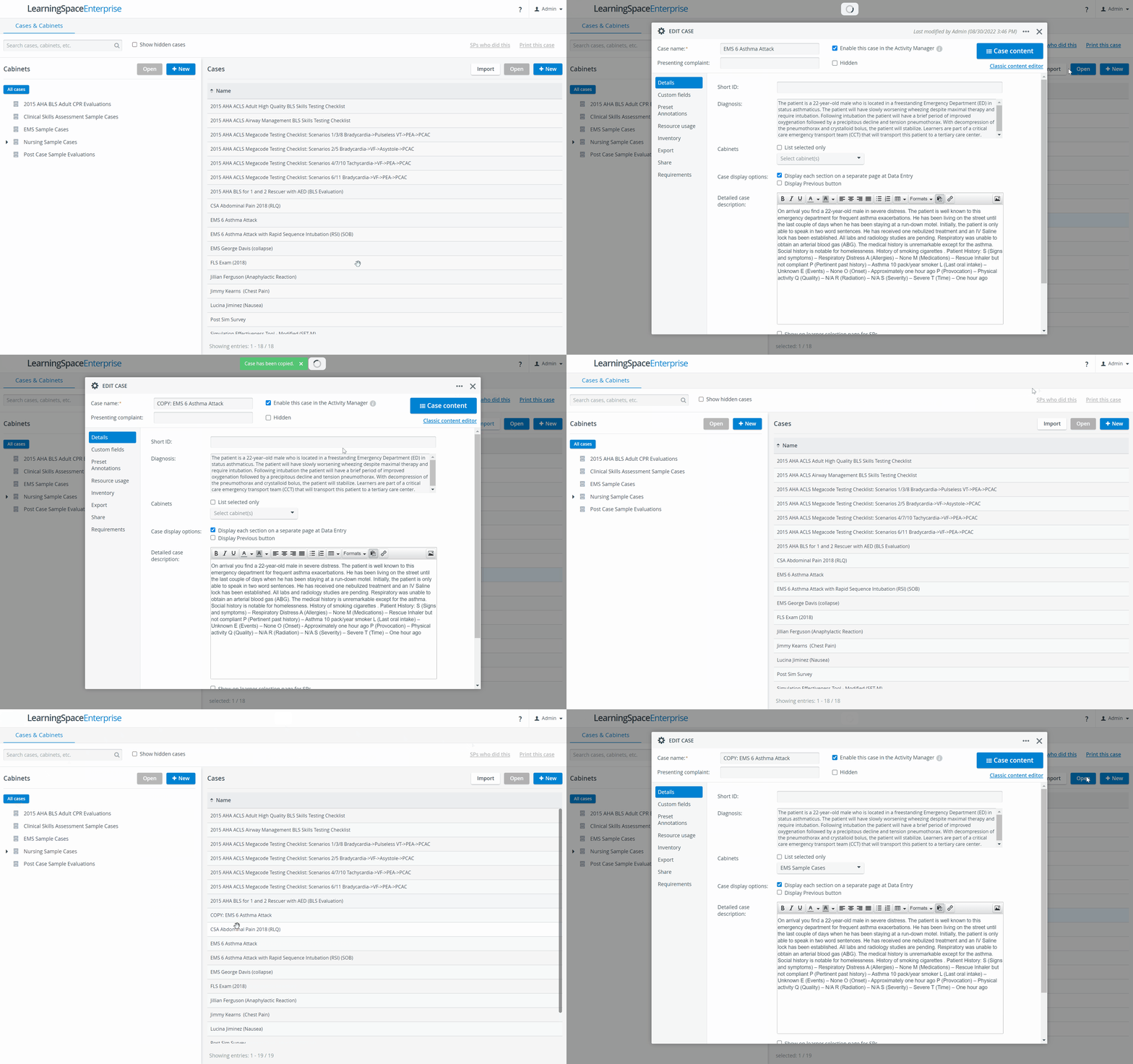
The copy will automatically be titled the same as the original, preceded by the word 'COPY:'. If unchanged, the next copy will be titled the same with an additional serial number in brackets.
Joint evaluation:
After a case copy, the joint evaluation connections are kept.
For further information, visit our Case Manager and Cases - How to pages or watch our Case Manager Training Videos.