How to Control the Calendar View Options
The Calendar can be viewed by Month, Week, Day, or Room view, and there is also a List view available.
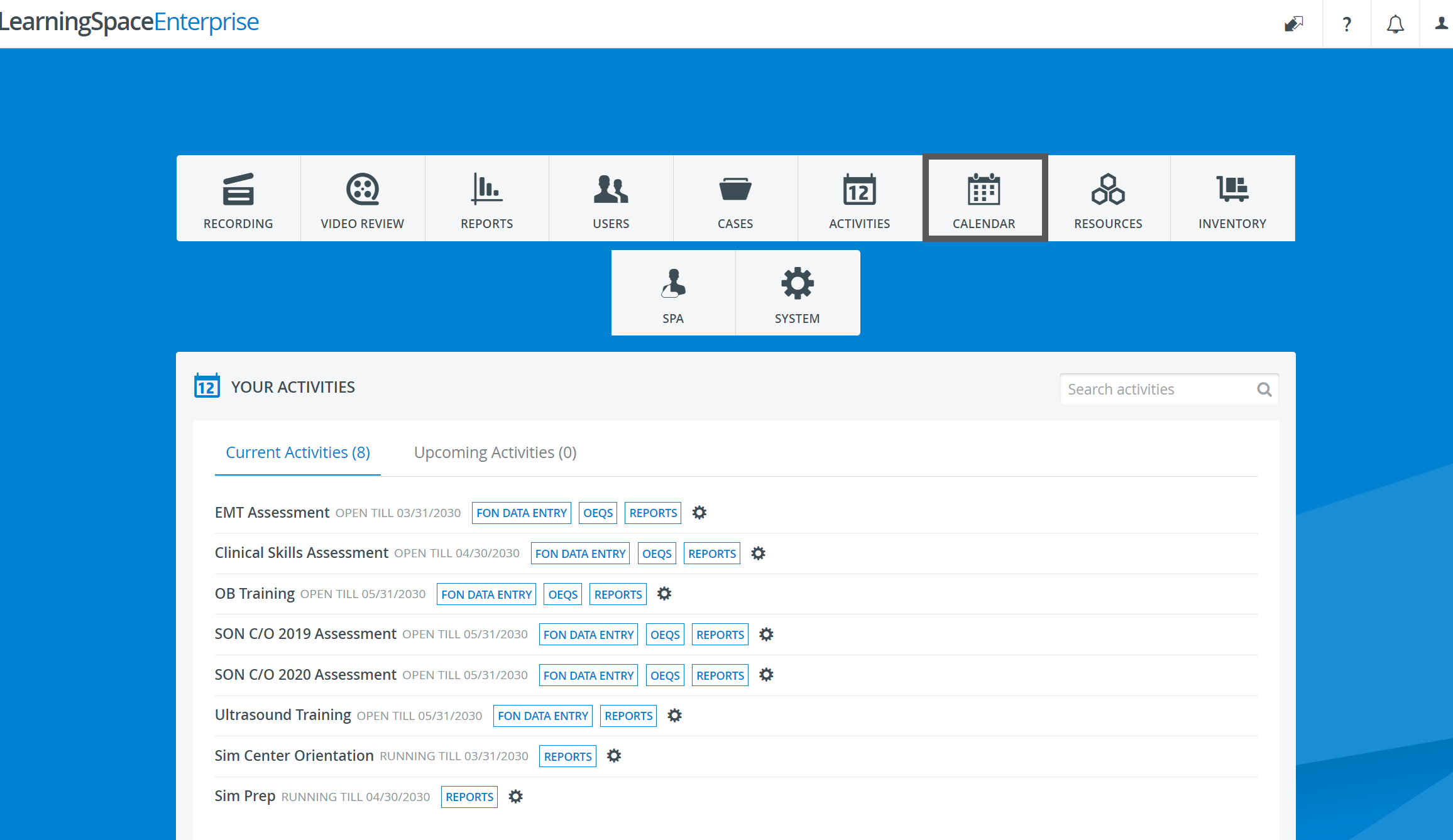
From the Dashboard, click the Calendar icon. By default, the current Room view appears.

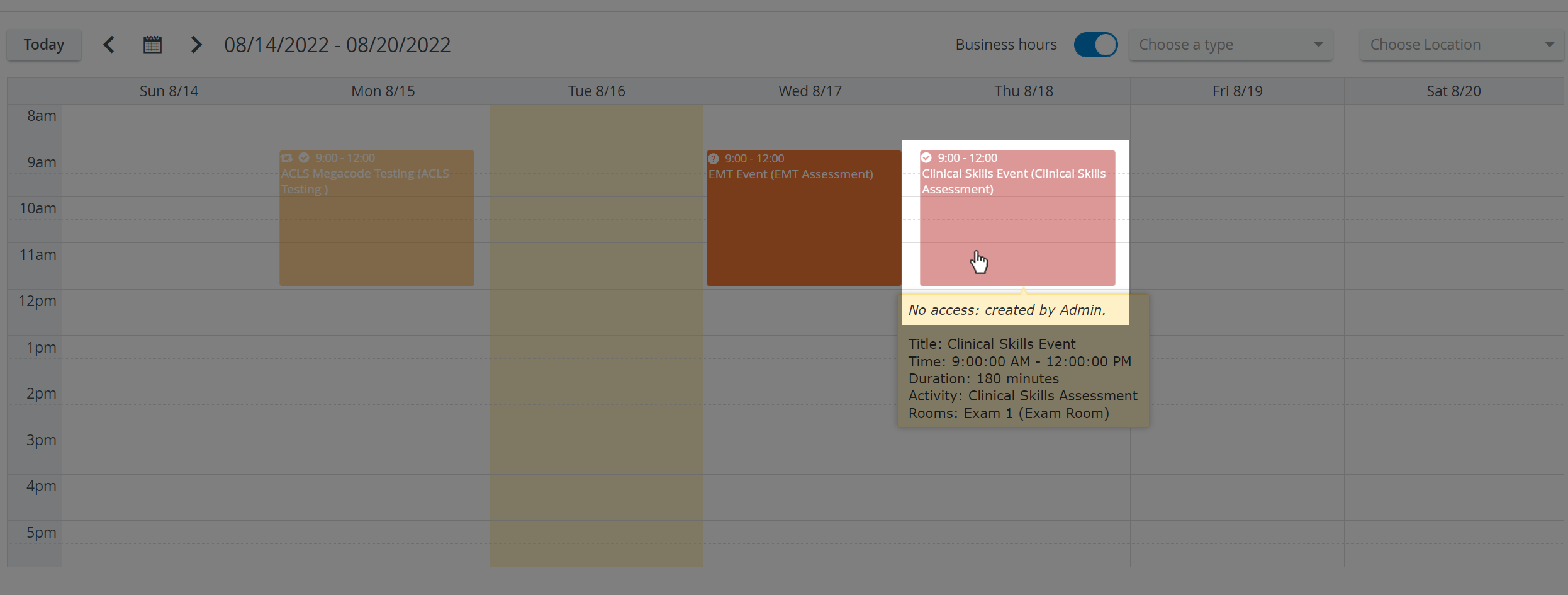
Scheduling displayed as paled indicates that some operating users have limited privileges and, therefore, cannot access that schedule.
When hovering over any such Event, a warning message appears informing about No access.
IMPORTANT: Access to the Calendar module is restricted to users with Admin, SRP, or SRP (full control) privileges.
A user with either privilege can edit events. However, for users with SRP privilege, any modification made concerning either time, repetition, activity, or room settings must be (re-)approved by a user with Admin or SRP (full control) privilege.
IMPORTANT: Events with timeslots scheduled can only be edited in Advanced Scheduling, and thus, they appear paled even for users with the necessary privilege(s).
2. Click the date forward


The back and forward arrows jump back or forward a day, a week, or a month, according to the actual view.
3. Click the Calendar icon to select an exact date.
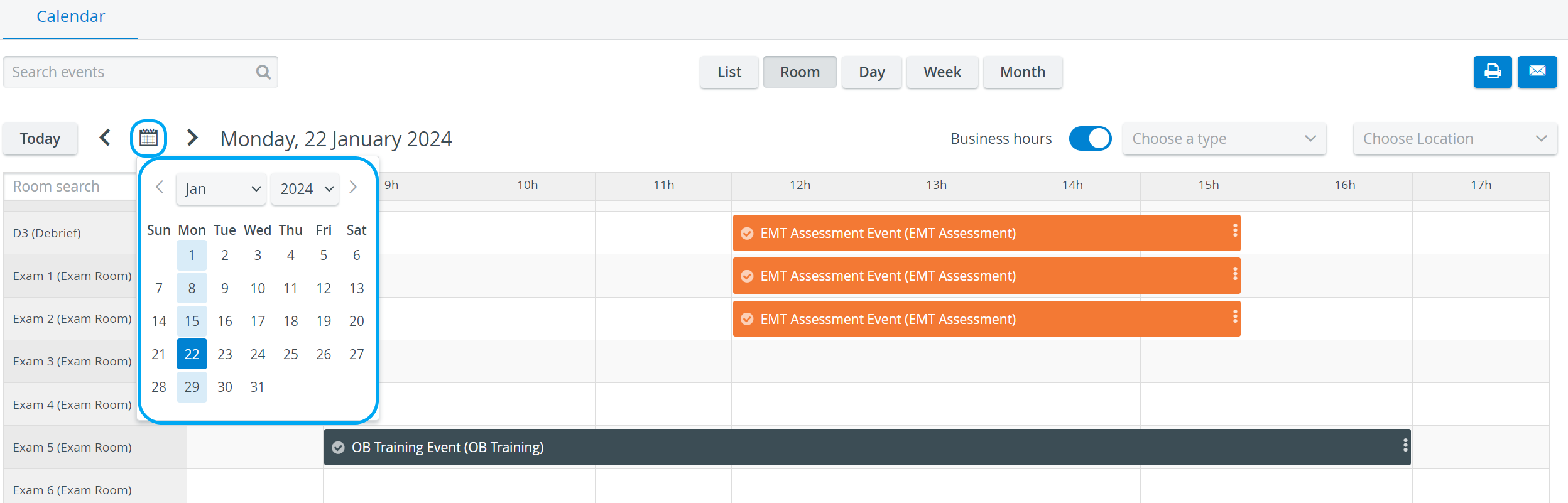
In the Day view, the selected day is displayed, while in the Week view, the week, including the selected date, is displayed.
The Calendar icon is available in Room, Day, and Week views.
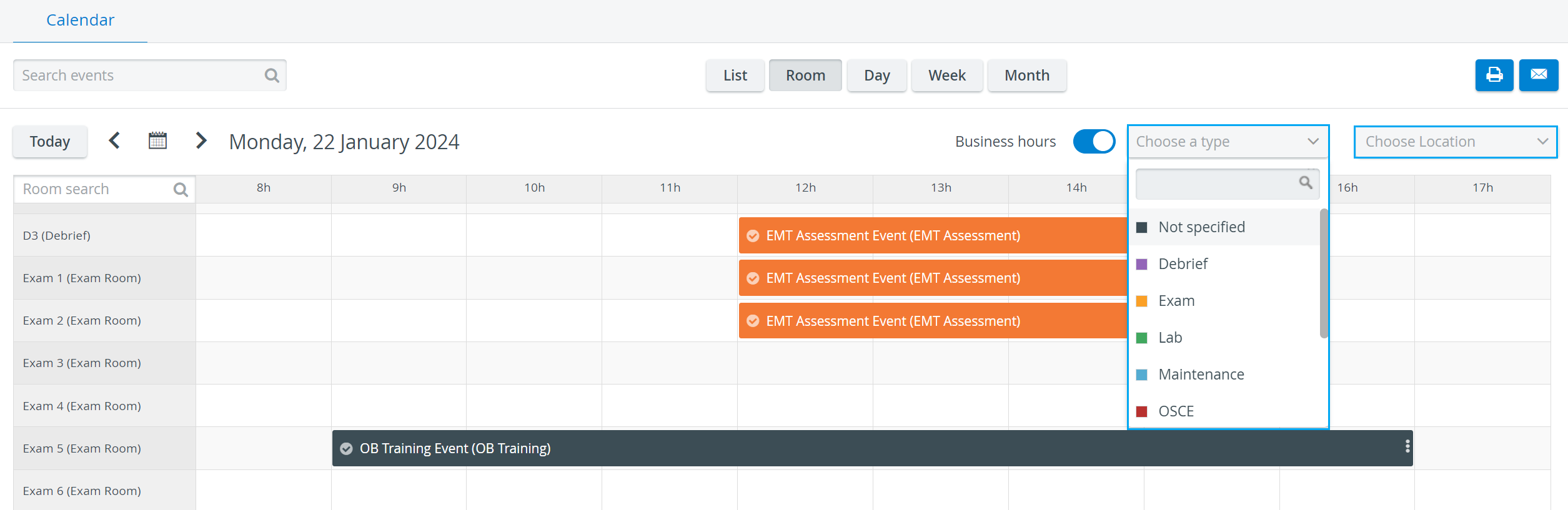
4. Click the Choose a type drop-down menu next to the Calendar icon to narrow the Events displayed based on the activity type in which they were created.
The color-coded Events appear. Delete the selected Activity type in the drop-down to return to displaying all Events.
5. Display all hours by deactivating the Business hours switch.
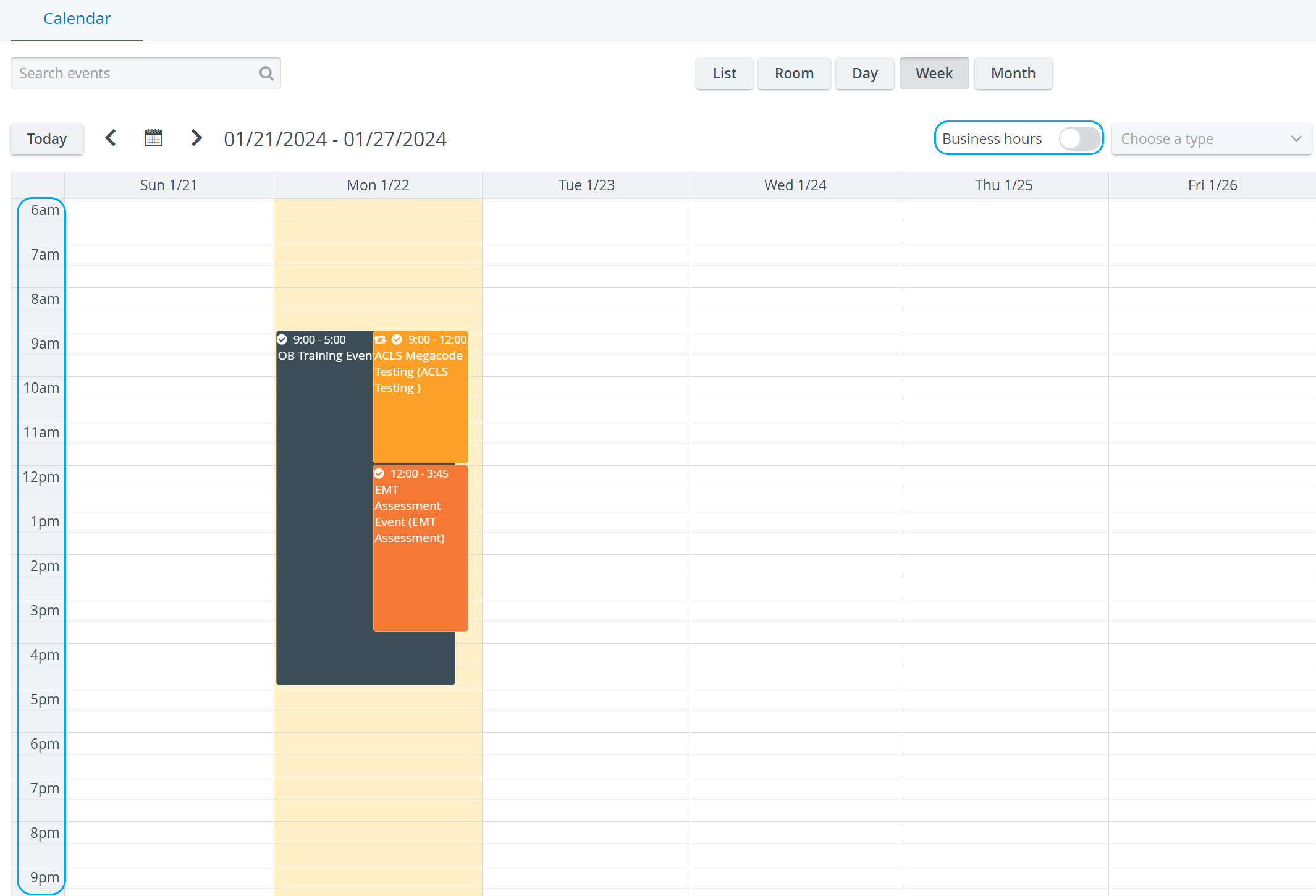
The Business hours switch is available in Room, Day, and Week views.
6. Click the Week button to display a weekly Calendar view.
Scheduling displayed as paled indicates that the operating user has limited privileges and, thus, no access to that specific scheduling.
7. Click the Month button to display a monthly Calendar view.
8. Click the List view to have all the Events listed chronologically by day and the next 6 months in the yearly view displayed on the right.

The chronological daily listing of Events starts with the day selected on the yearly view (Calendar on the right). By default, it is today's date.
For further information, visit our Calendar - How to pages and watch our Calendar Module Training Videos.