How to Control Room Panels in Center Overview
Important Note for Enterprise Lite Users
This feature is for use with in-campus audiovisual (AV) inputs. Hence, it is not available for LearningSpace Enterprise Lite, which is only used for web-conferencing-based virtual simulation encounters. To unlock this feature, please upgrade to the LearningSpace Enterprise solution.
Center Overview: view displaying an overview of the available simulation areas in a multi-room LearningSpace system. Simulation areas are Rooms with cameras and other equipment assigned to them, thereby providing a means for recording simulation exercises.
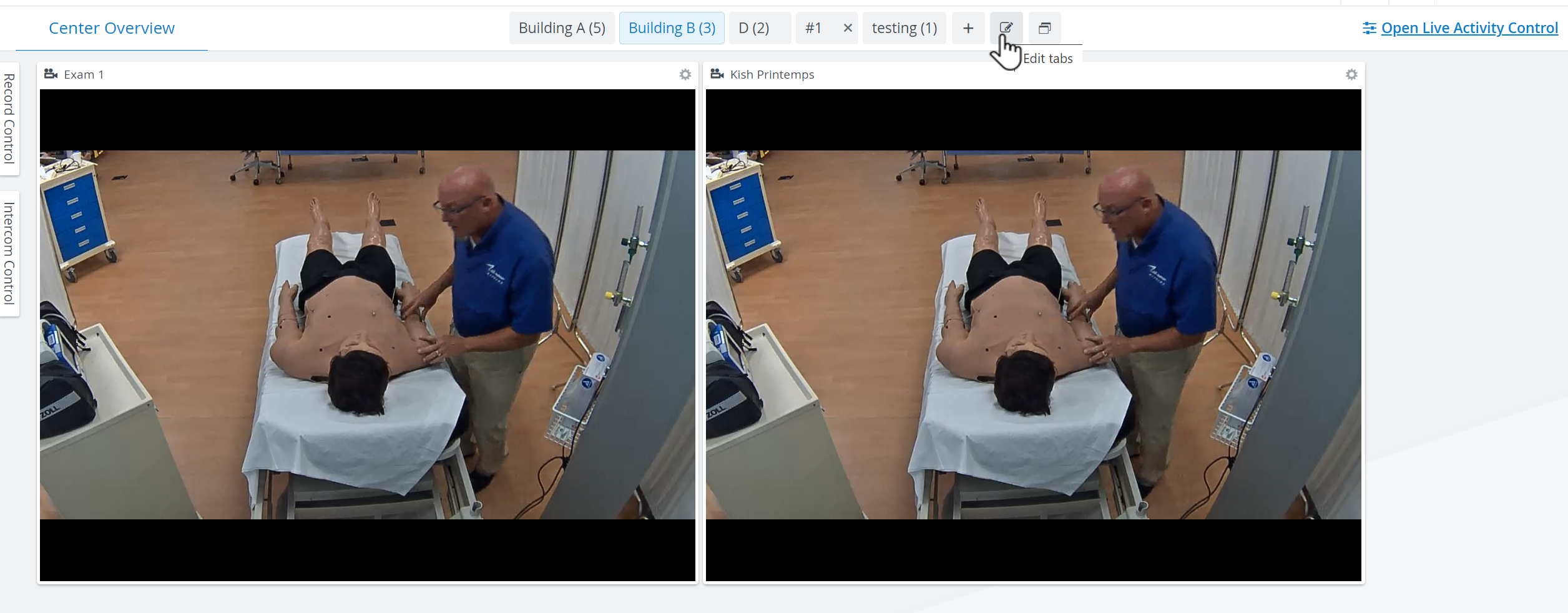
Click the desired room tab.
The selected tab is white, other available tabs are shaded.
2. Click the + symbol to add a room tab.
3. Click the X in a room tab to remove it.
The X is only available when the given room tab is empty (contains no room).
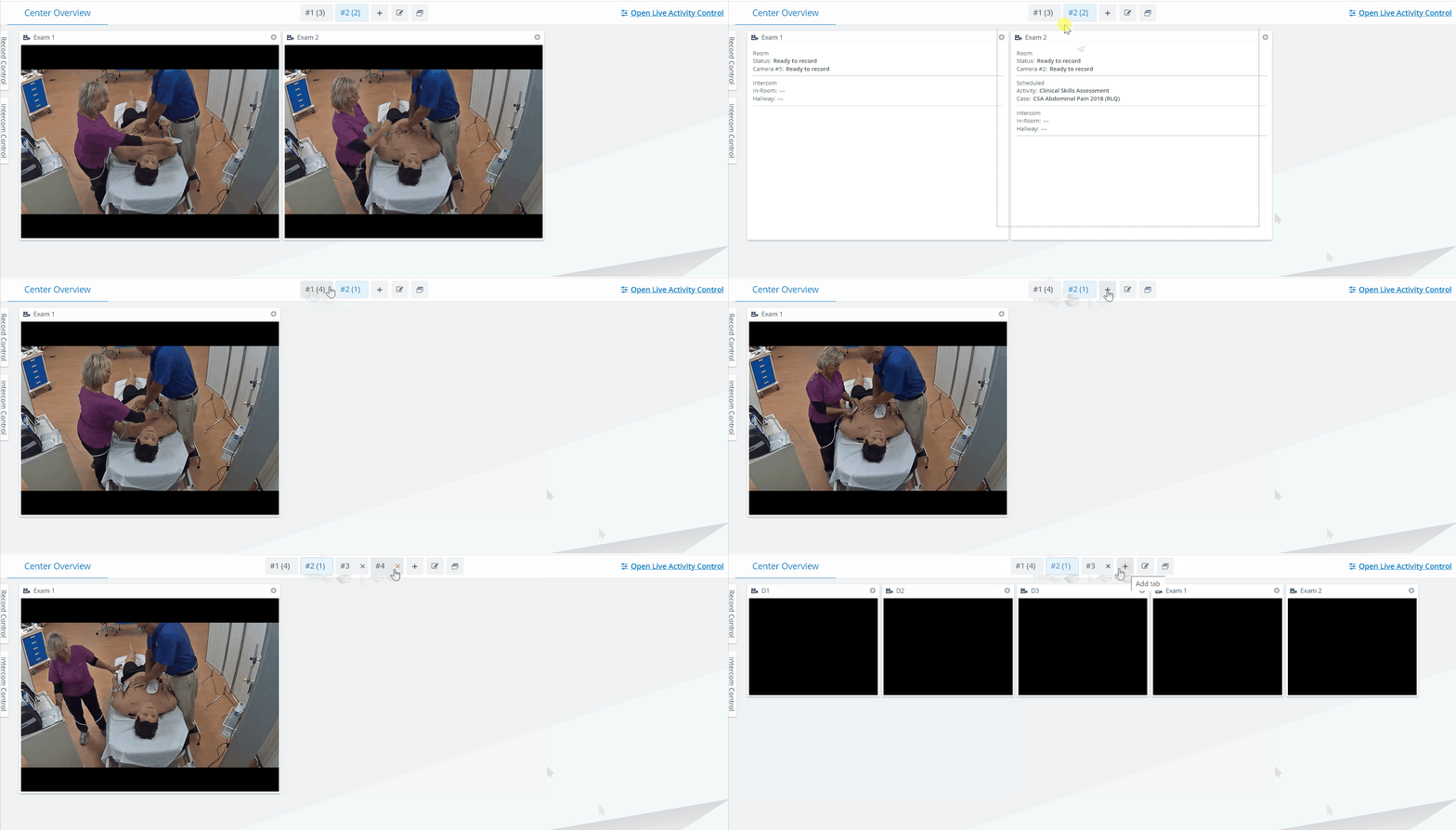
Move rooms to a tab by using the drag-and-drop function.
4. Click the Window layout settings button to access the settings.
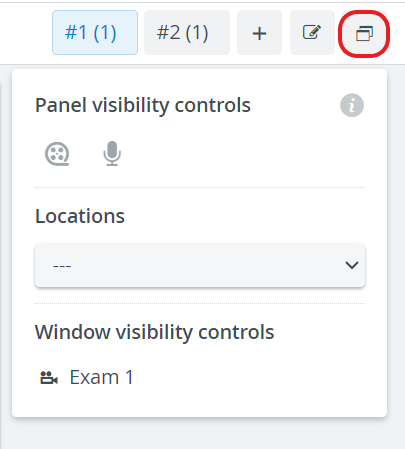
5. Click the icon of the panel function or a room name to show or hide that panel or room.
Shaded selections indicate that a given panel or room is hidden.
For more information, visit our Recording Module and Recording Module Training Video pages.