How to Control Panels While Recording
Important Note for Enterprise Lite Users
This feature is for use with in-campus audiovisual (AV) inputs. Hence, it is not available for LearningSpace Enterprise Lite, which is only used for web-conferencing-based virtual simulation encounters. To unlock this feature, please upgrade to the LearningSpace Enterprise solution.

Click on the cogwheel in the upper-right corner of the panel.
The Window Control Options appear.Click the speaker icon to turn the audio on or off.
Click the - or + icons to shrink or enlarge the panel.
Click the expanding arrows icon to switch to Full screen.
To close the full screen, click EXIT in the lower left of the screen or press Escape on the keyboard.
5. Click the X to hide the panel.
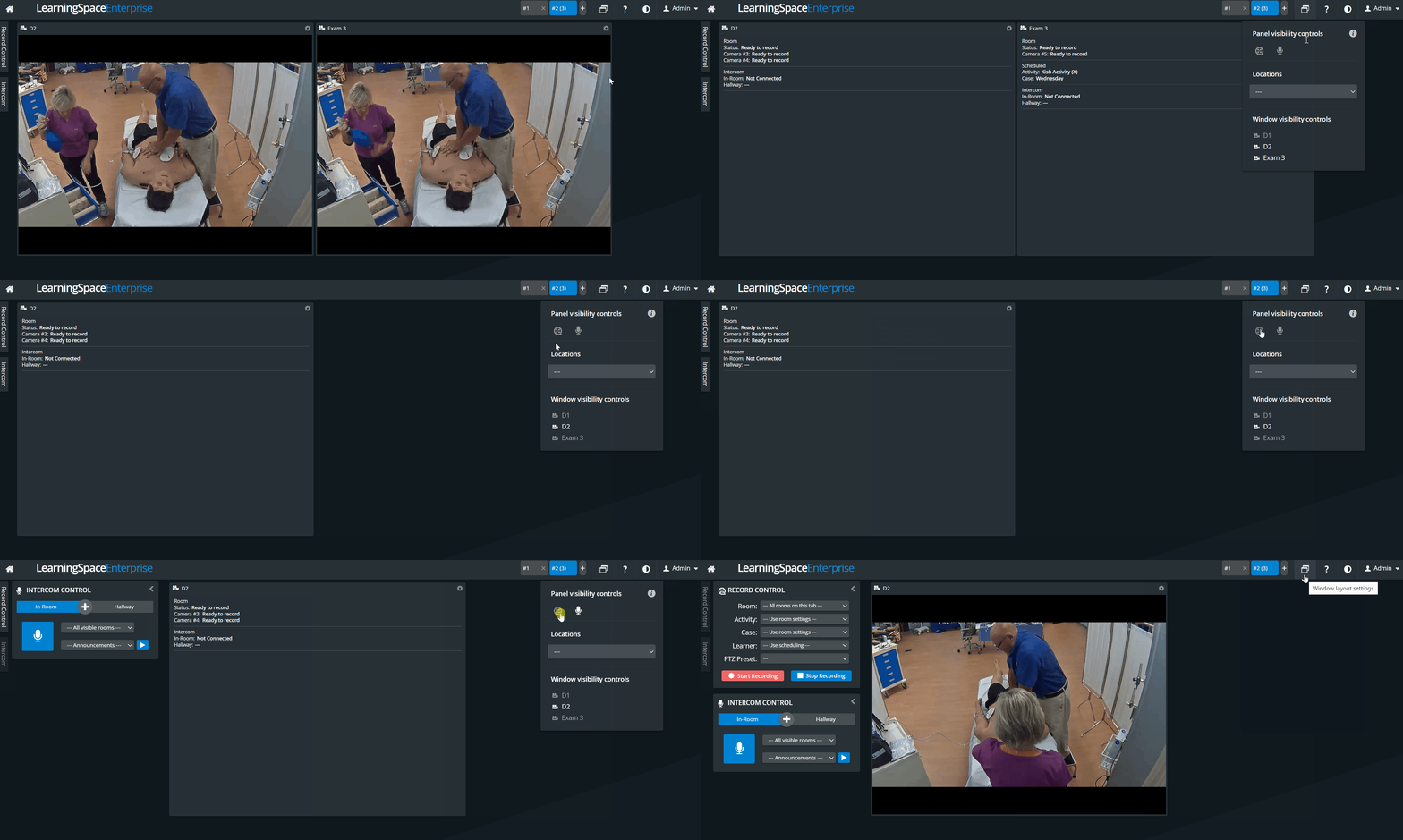
To display a hidden panel, click the Window layout settings icon in the screen's upper-right to open the Visibility Controls. Then click the hidden panel to display it. A shaded option indicates a panel is hidden.
For more information, visit our Recording Module and Recording Module Training Video pages.