How to Control Cameras
Important Note for Enterprise Lite Users
This feature is for use with in-campus audiovisual (AV) inputs. Hence, it is not available for LearningSpace Enterprise Lite, which is only used for web-conferencing-based virtual simulation encounters. To unlock this feature, please upgrade to the LearningSpace Enterprise solution.
Camera view controls are located on individual panels of either the Center Overview screen or the Single Room View screen of the Recording module.
To control cameras:
Click the cogwheel in the top-right corner of each panel to show the Window Control Options.
Click the Pan, Tilt, and Zoom (PTZ) controls to move the camera.
Pan - moves camera side to side
Tilt - moves the camera up and down
Zoom - zooms camera in and out
Other options to move the camera view are:
Click anywhere in a video image on-screen to move the camera in that direction.
Click and hold anywhere in a video image on-screen to drag the camera in the desired direction.
Click anywhere in a video image on-screen and use the mouse scroll wheel to zoom the camera in and out.
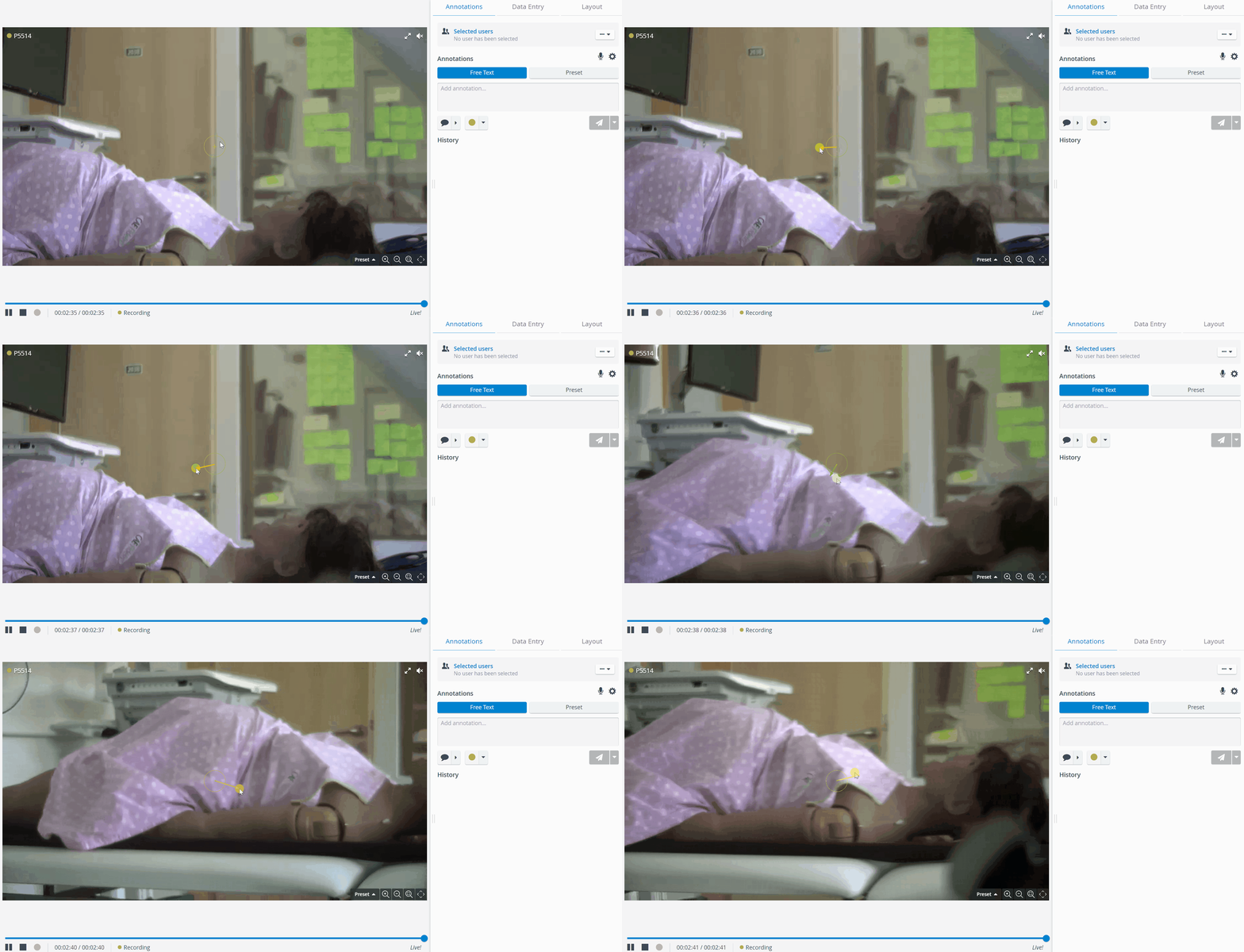
Learn more on the Pan-Tilt-Zoom - PTZ - functionalities page.
Features such as scroll wheel zoom and on-screen camera control may not be supported with browsers that do not have the proper plugins installed. For more information about plugins, contact support at ls-support@elevatehealth.net.
For more information, visit our Recording Module and Recording Module Training Video pages.