How to Assign SPs to Scheduled Events
For an introduction to Advanced Scheduling, please visit the How to Understand Concepts within Advanced Scheduling page.
You can assign SPs to your scheduled Events if you are not planning to use simulators in your scenarios.
Make sure that you have an SP group assigned to your Activity.
TIP: SP groups can be created in the Standardized Patient Administration (SPA Module) as well!
These SP groups - including all confirmed SPs for a Session - will be listed and can be managed in the User Manager under Groups, and can be used for setting up Events (see Managing Events ) or Scheduling (Advanced Scheduling).
See more at How to Create SP groups
SP Scheduling Features
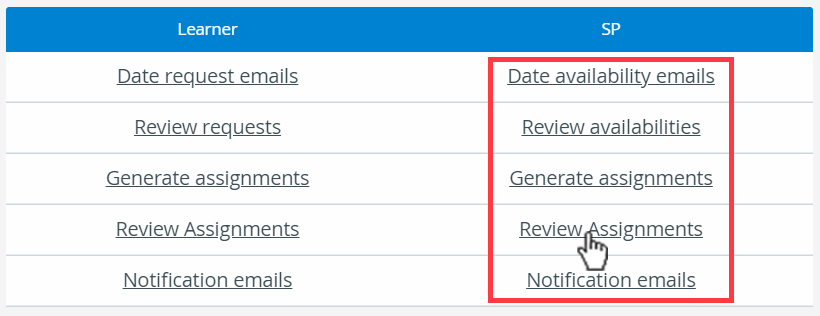
There are 5 options located at the bottom of the Activity Scheduler page that can help you with SP scheduling:
Date Availability Emails: You can send emails to the SP group of your selected Activity to find out which SPs are available.
Review Date Request Emails: The system summarizes the submitted availabilities on the Review SP Requests page.
Generate Assignments: This is where you assign SPs to your event's cases. If SPs already submitted their availability through the Date Availability Emails, you can use the collected appointment requests.
Review Assignments: This page contains the latest SP assignments. Generated assignments are not final; you can always reschedule them on the SP Assignments (Generate Assignments) page if necessary.
Send Notifications (optional): Use the Send Notifications option to email SPs confirming their schedule or informing them if they were not assigned.
How to Send Date Availability Emails to SPs
Access the Activity Scheduler page of a selected Activity.
Scroll down to the panel with the Learner and SP columns at the bottom of the screen.
The SP assignment features are on the right.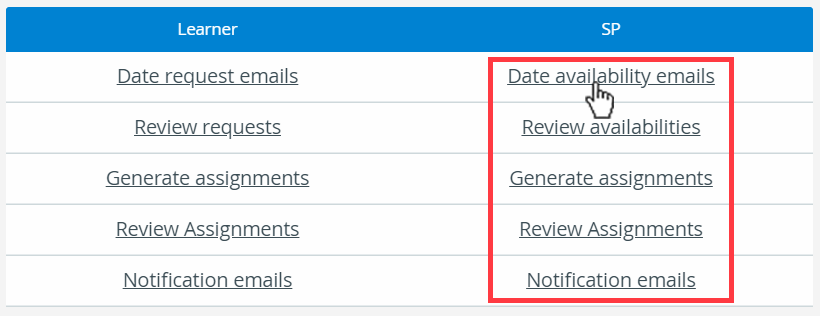
Click on Date availability emails in the SP column:
You will be redirected to the Scheduling (SP Date Availability Emails) page, where you can set up your email and send it to the SPs assigned to the Activity.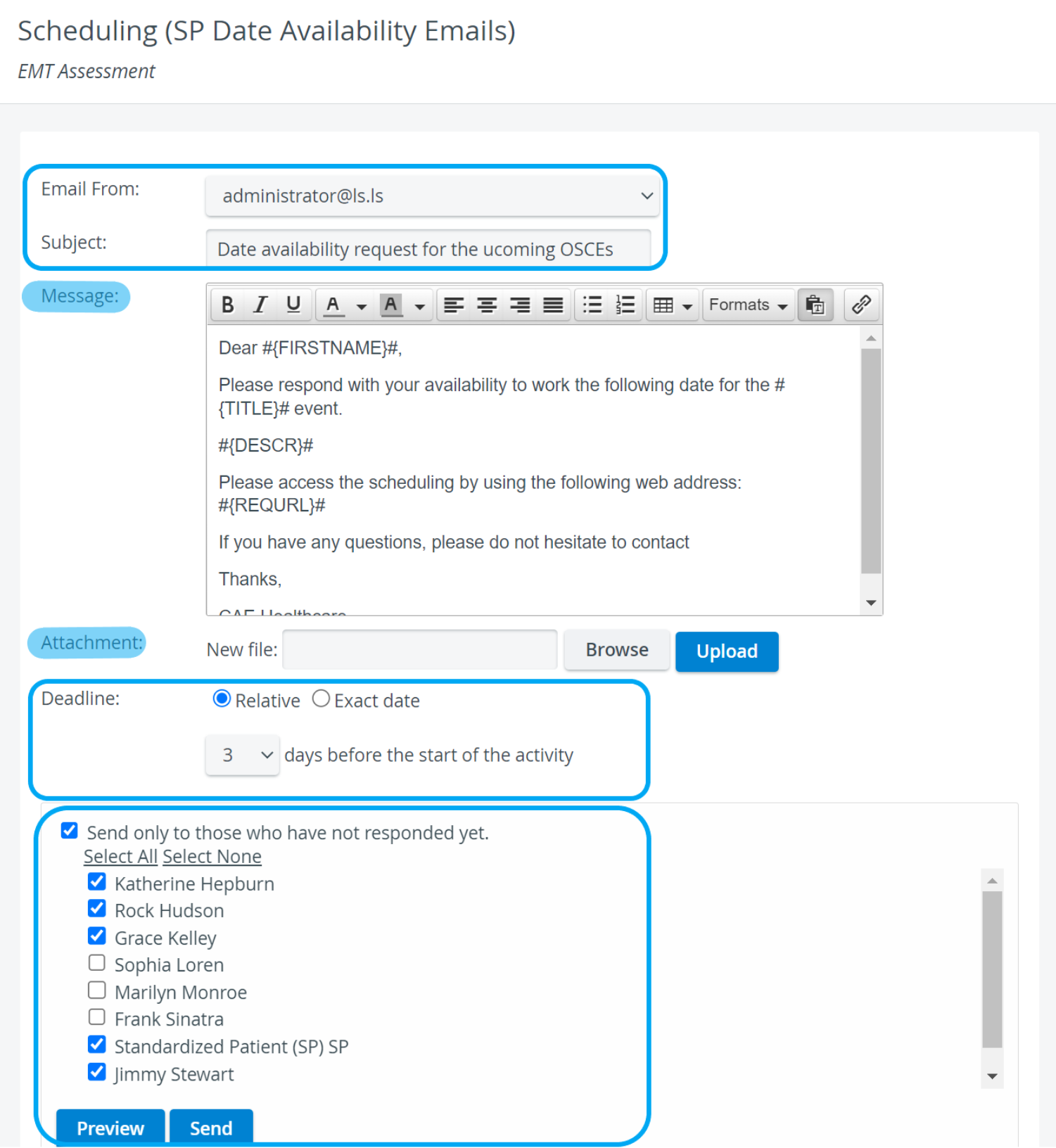
Select a ‘From address’ in the Email From drop-down.
If you need to create more email addresses, you can do so on the Emails tab in System Manager.Enter the subject of your email in the Subject field.
NOTE: You must enter a subject. LS will not send the email without a subject.
If necessary, you can edit the message body of your email in the Message field.
Use the Attachment field to attach a file. (Browse for a file on your computer and once selected, upload it.)
Set up a Deadline for SP feedback:
You can set up the response deadline relative to the start date of the entire Activity—(warning), not the event.
OR an Exact date can be set for the deadline of your choice.
To review the email before sending it, click on Preview. The Email Preview page displays your message to each user.
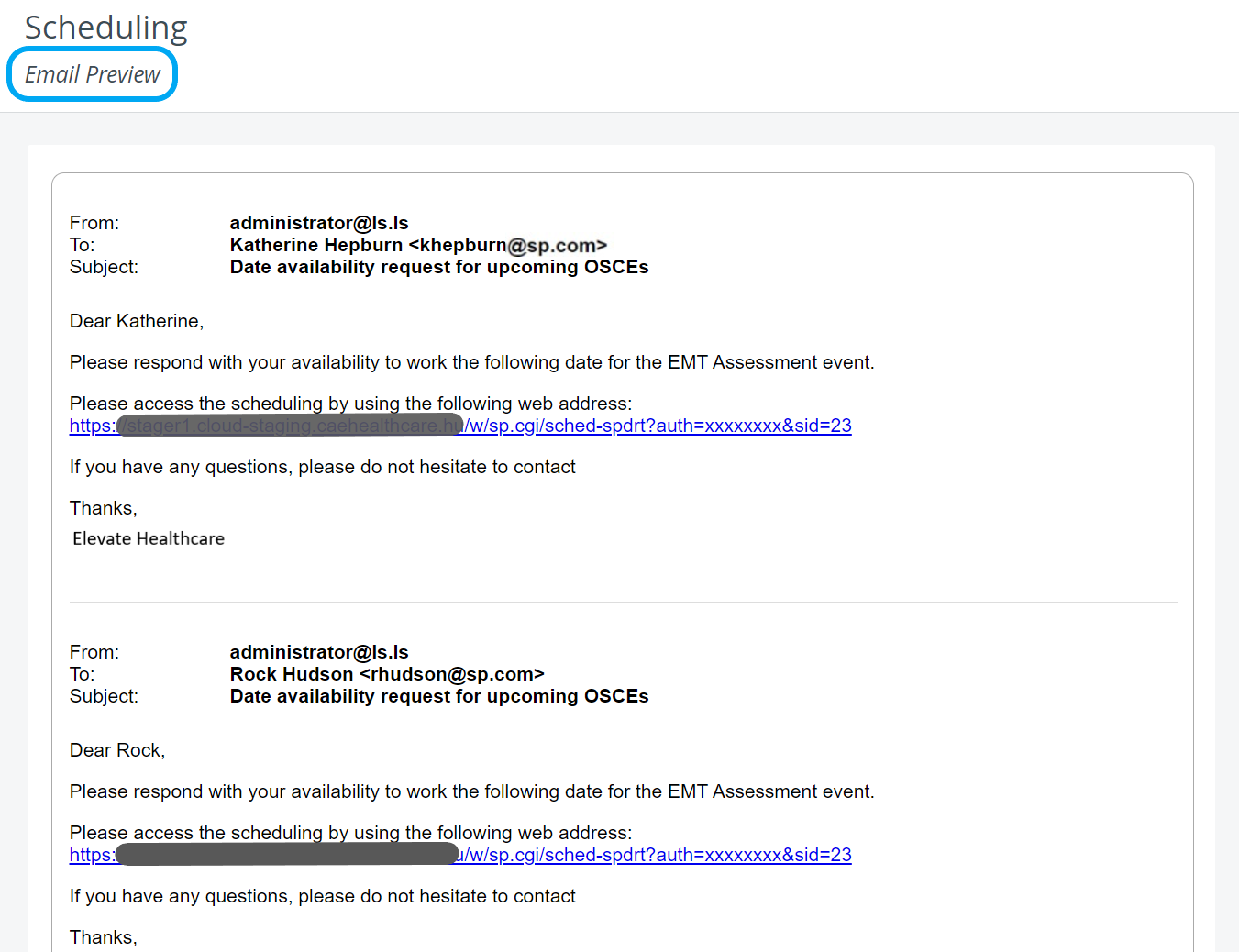
Return to email editing with the top-left back arrow.
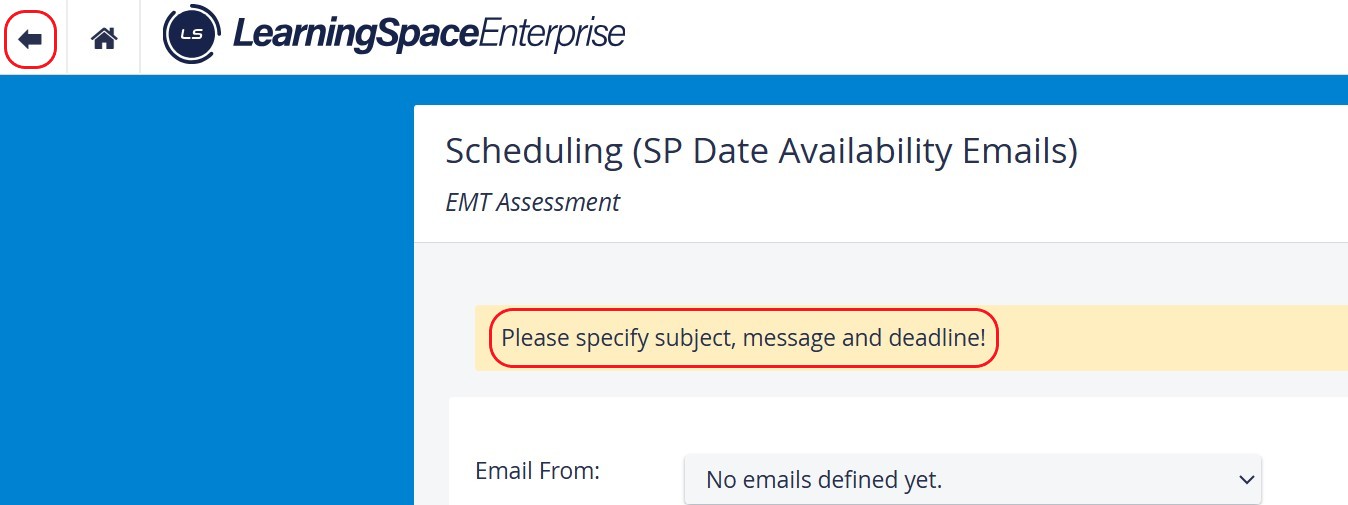
When the email is ready, click Send.
The system logs the time and date of sent emails: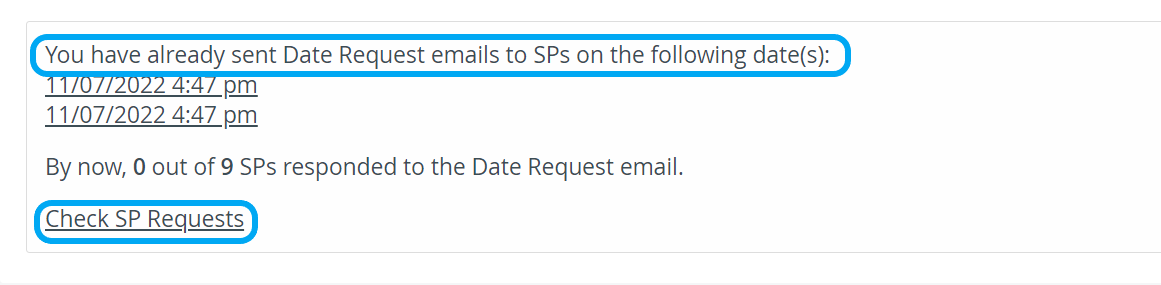
The system also displays the number of SPs who have responded to your request.
To see the details for each SP’s availability, click on Check SP Requests.
Optional: Check the Send only to those who have not responded yet box.
Apply this option if you repeatedly send out date availability emails and some SPs have already responded.
If the SP availability email template was set up in System Manager, you might notice that the message body contains snippets of text surrounded by hashtags and curly brackets:
#{FIRSTNAME}# | #{TITLE}# | #{REQURL}# etc.
💡 These snippets are referred to as merge tags in the system.
Merge tags personalize the emails you send out to your recipients:
The system automatically replaces the merge tags with the corresponding unique data of your recipients in the body text.
To apply merge tags, set them up and save them in the default email templates in Emails—click on the System Settings button at the bottom of the page to be redirected.
How to Review SP Availability
NOTE: On the Review availabilities page, you can only view the cumulative list of SP requests submitted so far.
Go to the Activity Scheduler page of the Activity.
Click Review availabilities in the SP column:
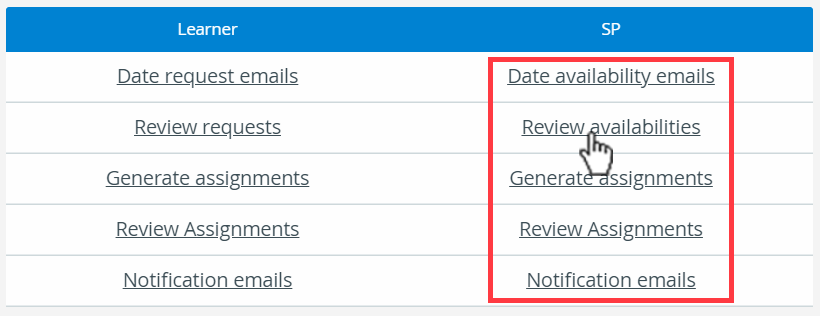
You will be redirected to the Scheduling (Review SP Requests) page, where you can view each SP's date request list.
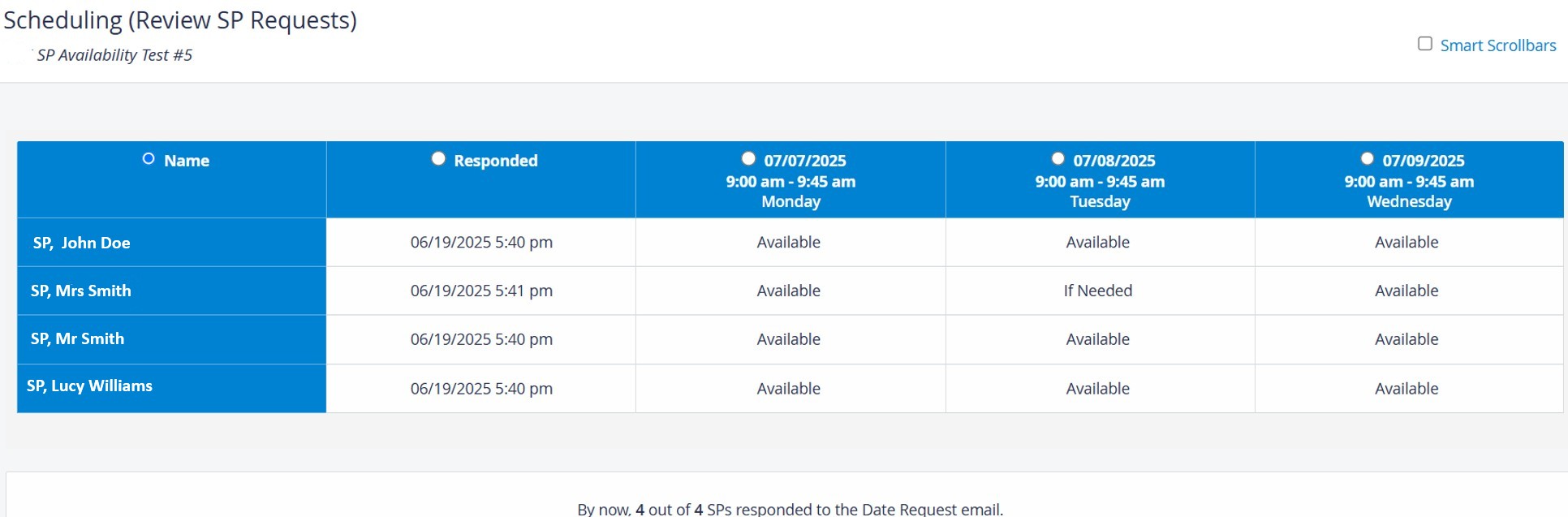
The columns can be sorted by selecting the corresponding radio button.
To assign SPs to the event according to Cases, go to Generate Assignments.
How to Generate SP Assignments
Go to the Activity Scheduler page of the Activity.
Click Generate assignments in the SP column:
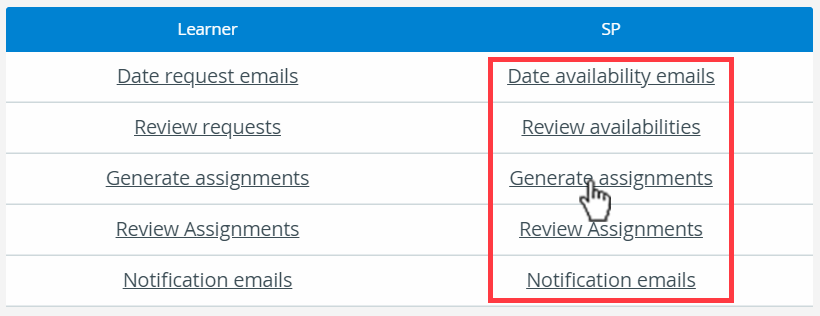
You will be redirected to the Scheduling (SP assignments) page, where you can assign SPs to the appropriate stations for the Event.
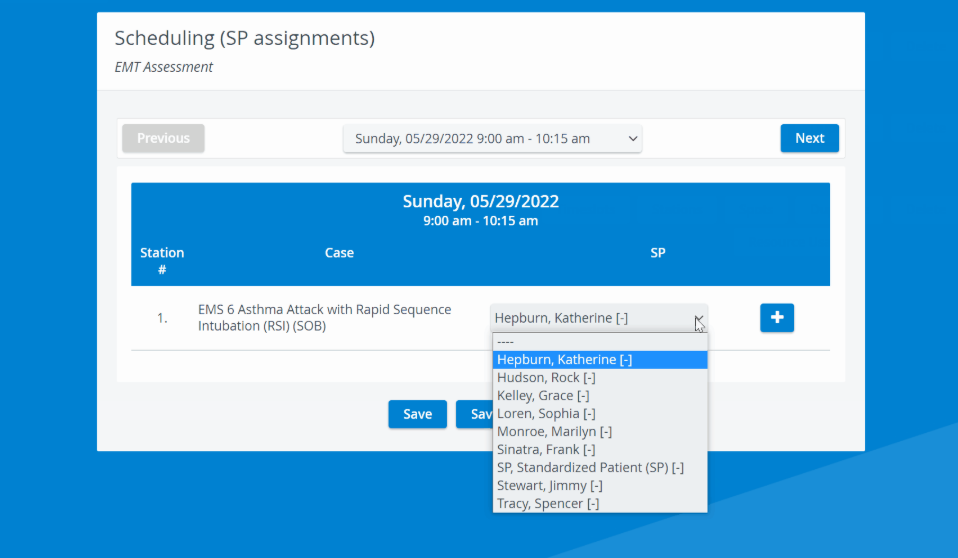
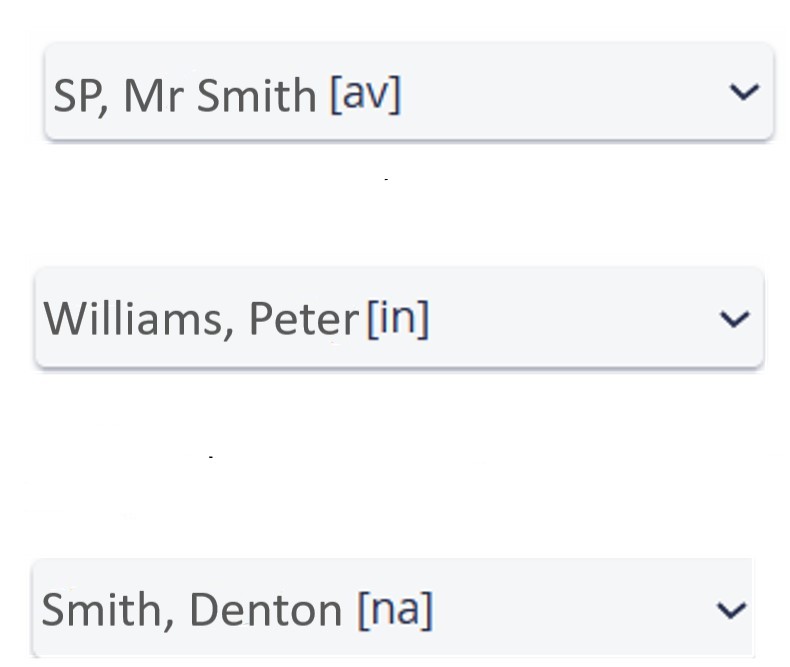
Select the appropriate SP for the station from the drop-down menu. If the SP submitted their availability, you can see the availability status in brackets after the SP’s name.
If an SP confirms they are available for the event, [av] is displayed after their name.
If an SP responded that they are available “if needed,” [in] is displayed after their name.
If an SP responded that they are not available for the event, [na] is displayed next to their name.
If an ‘*’ appears at an SP's name after assigning them, that means the SP has already been assigned to another event taking place at the same time. However, you will not be prevented from assigning the SP to the current event if necessary.
A red exclamation mark may also appear if the SP has already encountered at least one learner participating in the event.

Click the exclamation mark to display the name(s) of the learner(s) who already worked with the SP, as well as the Activity, Case, and Date of the previous encounter. Click the exclamation mark again to close the popup.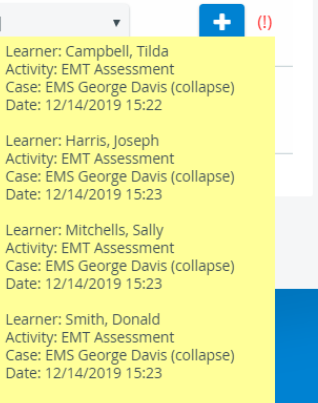
Click Save or Save & Return to save your assignment settings.
Click Save to continue assigning SPs to other Events.
Click Save & Return to return to the Activity Scheduling page.Confirmation Emails
To send confirmation to assigned SPs, go to Notification emails.
How to Review SP Assignments
Go to the Activity Scheduler page of the Activity.
Click Review assignments in the SP column:
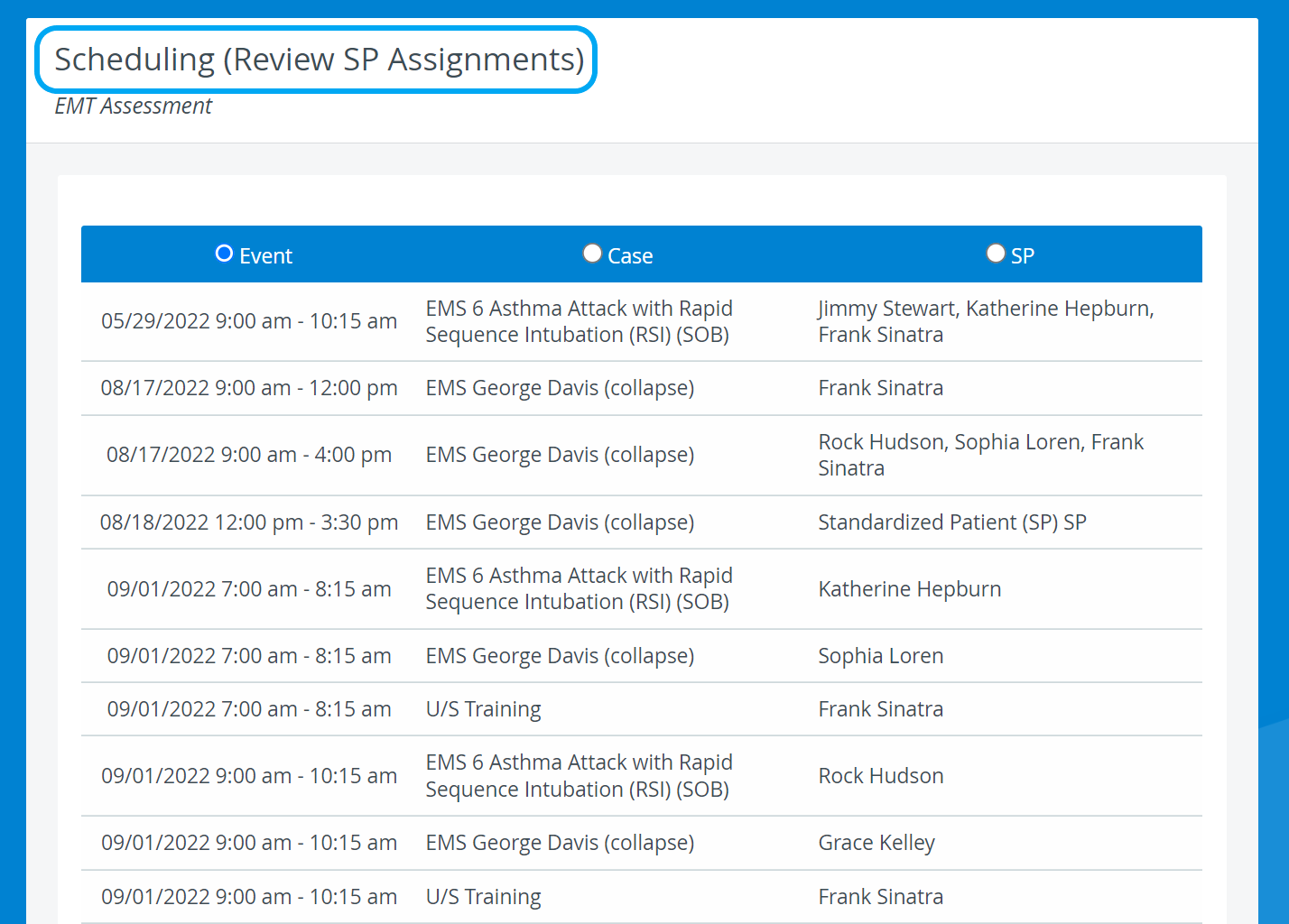
You will be redirected to the Scheduling (Review SP Assignments) page, where you can check the event(s) each SP has been assigned to.
Note
By default, SP assignments are sorted by the Event dates and times. Select the respective radio buttons to sort the assignments by Cases or SPs.
How to Send SP Notification Emails
Go to the Activity Scheduler page of the Activity.
Click Notification emails in the SP column:
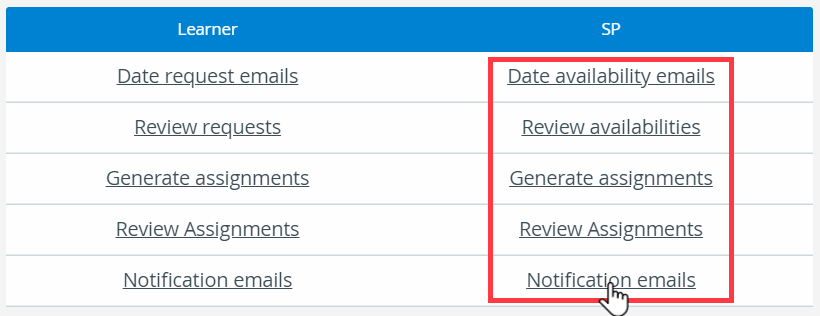
You will be redirected to the Scheduling (SP Notification Emails) page, where you can edit the notification emails for your SP group.
Select a From address in the Email From drop-down.
To set up further from addresses, go to the Emails tab in System Manager.Enter the subject of your email in the Subject field.
Use the Attachment field to attach a file (Choose a File from your computer and hit Upload)
Click on Preview to see how each recipient will display your email. The Email Preview page displays your message to each user.
Return to email editing with the top-left back arrow.
Click Send to send out your emails.
There are two kinds of emails to prepare for your SP group.
NOTE: To ensure a working email setup, prepare the contents of both kinds of emails.
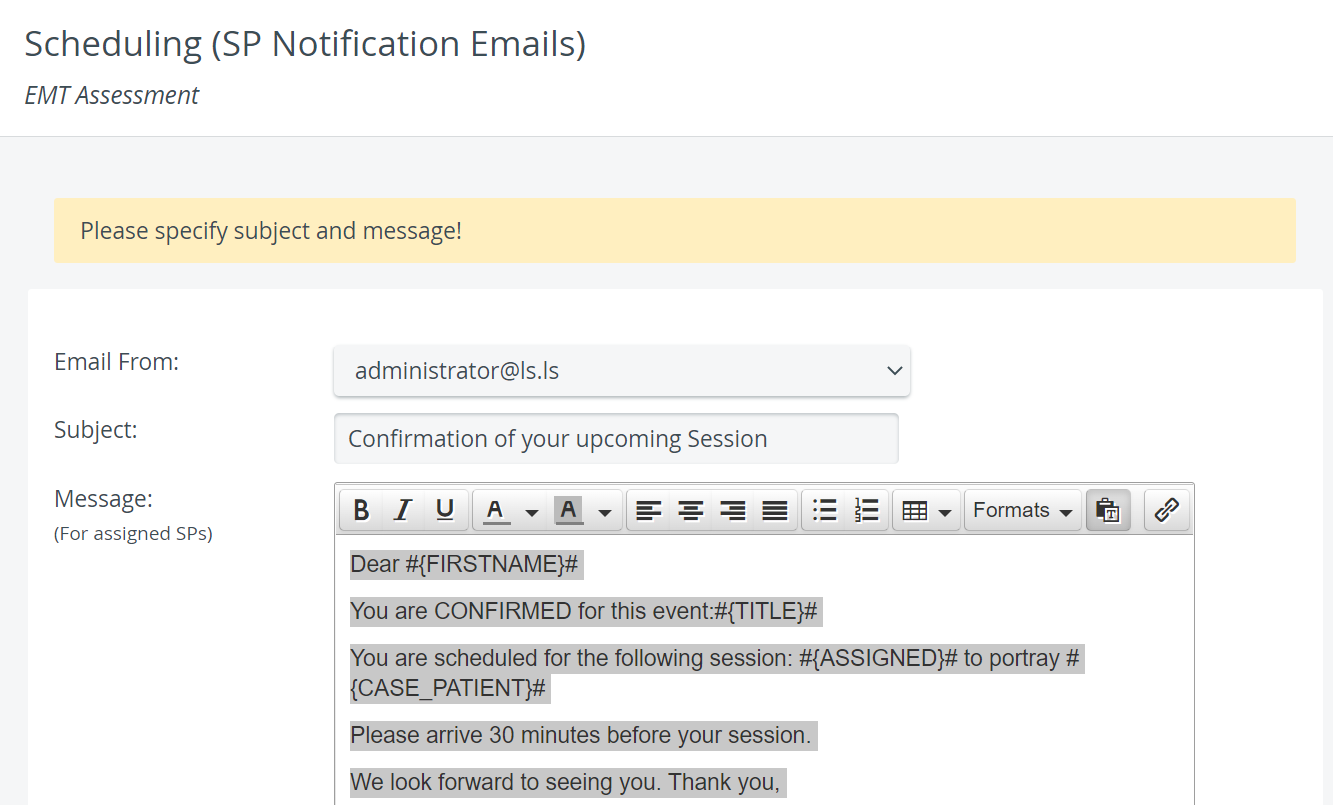
The first email is for those SPs who have been assigned to the event(s).
Email Templates
You will find the template of this email under
the name of SP notif. email (assigned) in the System manager,
the Message (For assigned SPs) in Advanced Scheduling.
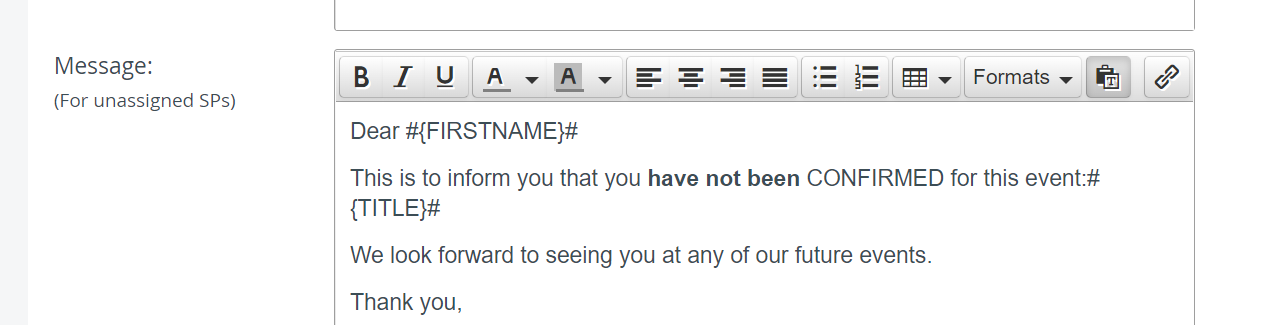
The other email is for the SPs who responded with their availability, but were not assigned to the event.
Email Templates
You will find the template of this email under
the name of SP notif. email (unassigned) in the System manager,
the Message (For unassigned SPs) in Advanced Scheduling.
SP Notification emails can only be sent to the assigned SPs if emails are also sent to the unassigned ones. If you don’t fill in the unassigned email body, the assigned email cannot be sent out, either.
If the SP notification email templates were set up in System Manager, you might notice that the message body contains snippets of text surrounded by hashtags and/or brackets:
#{TITLE}# | #{FIRSTNAME}# | #{CASE_PATIENT}# etc.
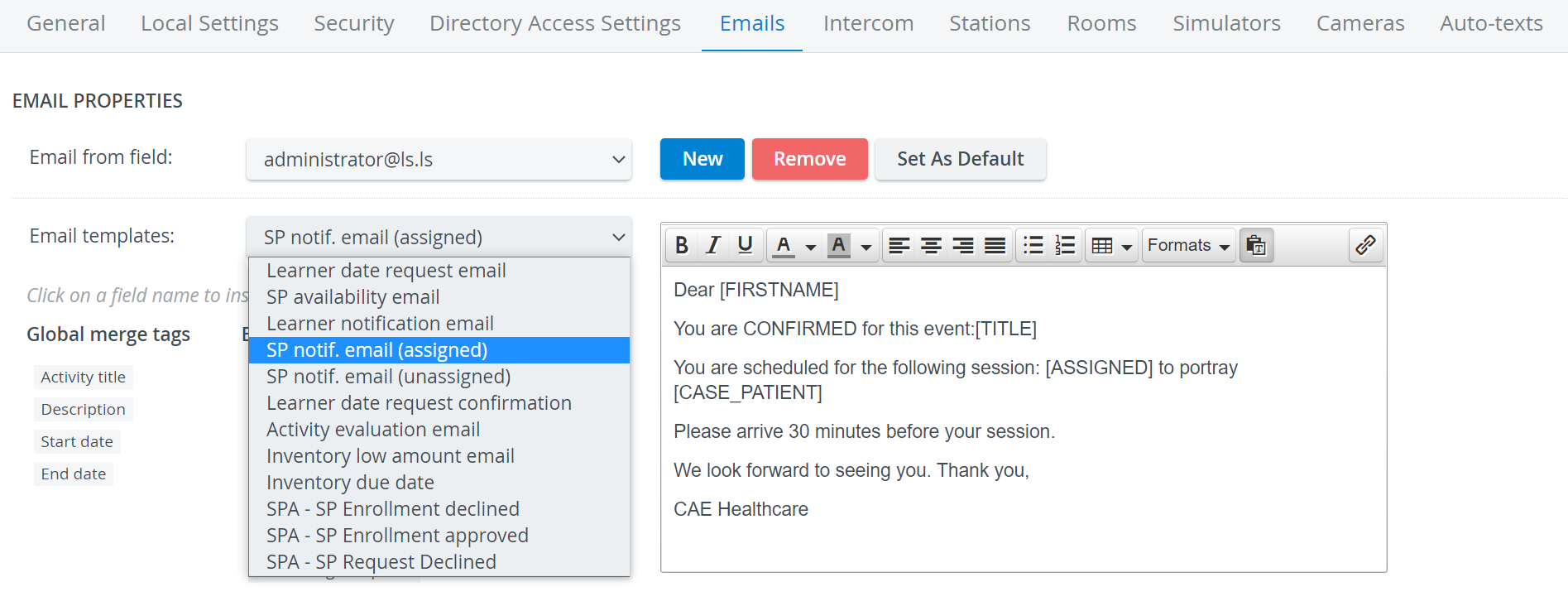
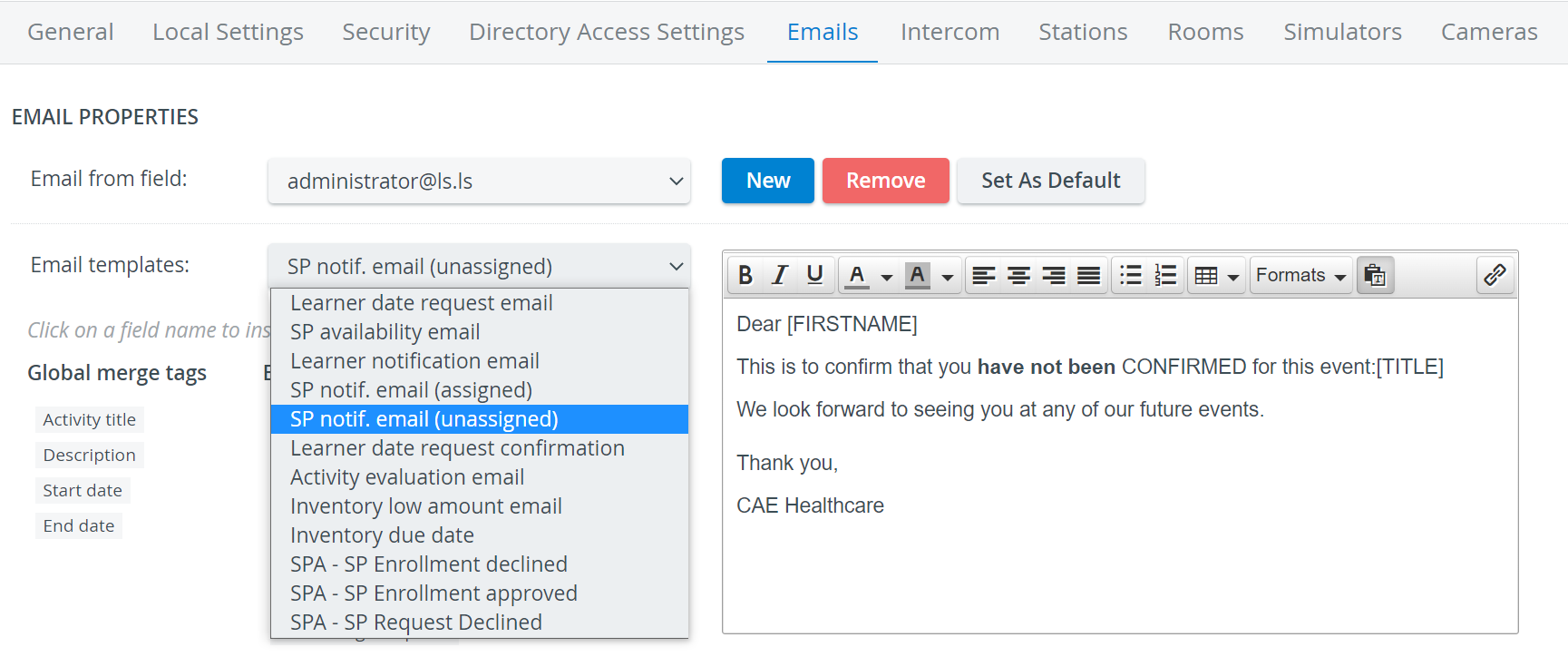
💡 These snippets are referred to as merge tags in the system. Merge tags personalize the emails you send out to your recipients: the system automatically replaces the merge tags with the corresponding unique data of your recipients once they receive your message.
To apply merge tags, set them up and save them in the default email templates in Emails—click on the System Settings button at the bottom of the page to be redirected.
There is no need to select a recipient (addressee) group—each message will be sent to the correct SPs based on the event's assignment information.
After you have sent out the notification emails, the system will log the time and date the emails were sent.
For further information, visit our Advanced Scheduling pages and view our Activity Manager Training Videos.