How to Assign Participant Groups to Activities
Assign participants to an Activity to give Learners, Faculty, or SPs access to
video review and - control,
and more.
To properly set up an Activity, you must select both a Learner group and a Faculty & Staff group to appoint evaluators and evaluees in the Assignments tab to determine which Faculty member or Peer can evaluate which learner(s).
Selecting an SP group is recommended when you want to have standardized patients portray the scenarios of the Activity.
To assign participants to an Activity:
Open an Activity for editing.
In the Edit Activity pop-up, find the Participants tab.
You will see all three participant group categories: Faculty & Staff, SP, and Learner group.Select a category, and click on its drop-down. → A list of user groups appears instantly.
Every group is listed in which at least one member has a privilege corresponding with the participant group category.
(For example, the Faculty & Staff drop-down will list all the groups in which at least one member holds a faculty privilege.)💡A search bar is also included at each drop-down. Use the search bar to filter down to the group you need.
Select a group to save it.
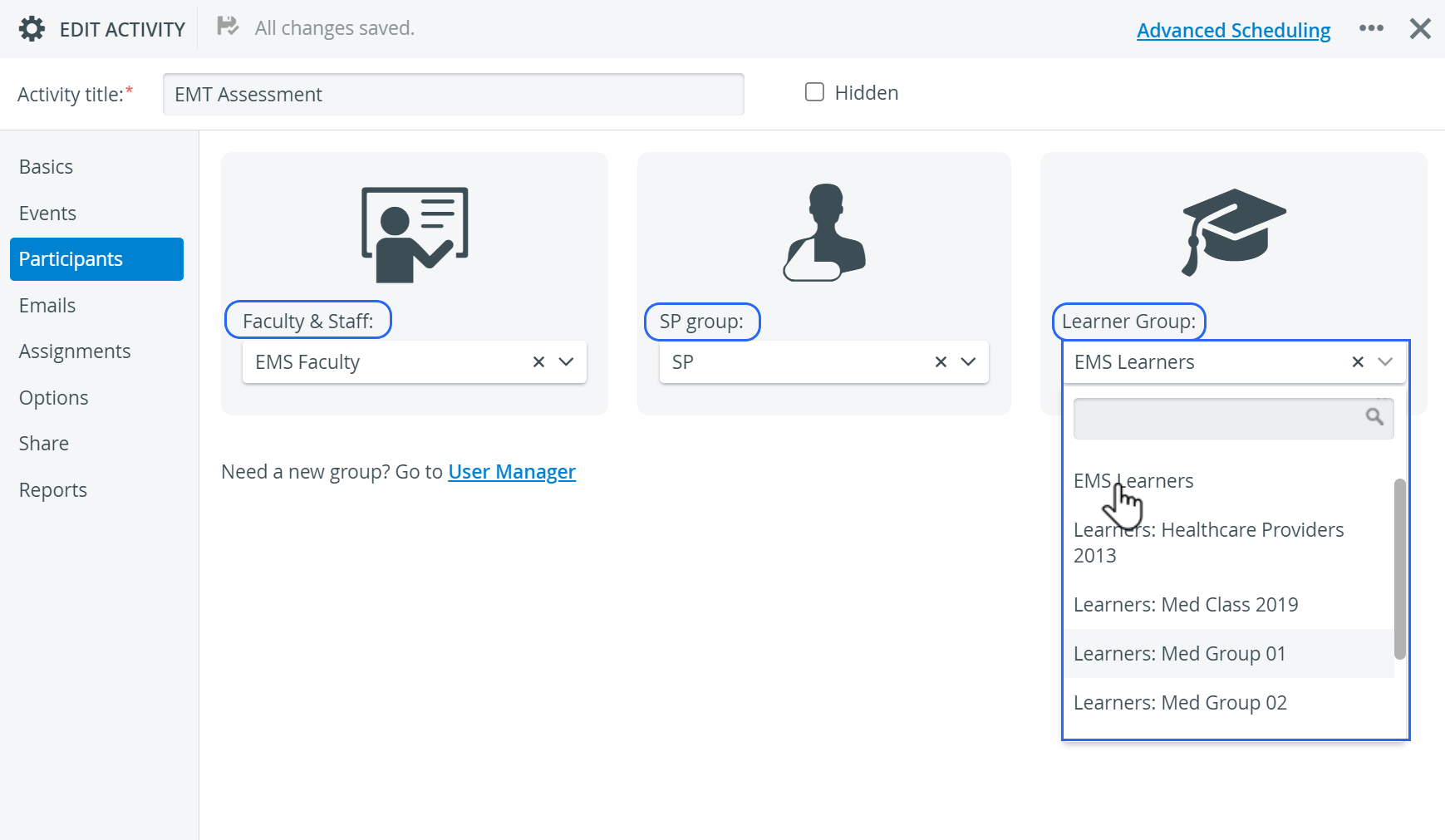
A participant group can be assigned to any category provided it contains at least one member of the respective (Participant group) role.
Feature tip: Would you like to check or manage the members of your participant groups?
→ Use the link* to the User Manager module located under the group category drop-downs.
→ You will be brought to the Groups & Users tab.
→ Once you have finished editing your groups, you can return to Activity editing with the back arrow in the top left corner.

*User Manager privilege is required for users to access the link.
Feature tip: Create SP Groups in SPA!
SP groups can be created in the Standardized Patient Administration (SPA Module) as well.
These SP groups - including all confirmed SPs for a Session - will be listed and can be managed in the User Manager under Groups, and can be used for setting up Events (see Managing Events ) or Scheduling (see Advanced Scheduling). See more at How to Create SP groups .
Important
When adding the Faculty & Staff and Learner groups, the members of each group are automatically assigned to each other as evaluators and evaluees on the Assignments tab.
The system informs you before making any changes when you try to modify either one of these groups.
Previously determined evaluator-evaluee settings in the Assignments tab will be erased after modifying the Faculty & Staff or Learner participant group.
For further information, visit our Activity Manager and Activity—How to pages and view our Activity Manager Training Videos.