How to Assign an Independent Intercom Device
LearningSpace allows for separate Intercom devices to be assigned to a room, independent from the assigned stations.
On the Rooms tab, click the cogwheel for the desired room.
The Room Settings window appears.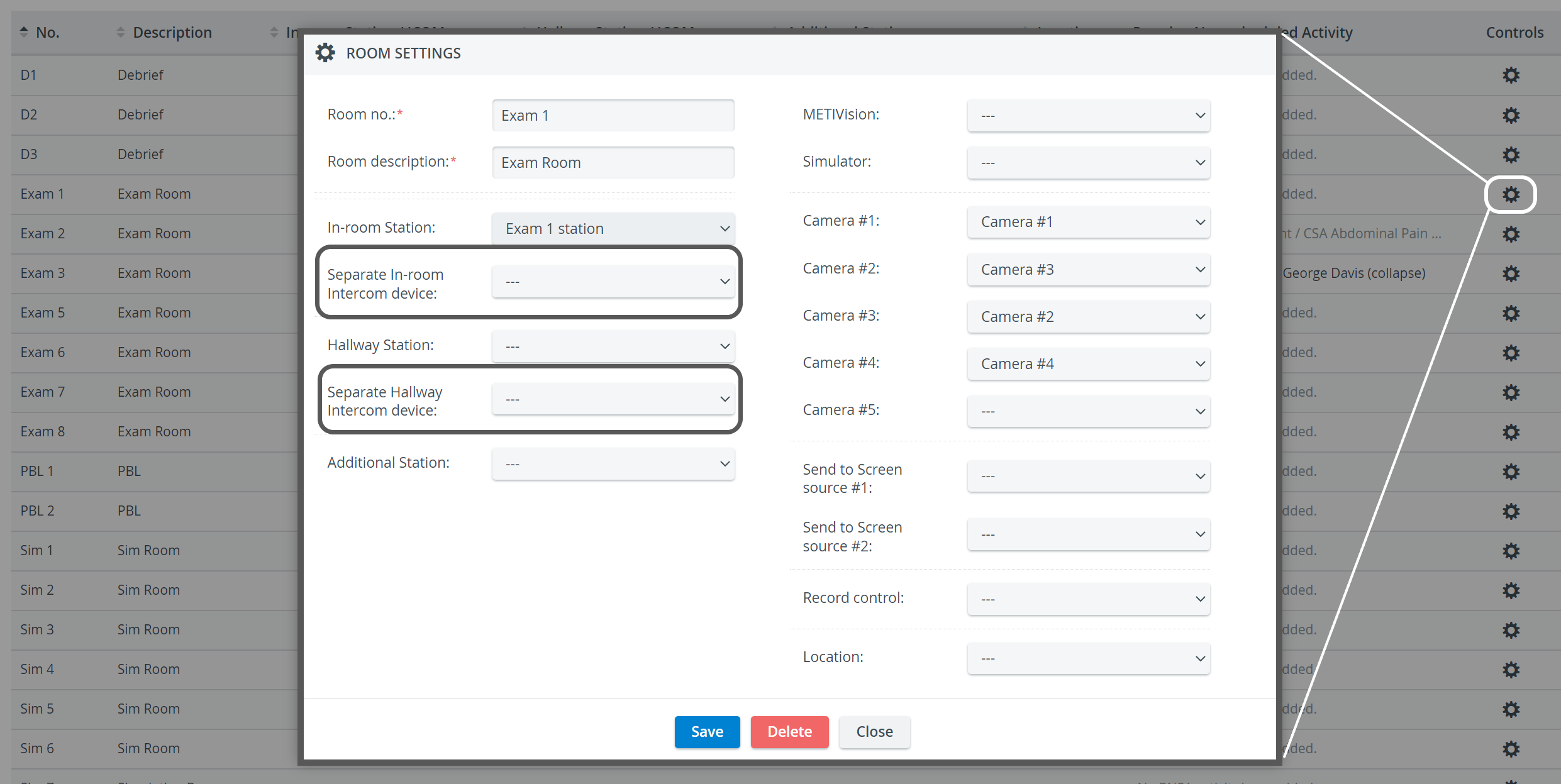
Using the respective drop-down menus, select the desired Separate Intercom device(s) for the In-room and/ or Hallway Station.
NOTE: By default, the Intercom device is the same as the station set.
IMPORTANT: Intercom drop-down menus list all the available AXIS P8221 and DAK units. In the Separate In-Room Intercom device menu, all the units assigned to the room are listed at the top of the drop-down.
3. Click Save to set up the separate Intercom device(s).
IMPORTANT: The Intercom functionality of LearningSpace requires the web browser to have access to the microphone of the client PC, which in turn requires a secure HTTPS connection to the LearningSpace server.
That is, the client computer's microphone can only be used with a valid SSL certificate. (This restriction stems from the Chrome browser security regulations.)
Intercom is not supported on iPads.
Learn more on our System Manager and Recording Module pages.