How to Assign a Station to a Room
A manually authorized (work)station is a computer located in a simulation room that is also assigned to the system version of the room in LearningSpace.
Manually authorized workstations can be used as part of a Running Non-Scheduled Activity (RNSA) or a scheduled event.
Assign a Station to a Room
Go to the Rooms tab in System Manager.
Select a room and click on the cogwheel of the room.
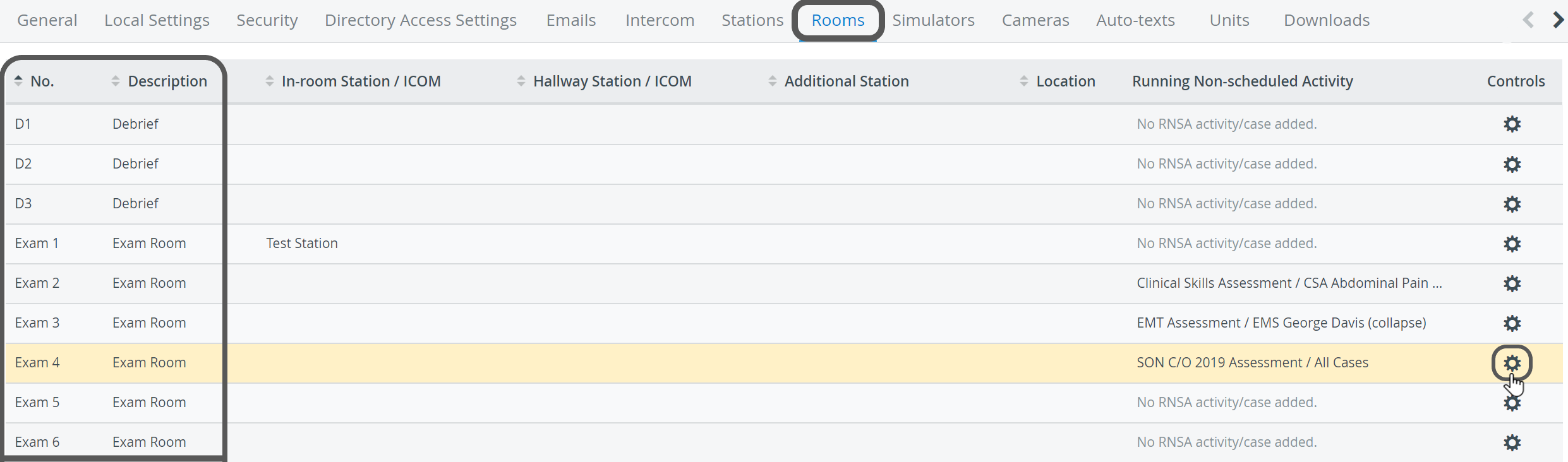
It opens Room Settings: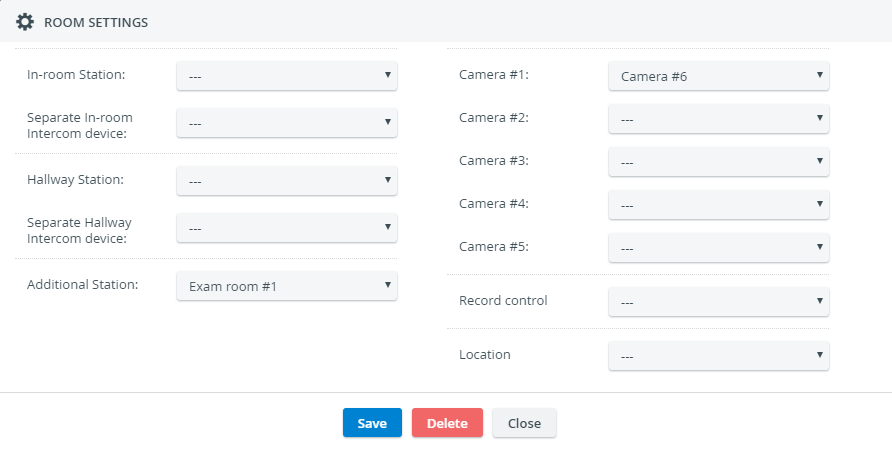
Use the drop-downs located on the left.
Select the name of a computer from the In-room Station drop-down to set it up as an In-room station.
Select the name of a computer from the Hallway Station drop-down to set it up as a Hallway station.
Important
Learner automatic forwarding only works with Hallway configuration. The same goes for SP automatic forwarding: it only works with In-room configuration.
Users who log into a workstation that does not match their privileges will land on their dashboard as usual. User-action-triggered automatic video recording will also not work.✅ If needed, your computer can have multiple workstation functions simultaneously. To apply multiple functionalities, select the same computer in the station drop-downs of your choice.
Optional: Select a speaker or any other intercom endpoint device from the Separate In-room Intercom device or Separate Hallway Intercom device drop-downs to set up in-room or hallway loudspeakers.
Select the name of a computer from the Additional Station drop-down to set it up as an Additional Station.
Save your settings.
Read about the specifics of each station type on the How to Configure Stations page.
Privacy Mode for SPs
When setting up a computer as an In-room station and assigning it to a room in LearningSpace, you automatically make the SP toolbar available for SPs on that workstation.
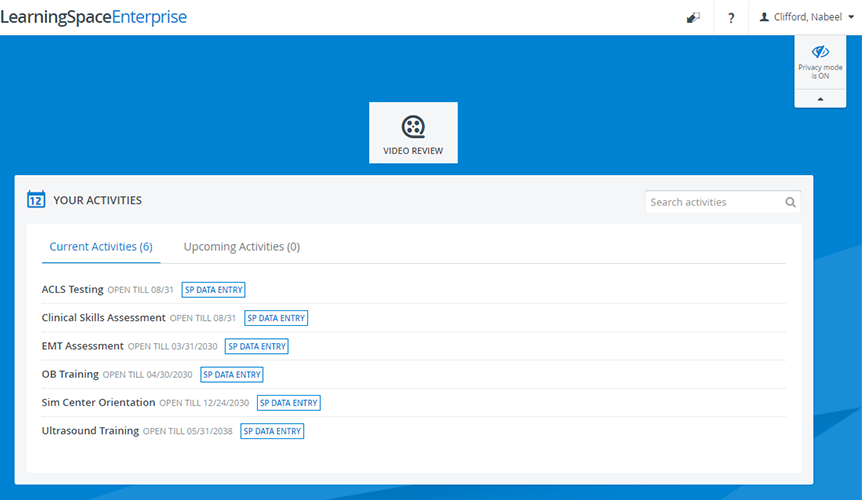
Via the SP toolbar, you can enable Privacy Mode which allows SPs to switch off the camera feeds at any time they require privacy inside the exam room e.g. when sensitive situations occur during a physical examination. If needed, other participants in the scenario can also manage Privacy Mode on the spot if they are authorized by the SP to access their account.
Privacy Mode can be accessed through the SP's profile from the manually authorized In-room station installed in the room where the scenario is conducted.
Privacy Mode is only available if the computer inside the exam room is added to the room in LearningSpace as an In-room station.
Once logged in, SPs can disable or enable the live feed of the cameras of the room straight away on their Dashboard by using the SP toolbar:
Is Privacy Mode Only Available as Part of an Activity?
The Privacy Mode feature solely requires a valid authorized In-room workstation setup.
The feature is available
without any activity added to the room,
with a Running Non-Scheduled Activity (RNSA) added to the room,
or in case of Advanced Scheduling events (provided that an In-room station is added to the room where the event is scheduled).
FON Data Entry privilege users can also activate Privacy mode when logging in on an In-room station. Privacy mode is available for FON Data Entry privilege users on their dashboard, legacy homepage, classic data entry page, and in Recording - Center overview, Single room view.
Troubleshooting
In case the Privacy Mode is not available on a station used by an SP during an event, the cause of the issue can be the following:
The In-room station of the exam room is disconnected.
A workstation might be disconnected because it has been assigned a new IP address.
By default, LearningSpace identifies devices — computers or tablets — used as stations by their IP addresses.
Solution
Add the device manually to the system in the Stations tab, then assign it again to the room.
To avoid this problem in the future, read on to learn about our cookie-based station authorization option.
Warning
In an environment, for example, with no static IP reservation, devices' IPs can change. Meanwhile, the IP addresses of devices featured on the Stations tab are not dynamically updated, which means you would have to add each computer or tablet again to the system—as shown below on this page.
Cookie-Based Station Authorization
In case the IP addresses of your devices are not static, select "Enable cookie-based station authorization" on the General tab in System Manager. This way, the system will identify stations by placing a software "cookie" into the browser instead of checking the IP addresses of the devices.
DCUs vs Privacy Mode
If there is a DCU/encoder in the room along with cameras on which Privacy Mode can be enabled, users can activate privacy mode in the room using the SP toolbar or push button, but privacy mode will only be enabled on the cameras and not on the DCU/encoder.
