How to Assign a Role
While roles are managed on the Roles tab, they can only be assigned to new users on the Groups & Users tab.
IMPORTANT: A user with User Manager privilege does NOT have access to roles including one or more of the following privileges: Admin, System Manager, Room Manager, Learner History/ SP Activity.
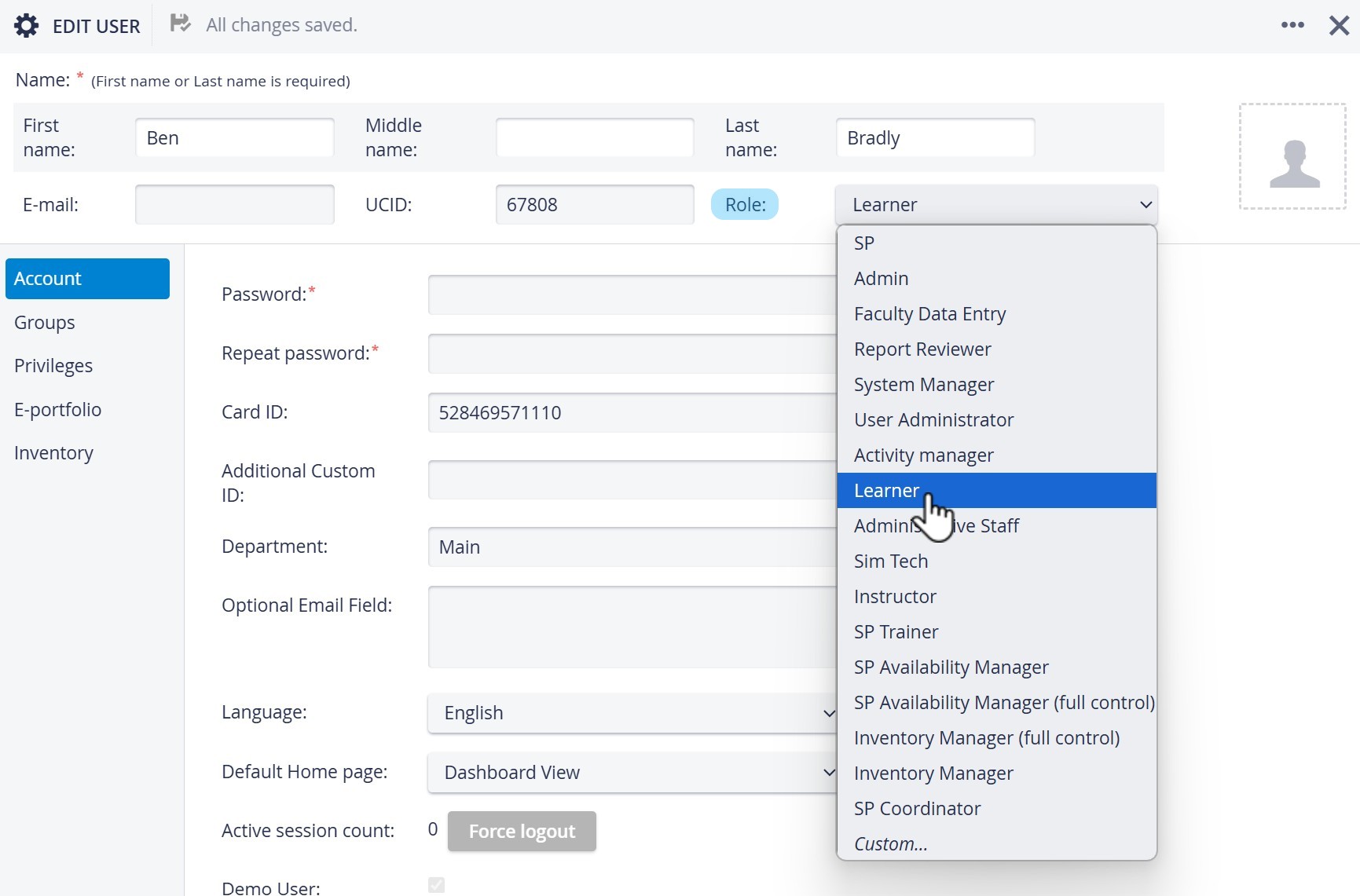
Assigning a predefined role:
Create a new user on the Groups & Users tab or open the Edit User pop-up for a desired user.
Select a predefined role from the Role drop-down menu.
Click Save to save the changes.
Assigning a customized role:
Create a new user on the Groups & Users tab or open the Edit User pop-up for a desired user.
Select the Custom... option from the Role drop-down menu.
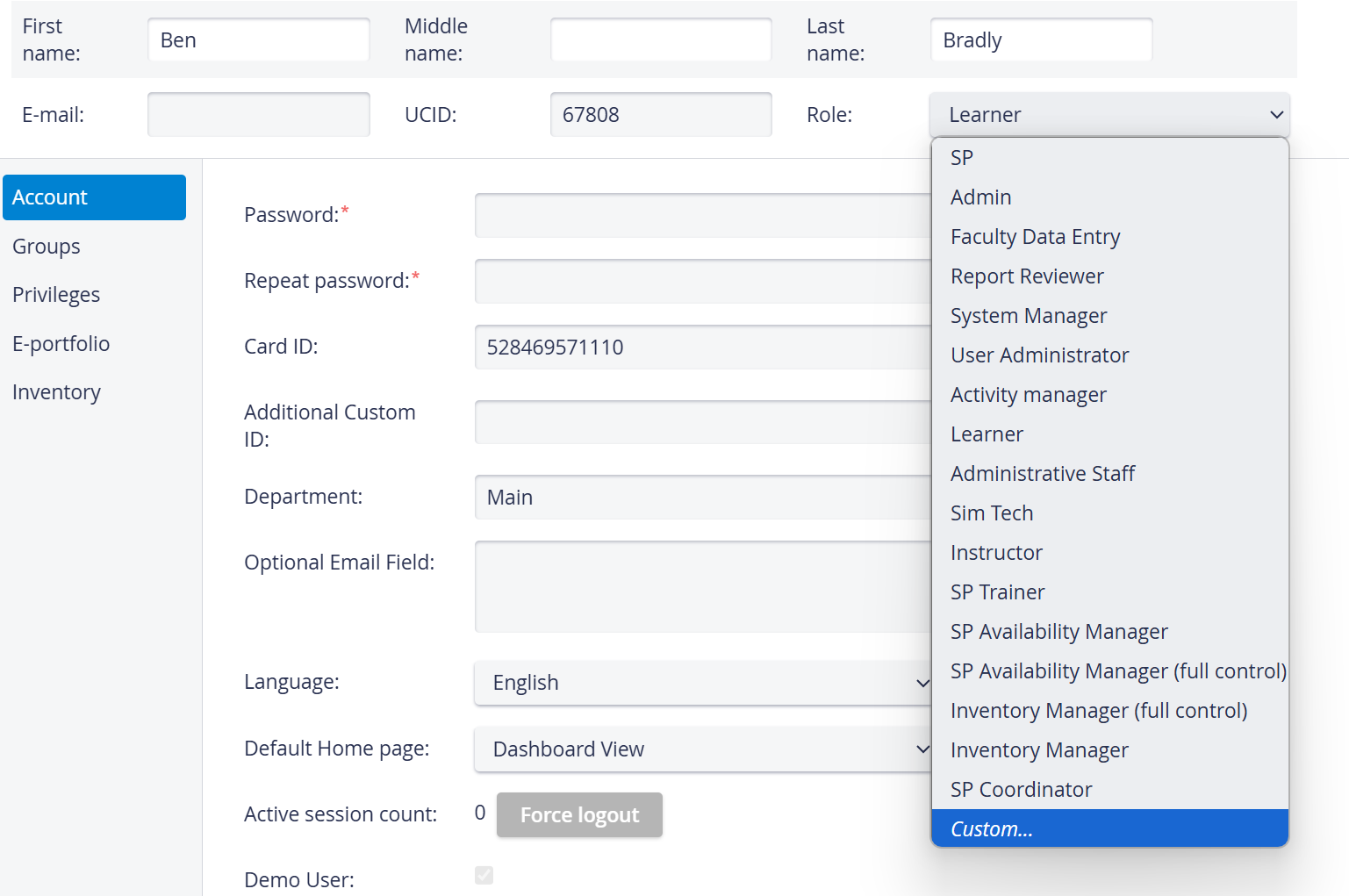
The system will switch to the Privileges settings.
Check the boxes of the privileges you wish to assign to the specific user.
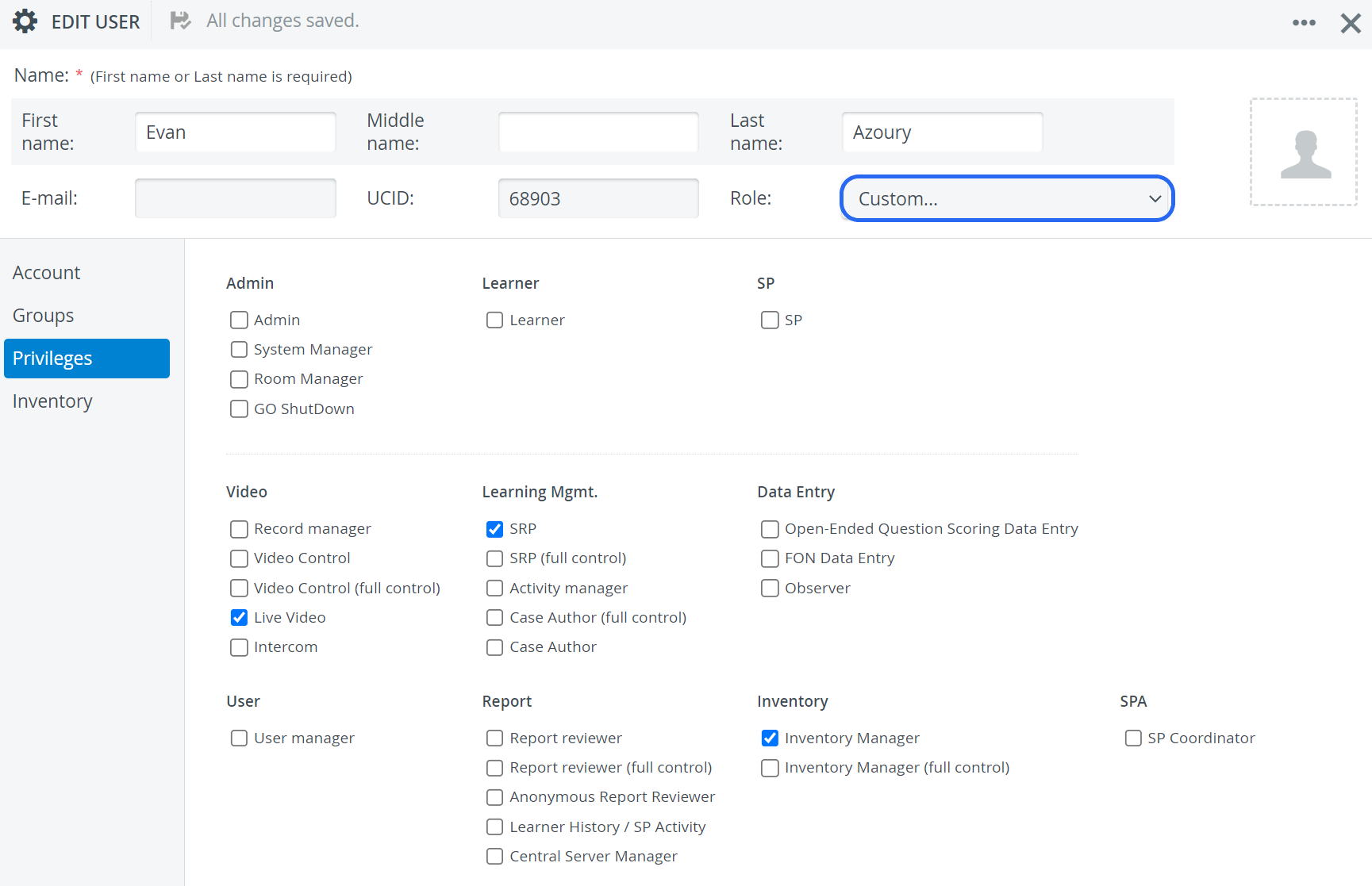
4. After editing, the pop-up window can be closed, as any changes are saved automatically.
IMPORTANT: Personalized role(s) set up when creating or editing a user will not be saved as a customized role; this can only be done on the Roles tab.
See also How to Create a Customized Role.
How User Roles function within LearningSpace
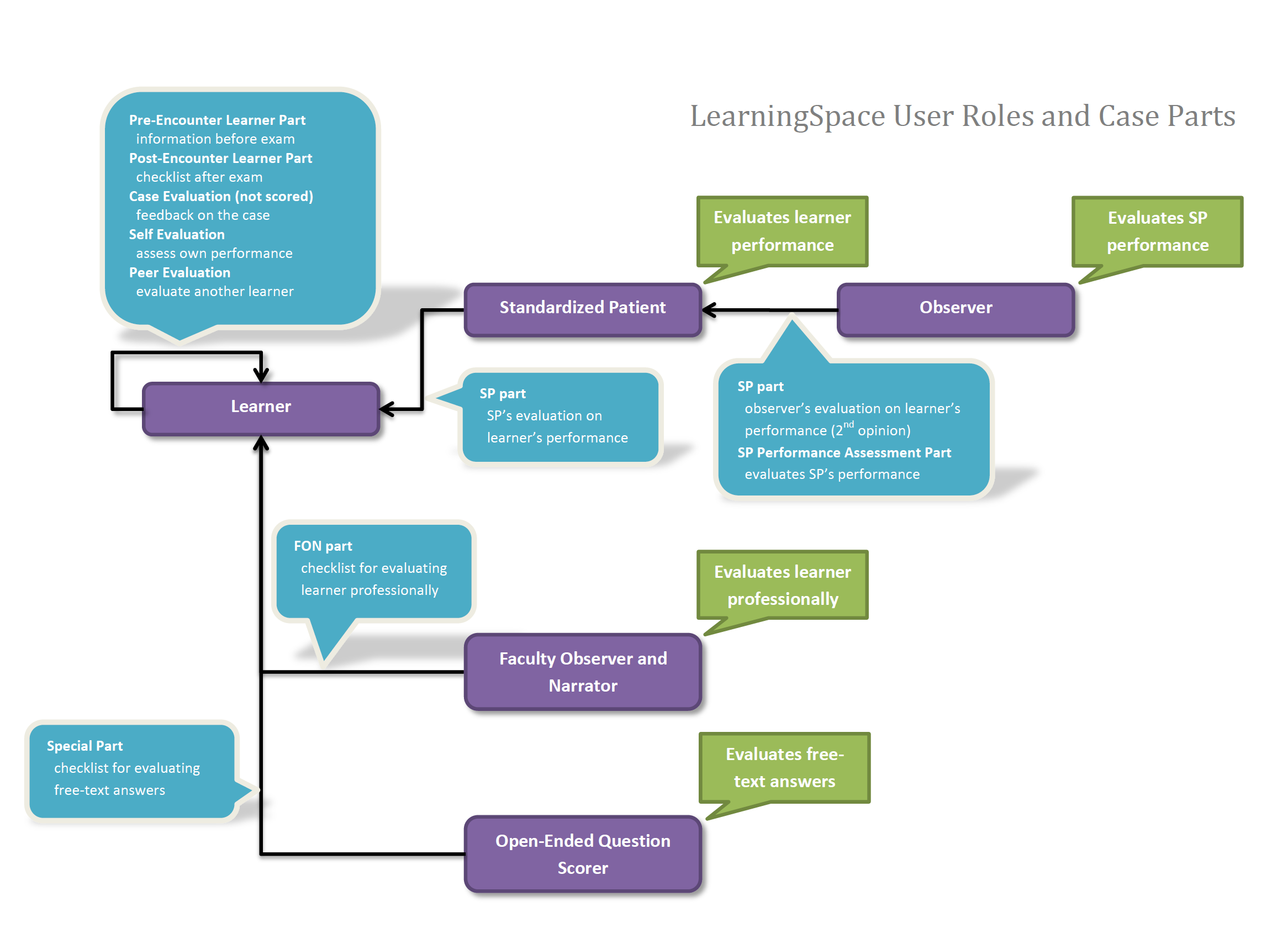
See also Checklists - Case parts
For further information, visit our User Manager pages.