How to Apply the Same PTZ Preset to Multiple Rooms on Center Overview
Important Note for Enterprise Lite Users
This feature is for use with in-campus audiovisual (AV) inputs. Hence, it is not available for LearningSpace Enterprise Lite, which is only used for web-conferencing-based virtual simulation encounters. To unlock this feature, please upgrade to the LearningSpace Enterprise solution.
To apply a preset position to multiple rooms in one go on Center Overview (CO):
Create the same preset position in each room and
Give them the same name in every room.
Example
Determine the close-up position in each room manually and name each as "Close-up."
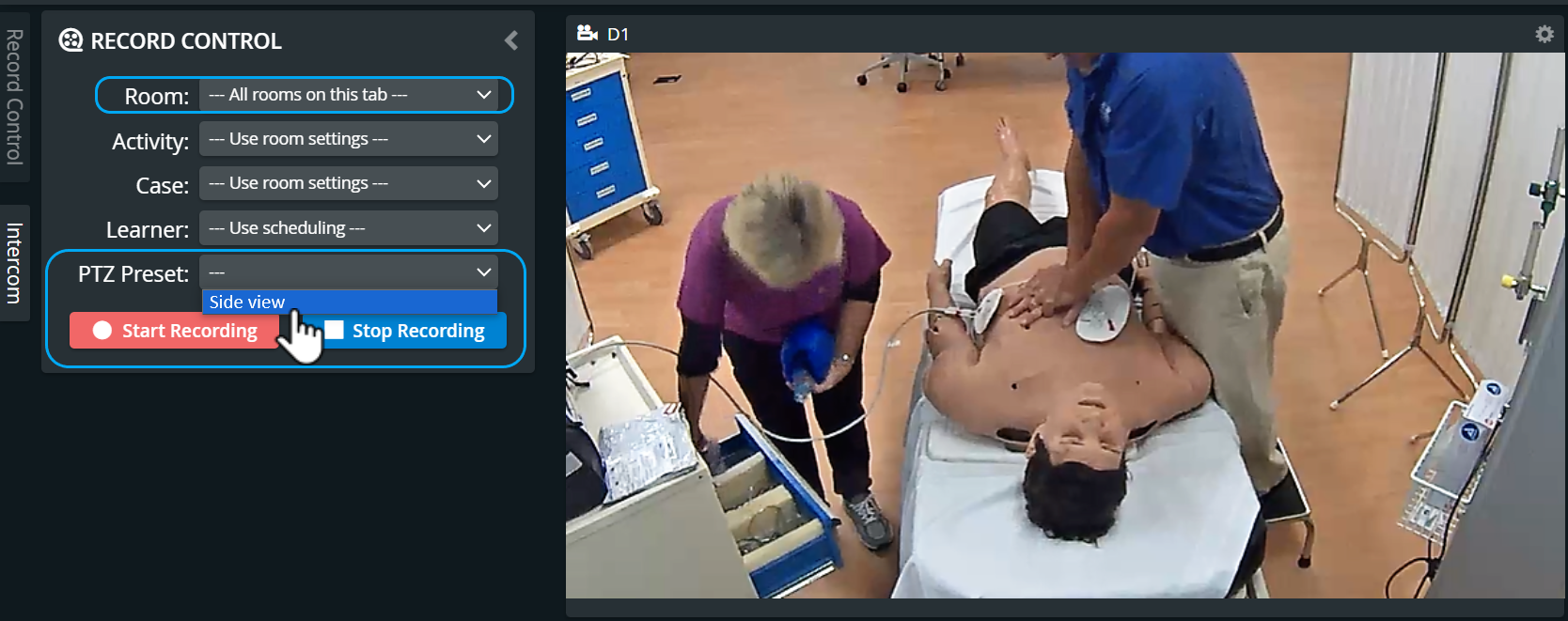
The names of the identical preset positions will appear as one term (e.g., "Close-up") in the PTZ drop-down list.
Select the term and apply the view to the rooms the preset was created in.
Important
Each preset position needs to be created independently in each room.
A camera position setting of a room cannot be copy-pasted to another room.
For more information, visit our Recording Module and Recording Module Training Video pages.