How to Add Cases to Sessions
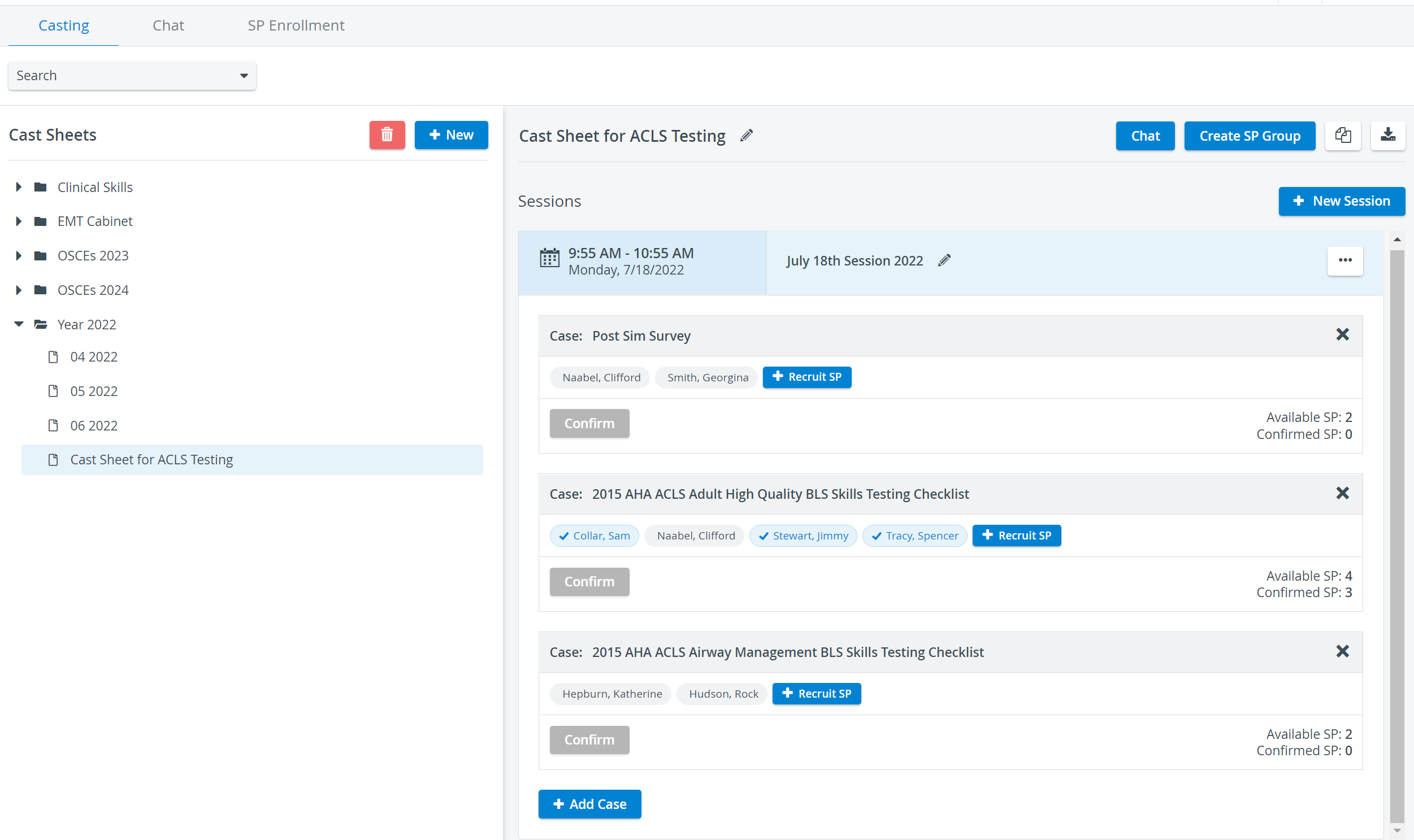
After creating Sessions inside a Cast sheet, you can add Cases to request and confirm selected SPs.
Cases in SPA can be easily tailored to the various patient scenarios of your training center: you can import the requirements of existing Cases from your Cases library or add a custom subject to fill in SP search requirements as needed when recruiting SPs.
After adding a Case, you can choose between two subject options:
The duration of each Case (encounter) is in line with the start and end dates of the Session to which the appointment was added.
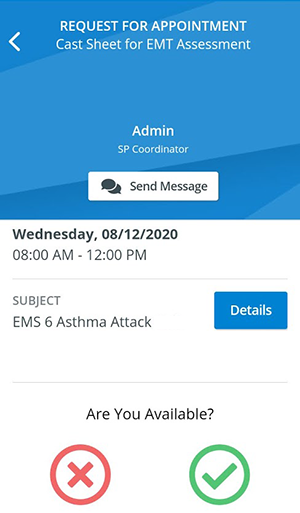
Your selected SPs will receive requests via the SPA Mobile Application, indicating the time and date of the Session, with the Case title or the Custom subject in the subject:
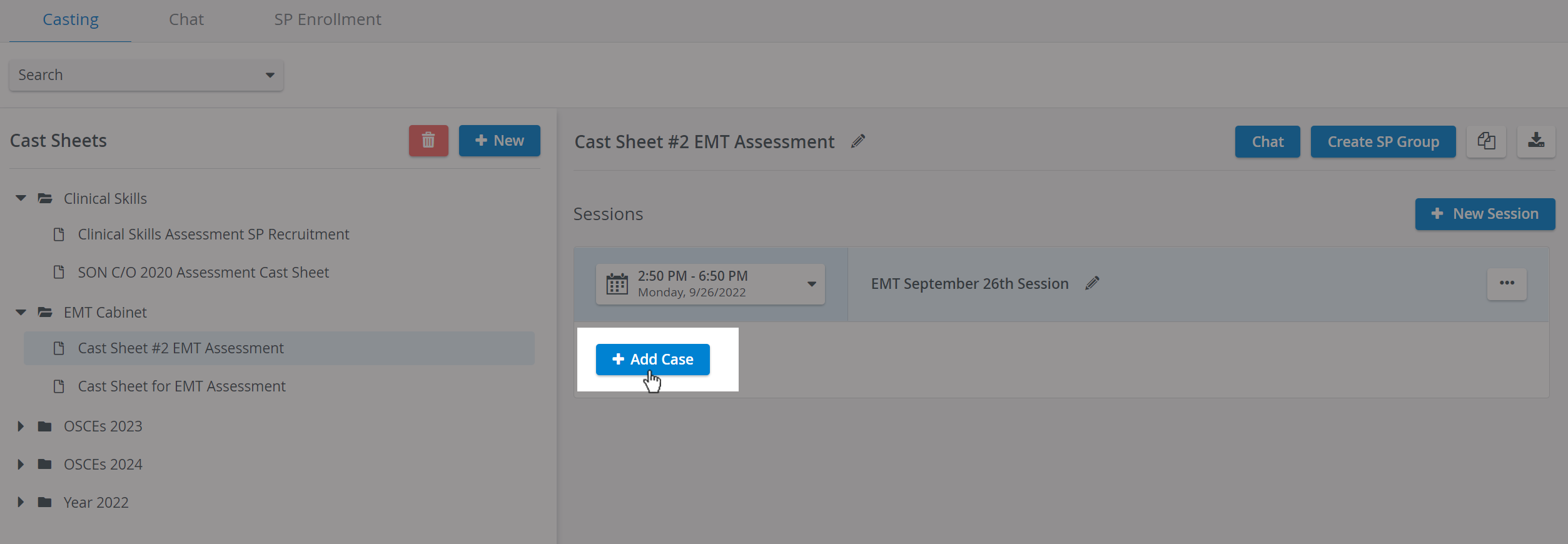
Click +Add Case inside a Session.
You will be presented with a Case drop-down, no Case selected by default.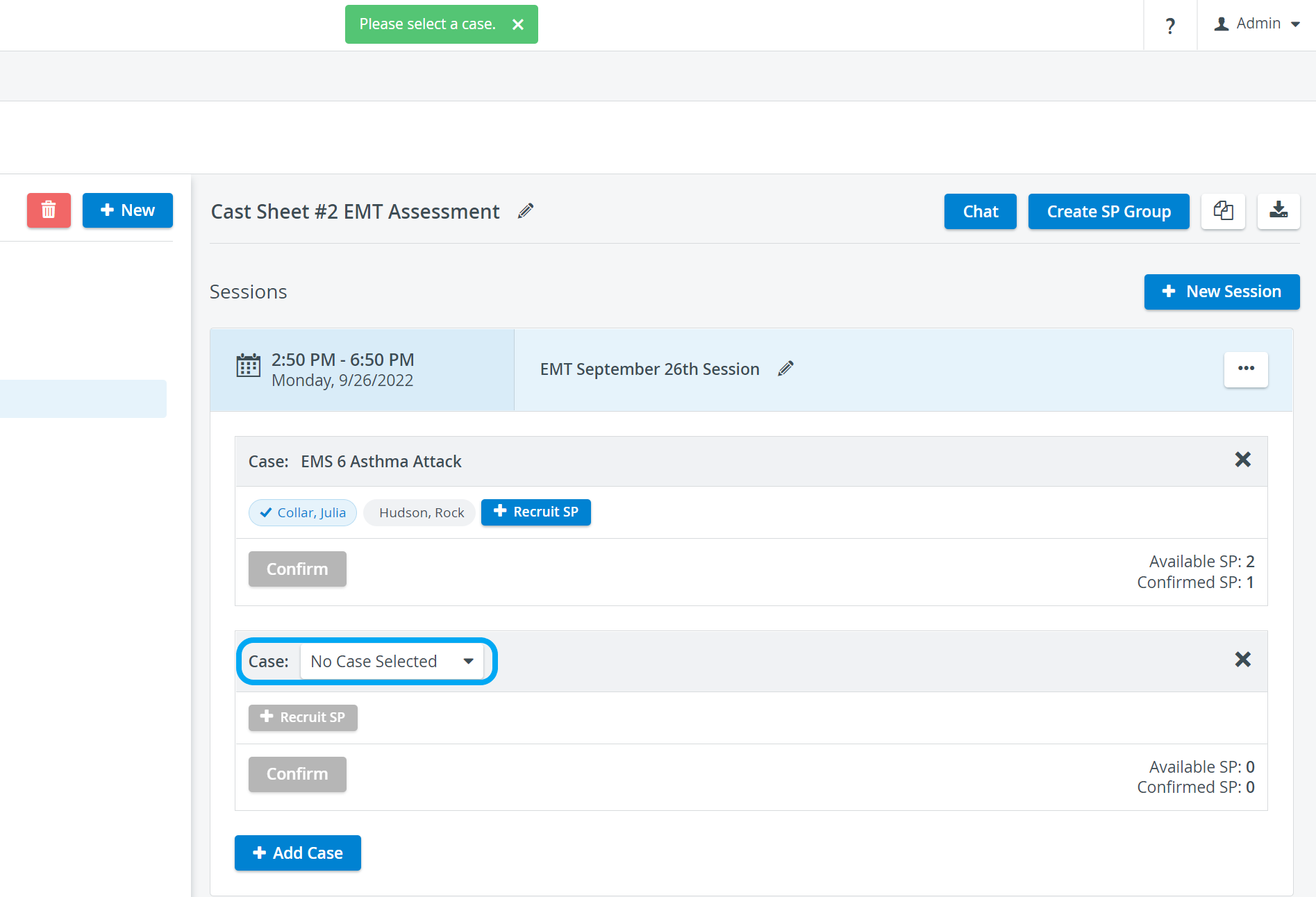
Select a Case from the drop-down or add a Custom subject.
Add Cases to Import Case RequirementsTo add Cases to a Session, open the drop-down.
Search among the existing Cases using the quick search bar.
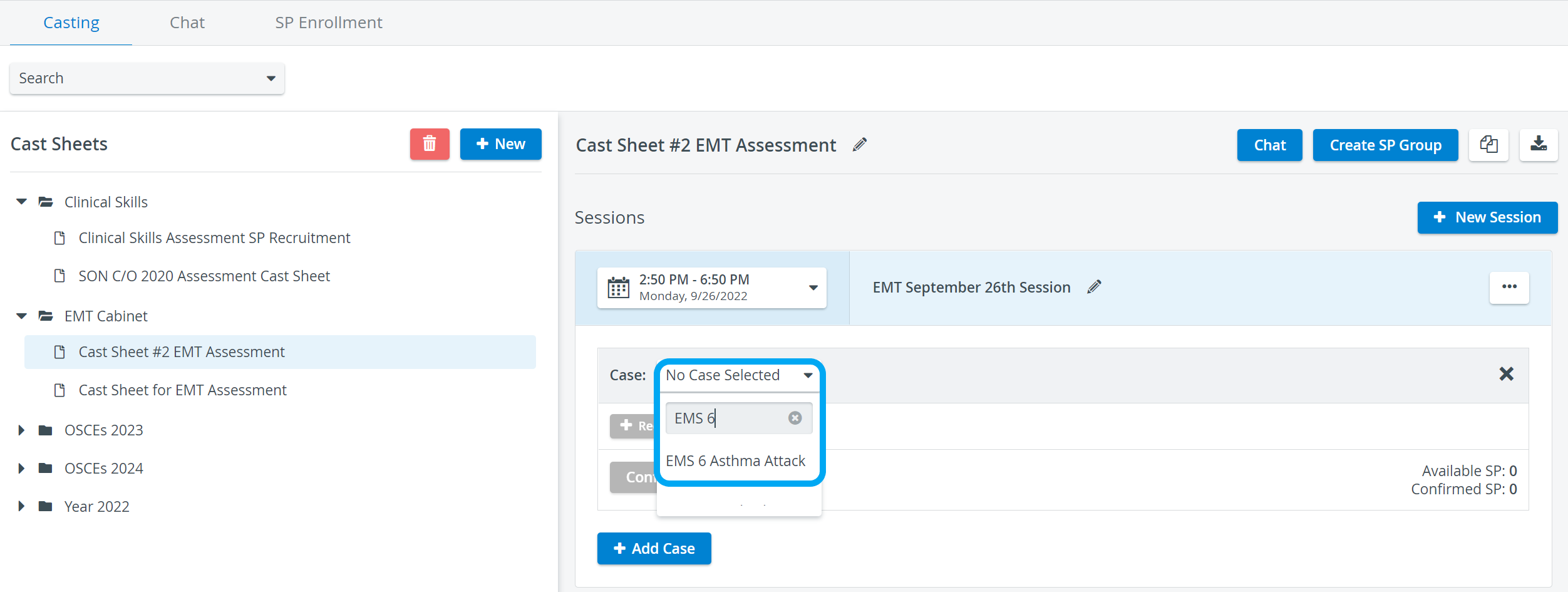
Click on a Case to add it. Your settings will be automatically saved once you have selected a Case from the list.
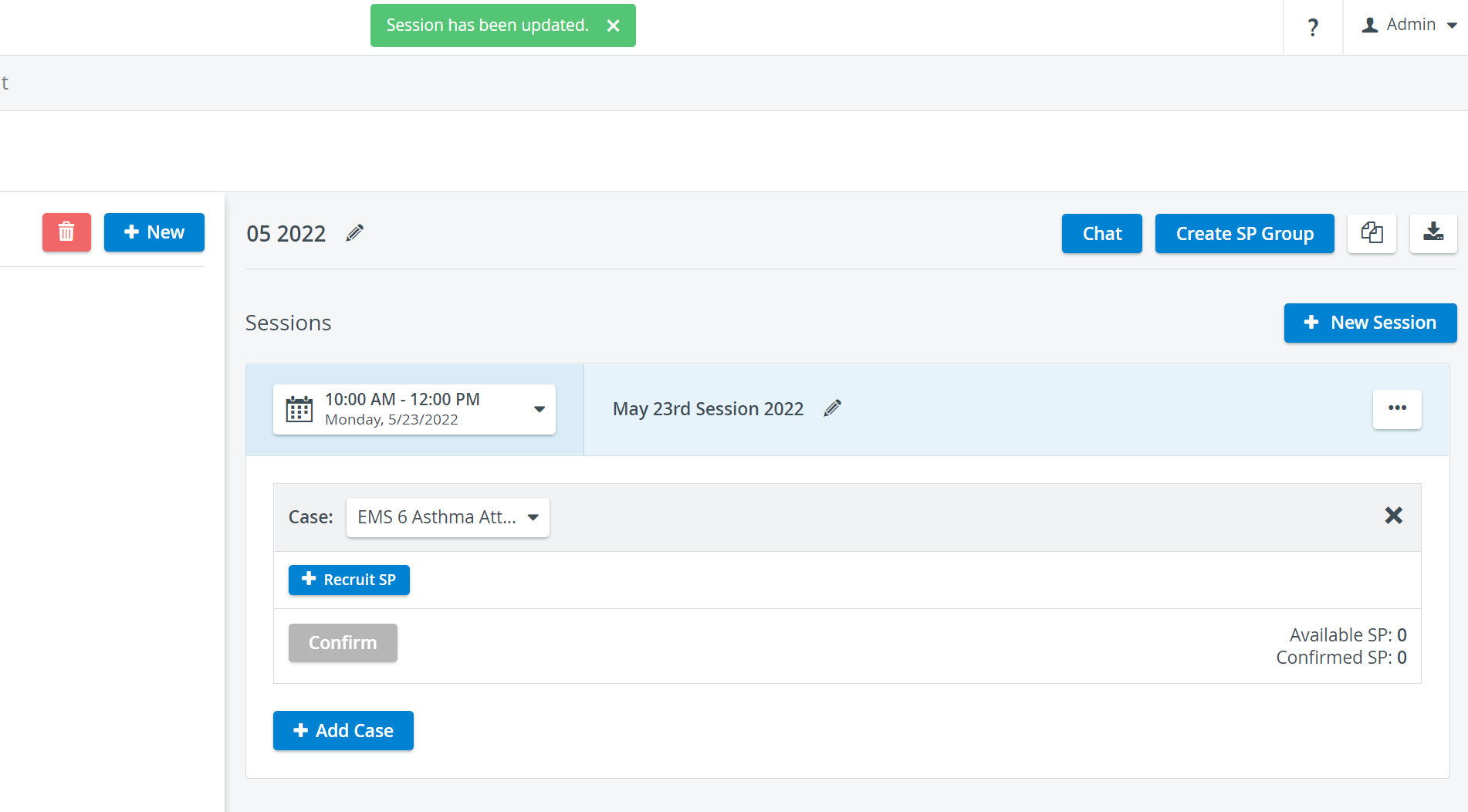
The Case requirements of the selected Case will be imported and can automatically be applied as Filters by a flip of a switch on the Recruit SP popup:
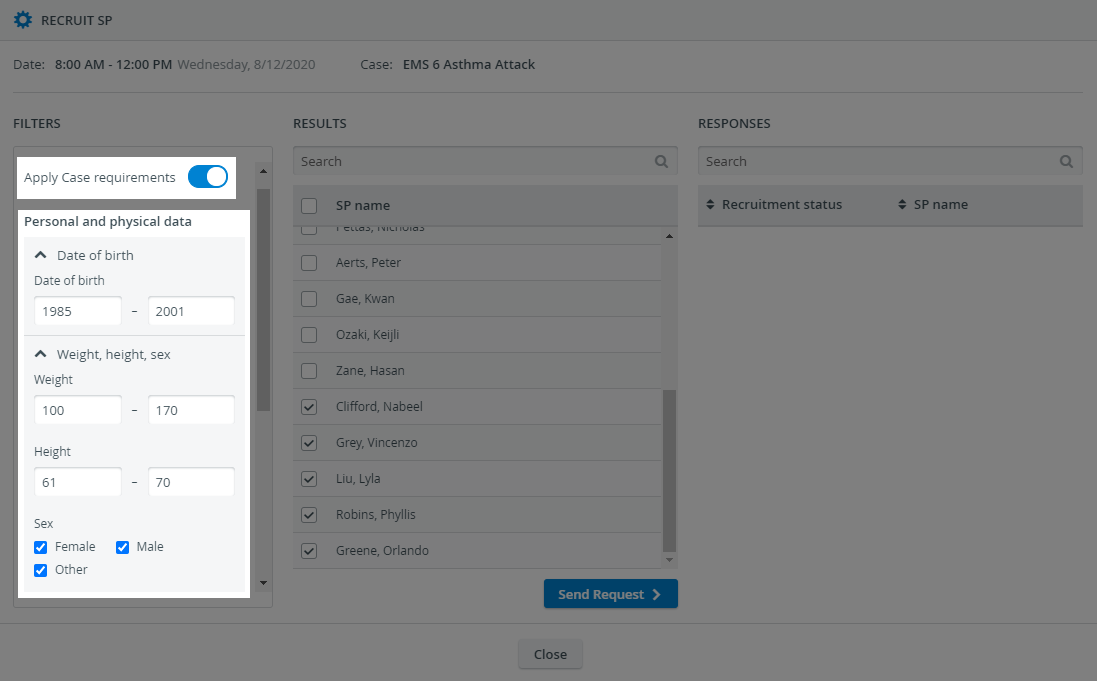
Adding a Custom Subject
You can add a Custom Subject to an encounter if you want to describe it unrelated to a Case. The title of the custom subject will appear in the requests SP receives in their SPA mobile application.
Also, the custom subject description will be added to the Details section of the SP requests.
Open the Case drop-down.
Select the "Custom Subject" item from the top of the list.
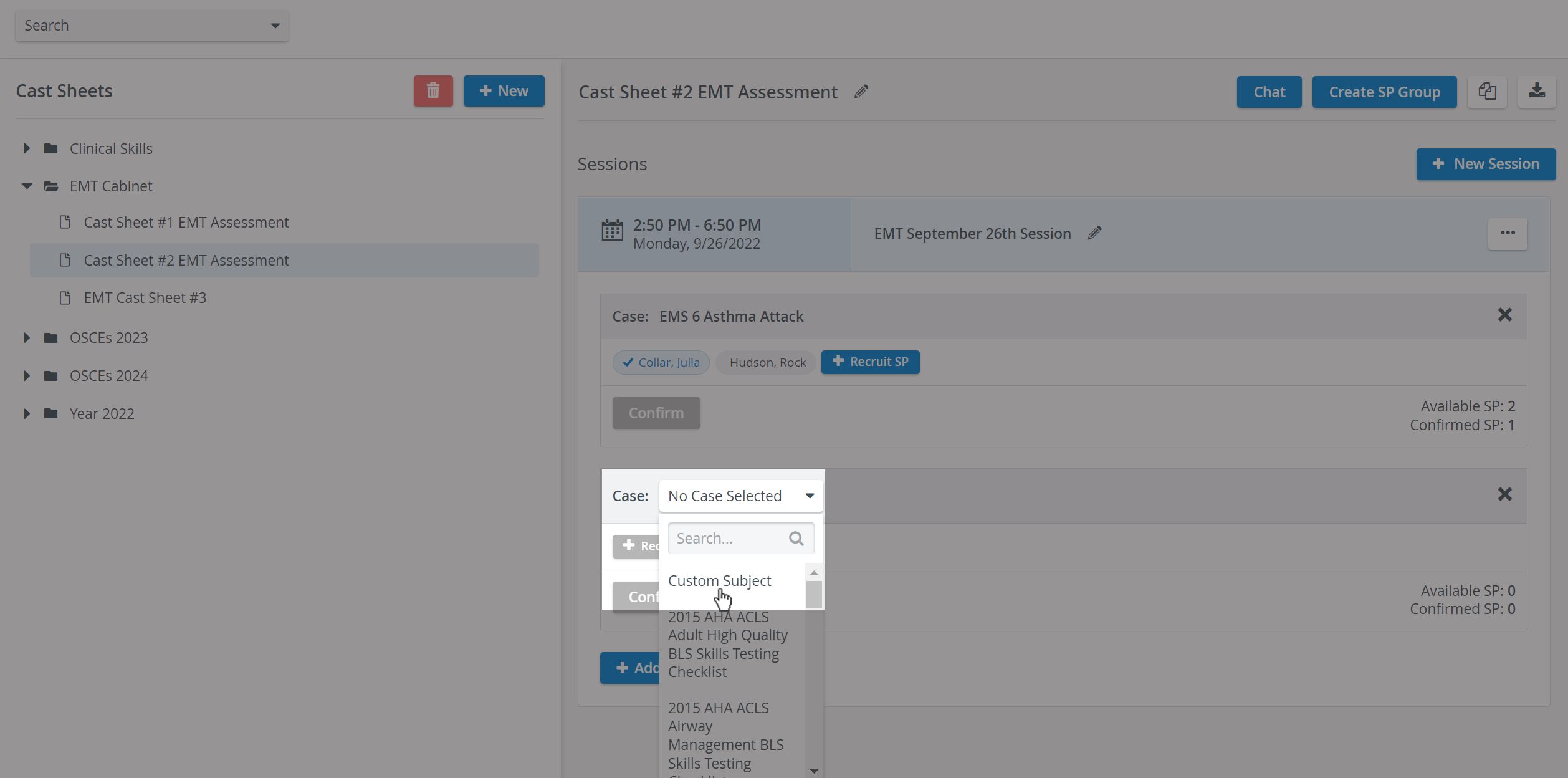
When using the Custom Subject feature, the Case Requirements option will not be available for recruiting SPs.
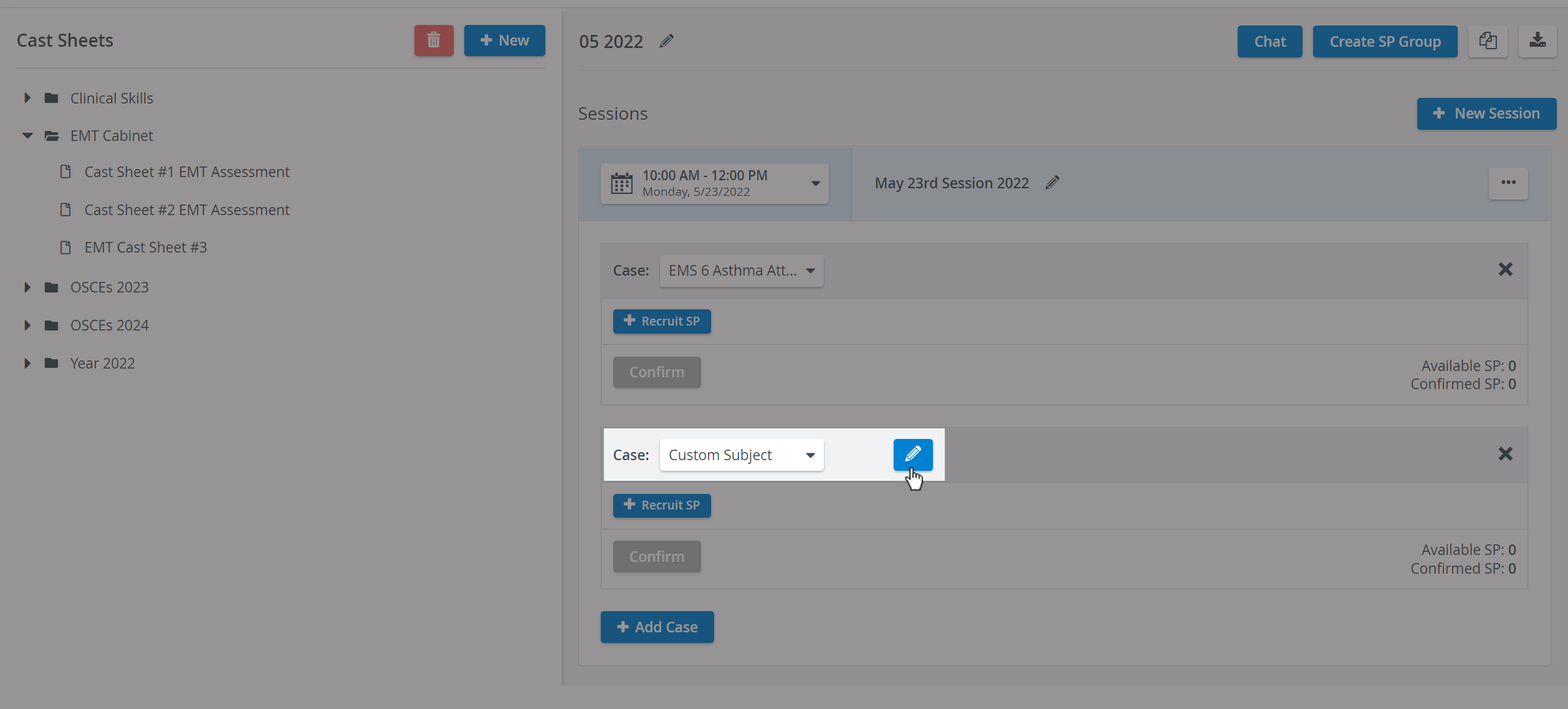
Click on the blue pencil icon to edit the subject and to create a Custom Subject.

Add a new title and description to your Custom subject.
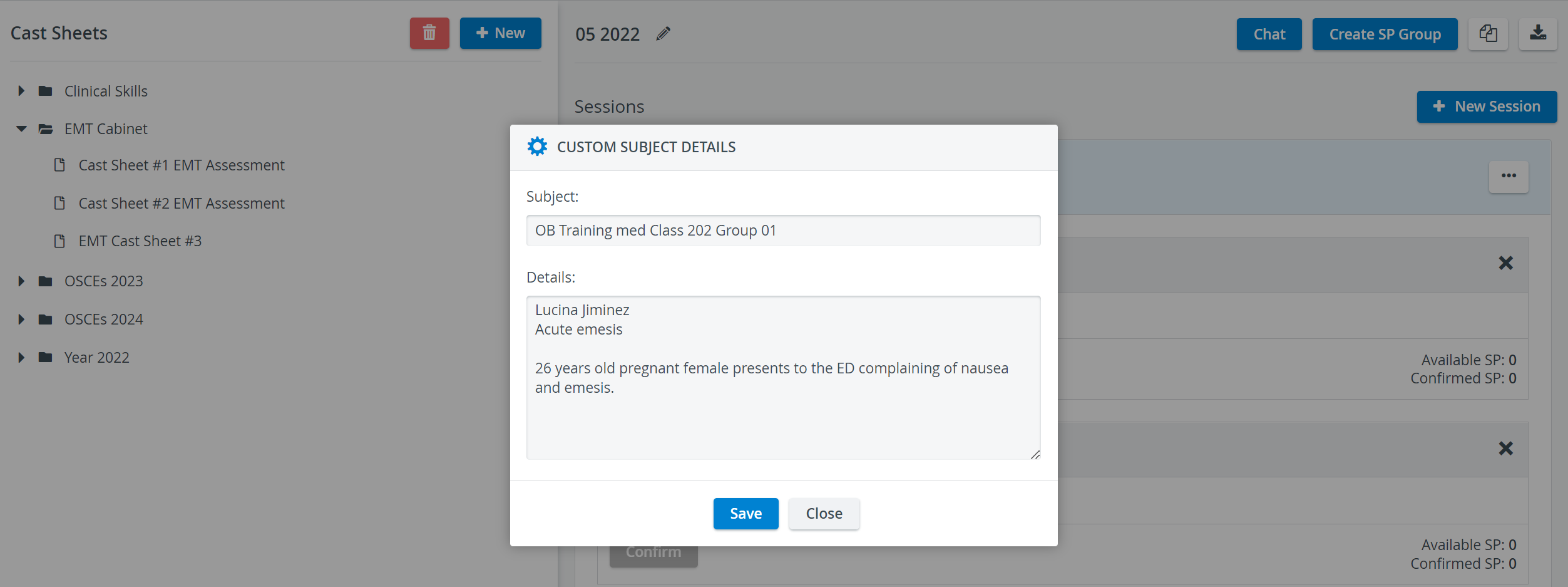
Click Save to have your Custom subject and its details added.
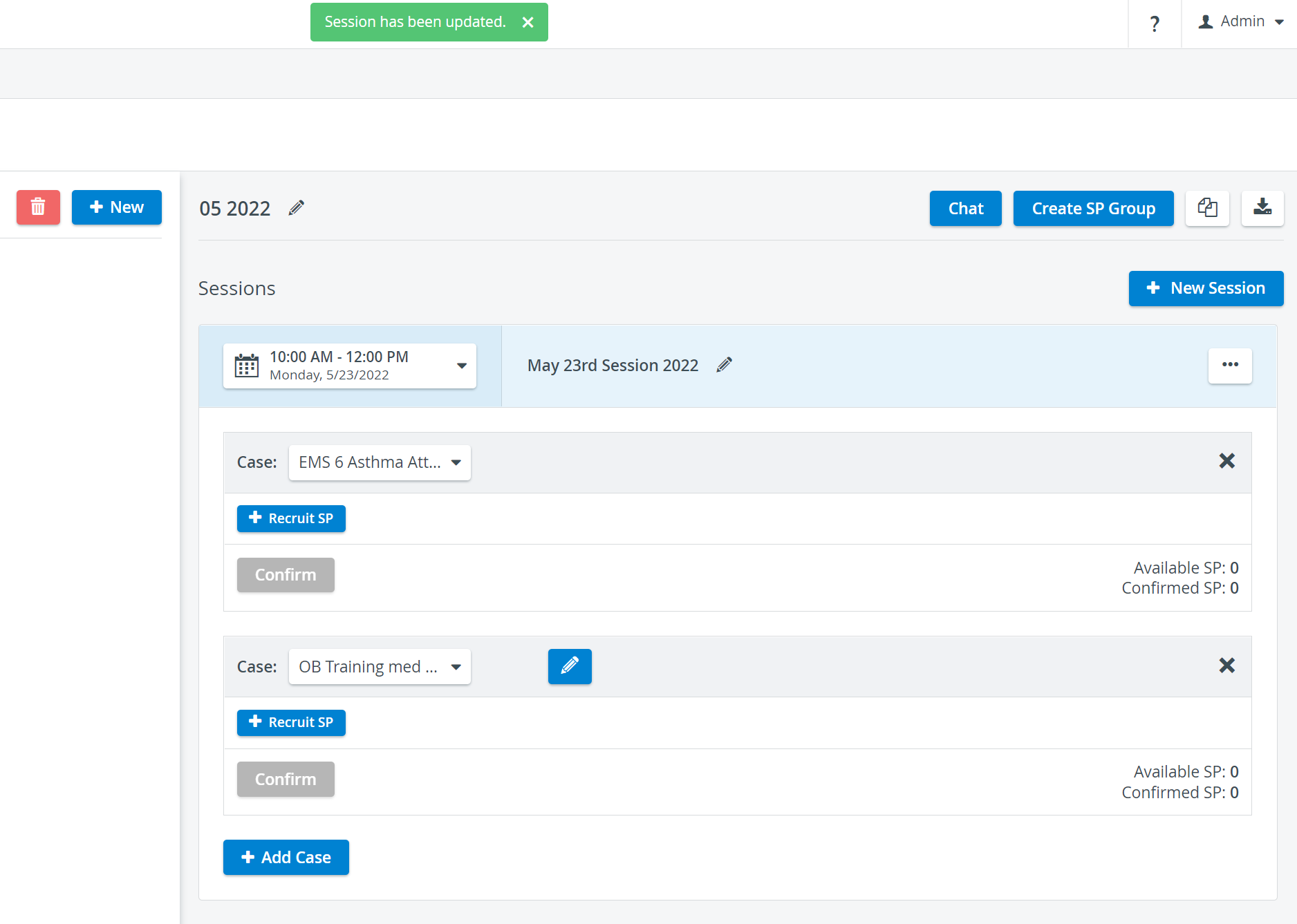
Once you have added your Cases to a Session, you can use the Recruit SP feature to start sending requests to selected SPs.
For further information, visit our Standardized Patient Administration and Standardized Patient Administration - How to pages.