How to Add a New Event in Month View
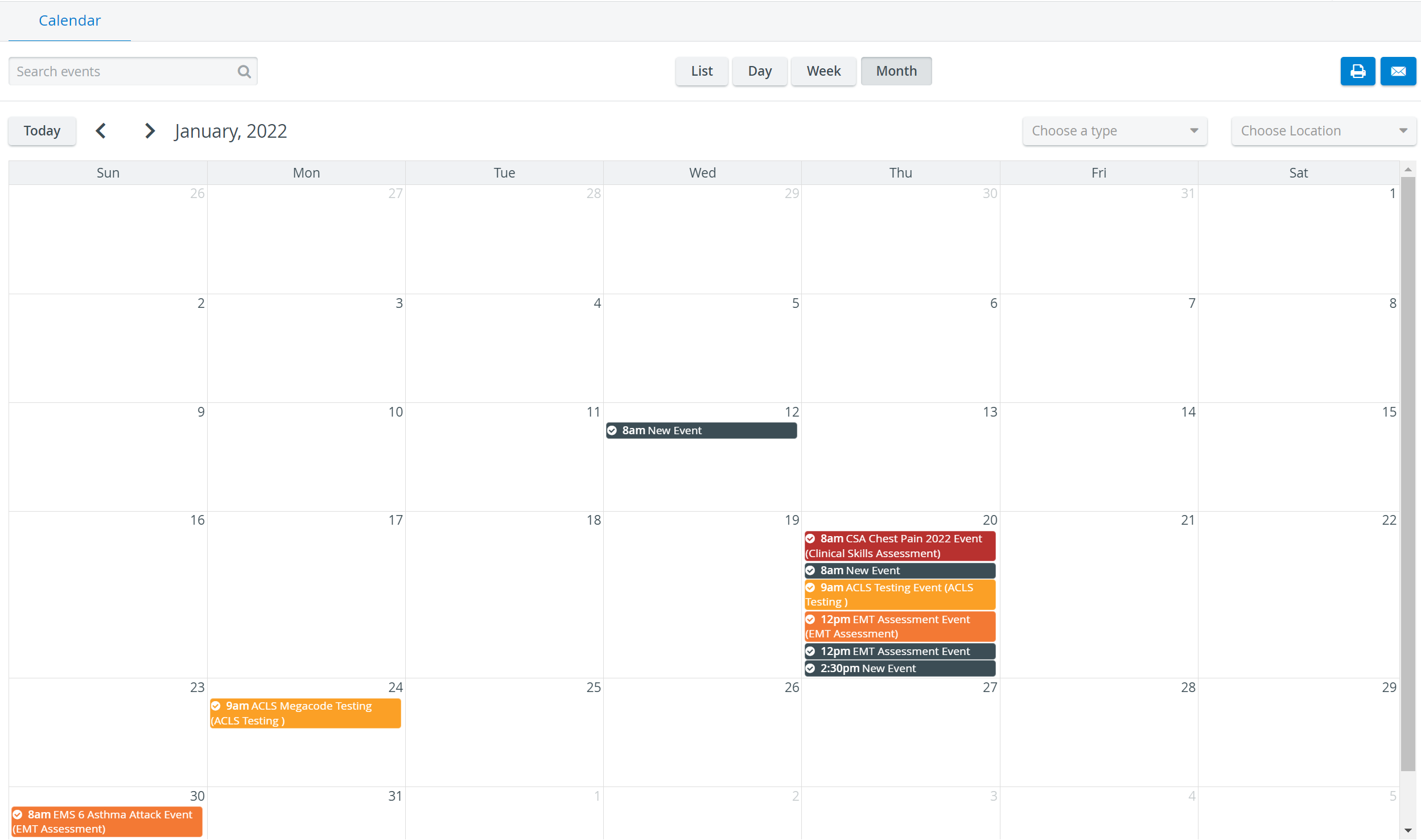
IMPORTANT: Access to the Calendar module is restricted to users with Admin, SRP, or SRP (full control) privileges. A user with either privilege can schedule new events; however, any booking created by a user with SRP privilege has to be approved by a user with Admin or SRP (full control) privilege.
Access the Calendar module and select the Month view.
Double-click the day of the month when you intend to book the Event. The Edit Event pop-up window appears.
Type the title of the Event in the Title field.
The system automatically generates a title, thus if not changed, the newly created entry will be entitled 'New Event'.
4. Adjust the starting and ending time of the Event using the respective calendar icons and the hour and minute sliders within.
5. Set up repetition of the Event, if desired, at the Repeat drop-down.
By default, the drop-down is set to None; that is, the Event is not repeated.
6. If repetition is set up, the End repeat drop-down menu is activated, where the time when the repetition should cease must be determined.
7. Choose the Activity from the drop-down where you intend to schedule the Event.
NOTE: The Activity can be deleted by clicking the X in its field.
8. Make notes in the Notes field, if desired.
9. Add a room(s) by clicking in the Add Room drop-down. The list of rooms can be narrowed by typing the name of the desired room.
NOTE: If any overlap occurs with room selection, a message will appear informing about the scheduling conflict, and the automatic saving will be reversed.
Once a room is added, all further settings (Case, Resources, Participants) will become available.
In Case of multiple rooms, each room has to be assigned a Case, participants and resources on its separate tab.
10. Choose the Case(s) via the drop-down.
The Case drop-down is only available when an Activity within which the Event would be scheduled has been chosen. Only the Cases assigned to the selected Activity can be used.
11. Select participants using the Add Participant field in the Participants panel.
IMPORTANT: Any participant can be added independent of membership in the groups assigned to the Activity. However, if not a participant group member, the user will not be able to submit data entry.
NOTE: Participants, not members of any groups assigned to the Activity, are displayed in an orange frame. Groups, however, are not distinguished, independent of whether or not they are assigned to the Activity.
Add the desired resources by starting to type in the Add Resource field in the Resources panel.
Close the window as all changes are saved automatically.
For further information, visit our Calendar Module and Calendar - How-to pages, or watch our Calendar Module Training Videos.