How to Activate Demo Users
Demo users in the system's sample database were designed to help demonstrate the system's functionalities during training.
Demo users are inactive by default but can be activated for one day, after which they are automatically deactivated.
Privileges
Admins and users with System Manager privilege
How to Spot a Demo User in Your User Database?
Demo users have the Demo user checkbox selected in their Account tab in Users. Open a user for editing to check their demo user status.
Since demo users come with LearningSpace's sample database, the Demo user checkbox cannot be modified, also additional demo users cannot be created.
Bulk Demo User Activation – Activating Demo Users All at Once
Security
Demo users are inactive by default without any password; they are only assigned a password once they are activated.
To prevent security gaps in your LearningSpace installation, demo users are assigned a new password upon activation and deactivated daily during daily maintenance.
You can activate every demo user of the sample database in the General tab of the System module by clicking the Activate Demo Users for Today button.
The button automatically activates every demo user.Once the demo users have been activated, the same password will be set for every one of them.
The system-generated password is displayed in a pop-up.
Note
The Activate Demo Users for Today button overrides all previous settings. This means that if a demo user has been individually activated before, their password will change to the system-generated one.

Important
We recommend that you copy the password before closing the pop-up. Once you close the pop-up, you cannot retrieve the default password from anywhere in the system.
✅ If the pop-up is accidentally closed without copying the password, the process can be repeated to generate a new password.
The daily maintenance deactivates all demo users overnight and deletes the system-generated password.
Activating Individual Demo Users
Demo users can also be activated in Users one by one by deselecting the Inactive checkbox in the Account tab of the Edit User pop-up.
Open a demo user for editing and deselect the Inactive checkbox.
Important
In case of individual activation, the user in charge of activation must enter the demo user's password in the Edit User pop-up. Otherwise, the activated user will not have a password.
Similarly to bulk demo user activation, individually activated demo users are also deactivated overnight daily during daily maintenance.
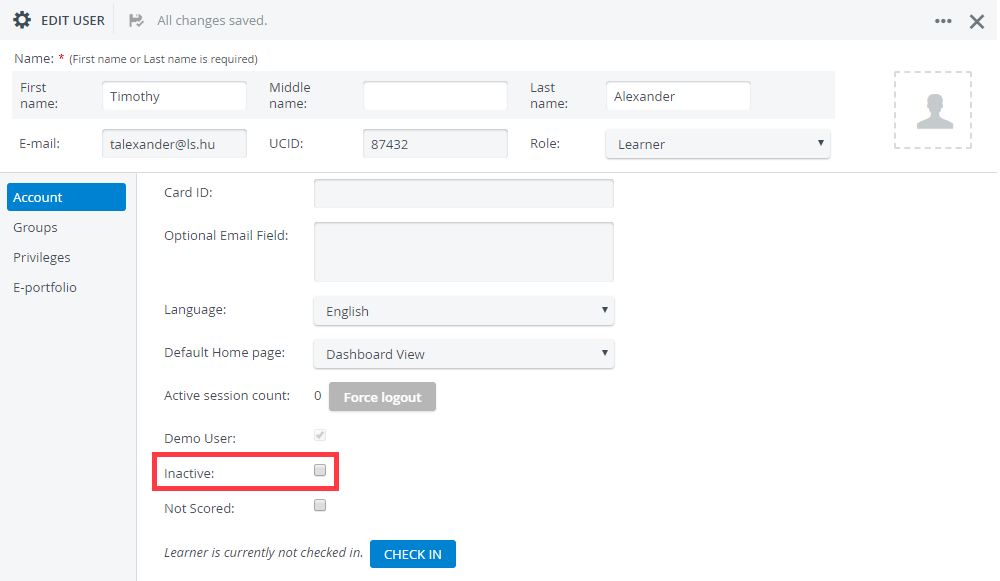
Activated Demo User in Users
Learn more on the System Manager help site pages.