How to Access the Intercom - CO
Important Note for Enterprise Lite Users
This feature is for use with in-campus audiovisual (AV) inputs. Hence, it is not available for LearningSpace Enterprise Lite, which is used for web-conferencing-based virtual simulation encounters only. To unlock this feature, please upgrade to the LearningSpace Enterprise solution.
Available to users with Intercom privileges or Admins. This page explains how to use the Intercom in Center Overview.
Intercom in Center Overview
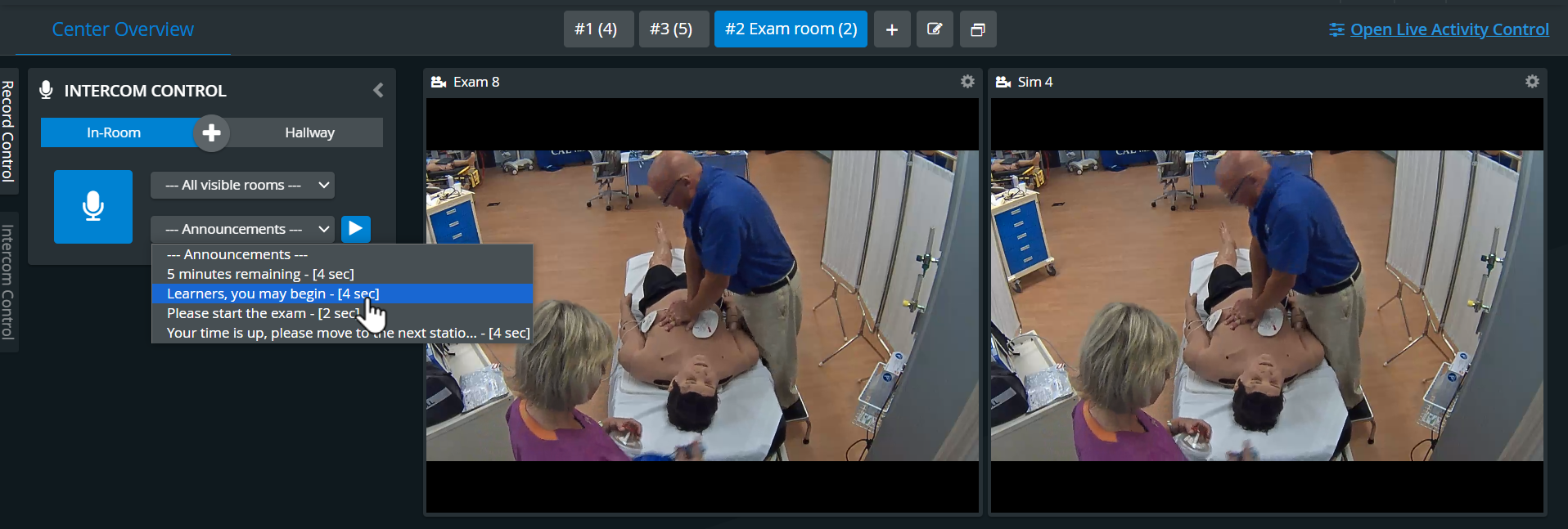
The Intercom panel is located on the left side of the Center Overview (CO).
When entering CO, the panel is minimized by default; click on the panel to display it.
You can also display the Intercom panel using Window Layout Settings in the upper right corner of CO.
Send live or recorded audio announcements with the Intercom to the authorized hallway (learner) and/ or in-room (SP) workstations, speakers, or other intercom endpoints set up in the rooms displayed on CO.
Authorized workstations, other intercom endpoints, and preset announcements are set up and enabled in the System. For more details, see How to Set Up Conditions for Intercom.
IMPORTANT: The Intercom functionality of LearningSpace requires the web browser to have access to the microphone of the client PC, which in turn requires a secure HTTPS connection to the LearningSpace server.
That is, the use of the microphone of the client computer can only be conducted with a valid SSL certificate. (This restriction stems from the Chrome browser security regulations.)
To send announcements to workstations, speakers, or other intercom endpoints installed within each room:
a. Use the Push-to-Talk intercom button (short-click and hotkey settings available) for live announcements
Choose the station where you want to send the announcements:
select In-Room
select Hallway
or click


for both.
Determine which rooms should receive the announcements:
"All rooms on all tabs"
"All rooms on this tab"
"All visible rooms" – excludes the rooms that Window visibility controls have hidden.
Or simply pick a room.
Click on the microphone icon and hold while you are sharing your live announcement.

The broadcast ends once you let go of the icon.
b. Send recorded announcements:
Choose the station where you want to send the announcements:
select In-Room
select Hallway
or click

for both.
Determine which rooms should receive the announcements:
"All rooms on all tabs"
"All rooms on this tab"
"All visible rooms" – excludes the rooms that Window visibility controls have hidden.
Or simply pick a room.
Select a preset announcement from the drop-down menu
Send the announcement with the blue arrow icon.

Intercom Hotkey
With the Intercom hotkey, you can send Intercom messages with a push of a key on your keyboard. Once the Intercom hotkey is defined, users with administrator and intercom privileges can use this keyboard shortcut to send announcements.
Your System manager has to define the hotkey on the Intercom tab of the System module, which performs the same action as the Push-to-Talk button on the user interface.
You can access the feature on the following pages:
Center Overview (CO)
Single Room View (SRV)
Live Activity Control (LAC)
For additional information see our Recording Module pages.