How to Access the Annotation Settings Window via the System Manager - Legacy version
Important Note for Enterprise Lite Users
This feature is for use with in-campus audiovisual (AV) inputs. Hence, it is not available for LearningSpace Enterprise Lite, which is only used for web-conferencing-based virtual simulation encounters. To unlock this feature, please upgrade to the LearningSpace Enterprise solution.
Access the System from your dashboard. By default, you arrive at the General tab.
Click the Annotations Settings button. The Annotation Settings window opens:
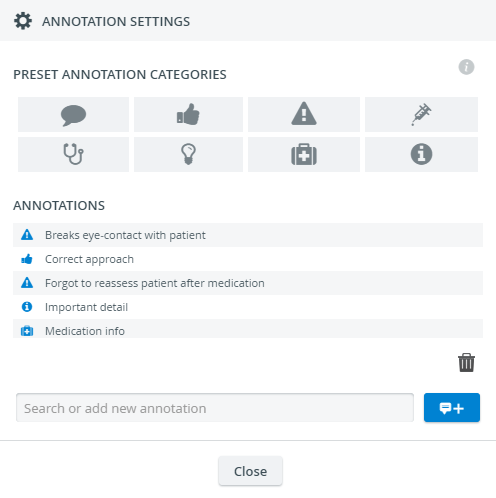
The System Manager's Annotation Settings window does not include color settings because colors cannot be defined for individual preset annotations or annotation categories.
Color settings allow users to color code the annotations they add through their accounts.3. To add a new Annotation:
Select a category by clicking an icon (optional)
If neither of the pictograms is selected, the default category of a new annotation is the thought bubble:

Type the text of the annotation into the field at the bottom of the pop-up
Click the blue speech bubble button next to the field
4. Delete a preset annotation by dragging and dropping the Annotation on the trash bin icon.
Learn more on our Recording Module and System Manager pages, and watch the related Training Videos.