How to Access Data Export
The LearningSpace system lets you download learner records in a "coded" format. This raw data file contains every individual's record. You can export the raw data of results from the Reports & Results tab of the Classic View.
Learn more about Classic Reports here.
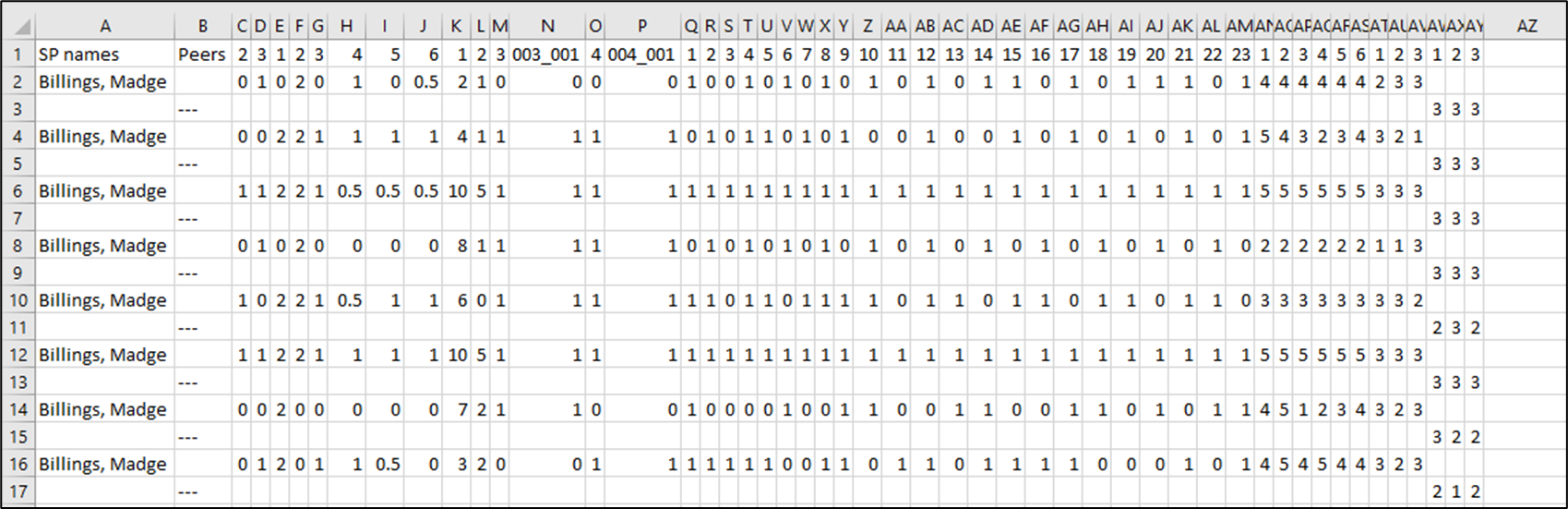
Each line in the exported raw data file is one record consisting of multiple columns delimited by tabs.
The first column contains the names of the learners - ordered alphabetically;
The second one contains the name of the SP who filled in the SP part for the learner.
After this, each column contains the value of the selected answer for an item. In the header of each column, you see a code identifying each item of the case or cases. This code consists of the short identifier of the case—set in the Case Manager—the section's abbreviation and the item's number.
The raw data file contains the value of the selected answer, not its number. Consequently, if multiple answers have the same value, you will not be able to identify which one was selected, just as in this case, it would not make any difference for the student's score: the values are the same, and the score will be the same.
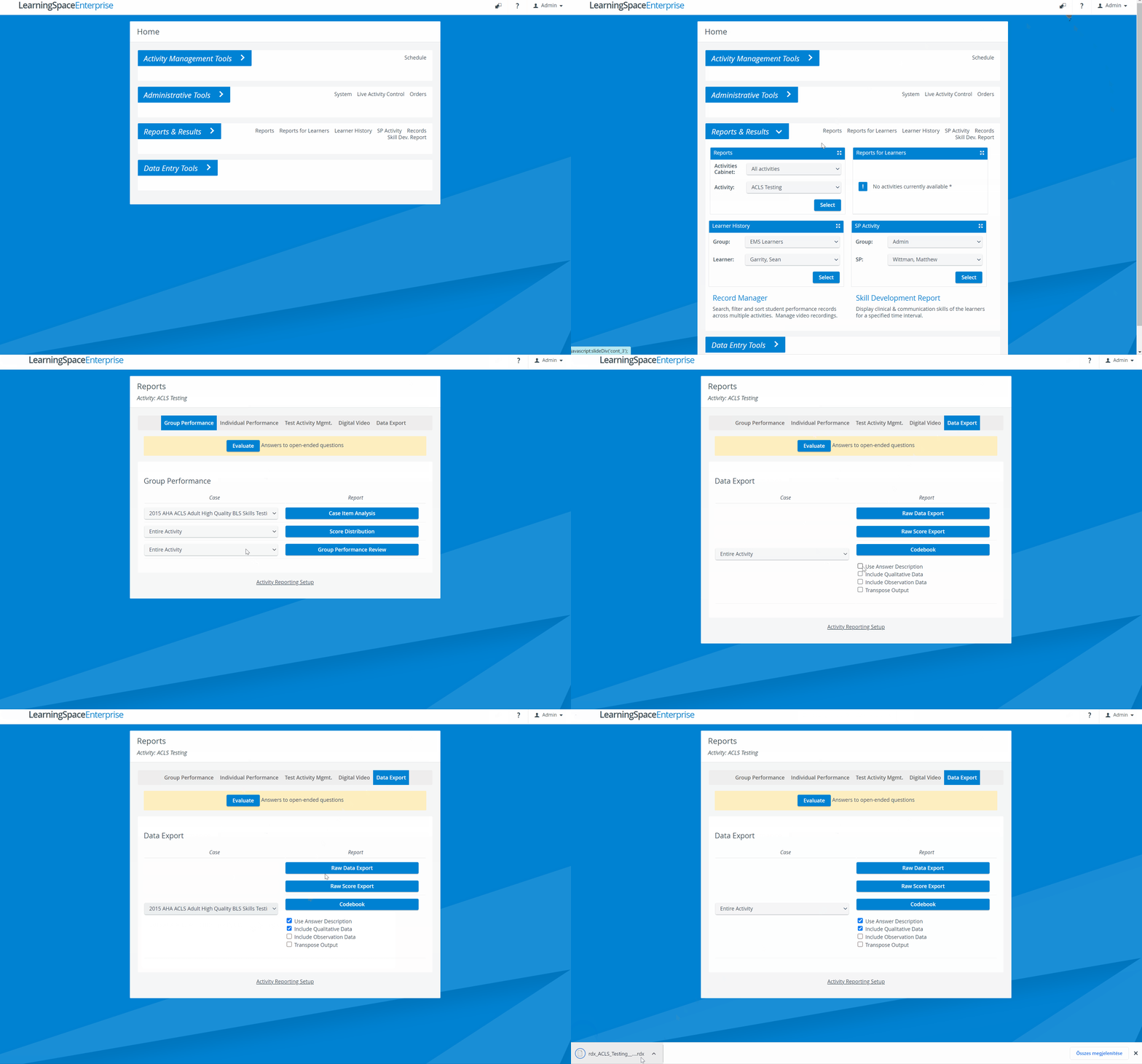
From the Dashboard, switch to Classic View by clicking the diagonal arrow button on the right end of the header (next to the User profile).
From the Classic View Home, click the Reports link of the Reports & Results tab.
The Reports box expands.Select the desired Activity from the drop-down then click Select.
The Reports page for the selected Activity appears.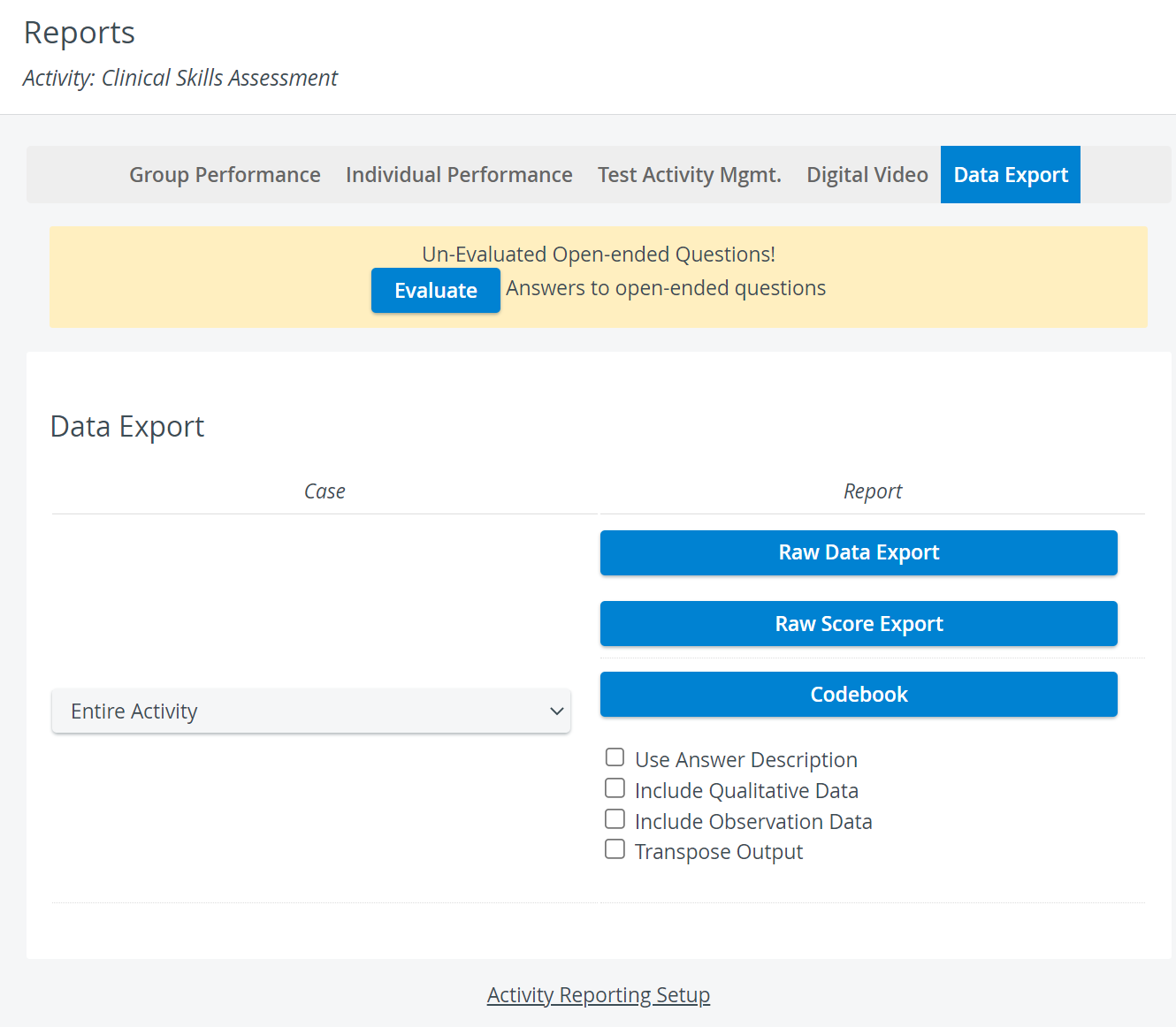
Switch to the Data Export tab.
Choose a Case or the entire Activity from the drop-down menu.
Use the checkboxes to specify optional settings for data output:
Use Answer Description - Answers appear with descriptions (i.e., Yes, No, Red Flag) instead of the assigned point value in the data file.
Include Qualitative Data - Data will include single-line or multi-line text box content in the Raw Data and Codebook files.
Include Observation Data - Data will include answers and values of the SP Performance Assessment in the Raw Data and Codebook files.
Transpose Output - Rows and columns in Raw Data and Codebook files will be transposed

7. Select the desired option for Raw Data Export, Raw Score Export, or Codebook.
Raw Data Export - downloads learner data for an Activity or a specific case. It contains the value of the selected answer, not its number; consequently, if multiple answers have the same value, the distinction between them will not be possible (the learner's score will not be affected).
Raw Score Export downloads learners' section scores and missed items. It includes the learners' name and UCID, the submit date, the section score, the percentage score, missed items, and items partially and fully correct for each section in the exported case.
Codebook - allows users to download a 'code' file that assists with the raw data files in other applications.

The requested data will be offered for download in 'rdx' format for Raw Data and Raw Score Export and in 'cdb' format for Codebook.
How to open the RDX (or CDB) file
Open a new Excel page.
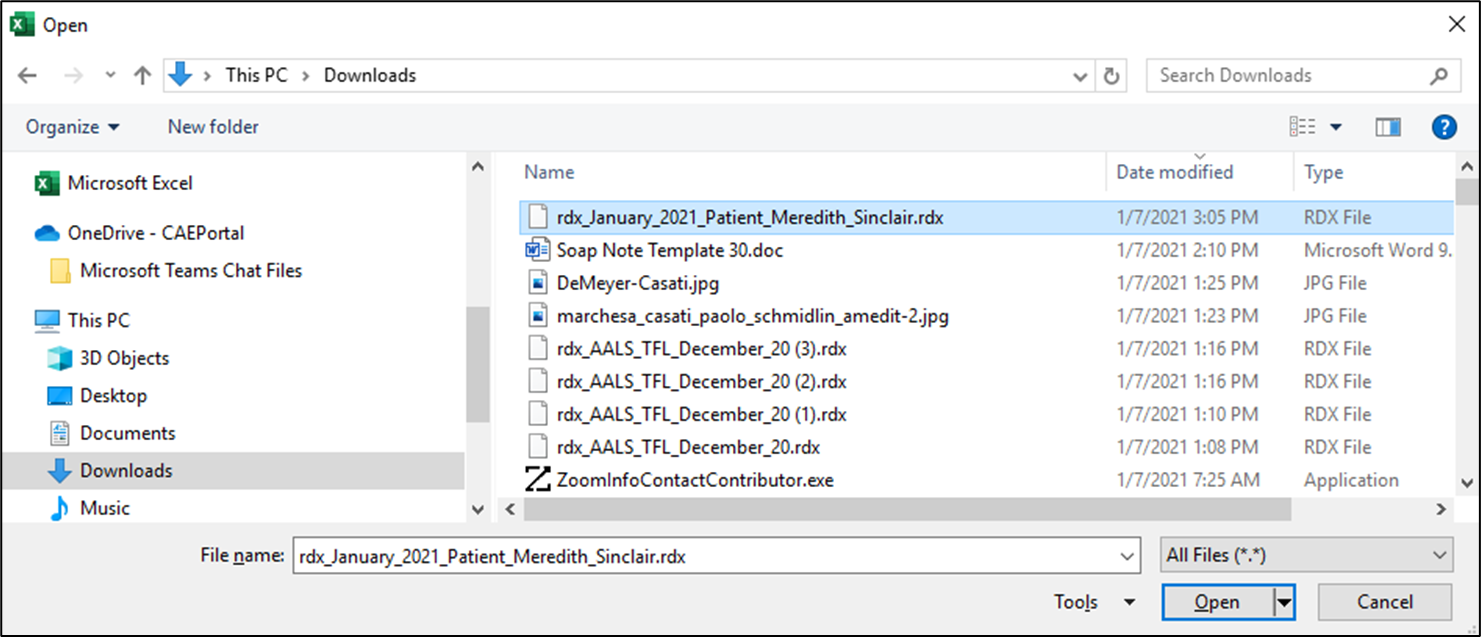
Go to File > Open > Browse.
Change to "All files" and find your .rdx file (probably under Downloads).

Select the .rdx file and open it.
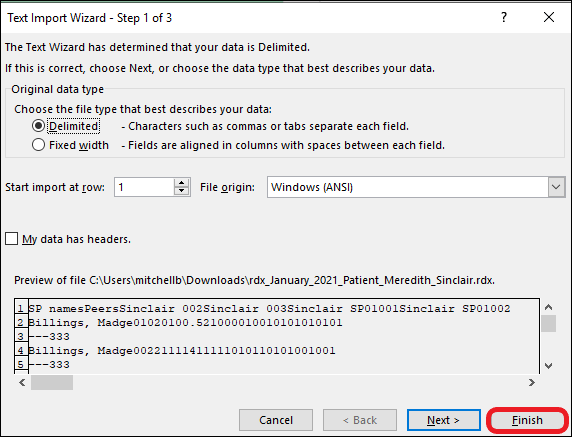
The Text Import Wizard opens.
On the next window, press "Next."
In the "Step 2 of 3" window, select the following and then press "Next":
Delimiter: tabs
Text qualifier: {none}

Click the Finish button to export data to Excel.
The Excel file will populate with the related data.
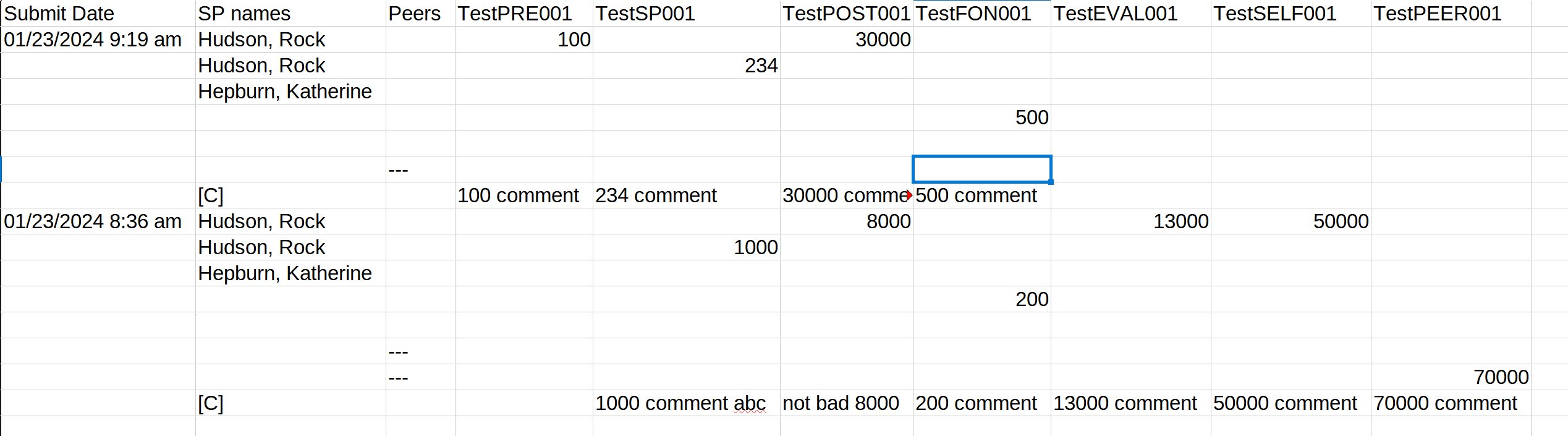
The latest versions of LearningSpace include the “Comments” section from the OEQS Scoring interface in the Raw Data Export. This feature allows users to export their comments along with other data.
See how to interpret the Raw Data Export data here.
Click the logo in the top left corner of the screen to return to the Classic View Home screen.
Learn more on the Reports Module pages, and watch our Reports Module Training Videos.
In the latest versions of LearningSpace, certain Preset reports can be exported into an Excel (xls) file for more convenient management and an essentially easier utilization of the exported data in applications like Microsoft Excel or Google Sheets.
For more information, see 2023 August New Features - Release Notes.
Related page: