How to Access Checklists Filled Out for a Specific Learner
Users with Report Reviewer and Report Reviewer (full control) privileges have access to the Responses tab - for those Activities in which they are members of the assigned Faculty group.
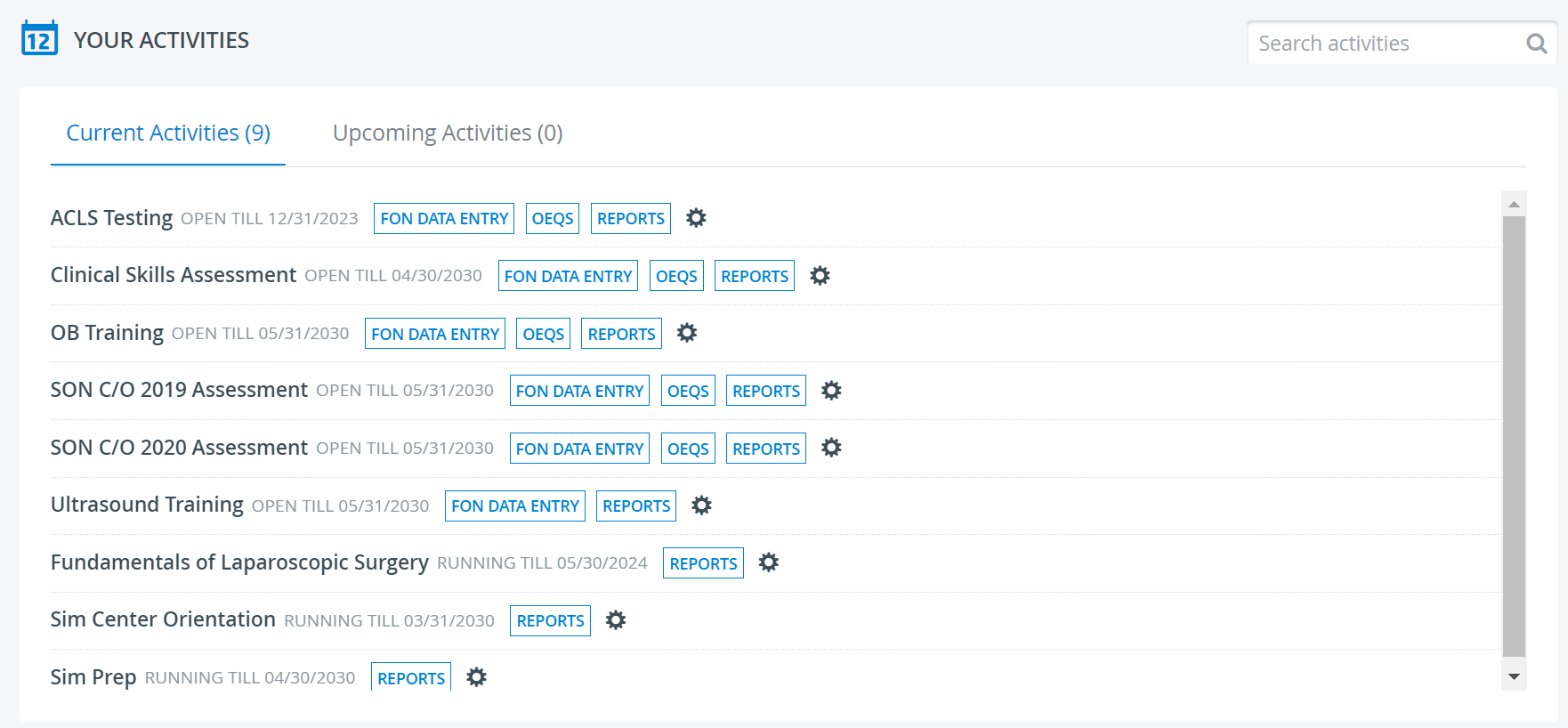
Such Activities are listed in the Your Activities panel on the user's Dashboard.
See also How to Access Filled Out Checklists.
Report Reviewer access may be limited via the Reports tab of the Edit Activity pop-up.
Click the Reports button next to the desired Activity. The Responses tab opens by default.
The button is only active from the start to the end date of the Activity or during the interval determined for Report Availability.
2. Select a Case from the Case drop-down.
Without a Case selected, neither the checklists nor the list of Learners will be displayed.
Once a Case is selected, all the Learners who have checklist(s) submitted in the system belonging to that Case are listed on the left side of the screen.
When no specific Learner is selected via the search bar, item panels on the checklist(s) contain statistical data of all the Learners' results (since the box next to all of their names is checked by default).
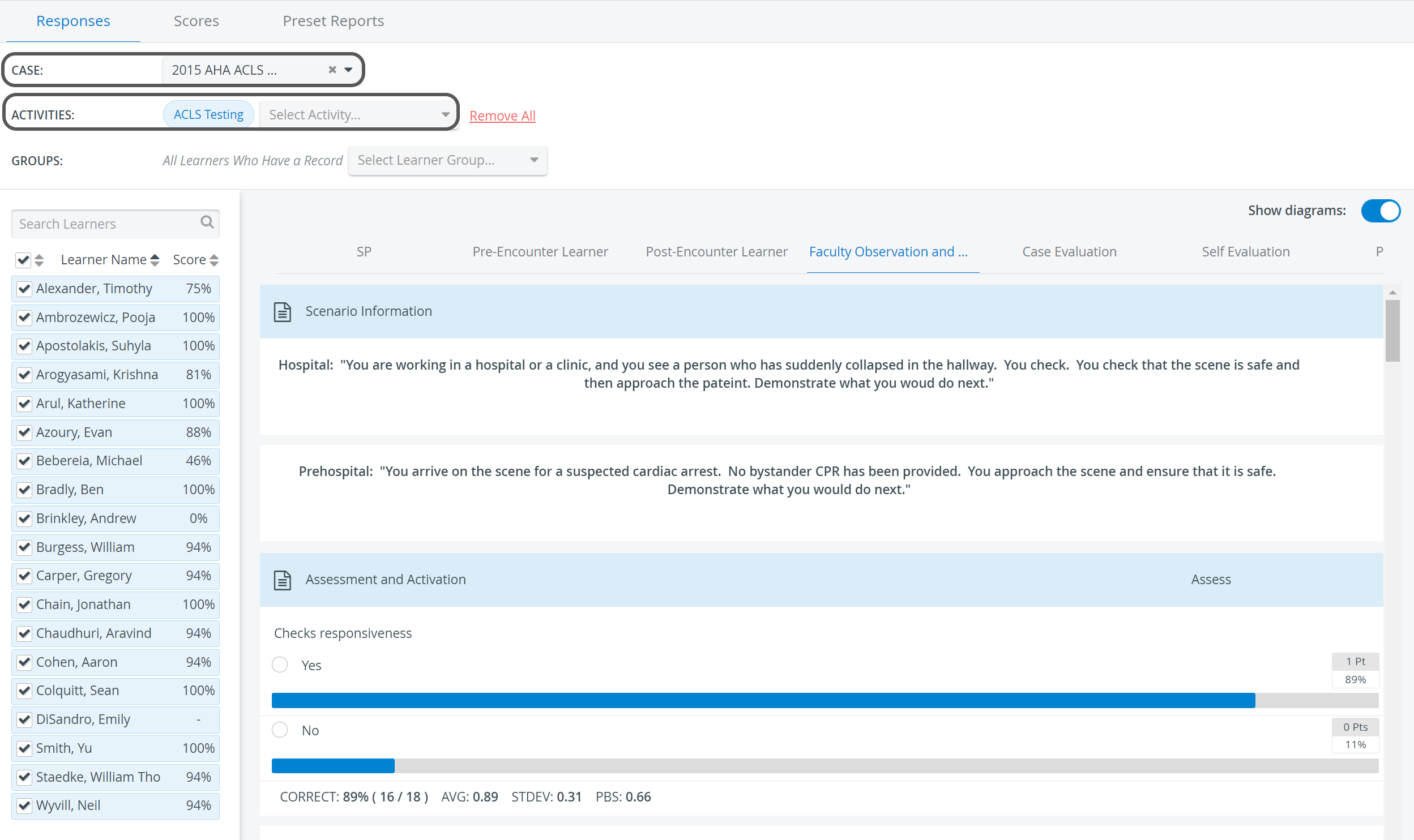
When one or more Activities are already assigned, the Case drop-down distinguishes between Cases (assigned to the Activity) and Activity Evaluation Cases. The former is listed at the top of the drop-down, while the latter is below.
If more than one Activities are added, the union of all submitted checklists for the selected Case is displayed. Therefore, if a Learner submits the same checklist within several different Activities, their names will be listed that many times.
3. Click the headers of the parts tabs to see those not displayed.
In the list, the Learners' scores are displayed in brackets when a relevant checklist includes any Open-ended question that has not yet been scored. If no score is displayed (but a dash) next to a Learner's name, the Learner has opened the checklist but has not submitted it. (Learners who have not opened the checklist are not listed.)
4. Use the search bar above the list of Learners to start typing the name of the learner whose checklists you want to review.
By clicking on the filtered Learner's name - or by checking the box at a selected Learner's name - all other Learners will automatically be un-selected
The selected Learner's score for the specific item will be displayed at the bottom of the item panel, along with visual feedback (green check mark or red X ) on whether the answers were correct.


For more information, visit our Reports Module pages and watch the Reports Module Training Videos.