Handheld Scanning Devices and Barcode Readers
The following Barcode/QR code scanning solutions are recommended for the LearningSpace Inventory module.
The #LS prefix for the Barcode-to-PC scanning application MUST be configured on the devices for them to function correctly. See How to Set up the #LS Prefix for your Scanner.
Refer to the Setup Guides for Barcode Readers page for instructions on setting up your handheld scanning devices/readers.
After pairing with your computer, the scanning device is ready to use in the Inventory module without further installation.
Important: Keyboard Settings
Ensure your keyboard layout is set to US English; otherwise, QR code and barcode scanning will not work properly inside the Inventory module.
Also, ensure that your scanner is set to the US keyboard layout on your computer.
To manage the language of your scanner, go to the Language settings section of your Quick Start Guide and scan one of the following barcodes:
English at the top or
The international keyboard is at the bottom of the page.
After pairing your scanner with your computer, enter the Inventory module and access the feature where you want to apply barcode or QR code scanning:
Make sure that your selected Inventory feature is active. Click inside the pop-up or the feature field to ensure that the scanning details are inserted in the right place.
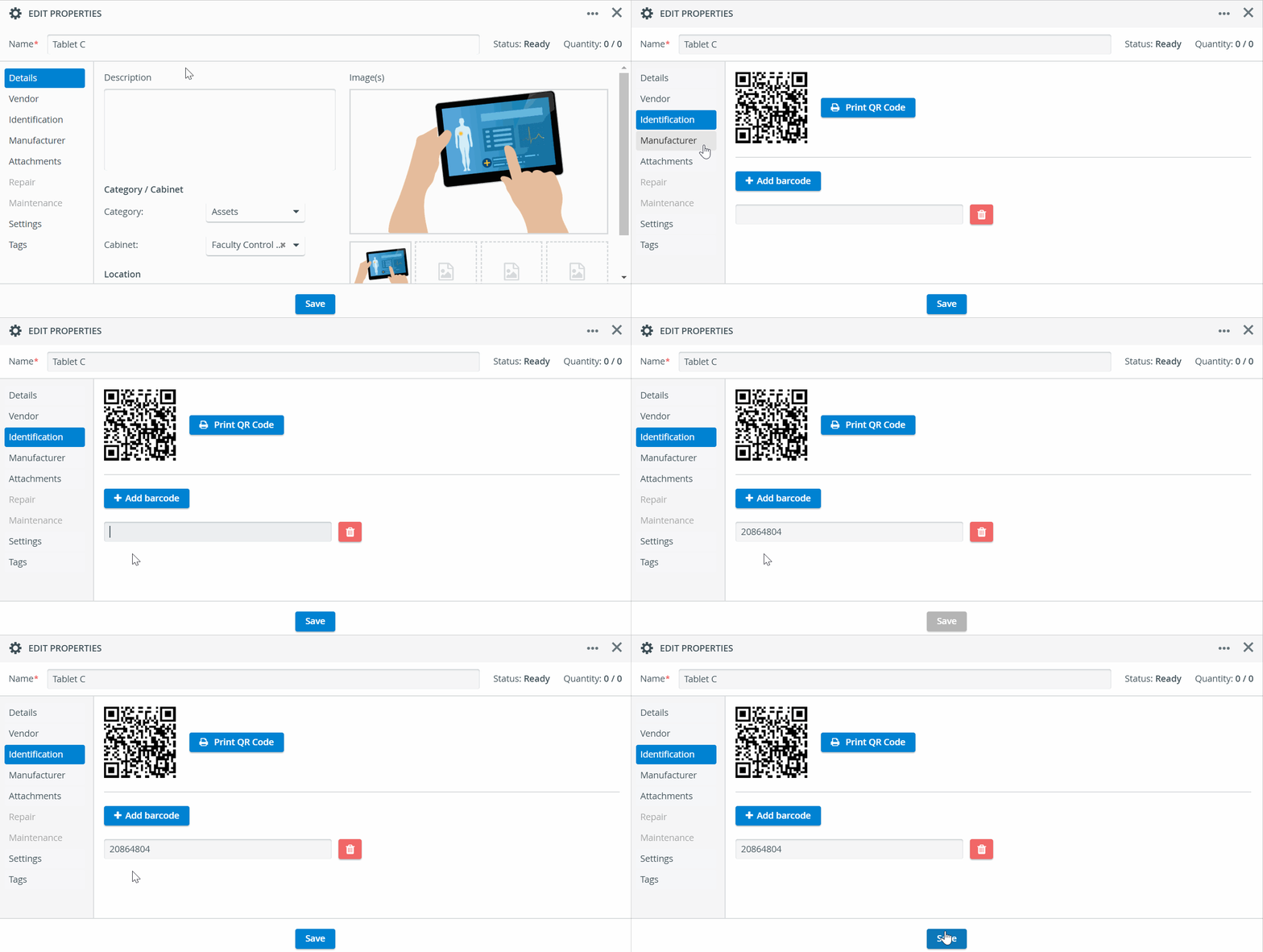
Enter barcodes when editing Inventory items:
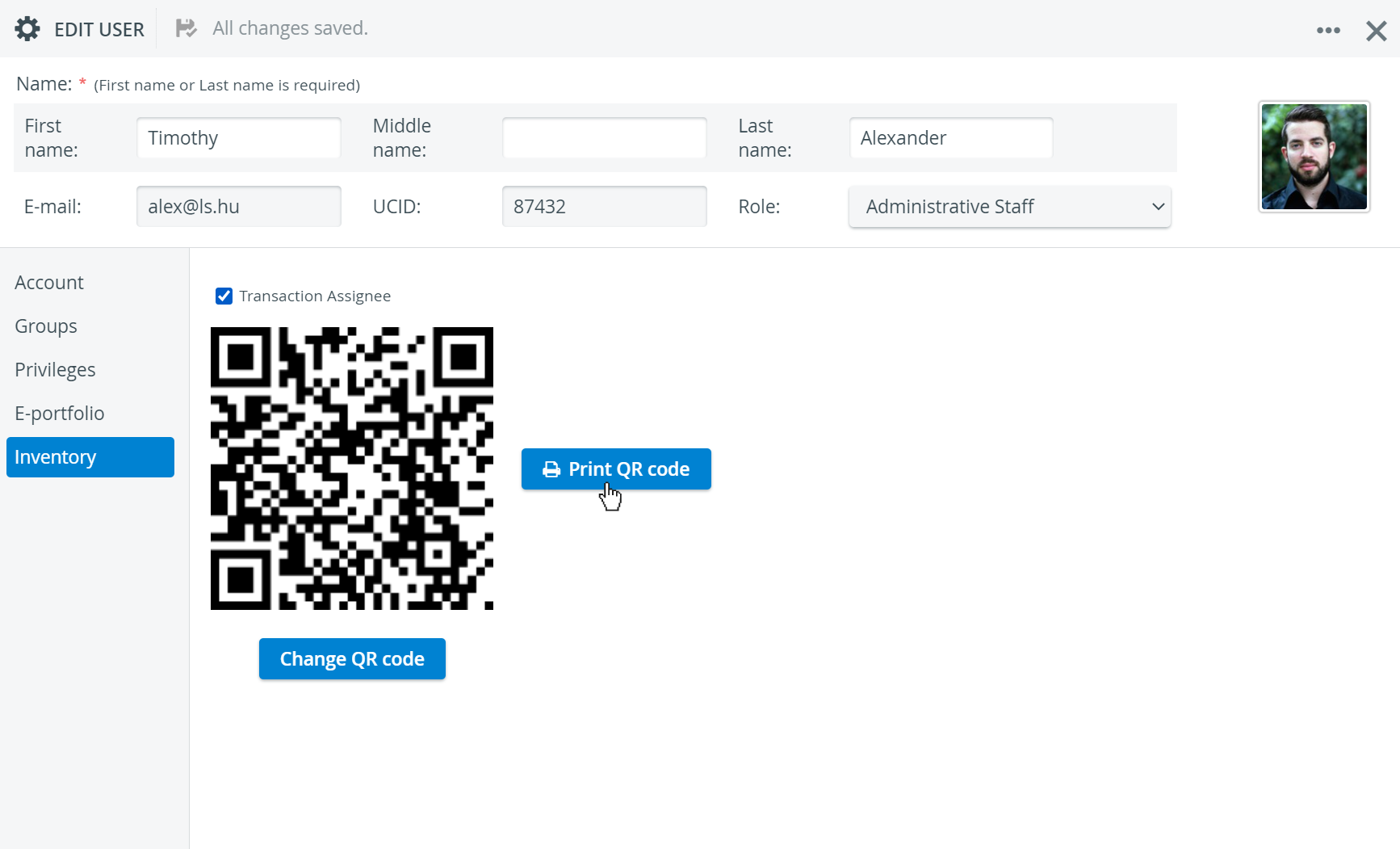
Identify transaction assignees by scanning the QR codes on their badges or ID cards:
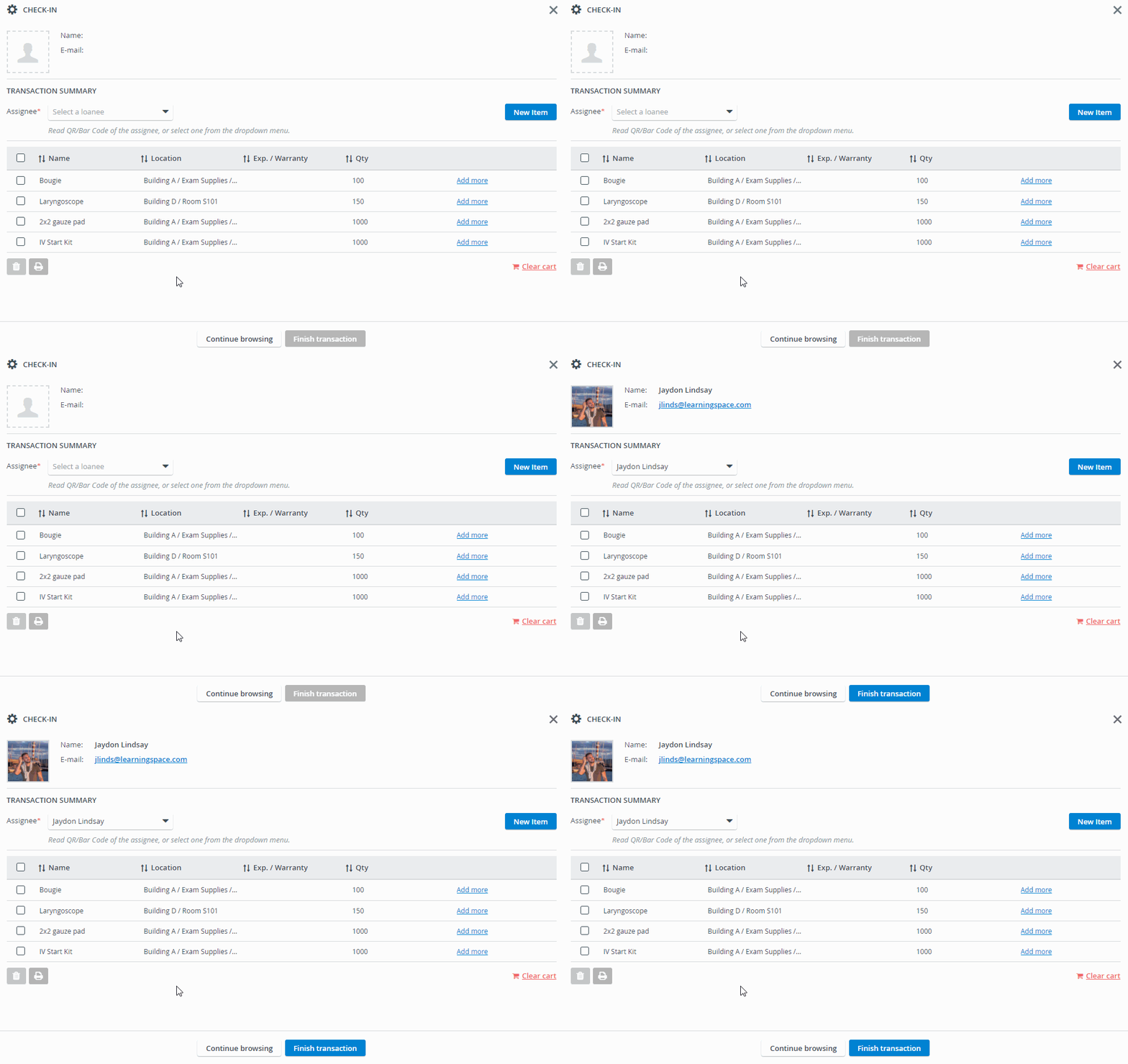
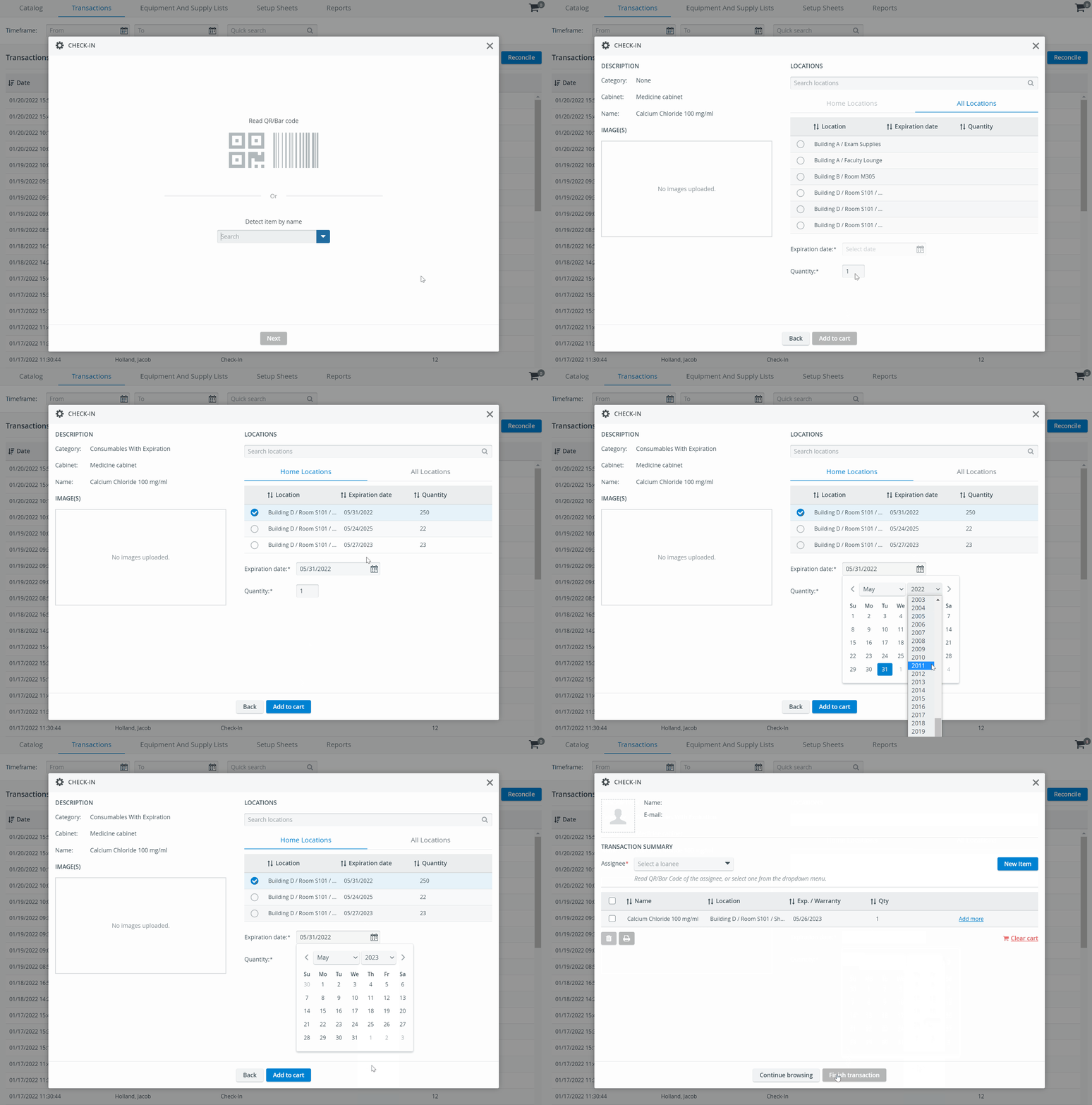
Detect items in an instant when conducting simple Transactions or checking out Setup Sheets for specific events:
Detect an item by its QR code: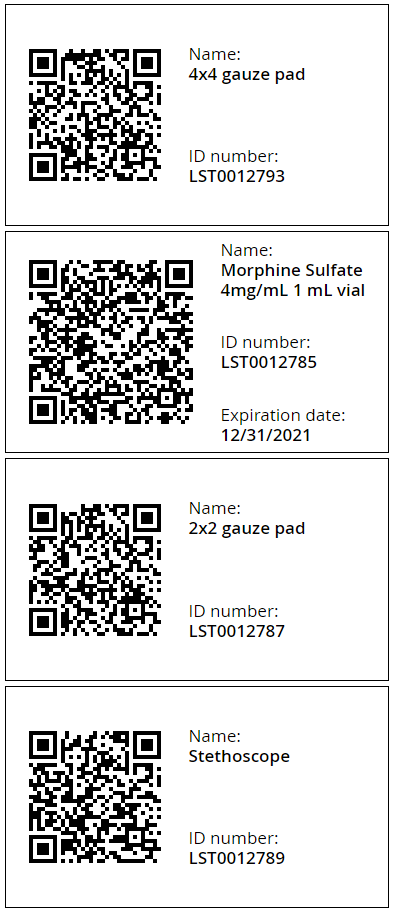
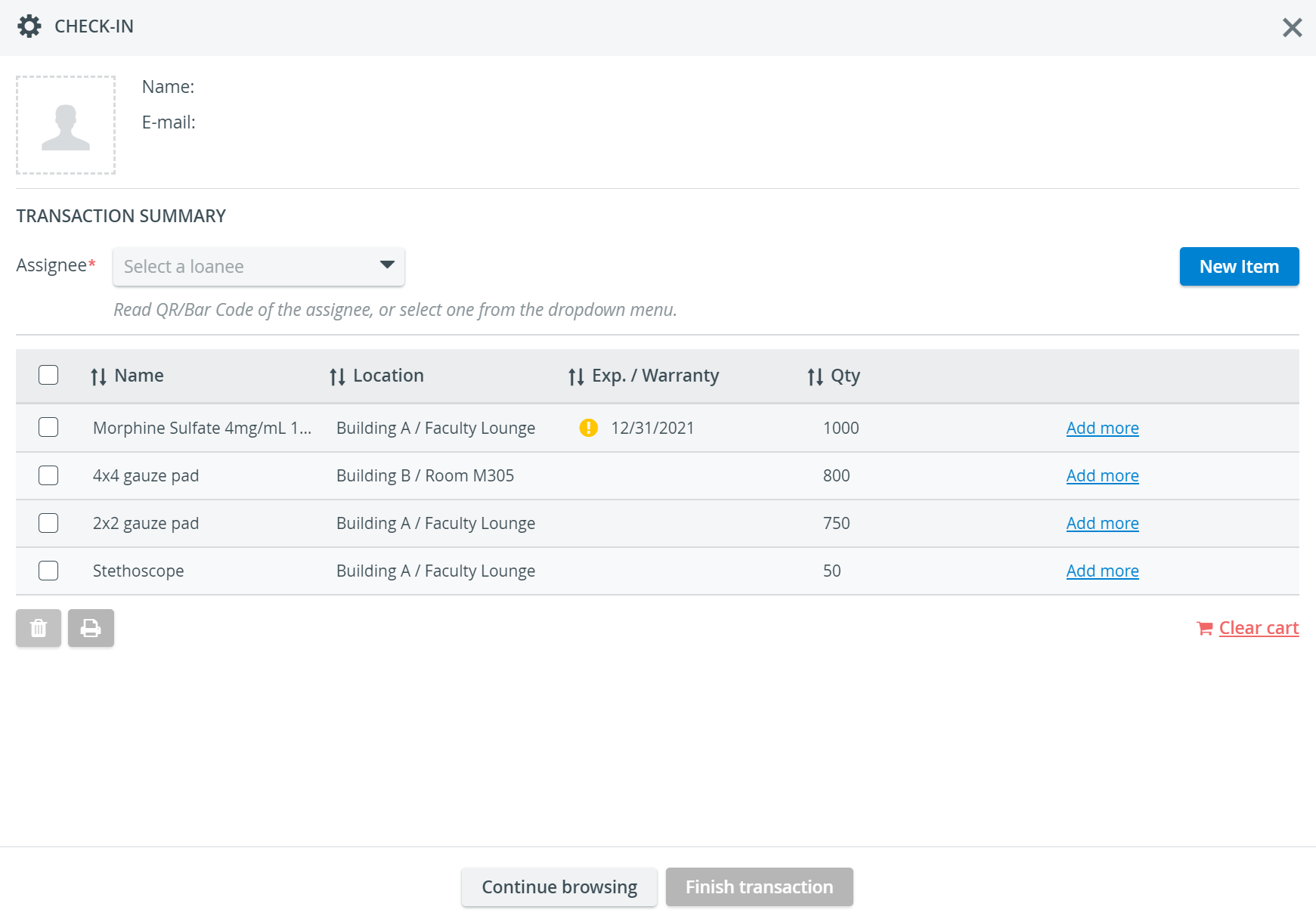
Detect an item by its barcode:
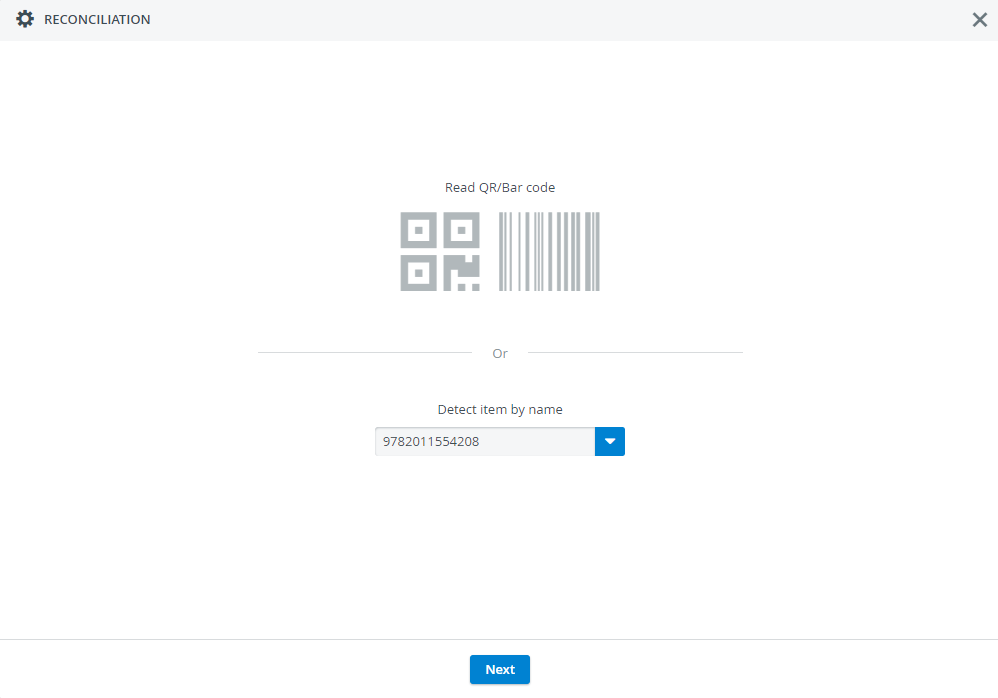
When reading the barcodes of Consumables With Expiration items, you need to enter the expiration date manually.
Learn more about the Inventory Manager on our Inventory - How to pages, and watch the Inventory Manager Training Videos.