Grid Layout
Grid Layout Option
You can choose between two layout options in the Video Review module:
List view

Grid view

You can change the layout to Grid view by clicking on the respective icon in the upper right corner of the page:
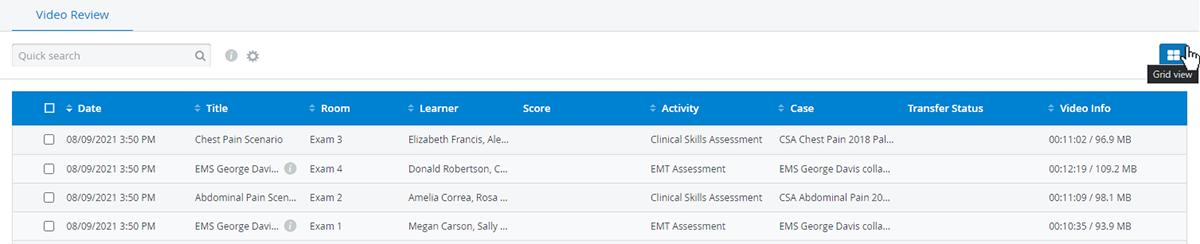
Choosing the Grid or table layout will be saved as each user's preference.
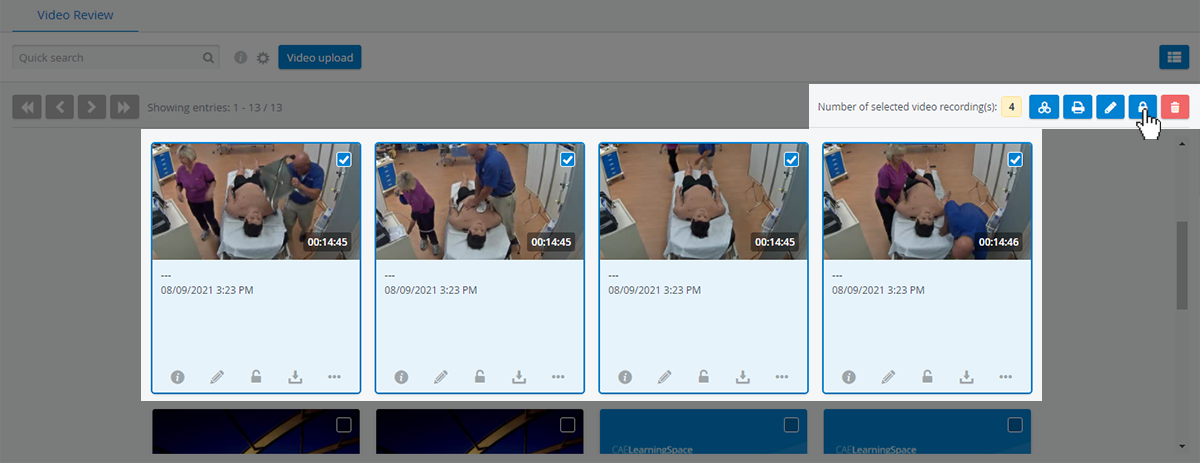
The Grid layout displays recorded and uploaded videos as cards with a default thumbnail and arranges video details such as metadata or custom descriptions underneath:
A maximum of 50 cards are shown on one page. Use the arrows in the top left corner to change between pages or to jump to the first or last page.

Apply features with a single click that are now added directly to each recording:
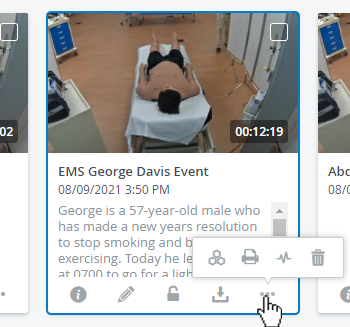
You can still perform each operation with multiple video recordings by selecting them; use the icons in the upper-right corner of the page.
Edit Thumbnails
Each video recording has a default thumbnail, but it can be changed.
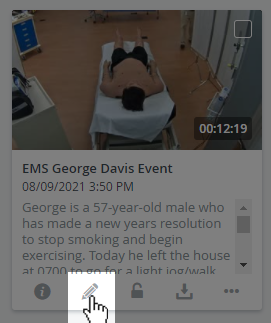
Open the video recording for editing with the pencil icon, then choose from a total of 5 different previews that are taken from the video footage:
Images for thumbnails are extracted from the footage at random time offsets. If multiple video files are available, thumbnails will be extracted from each.
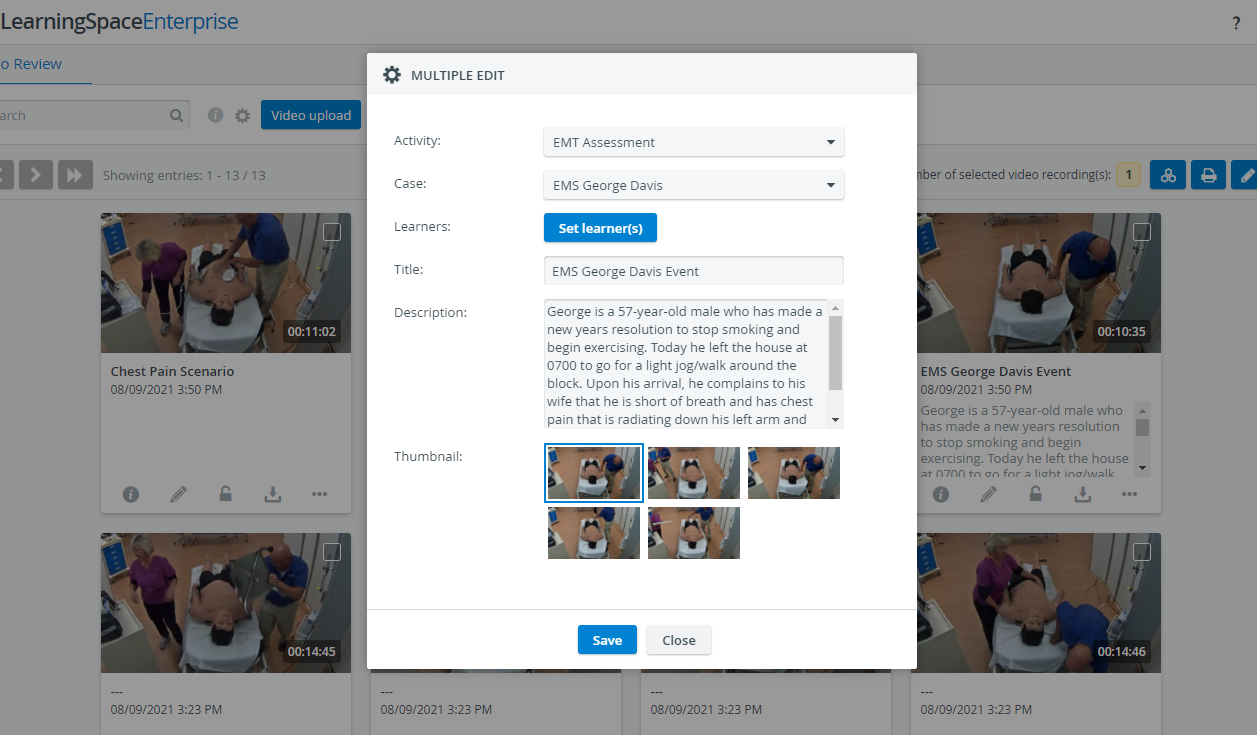
By default, new thumbnails will be generated for the video recording each time you open the editor.
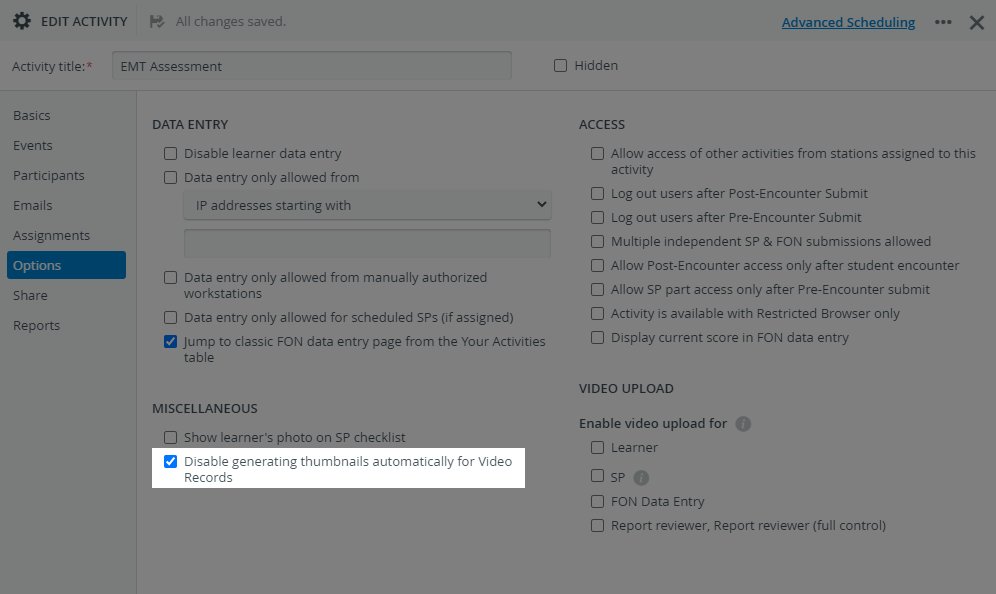
You can disable automatic thumbnail generation if the video recording is assigned to an Activity.
Enter the Options tab of the Activity and select the following checkbox:
Titles and Descriptions
Searchable Titles and Descriptions
In editing mode, add a title to the caption of your video recording for easier identification. You can also add extra information in the Description field, which will appear underneath the thumbnail and caption.
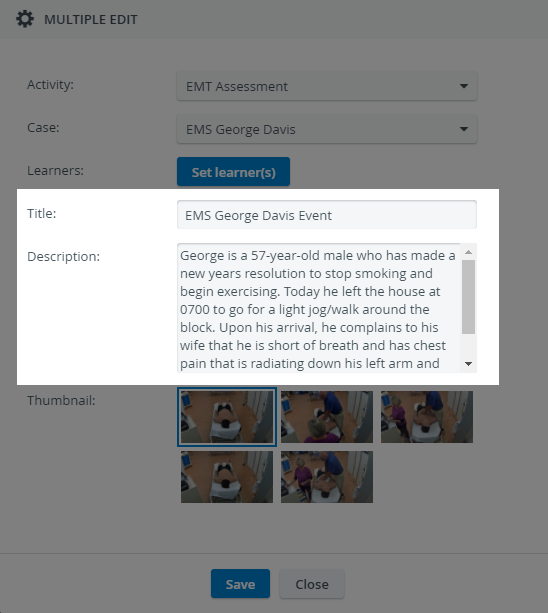
Only users with Admin or Report reviewer (full control) privileges can add titles to recordings (these latter ones only to recordings they are assigned to).
The contents of the Title and Description fields are searchable in the quick search bar:


Zoom Meeting Recordings
IMPORTANT: During virtual meetings, the Zoom meeting is automatically recorded, post-processed, and sent to the cloud on the Zoom side. LearningSpace only downloads the video from the Zoom cloud after it becomes available for download on the Zoom side. During this time, LearningSpace generates a video entry for the Zoom meeting (triggered immediately after the meeting starts) on the Video Review page.
Until the video is fully downloaded from the Zoom cloud to be reviewed in LS, the status of the video entry is “Downloading“. An info tooltip next to the status of such videos contains a rough estimate of when the videos will be available for review:
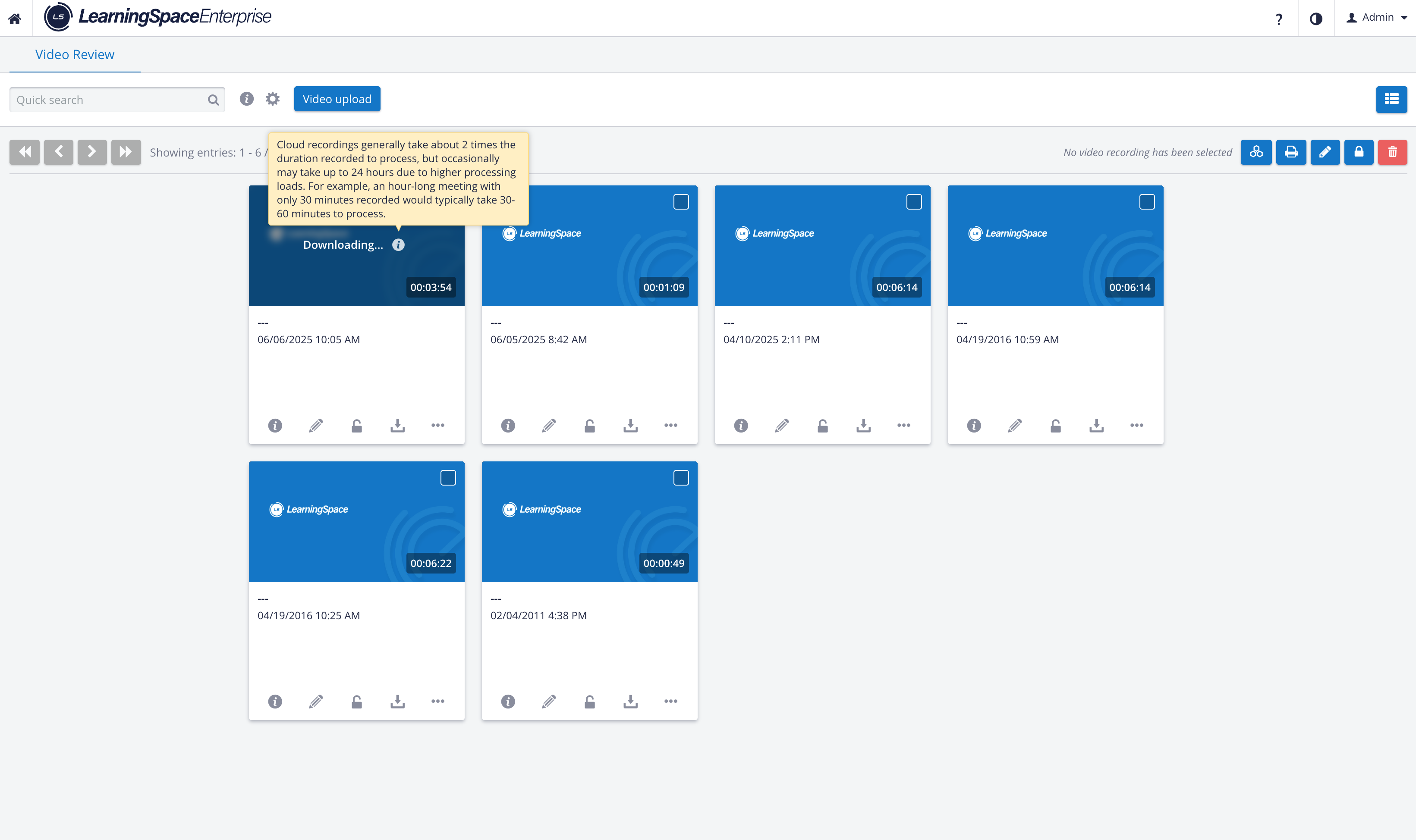
“Cloud recordings generally take about 2 times the duration recorded to process, but occasionally may take up to 24 hours due to higher processing loads. For example, an hour-long meeting with only 30 minutes recorded would typically take 30-60 minutes to process.“
For more information, see the List View page.