Faculty (FON) Data Entry
Faculty (FON) Login

1.1. Enter your Email address and Password
1.2. Hit Login
Faculty (FON) Data Entry

The faculties have the possibility to evaluate the students during the live encounter or after the encounter
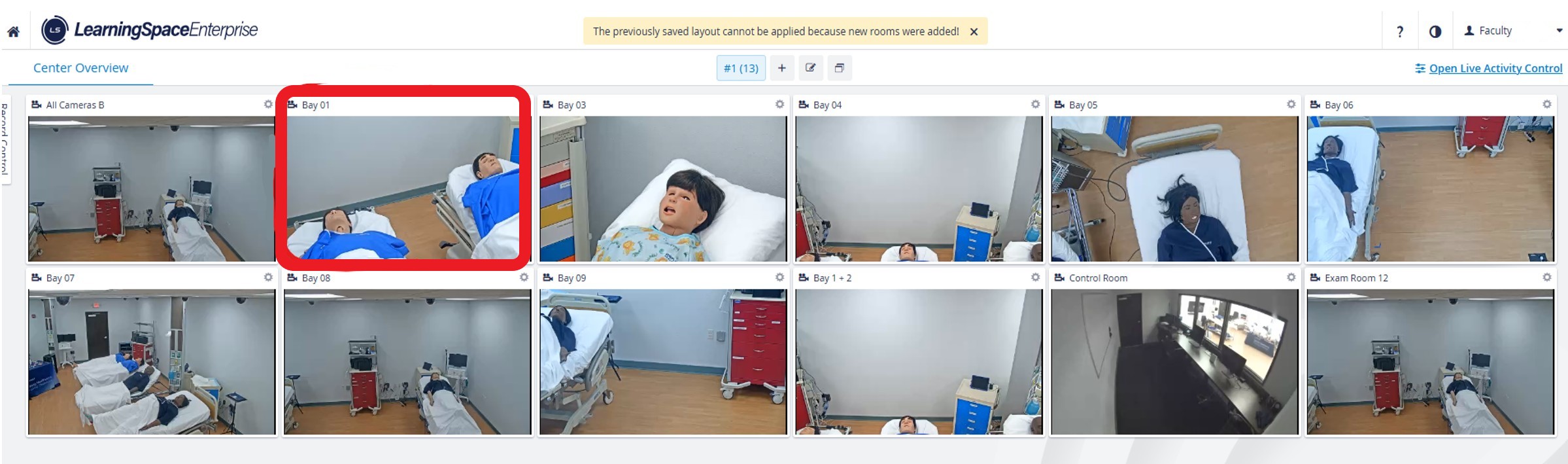
2.1. Live encounter: Hit the Recording menu and navigate to the room in question. You will see the live recording and the FON checklist on the right side of the page.
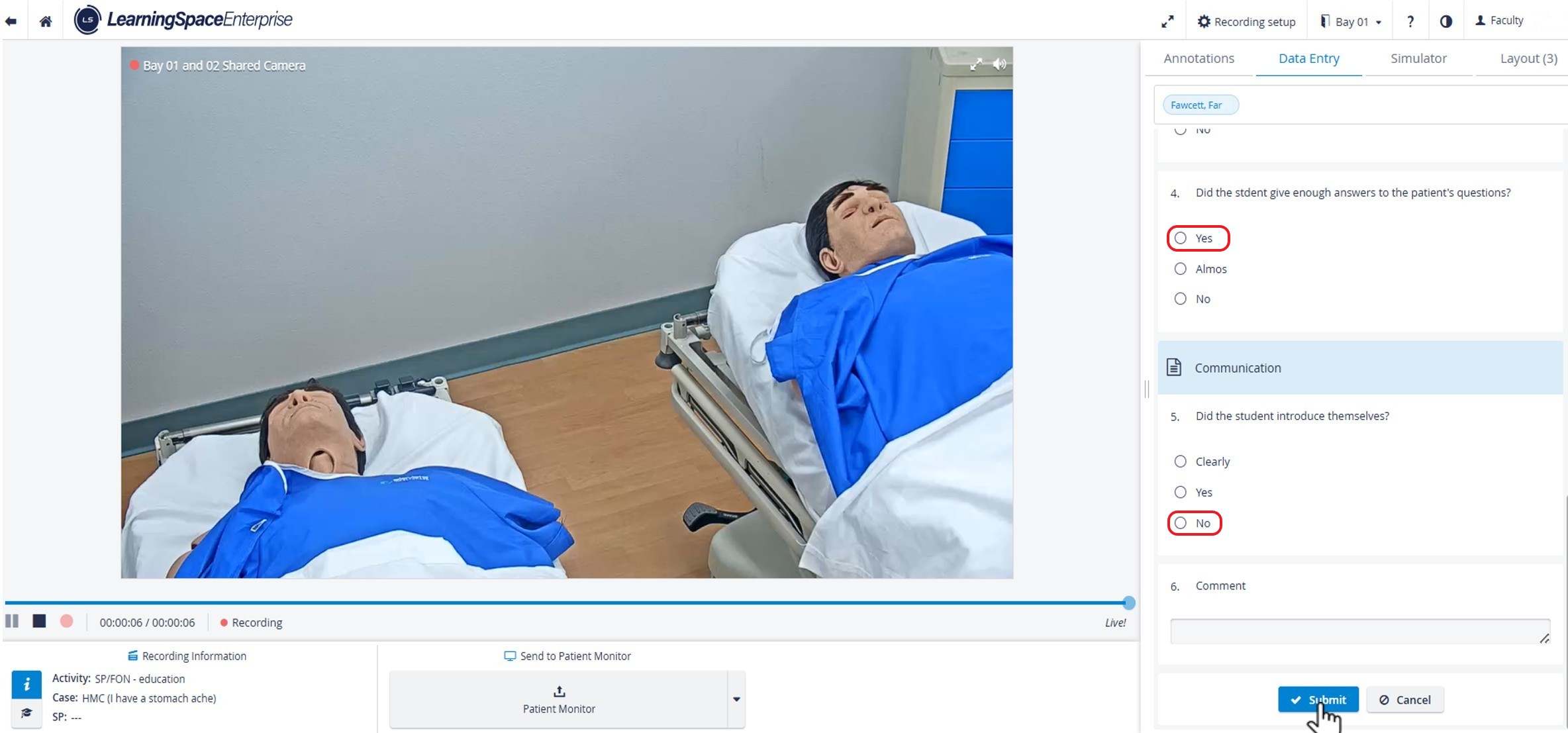
You will see the live recording and, once selected, the ’Data Entry’ tab at the top - the FON checklist on the right side of the page:
Fill out the checklist and hit 'Submit’.
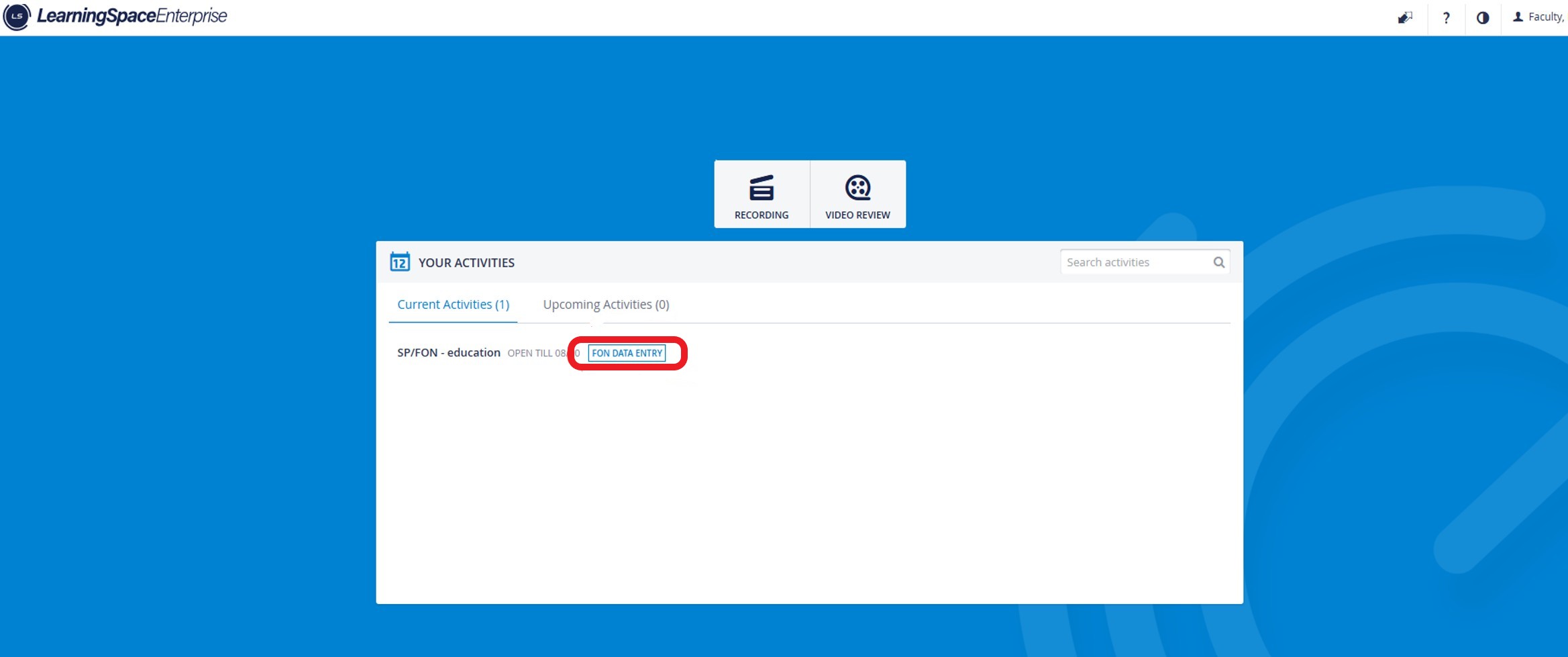
2.2. In case there is already a recording of the session (also available via the Video Review module): Hit the FON Data Entry button next to the name of the activity.
2.3. You will get the video recordings that are available for the activity in question.

NOTE: FON Data Entry privilege users can
Access the recordings of Activities where the user is added as a Faculty member
Complete Data Entry for Activities shared with the user.
⚠️ Activity Assignment settings apply to this user and affect which learner the FON user can view the learner's recording and submit their FON checklist.
Manage the settings of the Activity's evaluator-evaluee subgroups to modify this user's access to learner data entry.Print the Video Report of the available recordings.
Add annotation(s) to a selected recording after it has been created.
2.4. Selecting the particular video, you will get to the video recording and will also find the attached FON checklist on the right side of the page.
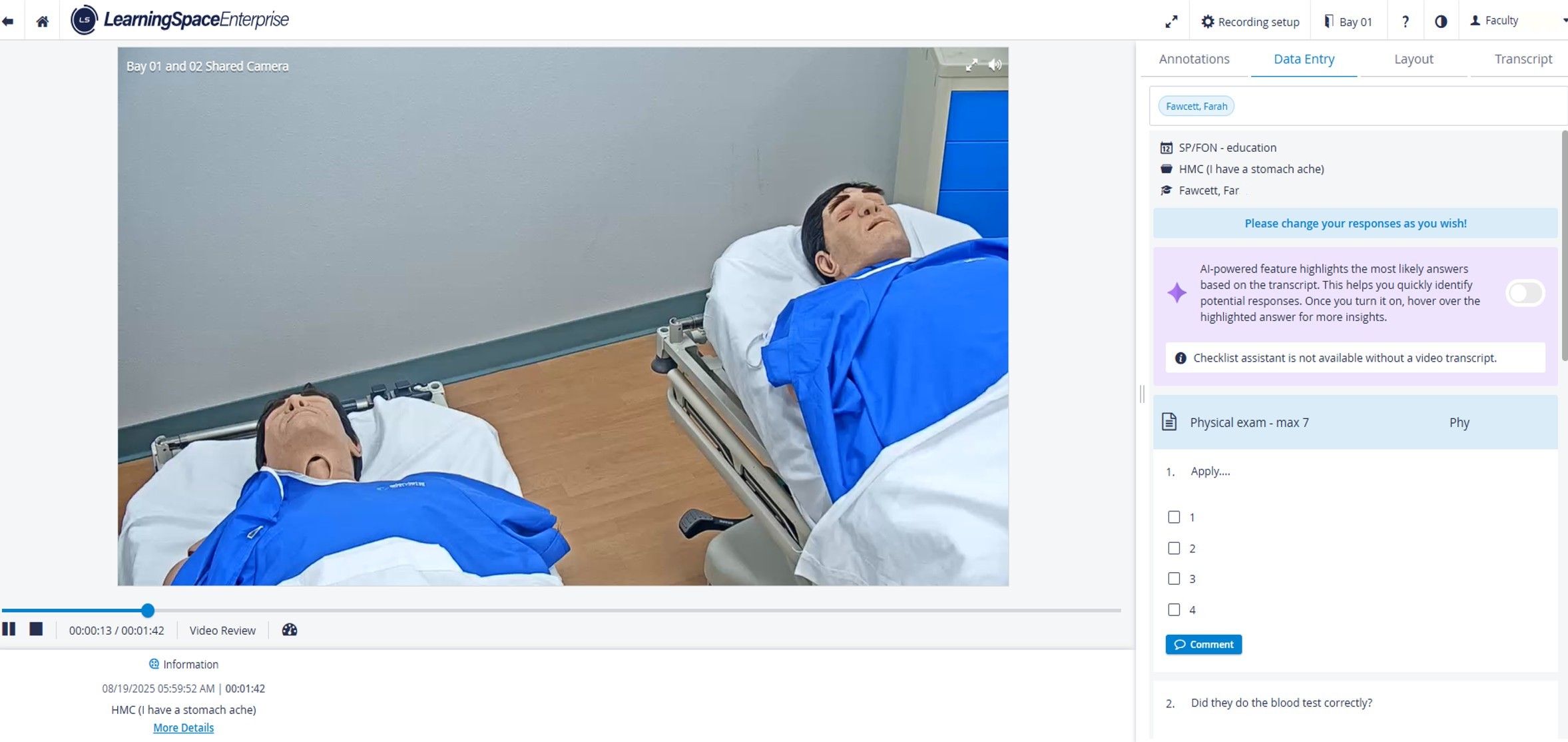
Fill out the checklist and hit 'Submit’.
Tip: If the Jump to classic FON data entry page from the Your Activities table option is enabled in the Activity Editor (Options tab), clicking the FON Data Entry button of an Activity in the Your Activities panel will navigate Faculty members directly to the Classic view of FON data entry (instead of the Video Review page).
👉 Learn more about the Classic FON data entry here.