Export tab
The content of a Case can be exported via the Export tab of the Edit Case window. Exporting can be done by opening the Edit Case pop-up for the desired case and then clicking the Export button on the Export tab.
Exporting a Case creates a .CAS file that contains the entire Case, including all properties, parts, sections, and items.
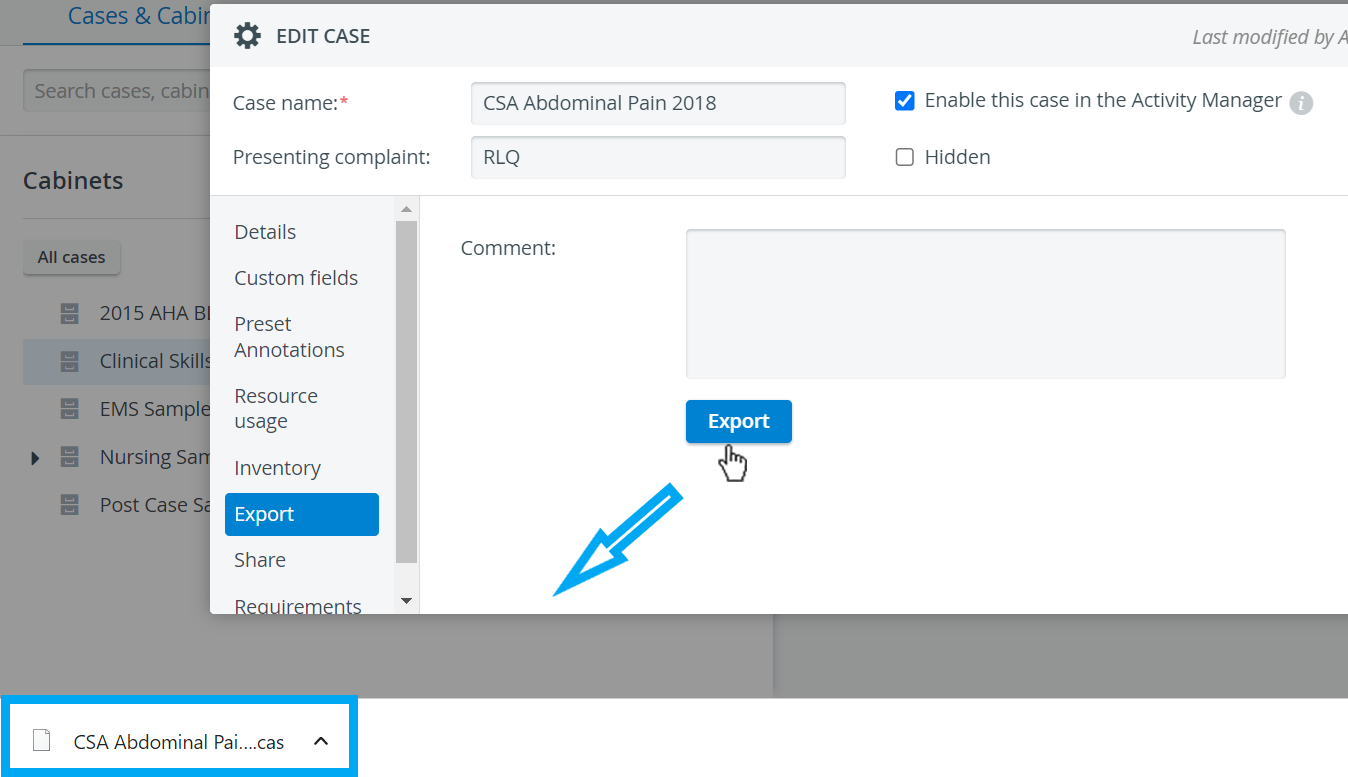
Learn more on the How to Export a Case page.
The file can be saved to a computer or external media and imported into a different LearningSpace system. See How to Import a Case.
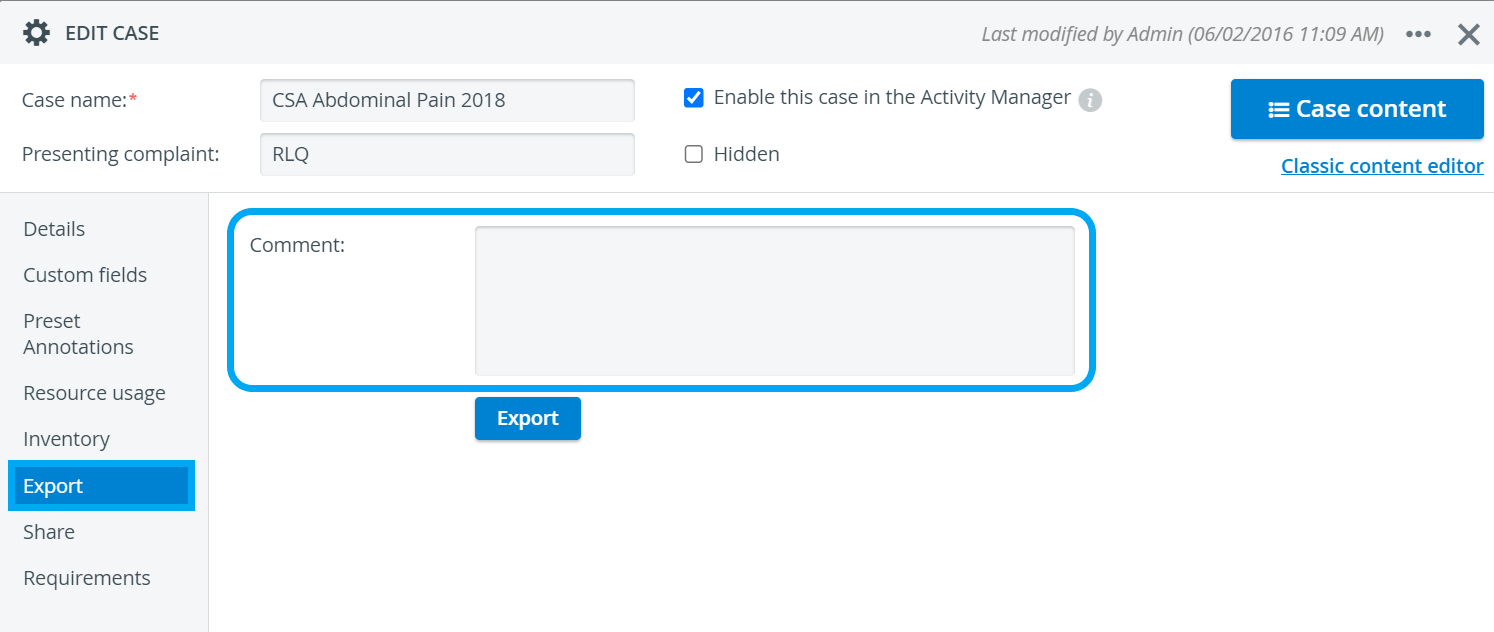
The content of the Comment field is displayed when importing the Case into the system.
Any comment typed in the respective field is displayed (once) in a confirmation pop-up when importing (and only then) the case to a LearningSpace system.
For further information, visit our Case Manager and Cases - How to pages or watch our Case Manager Training Videos.