Equipment and Supply Lists
The Equipment and Supply List identifies the recommended inventory items and the quantity needed for a simulation.
The Equipment and Supply List is assigned to a Case, then used to request the items and quantities needed for the simulation by generating a Setup Sheet.
View the related Training video (Setup sheets) in the Training video module.
To create a new Equipment and Supply List, go to the Equipment and Supply List tab and click + New.
The editor window opens, where you can name and add items to your new list. The list must have a unique name.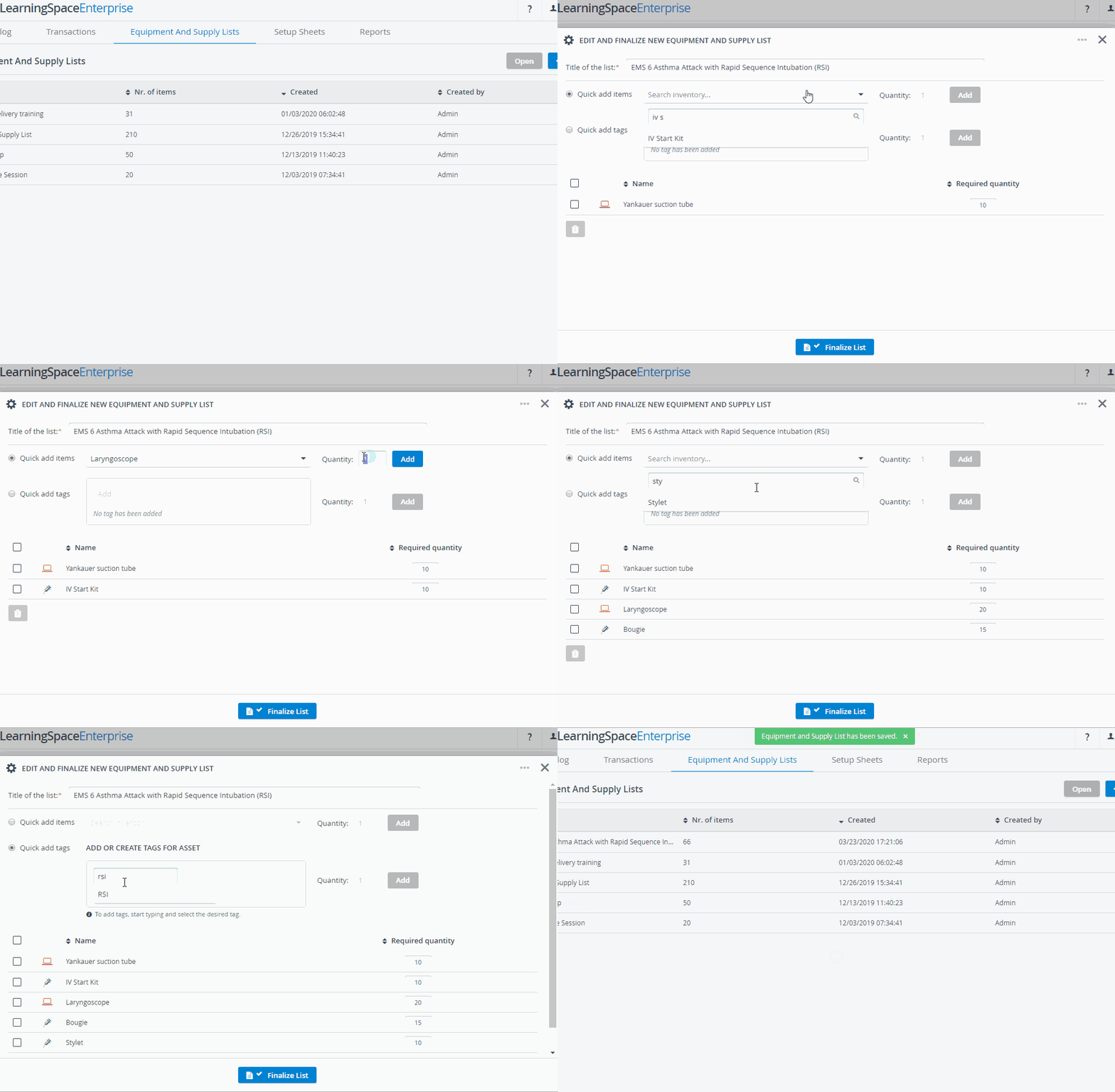
A warning message will be displayed if no title is added to the list or if you enter a name that is already used for an existing list.
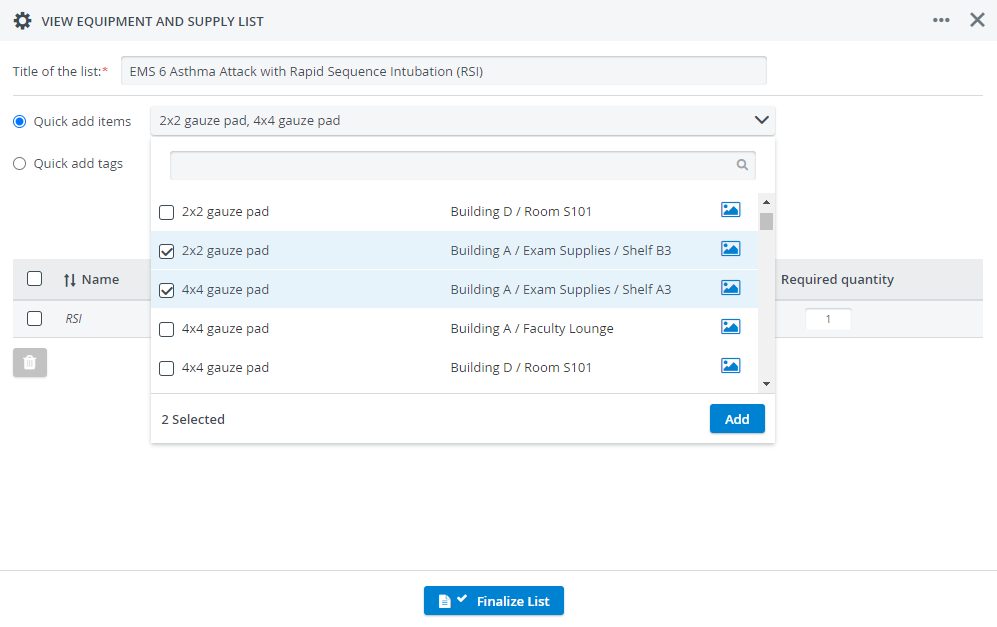
Using the Quick Add Items drop-down menu, you can select and add multiple items to your Equipment and Supply List in one go.
If similar items are stored in multiple locations, the menu will contain an entry for each location for easy reference.
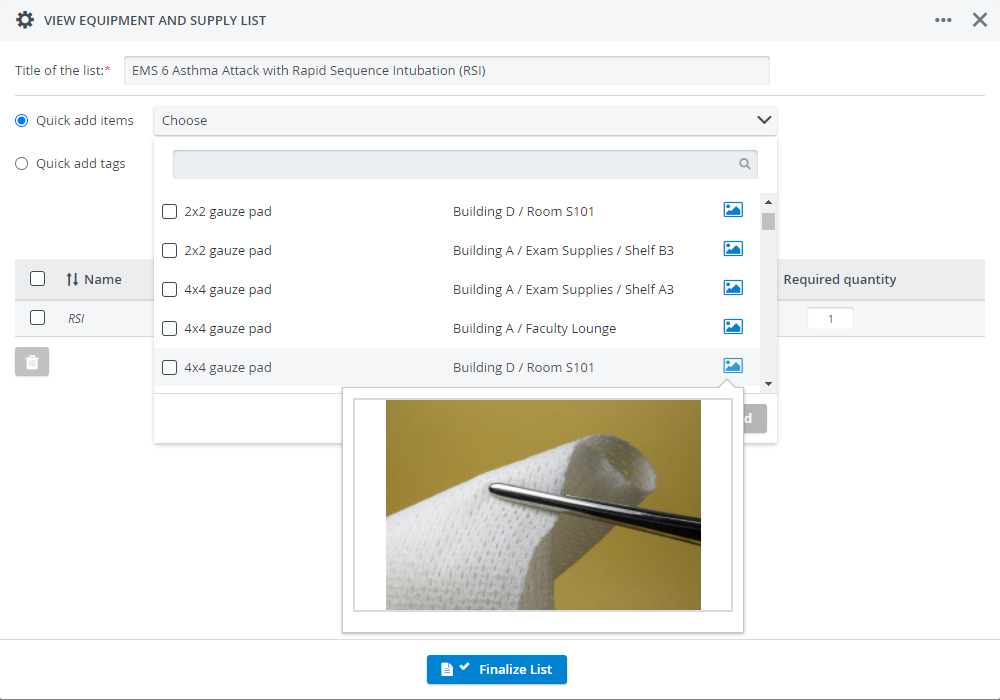
You can also get a preview of the item if it has an image uploaded to its profile. Hover over the gallery icon to display the photo of the item:
Use the Quick add tags drop-down menu to tag assets for the simulation. Add an Asset tag and decide on the specific asset after you set up the Setup Sheet for an event.
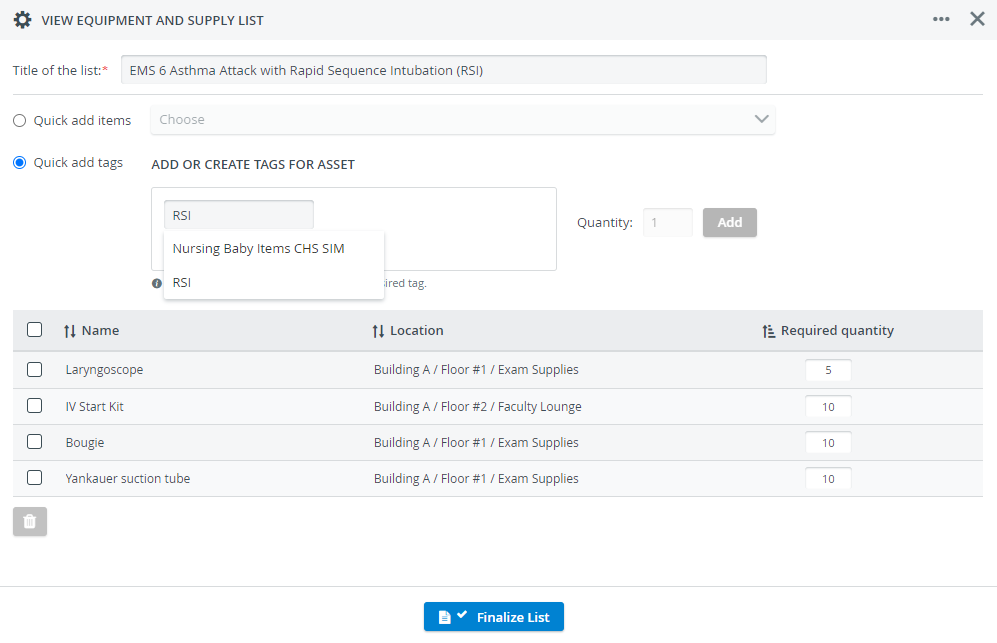
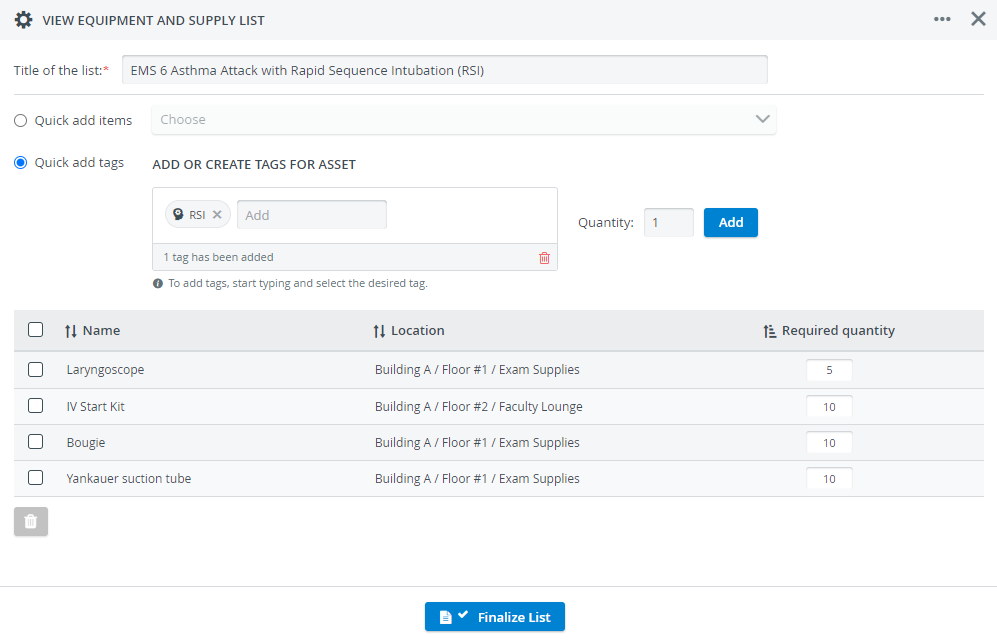
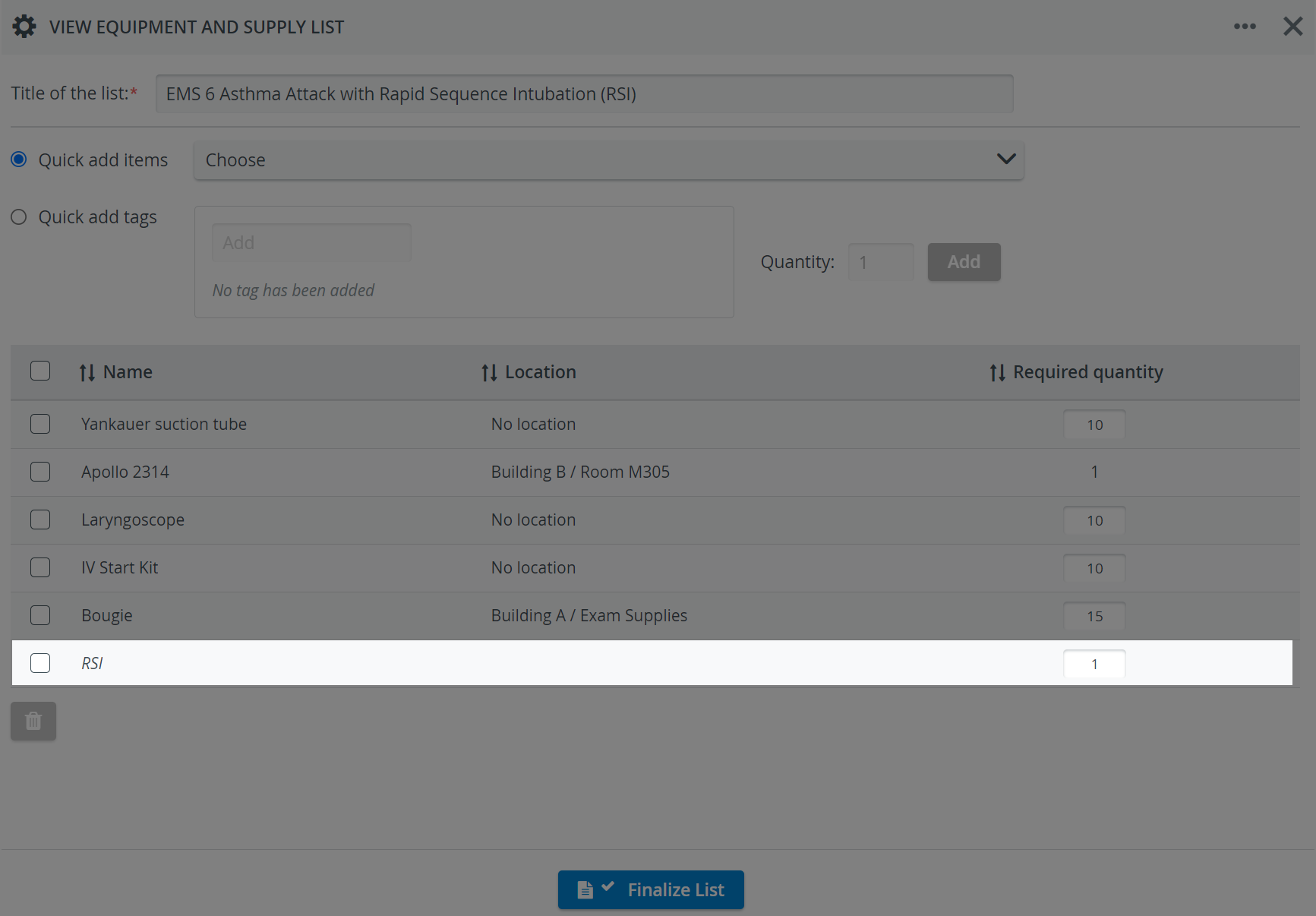
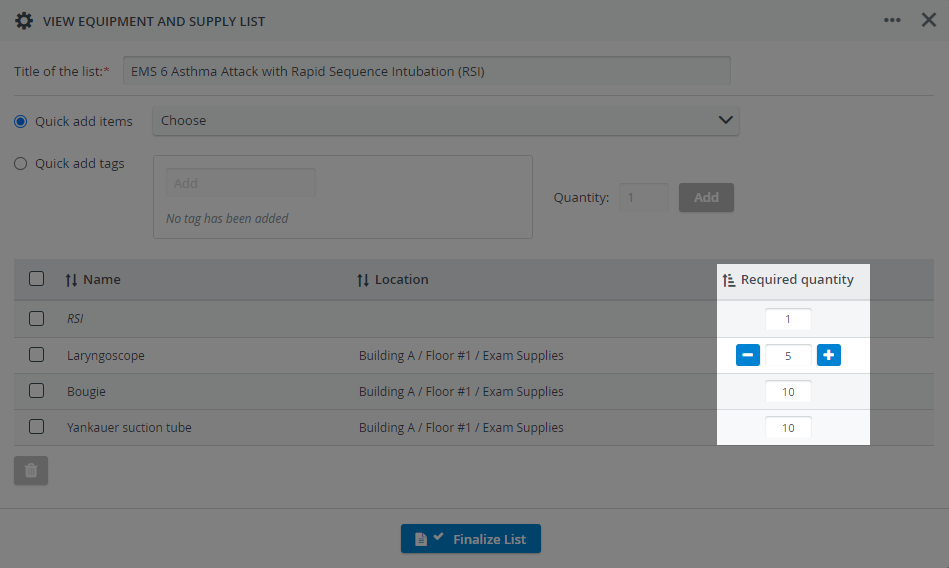
Adjust the Required Quantity for each item according to the needs of the simulation.
The required quantity can be updated for a specific event when the Setup sheet is created or when the items are checked out.
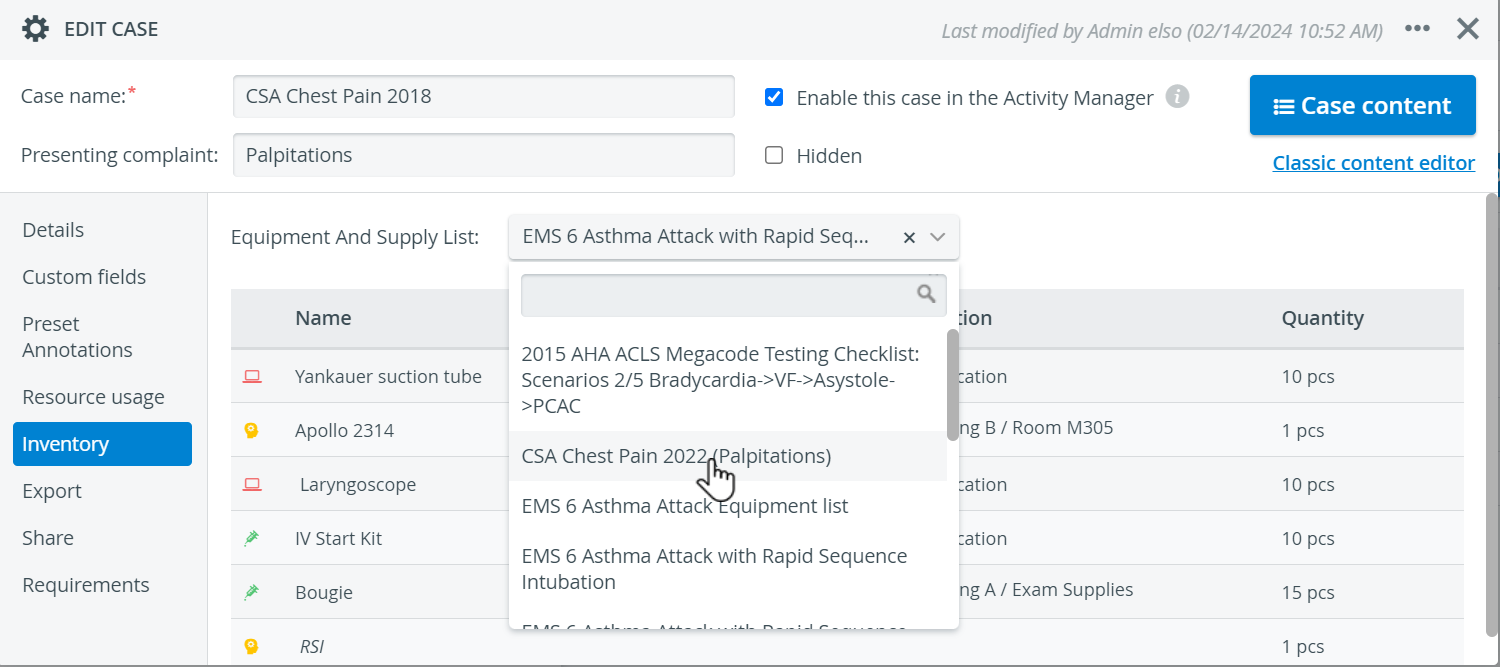
Once you have created the Equipment and Supply List, it must be added to the appropriate Case for the simulation, so it can eventually be reused to request the necessary items.
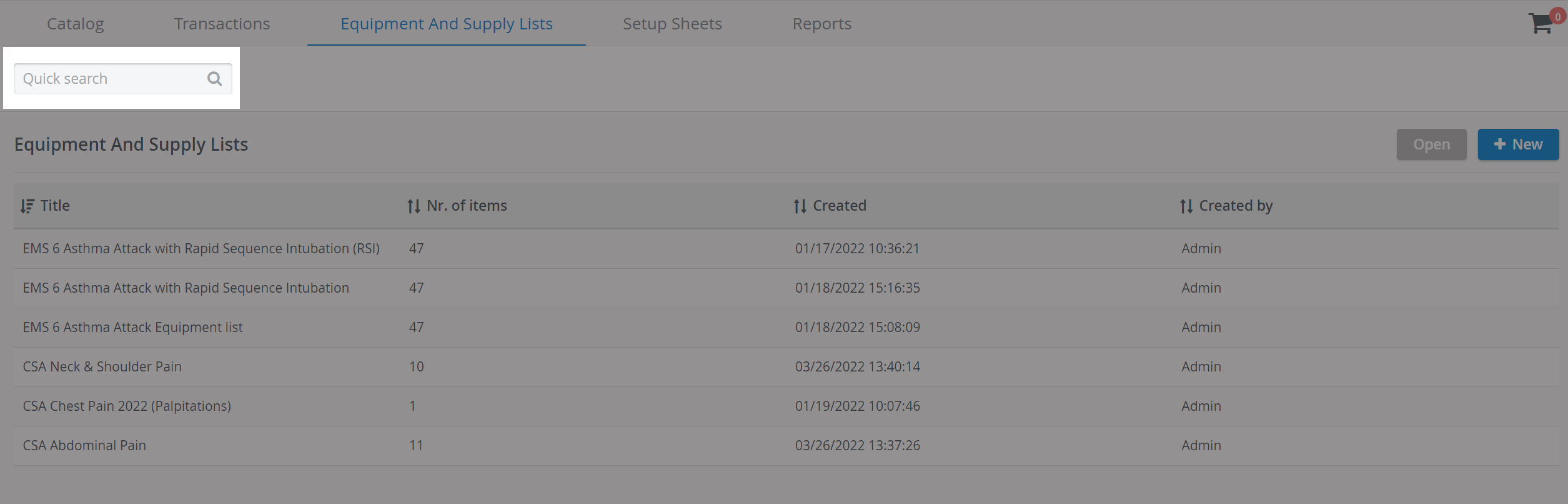
A Quick search field in the Equipment and Supply Lists tab helps you find Equipment and Supply lists more easily:
Request items using asset tags
Learn more about How to Create an Equipment and Supply List, How to Add an Equipment and Supply list to a Case, and How to Create a Setup Sheet on the respective pages.
See more on the Inventory Manager and the Inventory - How to pages, and watch the Inventory Manager Training Videos on the respective pages.