Enrollment Process
Have Standardized Patients apply to your institution using the Enrollment form included in the SP Administration mobile application.
SPs must submit an enrollment application form to register a new account. SP coordinators can then review the submitted applications in the SP Enrollment tab inside the SPA module.
If an application is approved, a user account will be created automatically for the admitted SP in the institution's LearningSpace system.
SPs with an existing LearningSpace user account can log in to the SPA Mobile app with their LS user account credentials.
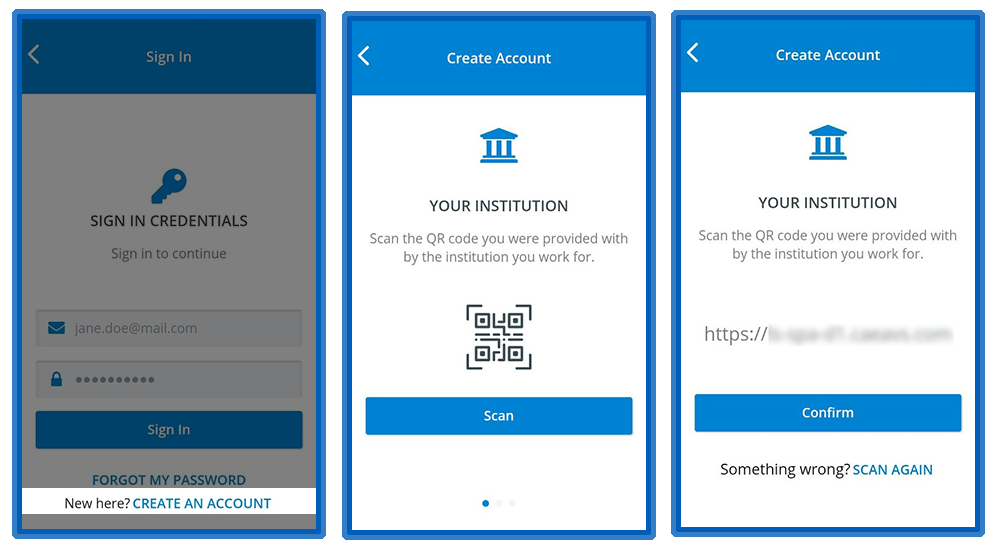
Prospective SPs can start the application process by tapping "Create an Account" on the opening page of the application or at the bottom of the sign-in page:

Important
Your institution needs to provide SPs with a sign-in QR code to connect their SPA Mobile application to the institution's LearningSpace server.
In the current version of LearningSpace SPA, LearningSpace support generates the institutional QR codes. To request a QR code, please contact ls-support@elevatehealth.net.
(In the upcoming versions of the module, the QR codes will be generated automatically when the feature is activated within the LearningSpace system.)
After connecting to the institution's LearningSpace server, SPs can provide their sign-in details and name.
SPs will be notified of their enrollment status via the sign-in email address they enter here.
Then, SPs will be asked to fill in their details to complete their application:
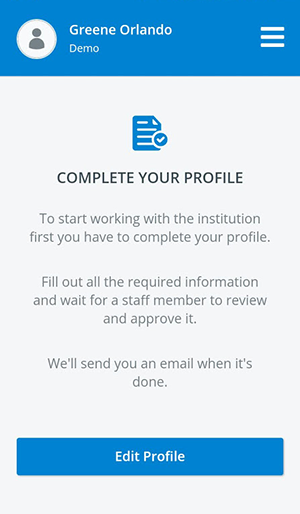
On the Edit Profile tab, there are four main categories included in the Enrollment datasheet:
Account Data: SPs can review or modify their sign-in credentials. SPs also receive feedback about their enrollment status at the email address provided here.
Personal Data: SPs can provide their contact details and certifications. They can also consent to sensitive examinations.
Physical Data: SPs can enter their physiological characteristics.
Medical History: SPs can enclose real-life medical conditions affecting their work as Standardized Patients.
See a step-by-step guide to completing the Enrollment datasheet on the How to Enroll page.
After completing the enrollment datasheet, SPs can submit their application:

Should the Submit button not be visible on your mobile device, scroll down to make it visible.
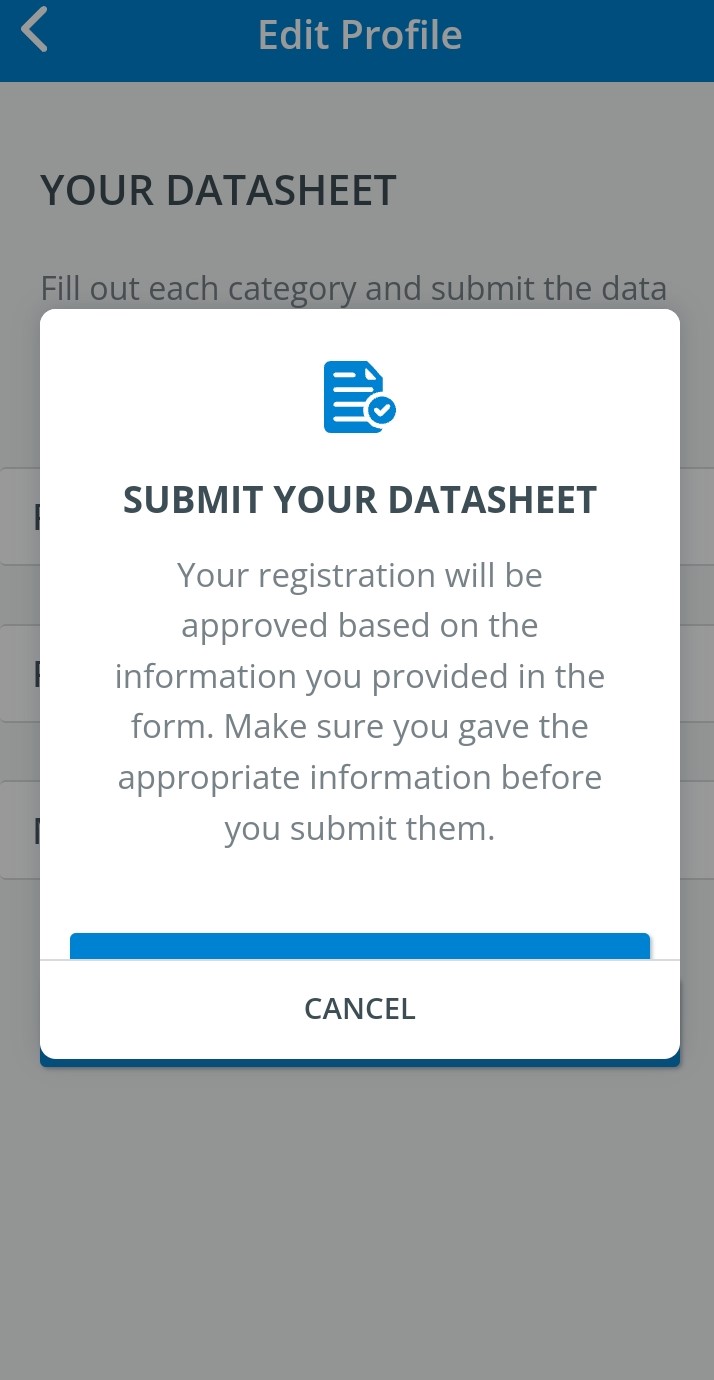
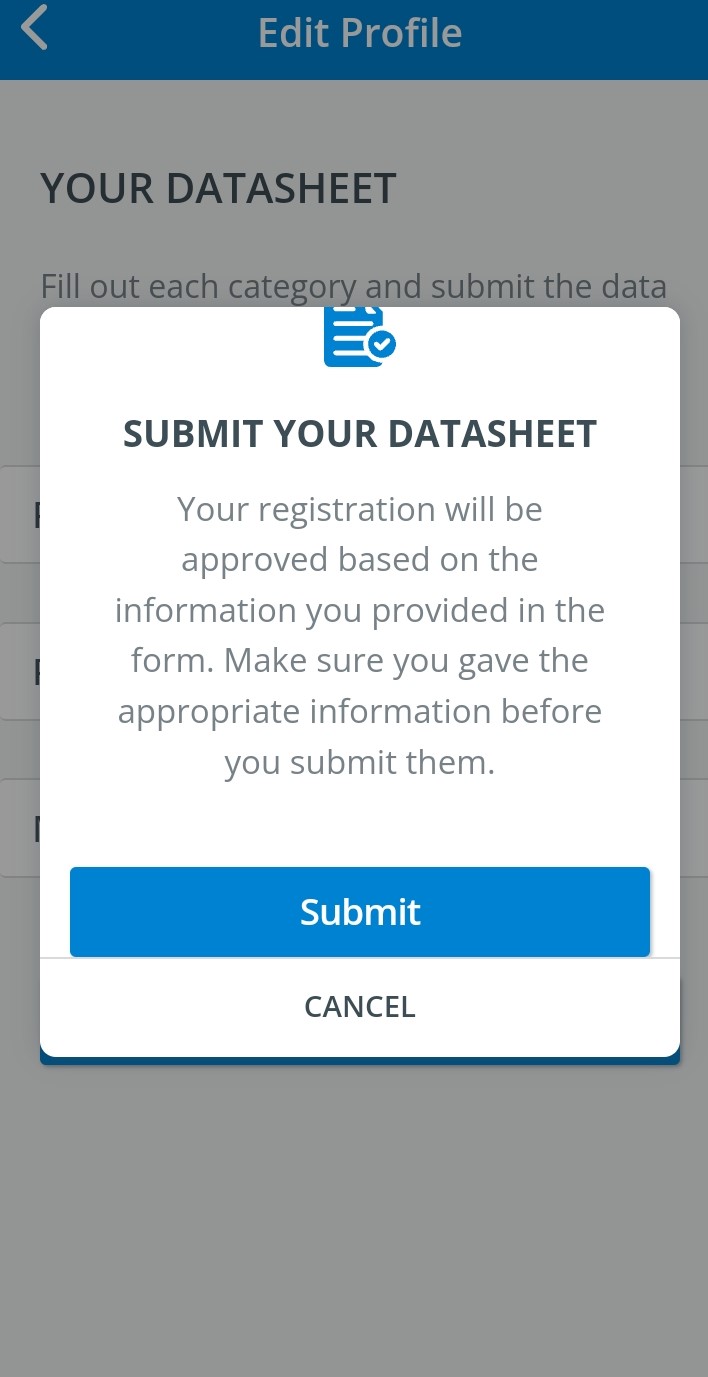
When submitting their Enrollment, SPs are warned in case they missed any mandatory fields.
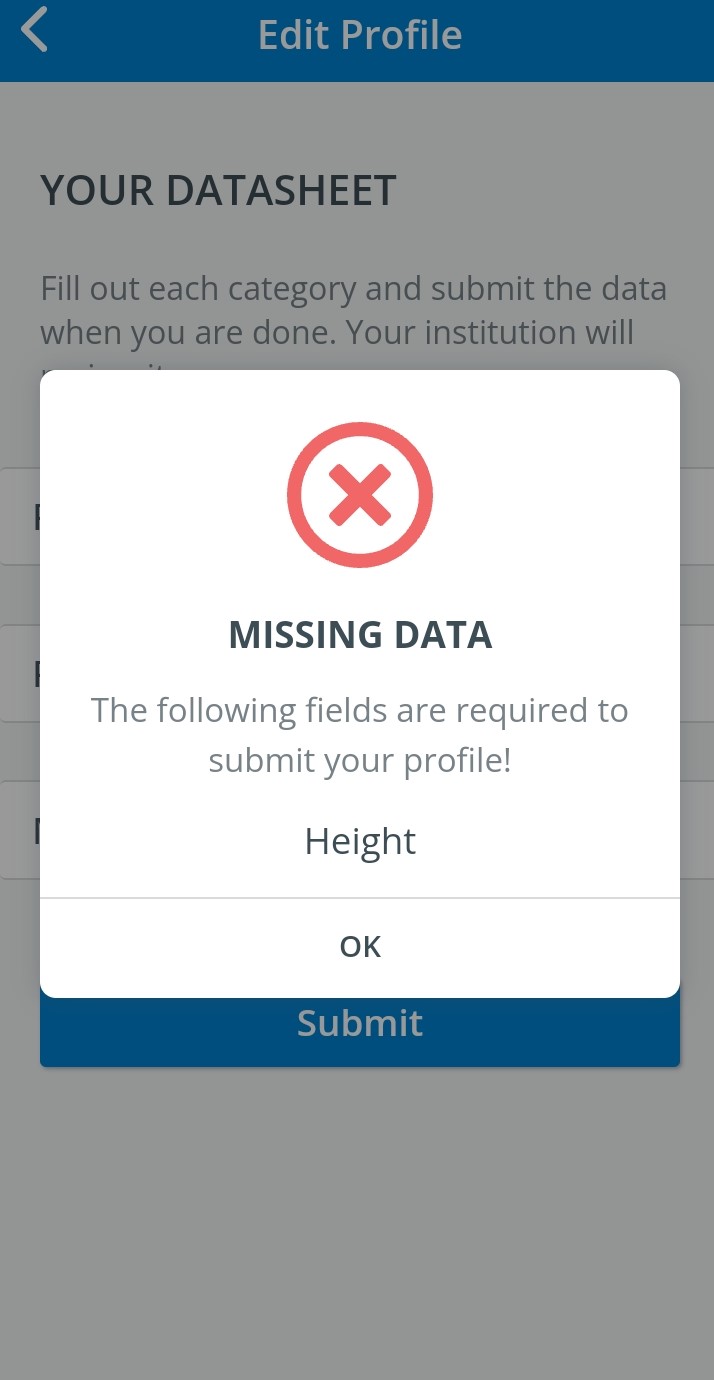
SPs registered through LearningSpace can complete their profile if any data is missing after logging into the SPA Mobile app through the Fill required fields page.
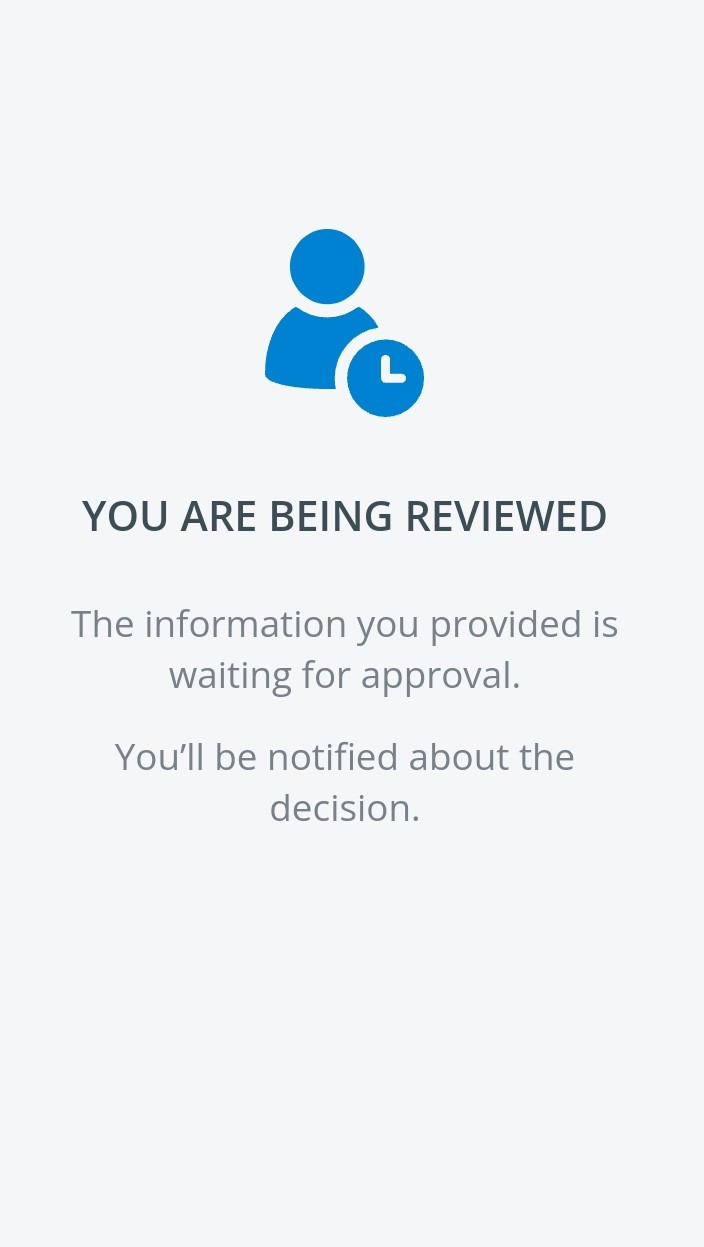
Submitted enrollment forms will arrive at the SP Enrollment tab inside the SPA module for SP coordinators to evaluate.
The SP will see the following message on their mobile application:

SPs can return to editing their Profiles any time they need to. Learn more about this on the How to Edit Your Profile page.
For further information, visit our Standardized Patient Administration and Standardized Patient Administration - How to pages.